
Sky Sky+HD Manuel utilisateur

Using Sky±HD

1
What do you want to do?
Welcome to the world of Sky±HD
This is your essential guide to using
your Sky±HD box
Learn about HD page 6
Get started page 10
See what’s on page 16
Use your Planner page 24
Record programmes page 31
Pause and rewind live TV page 39
Play recordings page 41
Enjoying Sky Anytime and Sky Anytime± page 47
Order Box Office programmes page 56
Have more control over kids’ viewing page 59
Choose your favourite channels page 64
Troubleshooting page 83
Important information for customers
with a single satellite feed installation page 93
Contact us page 94

2 USING Sky±HD
Full contents
Back to basics 4
Your Sky±HD remote control 4
Your Sky±HD box 5
About your Sky±HD box 6
What are HD and Sky±HD? 6
What you need to enjoy Sky±HD 7
Keeping you up to date 7
All the features of Sky± and more 8
Your viewing card 8
Your Sky±HD remote control and your TV 9
Getting started 10
Turning your Sky±HD box on and off 10
Changing the volume 10
Changing channels 11
About the Now, Next & Later banner 12
You’re in control with Sky Guide 13
Overview of Sky Guide options 14
Showing your Sky Guide pages in full screen mode 15
Seeing what’s on 16
Quick glance at what’s on with Now, Next & Later 16
Complete overview of what’s on with TV Guide 17
Finding a specific channel in TV Guide 18
Seeing what’s on your favourite channels 18
Seeing what’s on the HD channels 19
Identifying HD programmes 19
Finding a specific programme 20
Going back to the channel you last viewed 21
Finding out more about a programme with the i button 21
Codes used in the programme information banner 22
Finding and listening to radio channels 23
Using your Planner 24
Managing your Planner 25
Setting the Series Link function in your Planner 28
Setting reminders for programmes 30
Recording with Sky± 31
Recording without interrupting what you’re watching 31
Recording from Sky Guide listings 32
Recording from anywhere you go 32
Recording a promoted programme 32
When recordings clash 33
Avoiding recordings being deleted 34
PIN protecting kept recordings 34
Cancelling current and future recordings 35
Deleting existing recordings 35
Keeping an eye on available disk space 36
Disk space warning 36
Recording radio channels 37
Adding extra time to the start and end of recordings 38
Pausing and rewinding live TV 39
Saving after pausing or rewinding live TV 40
Changing how far back you can rewind live TV 40
Playing back recordings 41
Choosing a recording to watch 41
Picking up from where you left the last recording 42
The Play symbol 42
Checking the remaining viewing time 42
Fast forwarding and rewinding 43
Pausing 43
Slow motion 43
Stopping playback 43
Using bookmarks for favourite parts of a programme 44
Saving bookmarks 44

3
Managing and deleting bookmarks 44
Skipping to bookmarks 45
Starting playback from a bookmark 45
Copying programmes to video/DVD 46
Enjoying Sky Anytime and Sky Anytime± 47
Seeing what’s on offer with Sky Anytime 48
Viewing a programme from the Sky Anytime listings 49
Recording Sky Anytime programmes 50
About Sky Anytime programmes 50
About Sky Anytime± programmes 51
Restricting Sky Anytime viewing 54
Opting out of Sky Anytime 55
Enjoying Sky Box Office entertainment 56
Ordering Box Office programmes 56
Choosing a start time that suits you 57
About watching Box Office programmes 57
Paying for Box Office programmes 58
Ordering over the phone 58
Having more control over kids’ viewing 59
Changing your PIN 59
About your PIN 59
Hiding adult channels 60
Restricting rated programmes 60
Restricting specific channels 61
Controlling the use of charged services 61
PIN protecting kept programmes 62
Restricting programmes in your Planner 62
Entering a PIN for pre-watershed playback 63
Turning off PIN controlled restrictions 63
Choosing your favourite channels 64
Watching TV with subtitles or audio 65
Going interactive 67
More options 68
Using digital text 68
Using teletext 68
Adding channels that aren’t listed in Sky Guide 69
Watching your added channels 69
Changing the picture settings 70
Remote control set up 71
Resetting your remote control 71
Replacing the batteries 73
Your Sky±HD box connections 74
Switching on Dolby® Digital audio 77
Adjusting sound synchronisation 77
Connecting to the telephone line 78
Changing how the Circular Playback Display works 78
Green stuff 79
Saving energy with standby 79
Saving energy with Auto Standby 79
Recycling packaging 80
Recycling electrical and electronic products 80
More information 80
For your safety 81
Troubleshooting 83
Important information for customers with
a single satellite feed installation 93
Contact us 94
Specifications 95
HD jargon buster 98

4 USING Sky±HD
BACK TO BASICS
Your Sky±HD remote control
sets your remote to control your Sky±HD box
sets your remote to control your TV
shows Box Office programmes
shows TV and radio listings
turns your TV’s sound on and off
changes your TV’s volume
show what’s on other channels
or highlight on screen options
switches to text mode
pauses a recording or live TV
plays a recording
rewinds a recording or live TV
records a programme
turns your Sky±HD box on, to standby or off
and turns your TV on and off
gives options including subtitles, favourite
channels and turning off the mini TV
provides interactive services
tells you more about a programme
changes channel or goes up/down a page
confirms a menu option
jumps back to last page or to
previous level in Sky Guide screens
turns on subtitles/audio description
or shows help on using Sky Guide
fast forwards a recording
stops playback of a recording
select on screen options
- enter channel numbers or select
menu options
press before entering a radio channel number
Back to basics
The Sky installer should have shown you the basics of how to use your Sky equipment.
Here’s a reminder of what you need to enjoy the channels and features on offer.

5
BACK TO BASICS
Your Sky±HD box*
lights when Sky± is recording
or playing back programmes
rewinds a recording or live TV
stops playing back a recording
records a programme
plays a recording
pauses a recording or live TV
fast forwards a recording
back up • jumps back to last page or to
previous level in Sky Guide screens
tv guide • shows TV listings
• turns your Sky±HD box on, to standby
or off
i • reveals more about a programme
arrows • shows what’s on other channels or
highlight on screen options
select • confirms a menu option
lights green when you’re online
(using the phone line)
lights yellow when there’s a network error
lights red when the remote control is used
lights green when the box is on, amber when the box
is in standby and red when the box is off
i
Top
i
i
i
Sky viewing card slot • leave the
viewing card in here at all times

6 USING Sky±HD
BACK TO BASICS
About your Sky±HD box
With your Sky±HD box, a compatible HD ready TV and the relevant subscriptions you
can enjoy fantastic Sky entertainment in glorious High Definition.
Your Sky±HD box gets HD information from the satellite through the minidish, it
then decodes the information and sends it to your TV.
With a Sky± subscription, your Sky±HD box is a video recorder and satellite receiver
in one. It also has two inputs from the satellite dish, which means you can watch one
programme while recording another.
What are HD and Sky±HD?
Sky currently has the widest choice of HD channels in Europe, across sports,
and movies, to arts, drama and documentaries. Enjoy over 13,000 hours of HD
programmes a month – that’s more than three times the standard definition output
of the UK’s five terrestrial channels combined.
Our Sky±HD 1TB box comes with all the flexibility of Sky± and one terabyte storage
capacity which equates to 740 hours of SD content and 240 hours of HD content.
Plus with Sky Anytime you can discover a selection of the week’s best TV ready to
watch when you are. And with Sky Anytime± if you have Sky Movies 1 and 2 and a
broadband connection you can access a huge library of movies and entertainment.
Depending on your Sky TV package, discover new drama series, documentaries and
the latest movies.
To discover what’s on in HD go to TV Guide and select the HD tab, visit
sky.com/hd or go to page 19 of this guide.
Check out our HD jargon buster on page 97.

7
BACK TO BASICS
What you need to enjoy Sky±HD
To enjoy all the benefits of Sky±HD you need a compatible HD ready TV, a
Sky±HD box and subscriptions to Sky TV with the HD Pack.
Your Sky±HD box is designed to work with TVs that carry the HD ready logo. You can
use a TV without the HD ready logo as long as it has these technical features:
• The screen must have a minimum native resolution of 720 lines in wide
aspect ratio.
• The screen must be able to receive High Definition pictures by either a DVI (with
HDCP) or an port (with HDCP).
• The TV must be able to display both 1080i/25 and 720p/50.
For more details about your TV, contact the manufacturer or your retailer. To
find out more about HD equipment in general, visit sky.com/hd
Keeping you up to date
As we make improvements and create new features, we update the software you see
on screen by sending it via the satellite. We’ll let you know about these new features
as soon as they’re available.
8 USING Sky±HD
BACK TO BASICS
With your Sky±HD box and the relevant Sky subscriptions, you can enjoy all the
features and benefits of Sky±.
The Sky±HD box is a digital receiver and recorder in one, making it easy to record
and store a collection of your favourite programmes to watch whenever you want.
Store and play back hours of entertainment without videos or DVDs, record two
programmes at once, pause and rewind live TV and more. Plus, you can set up TV
recordings remotely using your mobile or online at sky.com with Remote Record, so
you can record the TV you love wherever you are.
The Sky±HD box allows you to store up to 60 hours of HD programmes or up to
185 hours of standard definition programmes.
To subscribe to Sky±HD, call the relevant number listed under the
Telephone Numbers page in your Sky Guide (see page 94).
Your viewing card
Your viewing card needs to stay in your Sky±HD box at all times so you can view all
the Sky TV channels you’re entitled to.
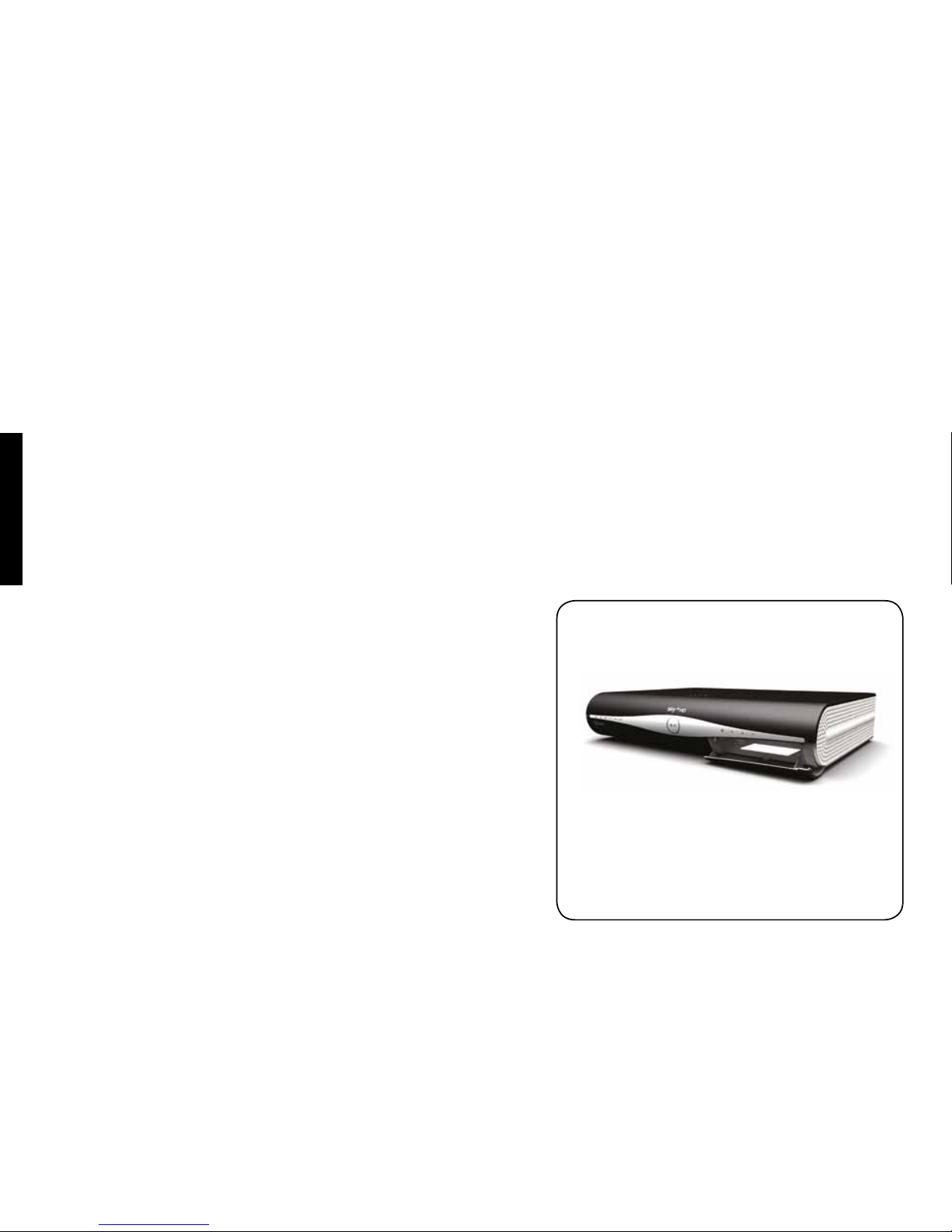
The viewing card slot is under the flap on the front of your Sky±HD box.
There’s no need to remove the viewing card unless it’s faulty or has expired.
Please remember these cautions:
• Don’t remove or re-insert the viewing card unnecessarily.
• Don’t bend the viewing card.
• Keep the card away from heat and sunlight.
• Keep the card dry. Never clean it with fluids - use a soft dry cloth.
• Keep the card away from small children and pets.
All the Sky± features and more
Keep your viewing card in its slot

9
BACK TO BASICS
Your Sky±HD remote control and your TV
Your Sky±HD remote control can work with both your Sky±HD box and your TV.
Press tv on the remote control to switch control from the Sky±HD box to the TV.
Press Sky to go back to controlling the Sky±HD box.
The Sky installer should have already set up the remote control for you. If you leave
your remote control without batteries for longer than 10 minutes or if you have a new
TV, you need to reset the remote control to work with your TV. See Resetting your
remote control (page 71) for details.
Add image of remote
Autres manuels pour Sky+HD
4
Table des matières


