
Sipura Technology SPA 2000 Manuel utilisateur
Home
PBXware
SERVERware
TELCOware
SIPmon
SIPProt
Desktop & Mobile
BRM
UADs
Appliances
EOL
From Bicom Systems Wiki
Contents
1 Introduction - How to use the Sipura SPA 2000 with PBXware
■
2 Registering Sipura SPA 2000
■
2.1 Requirements
■
2.2 Manual Configuration
■
2.3 Auto Provisioning
■
3 Glossary
■
Introduction - How to use the Sipura SPA
2000 with PBXware
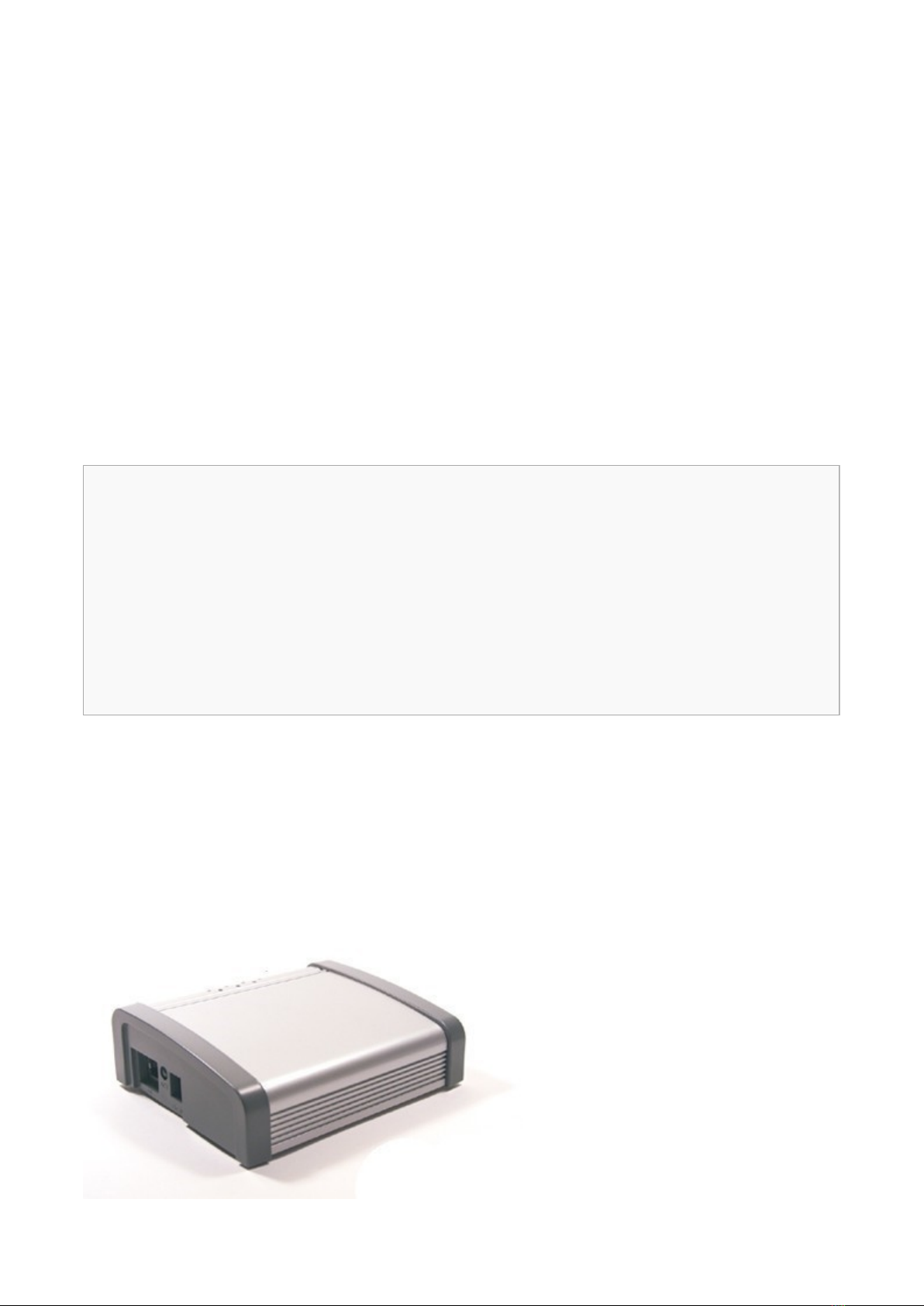
This "How to" is written as a general guide on how to use your Sipura SPA 2000 with PBXware
using 2.0.13(g) Sipura SPA 2000 firmware. It covers the most common tasks required to have
your Sipura SPA 2000 working efficiently.
Registering Sipura SPA 2000
Requirements
1. Sipura SPA 2000 firmware.
- Make sure the device is loaded with 2.0.13(g) firmware.
2. DHCP server.
- Fully configured and operational DHCP server.
3. Sipura SPA 2000 Dial Plan.
- The Sipura SPA 2000 "Dial Plan" field value needs to be changed using web interface.
STEP ONE: Sipura SPA 2000 Web Interface.
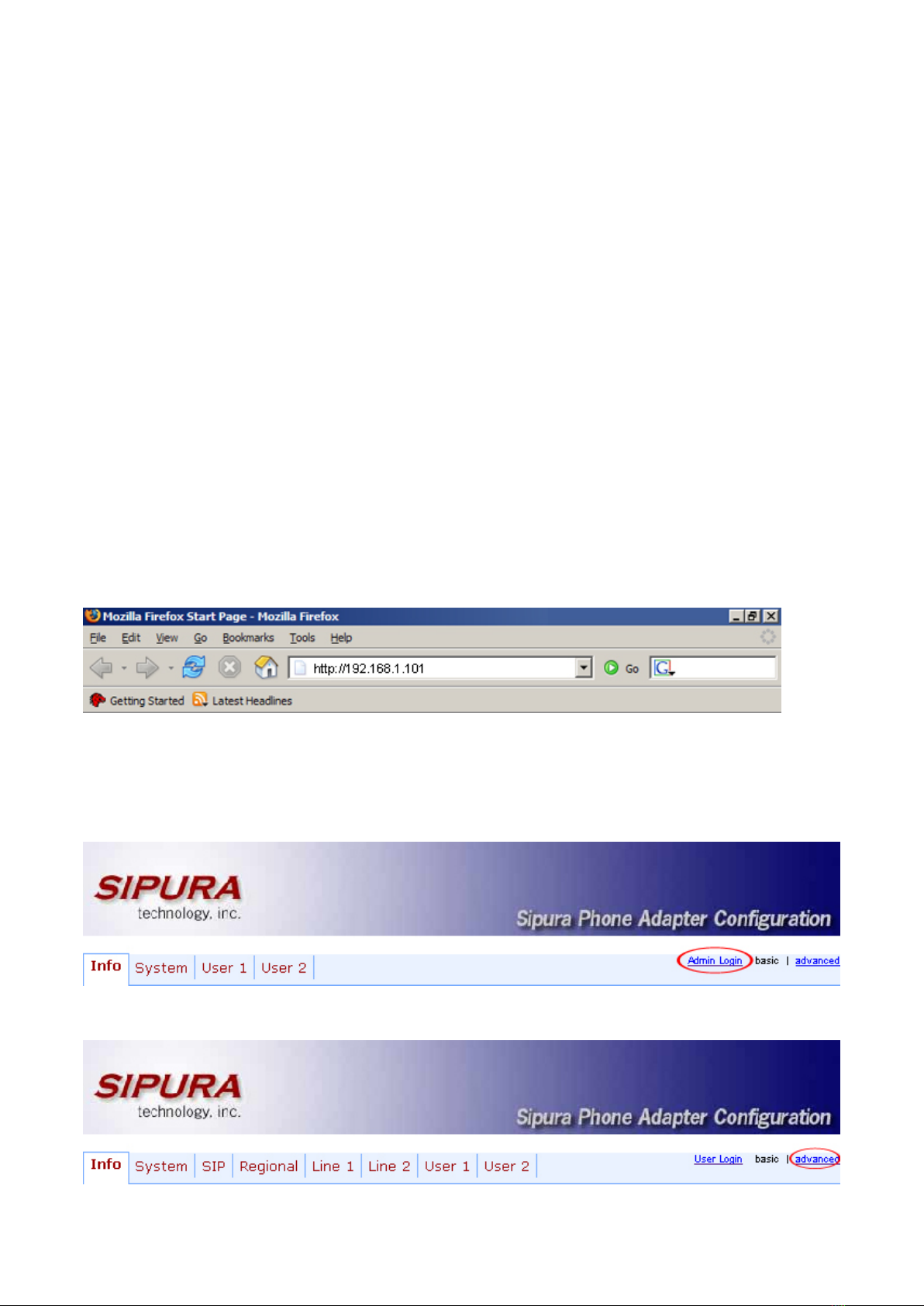
1. Open a new browser window and enter the IP address in order to access the Sipura SPA 2000
administration interface.
Example: http://192.168.1.101
To learn how to find out your Sipura SPA 2000 IP Address go to chapter "Registering ATA"
"STEP TWO" .
2. Hit "Enter" on your keyboard.
STEP TWO: Sipura SPA 2000 Dial Plan field value.
1. Click on the "Admin Login" link.
2. Click on "advanced" link.
3. Click on "Line 1" link.

4. Navigate down to "Dial Plan" group. Clear the "Dial Plan" field, then copy and paste the
following value.
(*x.|**x.|*xx|[3469]11|0|00|[2-9]xxxxxx|1xxx[2-9]xxxxxx|xxxxxxxxxxxx.)
5. Click on the "Submit All Changes" button. The Sipura SPA 2000 will reboot for changes to
take effect.
Manual Configuration
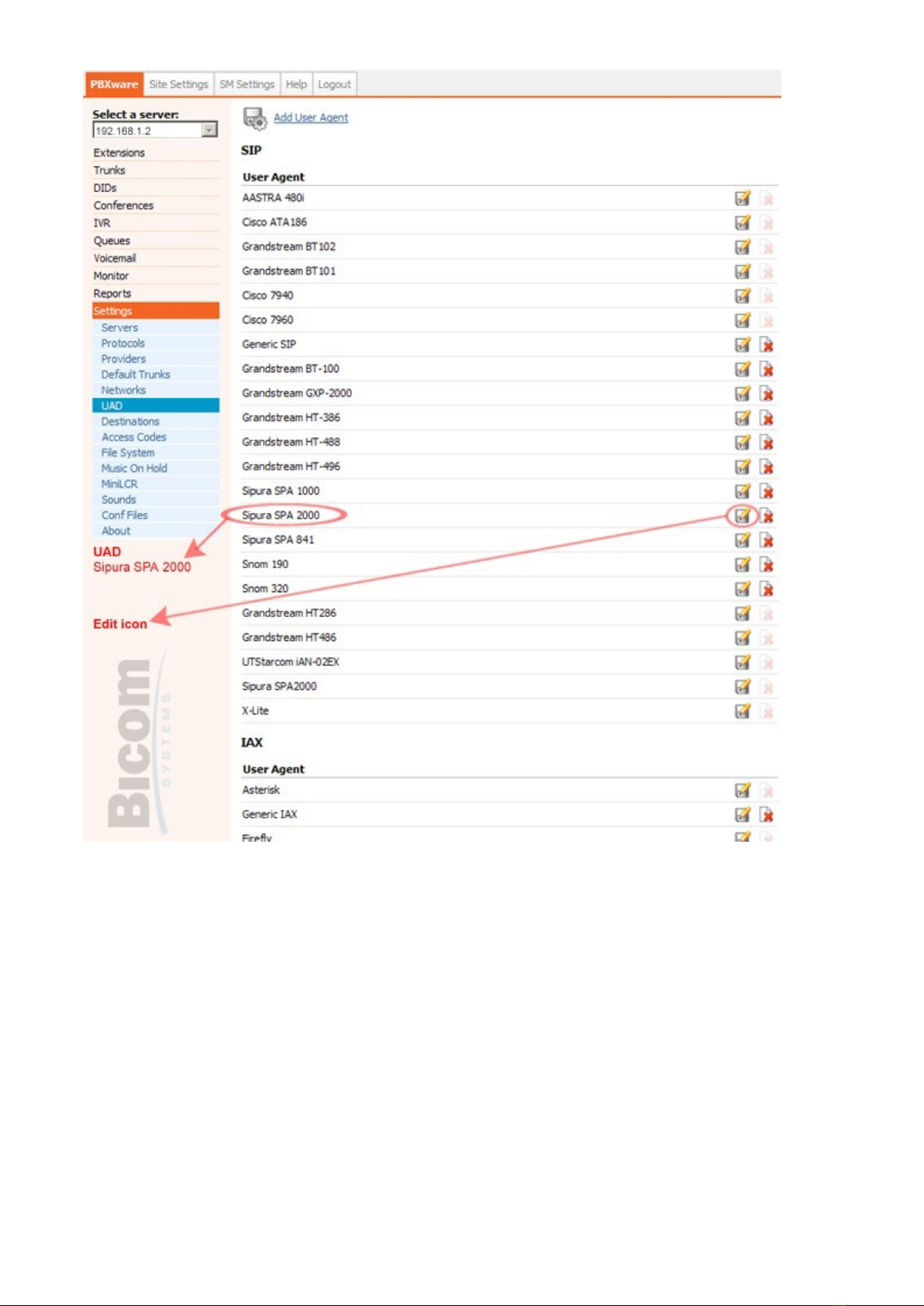
UAD Settings
STEP ONE: PBXware IP address.
1. Find out the IP address of the PBXware server.
STEP TWO: Login to PBXware.
1. Open a new browser window and enter the IP address to access the PBXware administration
interface login screen.
Example: http://192.168.1.2
an example with IP address
2. Hit "Enter" on your keyboard.
3. Login to PBXware with your e-mail address and password.

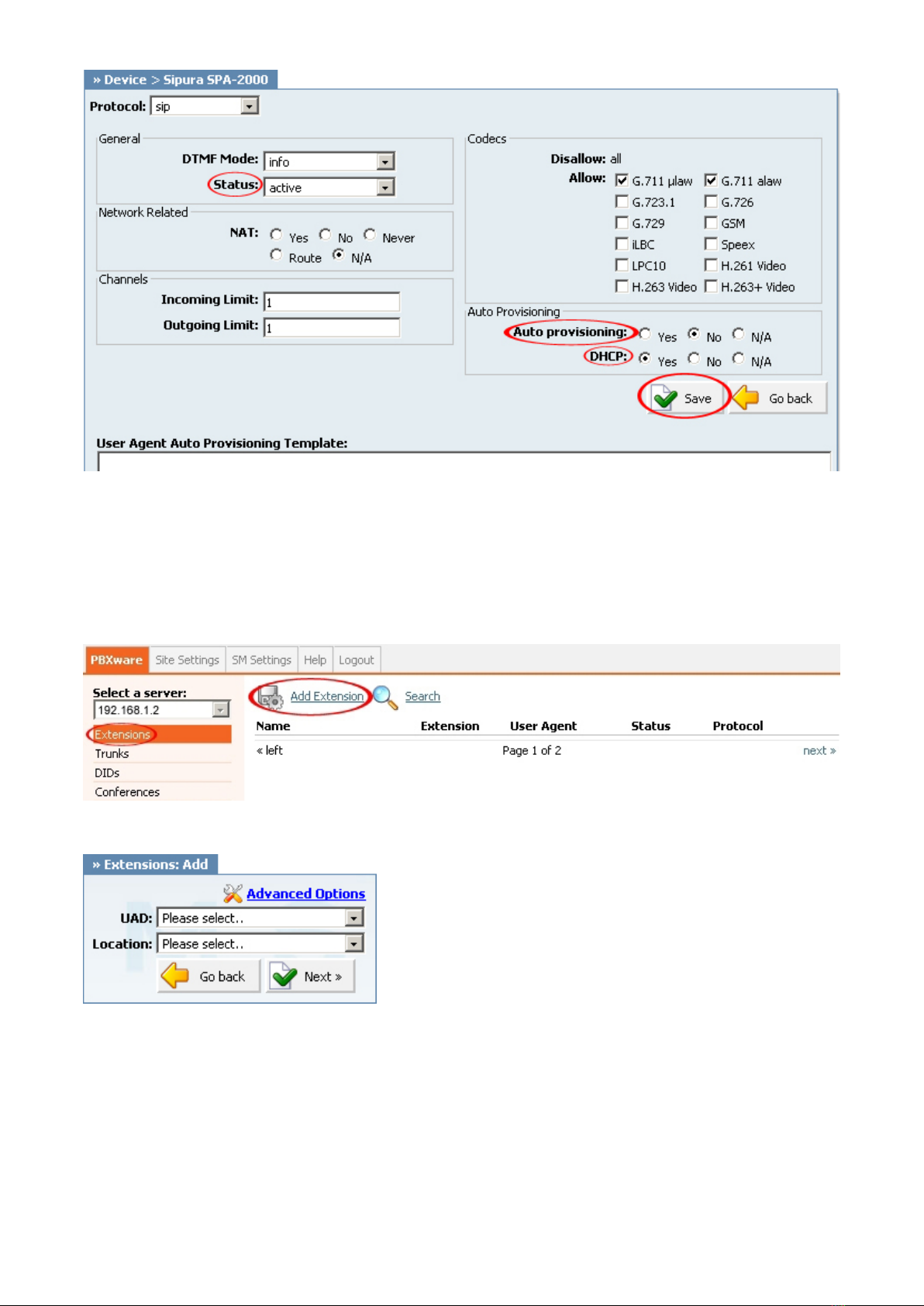
3. Click on the "Save" button to save changes.
Creating Extension
STEP ONE: Add Extension.
1. Navigate to "Extensions". Click on "Add Extension".
2. The standard options window (below) will be shown.
3. Select Sipura SPA 2000 from the "UAD" select box.
4. Select Location: "Local" or "Remote".
Note:
-"Local" is for all extensions registered on LAN.
-"Remote" is for all extensions registered from remote networks, WAN, Internet etc.
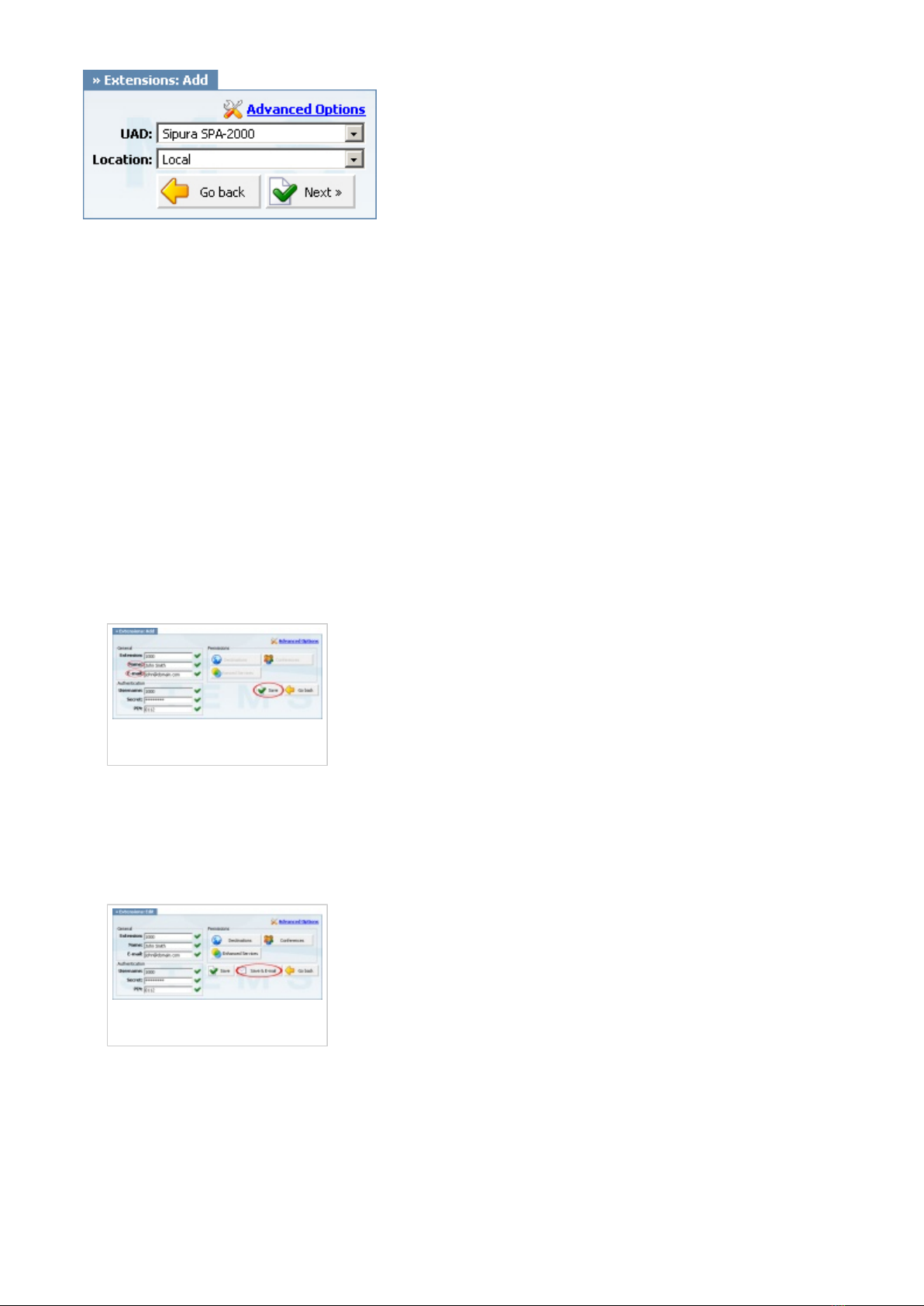
5. Click on the "Next" button.
STEP TWO: Extension values.
1. Enter values into the required field text boxes.
REQUIRED FIELDS:
Name:
Enter a name for the extension being created. Example: John Smith.
E-mail:
Enter the e-mail address associated with this extension. This e-mail address will receive all
system notification messages. Example: [email protected].
Creating
Extension/Extensions Add
an example with details filled in
2. Click on the "Save" button.
Creating
Extension/Extensions Edit
an example with details filled in
3. Click on the "Save & E-mail". Account details will be sent to the e-mail address associated
with this extension.
OPTIONAL FIELDS:
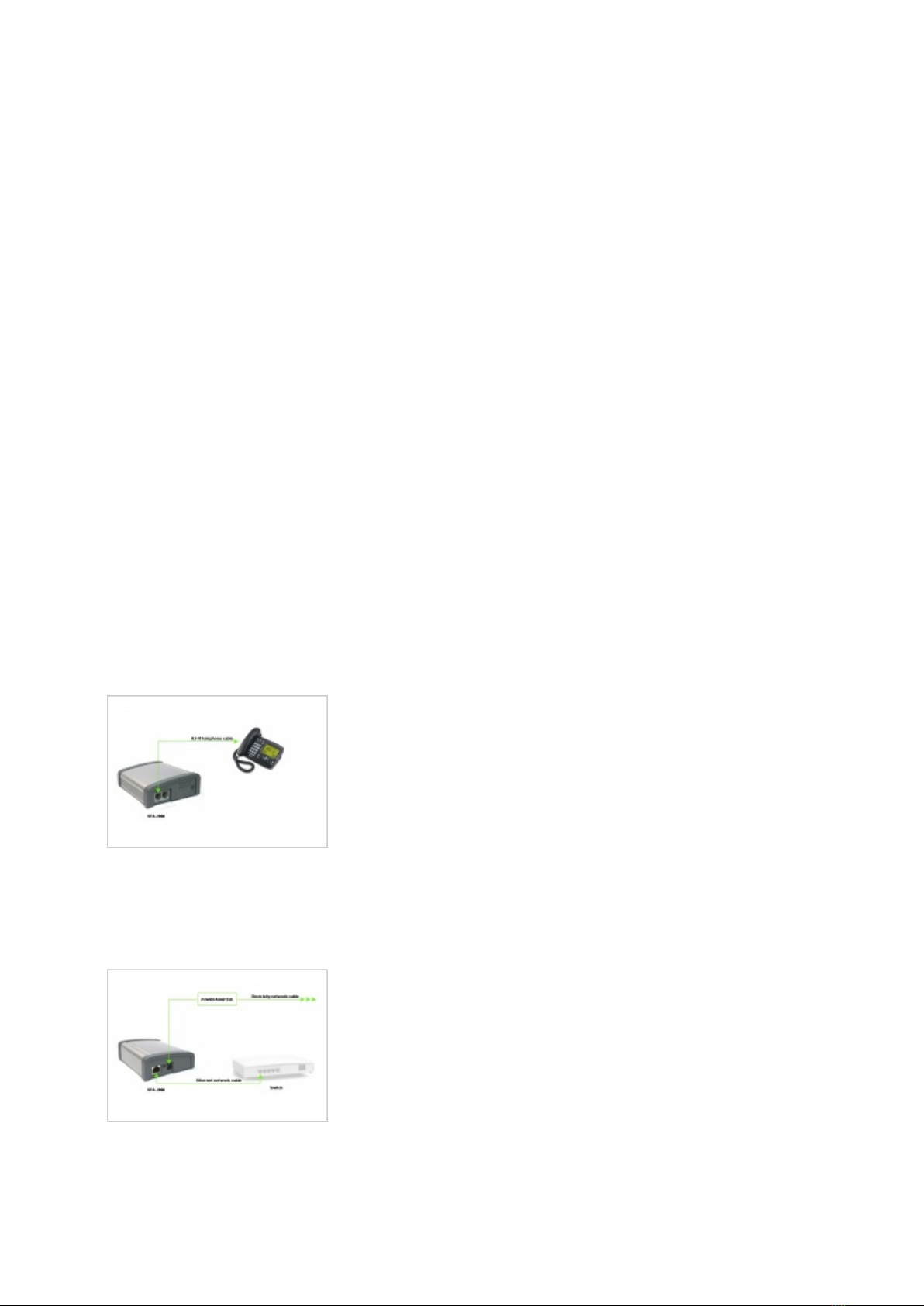
Extension:
An auto-generated extension number based on the next available sequential number. An
extension value can be changed. Example: 1000.
Username:
Username is auto generated/populated and cannot be changed since it allows the system to use
this value for other important operations.
Secret:
A secret value associated with the UAD is auto-generated in order to allow the UAD to
successfully register with the system. The secret value can be changed.
PIN:
An auto-generated PIN will allow access to voicemail and online self care.
Registering ATA
STEP ONE: Electricity and Ethernet.
- Insert a standard RJ-11 telephone cable into the "Phone 1" port.
- Connect the other end of the cable to an analog telephone.
Registering ATA
- The Sipura SPA 2000 needs electricity, so plug the adapter into its jack and connect it to the
electricity network.
- Connect the ethernet port to a hub, router or switch as to access LAN.
Registering ATA
After successfully connecting the Sipura SPA 2000 to the electricity and data networks, it is
time to register it to PBXware.
STEP TWO: Sipura SPA 2000 IP address.

Find out the IP address of the Sipura SPA 2000 connected to network.
1. Dial ****.
2. Dial 110#.
STEP THREE: Sipura SPA 2000 Web Interface.
1. Open a new browser window and enter the IP address in order to access the administration
interface.
Example: http://192.168.1.101
an example with IP address
2. Hit "Enter" on your keyboard.
STEP FOUR: Configuring the Sipura SPA 2000.
1. Click on "Admin Login" link.
2. Click on "Line 1" link.
3. Enter the following details into their respective fields.
REQUIRED FIELDS:
Proxy
IP address of the PBXware server. Example: 192.168.1.2
User ID
PBXware extension number. Example: 1000.
Password

The Secret of the extension as received in the e-mail associated with this extension. Example:
3dX3r5
an example with details filled in
4. Navigate to the bottom of the page, click on the "Submit All Changes" button. The Sipura SPA
2000 will reboot for changes to take effect.
OPTIONAL FIELDS:
Display name:
Example: John Smith, Reception, Entrance Main, Agent One etc.
Auth ID:
Usually the same number as for the account.
Other fields:
Other "options" or "fields" should be left blank or as is by default, they have no importance for
registering your Sipura SPA 2000 to PBXware.
- Conclusion: If everything is done as above described, you should have successfully registered
your Sipura SPA 2000 to PBXware. Dial *123 to verify registration.
- For further information, please contact the manufacturer or check their website
www.sipura.com.
Auto Provisioning
UAD Settings
STEP ONE: PBXware IP address.
1. Find out the IP address of the PBXware server.
STEP TWO: Login to PBXware.
1. Open a new browser window and enter the IP address to access the PBXware administration
interface login screen.
Table des matières
Autres manuels Sipura Technology Accessoires pour téléphone


