PREVIOUS | CONTENTS | NEXT 8
One Talk—T41P IP desk phone guide
Display settings
Change backlight duration.
You can set the time duration for the backlight of your
desk phone as Always ON, Always OFF or several
other options. For example, you can have your display
switch to low-light mode after a period of inactivity.
You can also turn o the backlight completely when
inactive. To set backlight levels and duration of
inactivity before switching to low light or turning the
backlight o:
1. From Display settings, scroll to Backlight and
press to select.
2. Scroll to Backlight Active Time and select
one of the following: Always ON, Always OFF,
15 sec, 30 sec, 60 sec, 120 sec, 300 sec, 600 sec,
1800 sec to choose your preferred time.
3. Press Save.
Sound settings
Call volume
Press on the phone console to adjust
the volume of the receiver when you are on a call (using
the handset, speakerphone or headset).
Ringer volume
Press on the phone console to adjust
the volume of the ringer when the phone is idle.
Ringtones
1. From Sound settings, scroll to Ringtone
and press to select.
2. Highlight the desired line.
3. Press then select the desired ringtone and
press Save. If there are multiple lines on the desk
phone, you can elect to assign one ringtone for all
lines by selecting Common AES or assign a dierent
ringtone for each line.
4. Scroll to preview ringtone options and
press the Save soft key to select.
Keypad tones (key tones)
Keypad tones, or key tones, give you the option of
hearing sounds each time you depress a key on the
keypad. To activate key tones:
1. From Sound settings, scroll to Key tones
and highlight it to select it.
2. Use the Switch soft key to enable or disable
Key tones, and press the Save soft key to accept
the changes.
Line keys
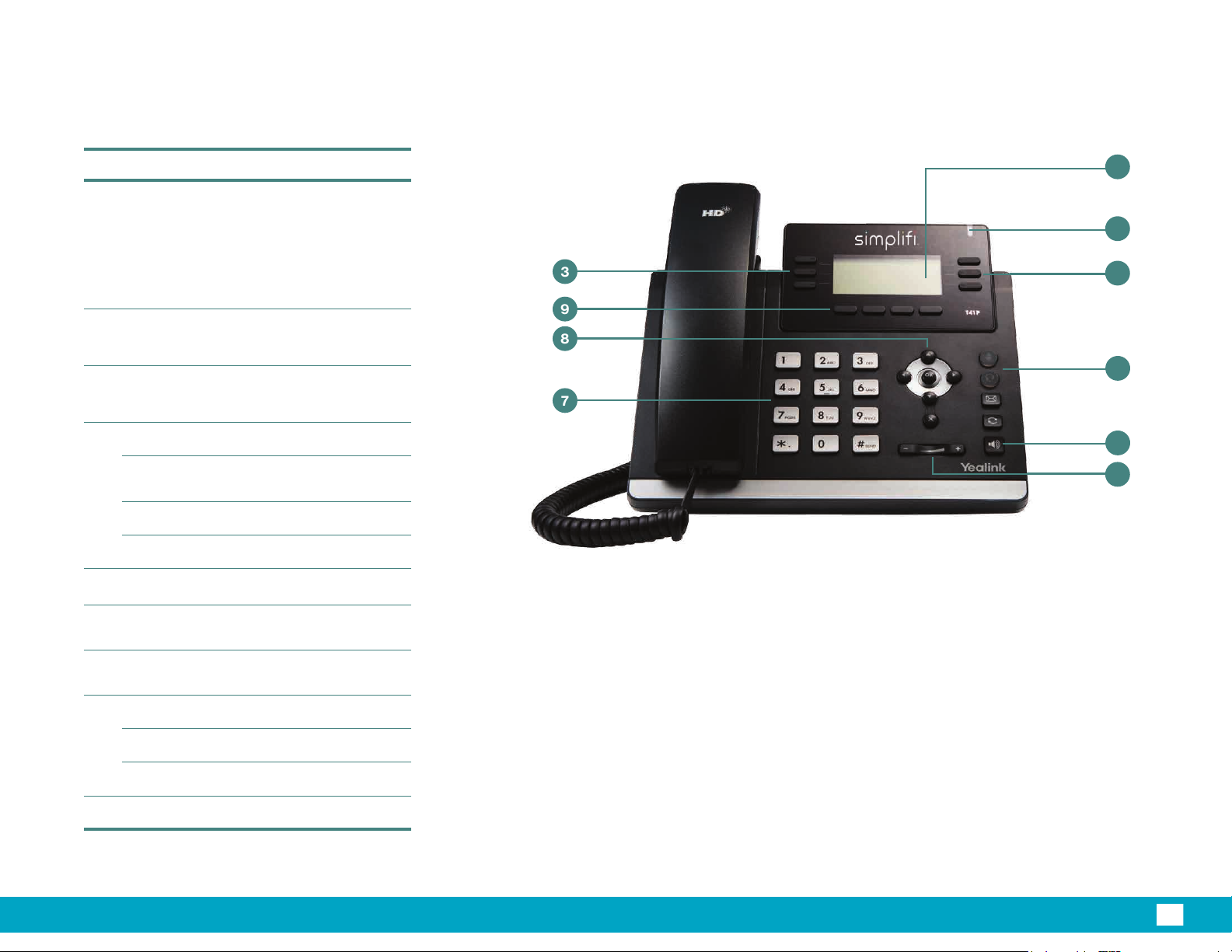
Your T41P comes with nine configurable line keys.
You can use them to create one-button speed dials
for frequently dialed numbers. To view all lines, press
the 12 3 Pages key on the idle screen to toggle to
additional line key pages.
Speed dial configuration of a line key
To configure a speed dial key:
1. Press and hold an unused line key (for about
five seconds).
2. Use or the Switch soft key to scroll through
the type of line keys available until you locate
Speed Dial.
3. Scroll to complete each of the
following fields:
• Account ID: Select the phone line to associate
with this line key.
• Label: Enter the name you would like displayed on
the line key label.
• Value: Enter the phone number you would like this
line key to dial.
4. Press the Save soft key to accept your changes.
You can now use this line key to speed dial this contact.
Voice Mail setup
1. Press the Message key on the phone console.
2. Select your preferred language.
3. Create a four-digit passcode.
4. At the voice prompt, record your name.
5. Select a greeting, either personalized or standard.
See Voice Mail for more information.
T41P IP Desk Phone User Guide