Silicon Image SI-2K Manuel

© 2008 Silicon Imaging, Inc Page 1
SI-2K Image &
Software Install Manual
SiliconDVR
Version 1.1
December 2008
Part #25436

© 2008 Silicon Imaging, Inc Page 2
Table of Contents
Section Page
1.0 - Introduction 3
1.1 Release Notes for SiliconDVR Version 1.1 3
2.0 SI-2K Maintenance Tool (SI-2K Recorder Use) 6
2.1 Download and Pre-installation 6
2.11 Downloading 4
2.12 Prepare the USB Drive 5
2.2 Before You Boot 9
2.3 Using the Maintenance Tool 10
2.4 Troubleshooting 12
2.5 Touchscreen Calibration & Drivers 13
3.0 SiliconDVR Installer (PC/Laptop Use) 14
3.1 - Minimum System Requirements 14
3.2 - Installing SiliconDVR for Intel Pro1000 NIC’s 15
3.3 - Installing SiliconDVR for Generic NIC’s 20
3.4 - Uninstalling SiliconDVR 29
4.0 Troubleshooting FAQ 33
5.0 End User License Agreement 36

© 2008 Silicon Imaging, Inc Page 3
1.0 Introduction
This manual covers the installation and update procedure for the following:
• SI-2K Recorders using Maintenance Tool (Section 2)
• PC/Laptop Systems with Software Installer (Section 3)
The SI-2K Image installation uses a new SI-2K Maintenance Tool to update both SiliconDVR and the full
operating system which resides on the internal Compact Flash. Once updated, no additional software or driver
installation is required. This update procedure overwrites the entire internal flash image and any user files or
custom looks which may have been created, should be backed-up prior to the update procedure.
The SiliconDVR Installer is designed to run on an XP or Vista computers that will be used as the recorder for
SI-2K Mini cameras. The install instructions include those for systems with the following configurations
• Intel High-Performance Pro/1000 NIC
• Generic Gigabit Ethernet NIC systems (eg. Marvell Yukon)
The installer includes all of the licensed software and drivers necessary for operation of the camera. No
additional licenses are required to operate the system. A complete list of new features and enhancements can
be found in Section 1.1.
Check for the most current information on the SI-2K Image and SiliconDVR on our website under ‘Support’.
The address is:
http://www.siliconimaging.com//DigitalCinema/SiliconImaging_support.html
There is an End User License Agreement (EULA) at the end of this document (Section 5). By installing the
software, you have agreed with the terms of this document. Please read it before proceeding.

© 2008 Silicon Imaging, Inc Page
1.1 Release Notes for SiliconDVR Version 1.1
Image Quality
-Improved reliability in black calibration
-Enhanced deviant pixel detection processes
-Increased total count of Deviant pixels detected and corrected
-Reduced column FPN in high-temp
-Higher Quality Cineform Encoder Modes (3.5:1)
Operational Reliability
- Feedback system during camera connection or loading new mode
- Greater stability when recording .SIV files to slow drives
- Fix for short file Time-lapse shooting and playback
- Improved reload of preferences after hard shut-down
- Fix for fan-mode switching bug which was locked into mode
- Ability to playback large QuickTime movie files (over 3GB)
- Deleting AVI/QT files recovers hard-drive space on indicators
- Auto licensing system for Iridas and CineForm
- QuickTime repair to recover files damaged during recording
Time Code Integration
- QuickTime encoder now supports timecode for 25P in Final Cut Pro.
- New support for the Ambient ALL-601 USB timecode reader
- Increased reliability and frame accuracy when in LTC Slave Mode
Stereo-3D Support
- Added support and improved reliability for 2K resolution modes
- Improved reliability for cameras configured as the 3D-slave
3rd Party Integration Support
- CineForm MAC/Final Cut Support for CineformRAW
- New Active Metadata Controls (.look, WB, Log) for MAC & PC
- Iridas support of .SIV and Cineform file formats
Laptop/PC System & OS Support
- Windows XP SP3 and Vista 32-bit Support
- MacBook Pro display performance Improvement
- Shutdown/Hibernate now initiate a Stop Recording

© 2008 Silicon Imaging, Inc Page 5
SI- K & Windows-XP Embedded Support tools
- USB thumb-drive SI-2K Image Installer (Maintenance Tool)
- New XP-e Write Filter (FBFW) used to prevent data writing to the compact flash card which
contains the OS Image. Only the SiliconDVR data folder is accessible for storing .looks and
preference settings.
SI- K Recorder: Known Issues & Limitations
- SIV Playback on slow drives can hang: Use higher speed drives, Raid or SSD
- High Speed CineForm modes (72/85/150P) will only do burst record on SI2K before RAM
overflow. For continuous high-speed shooting you can use PC/Laptop.
- QuickTime .MOV requires more CPU overhead than AVI and will RAM buffer overflow at the
highest quality settings. Use Adaptive encoding or .AVI format.
- Touchscreen calibration settings are not preserved if the write-filter is enabled. The work-
around is to disable the FBWF write filter before performing calibration process. Then re-enable
FBFW and reboot to maintain protection of the system OS. The shortcut for disabling and
enabling the FWBF write-filter is inside the “/SI” directory on the SI-2K desktop.

© 2008 Silicon Imaging, Inc Page 6
2.0 SI-2K Maintenance Tool (For SI-2K Recorders Only)
The SI-2K contains a compact flash memory card that appears as the “C:” drive when the
system is operating. The system boots and runs the SiliconDVR application from this drive.
The SI-2K Maintenance Tool is provided to quickly upgrade or restore the system’s flash drive
to a previous state, called a “snapshot”. This is an exact image of the full camera system –
SiliconDVR application, drivers and operating system. As such, any additions such as
touchscreen calibration or custom looks are overwritten by the process.
The SI-2K Maintenance Tool uses a USB Flash Drive (a “thumbdrive” or “pen drive”) which
has been loaded with a special version of the Linux operating system that allows the system to
boot independently of the internal flash drive and an application that allows snapshots to be
written.
The Snapshot files are included with the Maintenance Tool in order to restore or upgrade the SI-
2K.

© 2008 Silicon Imaging, Inc Page 7
2.1 Download and Pre-installation
If you have received the SI-2K Maintenance Tool already installed on a USB drive, you
may skip to the section “2.2 Before You Boot”
2.1.1 Downloading
The SI-2K Maintenance Tool is distributed in a single ZIP file that may be more than 1GB in size.
Download this file and save it to a computer running Windows. The application used to prepare
the drive for booting is not available for Mac OS at this time. Please contact
support@siliconimaging.com for ftp and password instructions.
2.1.2 Prepare the USB Drive
To create the Maintenance Tool, you will need a USB flash drive, at least 2GB and preferably
GB. The drive should be empty and preferably freshly formatted with a “FAT32” file system.
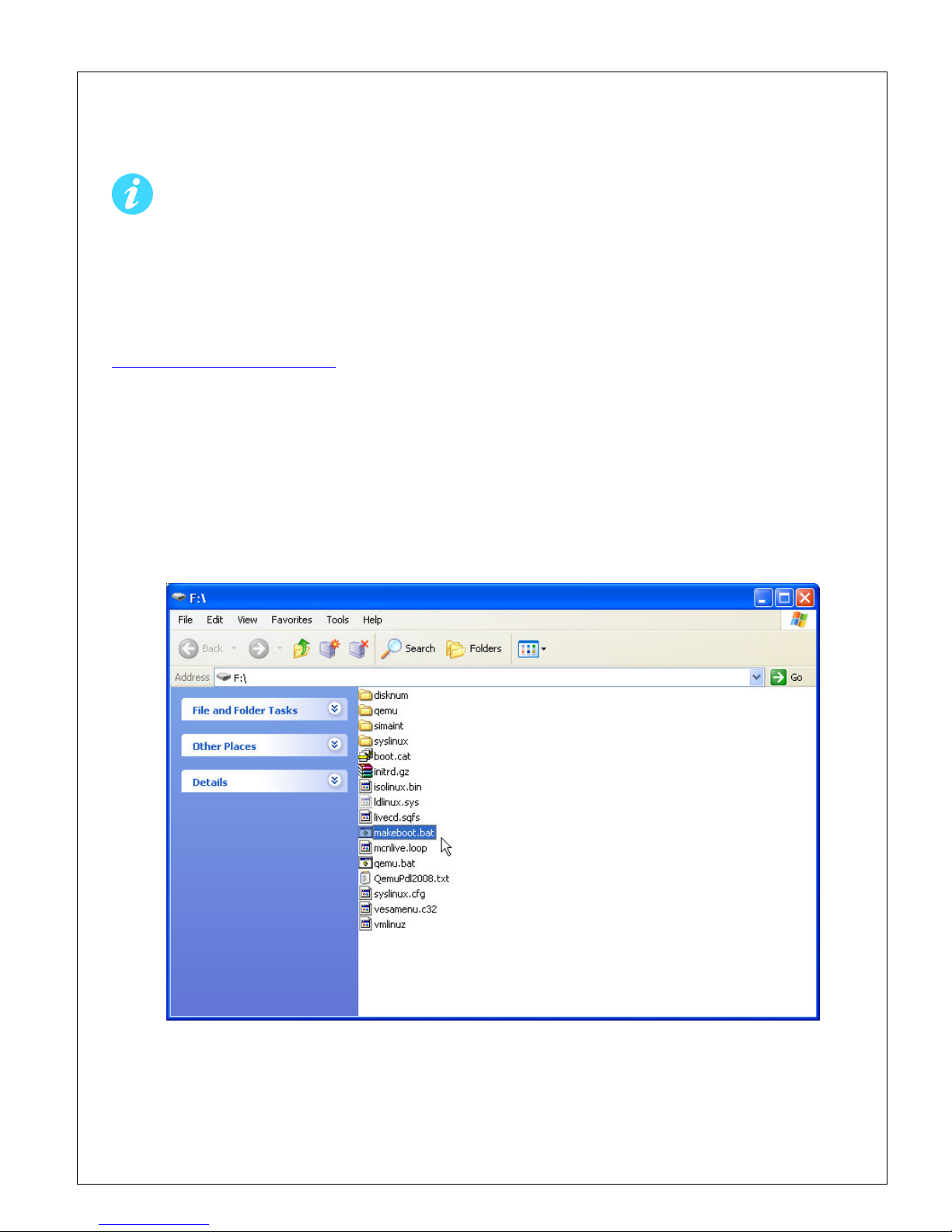
Unzip the contents of the downloaded Maintenance Tool to the flash drive, making sure that the
files are placed at the top level, not in a subdirectory. Once unzipped, the files should appear
similar to Figure 1.
Figure 1
To make the flash drive bootable, double-click on the batch file “makeboot.bat”. (Note: You
must be logged in to your PC with Administrator rights).

© 2008 Silicon Imaging, Inc Page 8
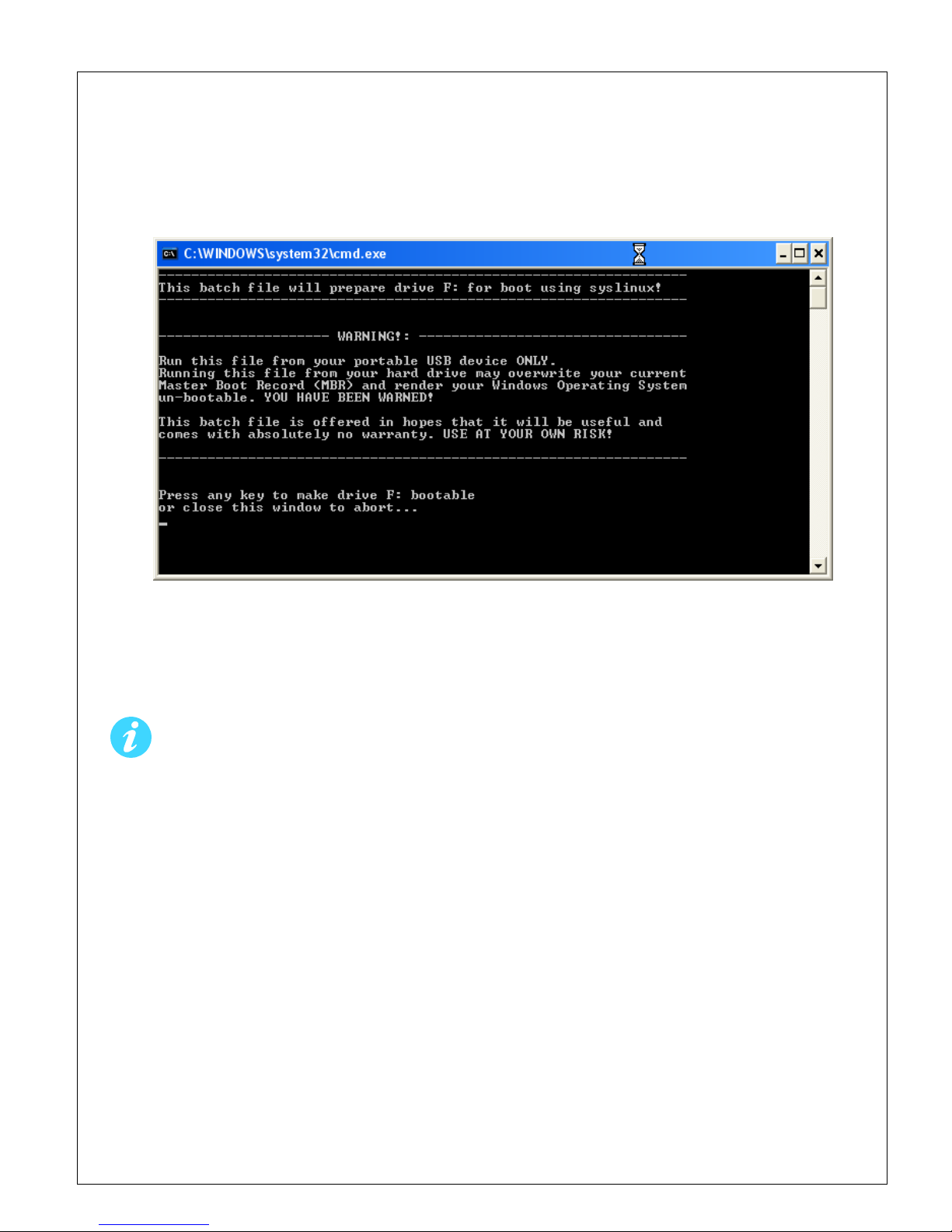
A warning message will appear as shown in Figure 2. Verify that the flash drive has been
correctly identified, in this example it’s drive “F:”, and press ENTER to make the drive bootable.
Figure 2
Use the “Safely Remove Hardware” function on the Windows Taskbar to insure that the drive is
properly written prior to unplugging it.
Please note that almost all recently manufactured flash drives from reputable
manufacturers are compatible with the SI-2K’s booting process, but there are a few that
may not work. If you encounter problems in the following steps, you may need to try a
different kind of flash drive. For maximum compatibility, use the drive provided by
Silicon Imaging.

© 2008 Silicon Imaging, Inc Page 9
2.2 Before You Boot
The Maintenance Tool is designed to modify only the internal flash drive, but it’s always
prudent to make sure that any work you have on the SI-2K has been copied off the
system prior to using the tool. You may also choose to remove the hard drive carrier
from the SI-2K prior to booting with the Maintenance Tool.
Customized “.LOOK” files are stored on the internal flash drive and will be overwritten
during a snapshot restore. These must be copied off the system prior to restoring a
snapshot.
After restoring a snapshot, touchscreen calibrations will need to be refreshed. Any third-
party hardware that requires drivers will also need to be re-installed.
Beginning with the SI-2K powered off and a display device (external monitor, touchscreen or
electronic viewfinder), plug the Maintenance Tool into either USB port on the rear panel of the
SI-2K. If possible, it’s preferable to power the SI-2K from it’s external power supply rather than
a battery to help insure that nothing interrupts the maintenance processes.
Switch the power on. The SI-2K will begin the first part of its normal boot process, then control
will switch over to the Maintenance Tool. The booting process will take about a minute and
during this, you’ll see a variety of informational and warning messages appear on the screen.
This is a normal part of the Linux operating system’s boot process and error messages during
this phase may be ignored.
If the camera does not boot to the USB drive, the boot order is incorrect in the BIOS.
Attach a USB keyboard to the camera, reboot and hold the ‘Delete’ key. Under ‘Advanced
BIOS Features’, the first boot device should be USB-ZIP. If this is not the case, use the
arrow keys to select the first boot device, use ‘ENTER’ to modify this and use the arrow keys to
select the USB-ZIP drive. The 2nd or 3rd boot device must be “hard disc”.
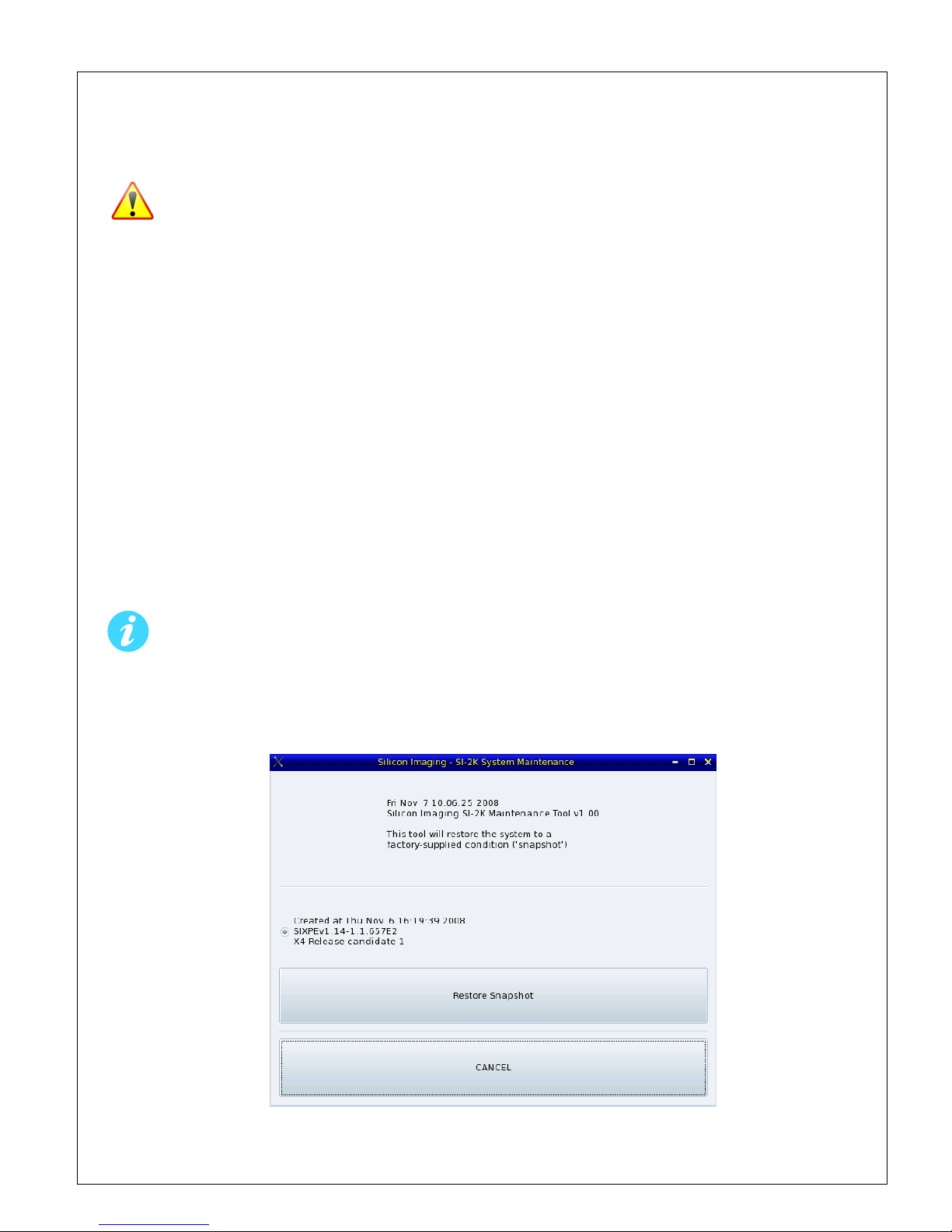
When the boot process is complete, you will see the Maintenance Tool interface as shown below.

© 2008 Silicon Imaging, Inc Page 10
2.3 Using the Maintenance Tool
The Maintenance Tool interface is operated using the mouse on the side of the SI-2K (not via
touchscreen). There are two types of flash media used in the SI-2K, Transcend and X .
Snapshot Images for both media types are provided in the Maintenance Tool and the appropriate
image will be automatically selected. A brief description of the snapshot along with the date of
its creation is shown.
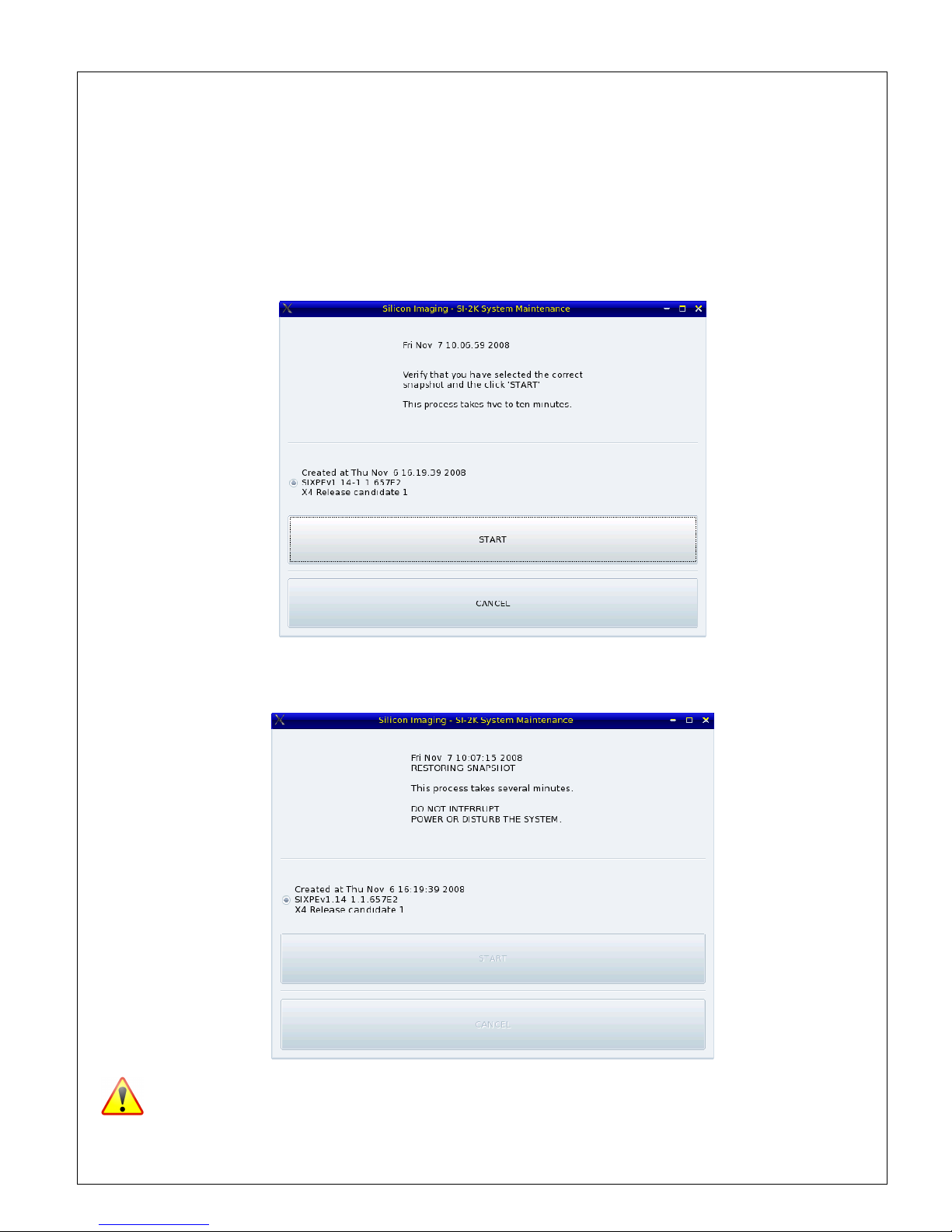
Press Restore Snapshot to begin. Then click the large button now labeled “START”.
If you decide not to restore the snapshot prior to starting the process, you may safety select
“CANCEL” to abort the process and the system will perform a shutdown.
You should always use the “CANCEL” button and wait for the system to shut down prior
to switching the power off and removing the USB flash drive.
Table des matières
Manuels caméscope populaires d'autres marques

Panasonic
Panasonic AG-HMC152EN Manuel utilisateur

Insignia
Insignia NS-DCC5HB09 - Camcorder - 720p Manuel utilisateur

MYDLINK
MYDLINK DCS-6100LH Manuel utilisateur

Sony
Sony video Hi8 Handycam CCD-TR555 Manuel utilisateur

SECURECOM
SECURECOM V-5014B Manuel utilisateur

Panasonic
Panasonic HDC-SD100 Manuel utilisateur