Network Setting
The network is set using the SignalFire Toolkit. The network, network group, and corporate
ID/encryption key settings must match those of the gateway for them to communicate.
Encryption
To protect your over-the-air data and prevent tampering, SignalFire networks come with encryption. Legacy
products use a Corporate ID, but can be switched over to use an encryption key if the firmware and ToolKit are
up to date.
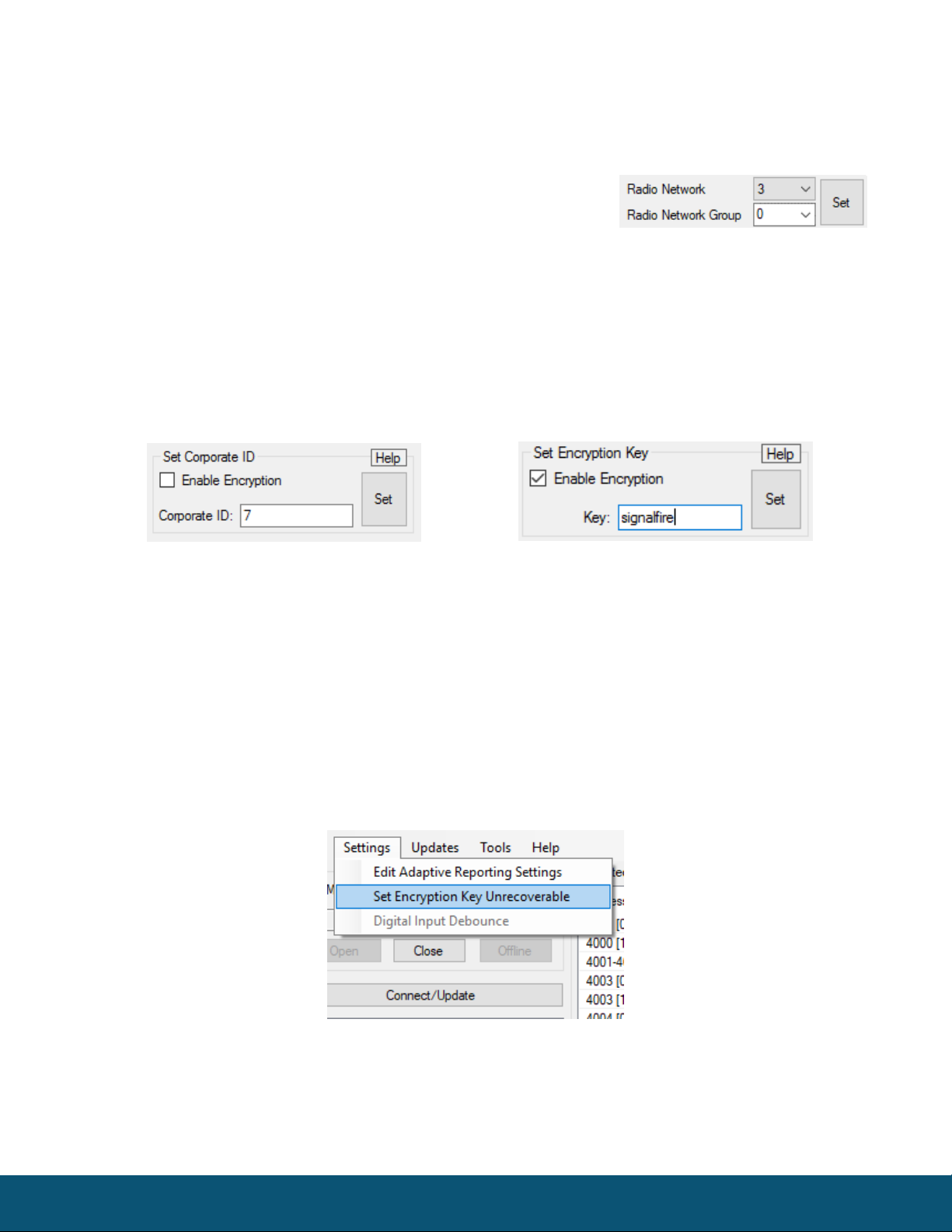
To set up a legacy Sentinel to use encryption, click the checkbox labeled Enable Encryption inside the Set
Corporate ID box. All newer Sentinels come with this option enabled with “signalfire” as the default encryption
key.
The box will then change into a Set Encryption Key box, and it will prompt instead for the encryption key you
would like to use. Note that keys may not contain spaces or angle brackets. Enter it and then press Set. If you are
setting up a new network, you will need to set the encryption key on all of your devices. If you are adding a
Sentinel to a legacy network, you can simply set the Corporate ID without clicking the Enable Encryption box,
and it will remain compatible with the older system.
It is also possible to hide your encryption key so it cannot be read. This is the most secure option, but if you
forget your key, there is no way to recover it – you have to reset the key on every device on its network. To enable
this option, select Set Encryption Key Unrecoverable under the Settings menu.
Setting the encryption key to be unrecoverable.