
Sigmawit GD831 Manuel utilisateur

1
Smart Wireless Garage
Door Controller
GD831
For sectional door only
USER MANUAL
2
Confirm the following before installation ( Very important ):
Wi-Fi SIGNAL
You must have a strong, 2.4GHZ Wi-Fi signal in your garage that uses
WPA or WPA2 security.
SAFETY WARNING
Before installation,please turn off the power of the garage door opener to
reduce the risk of injury.
Door Type
Your garage door must be a sectional garage door.
COMPATIBILITY
Make sure that your garage door opener is compatible with our product
first.
We have compatible models list, contact with us to get it to check.
You can also check it by yourself as following steps:
1. Make sure your garage door has a wall-mounted button, find the terminals which
connect to your wall-mounted button;
2. Take a wire with both ends stripped or a pliers to put each end to the same
terminals as the wall button wires are terminated to (See the figure below). By
doing so, if your door activates, then your door opener is compatible with our
device. If the door does not activate, then the opener is not compatible by default.
BEFORE YOU START

3
- Smart Door controller x1
- Door Sensor x1
- Power Adapter x1
- Power Cable x1
- User Manual x1
- Controller Bracket x1
- Sensor Bracket x1
- Cable 5m x1
- Cable Ties x2
- Rawl Plugs x6
- 3M Double-Sided tape x1
- Self-tap Screws x6
SPECIFICATIONS
Model: GD831
Operating temperature: -13 to113°F (-25°C to 45°C)
Controller operating voltage: AC100-240V 50/60HZ
Wi-Fi: 2.4GHz IEEE 802.11 b/g/n
System : iOS 8.0 or higher, Android 4.1 or higher
PACKAGE CONTENTS
4
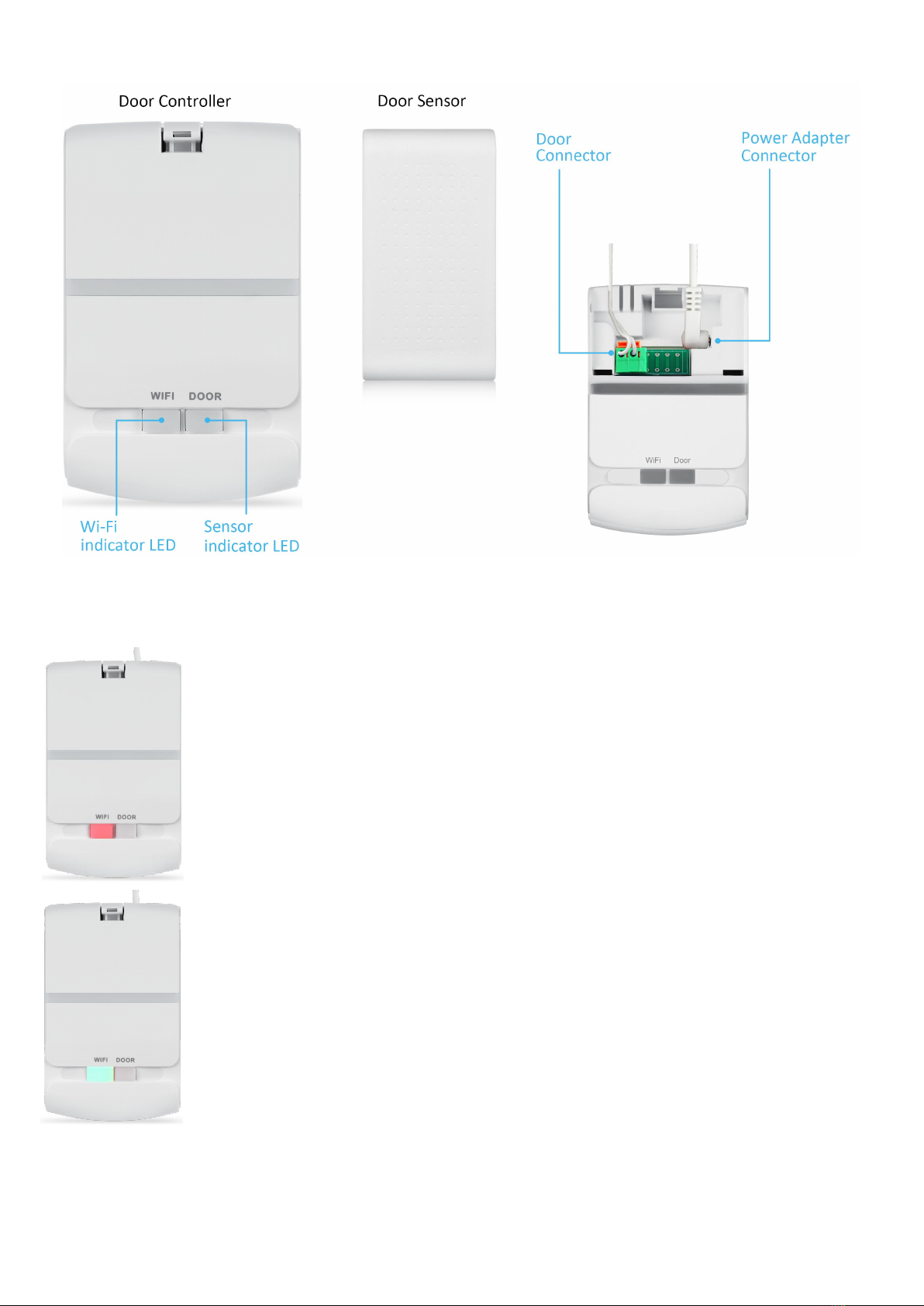
WI-FI INDICATOR LED STATE
RED – blinking rapidly (2 times per second)
Wi-Fi not configured.
Controller is in smart mode and ready to pair to Wi-Fi and Smart life
app.
RED – blinking slowly (once every 2 seconds)
Wi-Fi not configured.
Controller is in AP mode and ready to pair to Wi-Fi and Smart life app.
GREEN – solid
The smart garage door controller is connected to Wi-Fi and the Smart
Life app is ready.
GREEN – blinking
Wi-Fi configured, but internet may be offline – check your router or the
Wi-Fi password.
Note:
Pressing and holding the Wi-Fi button will reset the Wi-Fi configuration when the
5
led indicator is green.
Pressing and holding the Wi-Fi button will switch the Wi-Fi configuration mode
when the led indicator is red.
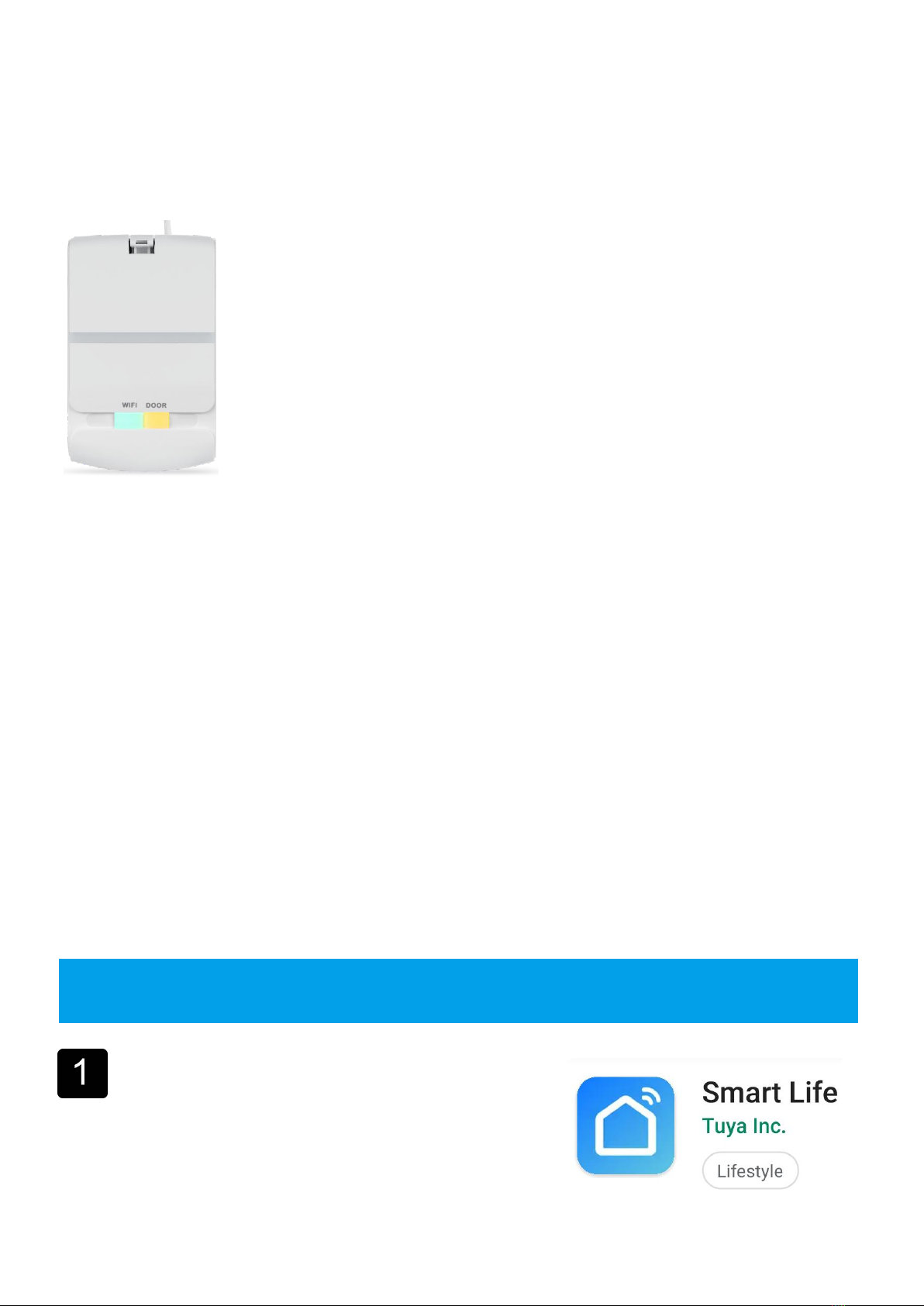
SENSOR INDICATOR LED STATE
YELLOW – off
The controller is not ready for paring the door sensor.
YELLOW – blinking
The controller is ready for paring the door sensor.
YELLOW – solid
The controller is paired with the door sensor.
How to pair the controller with the door sensor?
The controller and sensor are not paired together when you got the product.
Follow the next steps to pair the sensor with controller:
1. Pressing and holding the door button for 3 seconds if the sensor indicator LED is
off, the sensor indicator LED will blink yellow.
2. Move the sensor 90 degrees and after approx 2-3 seconds, the sensor indicator
LED will be solid yellow that means the controller is paired with the sensor.
How to clear the pairing ?
1. Confirm the sensor indicator LED is solid yellow.
2. Pressing and holding the door button for 3 seconds, it will blink yellow that means
the paring was cleared.
Download Smart Life app for free
Download the "Smart life" app from Google
Play Store (Android) or App Store (iOS).
INSTALLLATION

6
Register Smart Life app
Open Smart Life app,For new users, register a new account or if existing user,
login with your user name and password.
Add Smart garage door controller to Smart Life app(Configure Wi-Fi)
1. Plug in the power adapter to a power outlet, and connect the
adapter cable to the controller. The Wi-Fi indicator LED flashes
green 3 times then red and blinks quickly.
If the The Wi-Fi indicator LED is not blinking then you need to
reset the device’s pairing mode by pressing and holding the Wi-Fi
pairing button for 3 seconds.
When it is RED flashing rapidly it is ready to pair with the app.
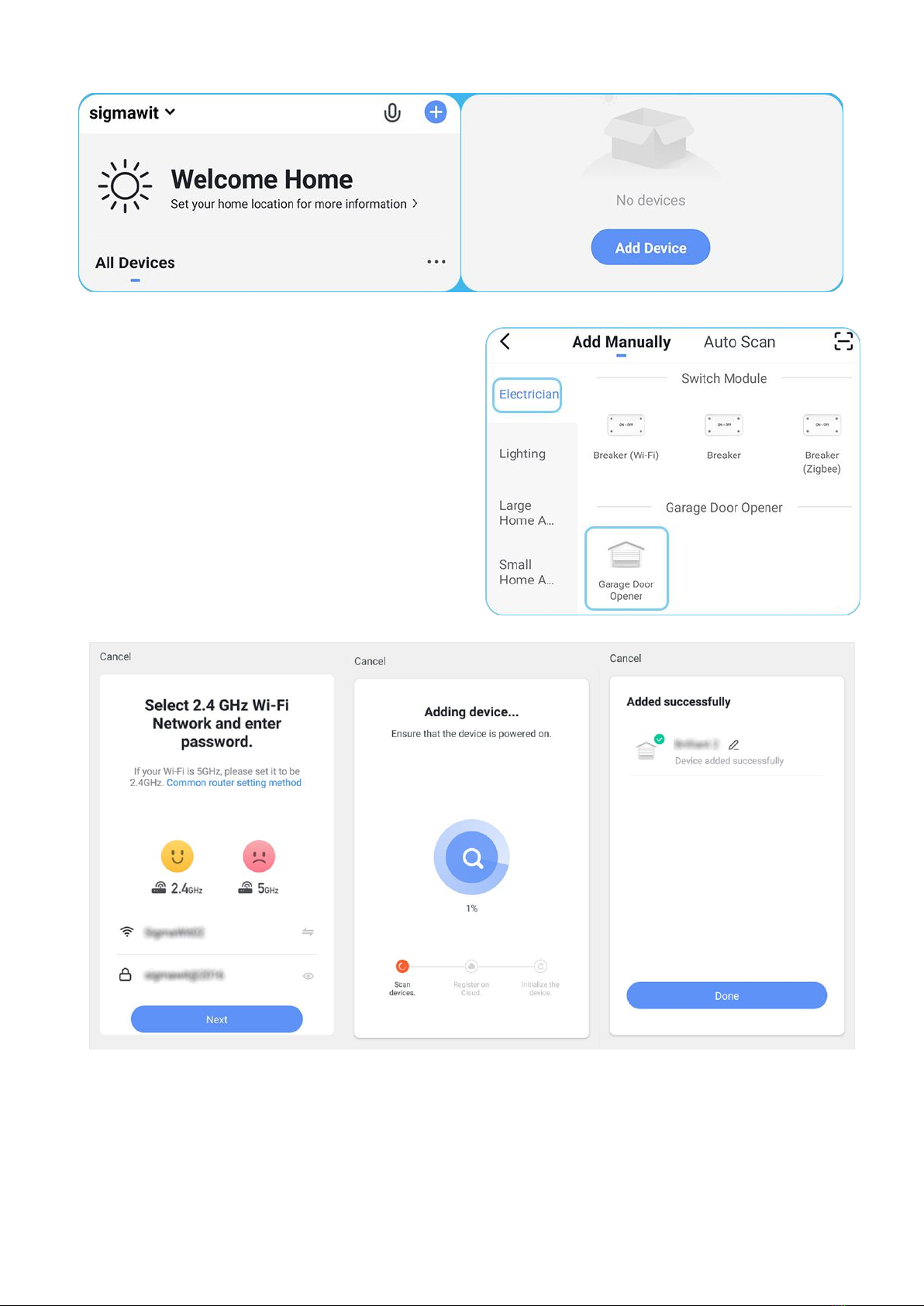
2. Open the Smart Life App, tap ‘Add Device’ (if empty room) or ‘+’ to add your
Smart garage door controller.
7
3. Select “Electrician” -> “Garage Door
Opener”;
4. Enter your home Wi-Fi password, then
click “next”, connection will now begin.

8
5. Once connected you’ll get a menu ‘Added successfully’and
the light turns solid GREEN(See right figure). You can click on
the pen to change the device name then press ‘Done’.
Pair sensor with controller
BEFORE INSTALLATION SENSOR, Please check if the sensor is working or
not. Open the Smart Life app and select the Garage door opener.
1. Pair the sensor with controller.
Confirm the sensor indicator LED is
solid yellow after paring. See “How
to pair the controller with the door
sensor?”
2. Move the sensor 90 degrees and
after approx 15-20 seconds, the app
should show the correct state
according to the direction of the door
sensor. See the right figure:
Note:
When device is online, it can be controlled.
When device is offline, it displays "Offline" and cannot be remotely powered on.
The garage door opener does not support 5GHz networks, ensure your Wi-Fi is
2.4GHz.
If the sensor is not working properly or you cannot connect the controller to the
Smart Life app, please contact with us for troubleshooting and for full instructions.
9
Installation
Note:
Please power off your garage door opener before install the device.
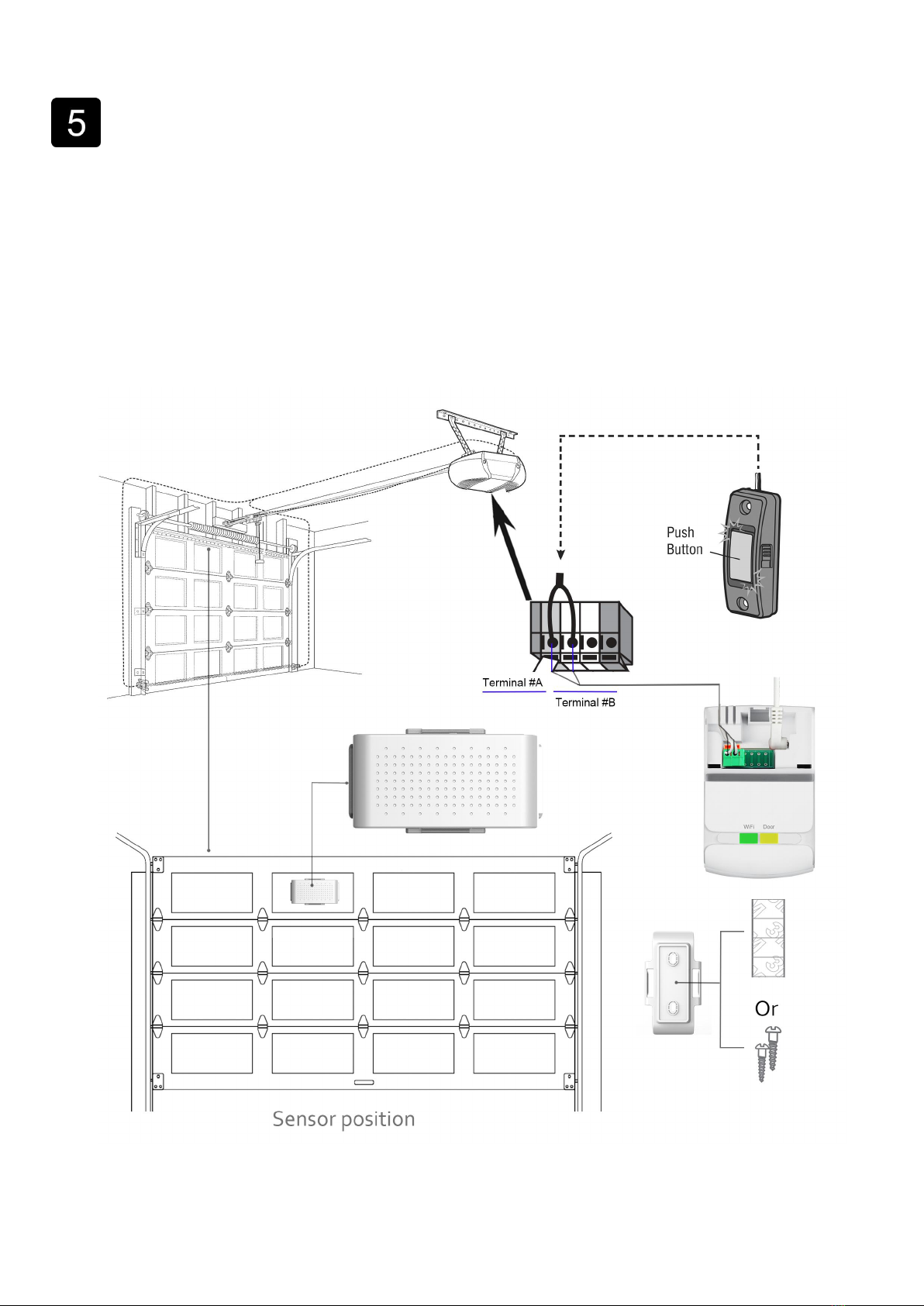
1. Connect controller to your garage door opener through the cable
1) Connect the cables of the controller to your garage door opener terminals which
should be connected to the wall button; If you have installed a wall button, please
twist them together.
10
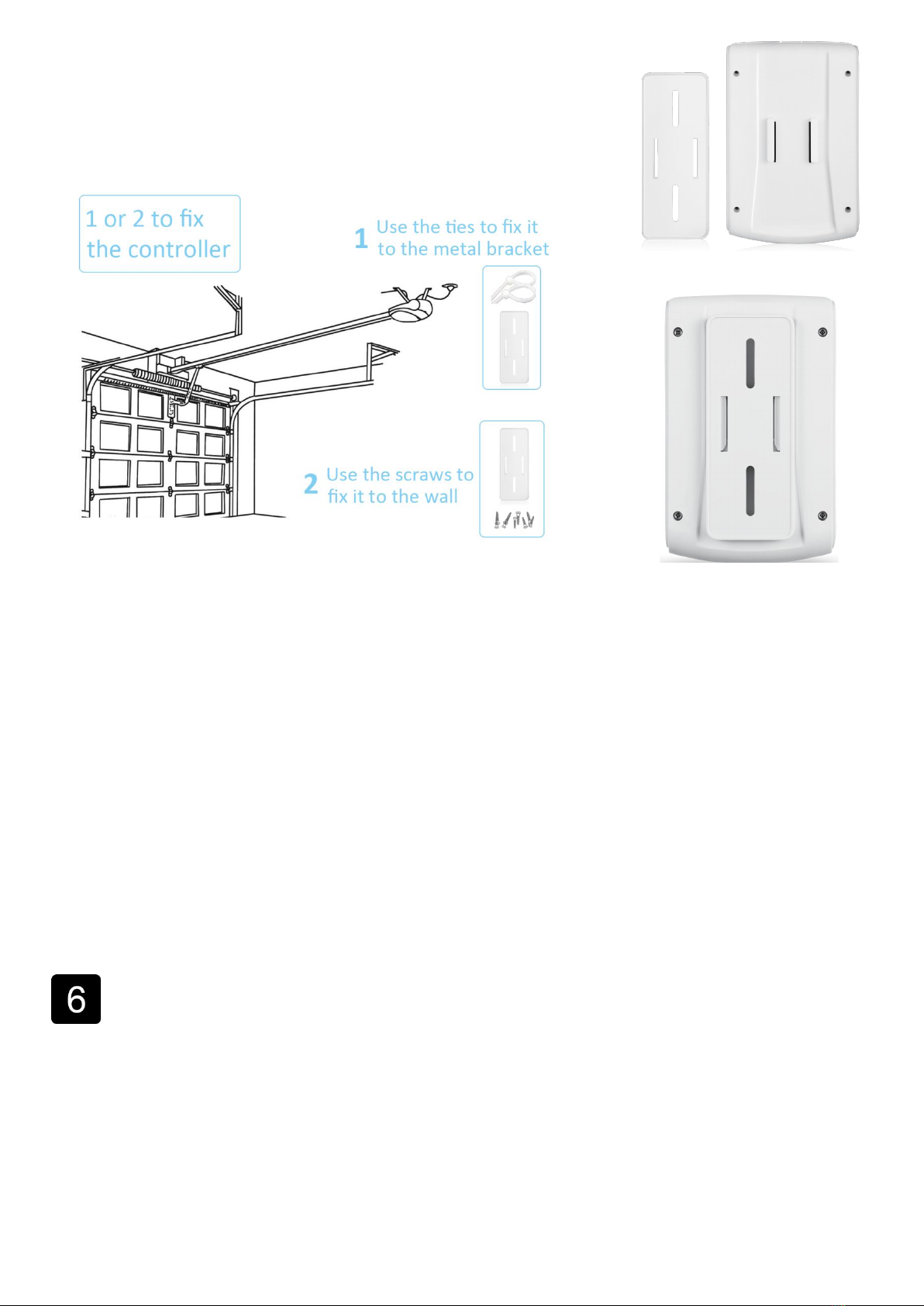
2) Find a right place to fix the controller bracket by using
self-screws or ties, then push the controller into the
controller bracket.
2. Install Door Sensor
1) Close your garage door.
2) Clean the area on your garage door where the sensor is to be installed –
railing on the inside, top panel of the garage door.
3) Remove the double-sided tape and press into place. You can also use Self-tap
Screws to install the sensor.
Note:
The door sensor will only work if mounted to the top panel of your garage door.
Any other placement will cause incorrect state.
Test
Open or close the garage door for 3 to 5 times, and check the state on
your app.
Table des matières


