Shuttle Digital Hub Manuel utilisateur

Troubleshooting [102]
English
Shuttle
®
Shuttle
Digital Hub User Guide
Copyright
Copyright 2005 by Shuttle
®
Inc. All Rights Reserved.
No part of this publication may be reproduced, transcribed, stored in a retrieval
system, translated into any language, or transmitted in any form or by any me-
ans, electronic, mechanical, magnetic, optical, chemical, photocopying, manu-
al, or otherwise, without prior written permission from Shuttle
®
Inc.
Disclaimer
Shuttle
®
Inc. shall not be liable for any incidental or consequential damages
resulting from the performance or use of this product. This company makes
no representations or warranties regarding the contents of this manual.
Information in this manual has been carefully checked for reliability; however,
no guarantee is given as to the correctness of the contents. In the interest of
continued product improvement, this company reserves the right to revise the
manual or include changes in the specications of the product described within
it at any time without notice and without obligation to notify any person of such
revision or changes. The information contained in this manual is provided for
general use by customers.
This device complies with Part 15 of the FCC Rules, Operation is subject to the
following two conditions:
1. This device may not cause harmful interference.
2. This device must accept any interference received, including interference
that may cause undesired operation.
Trademarks
Shuttle is a registered trademark of Shuttle Inc.
Intel and Pentium are registered trademarks of Intel Corporation.
PS/2 is a registered trademark of IBM Corporation.
AWARD is a registered trademark of Award Software Inc.
Microsoft and Windows are registered trademarks of Microsoft Corporation.
General Notice
Other brand and product names used herein are for identication purposes only
and may be trademarks of their respective owners.
Shuttle Digital Hub User Guide
9M0-A64M10-00E0

Safety Information
Read the following precautions before setting up a Shuttle Digital Hub.
WARNING: Forbid users to dismantle and install by oneself.
Installation Notices
Do not place this device underneath heavy loads or in an
unstable position.
Do not expose this device to high levels of direct sunlight,
high-humidity or wet conditions.
Do not use or expose this device around magnetic elds
as magnetic interference may affect the performance of
the device.
Do not block the air vents to this device or impede the
airow in any way.
WARNING: When using this device, basic safety precautions
should always be followed to reduce the risk of
re, electric shock, and injury to persons,
including the following:
Do not use this product near water; for example, near a bathtub,
wash bowl, kitchen sink, or laundry tub, in a wet basement, or near
a swimming pool.
Avoid using this product during an electrical storm. There may be a
remote risk of electric shock from lightning.
Do not use this product to report a gas leak in the vicinity of the
leak.

WARNING: Install the computer near an AC outlet. The AC
power cord is your PC’s main AC disconnecting
device and must be easily accessible at all times.
For your safety, the power cord provided with
your PC has a grounded plug. Always use the
power cord with a properly grounded wall outlet,
to avoid the risk of electrical shock.
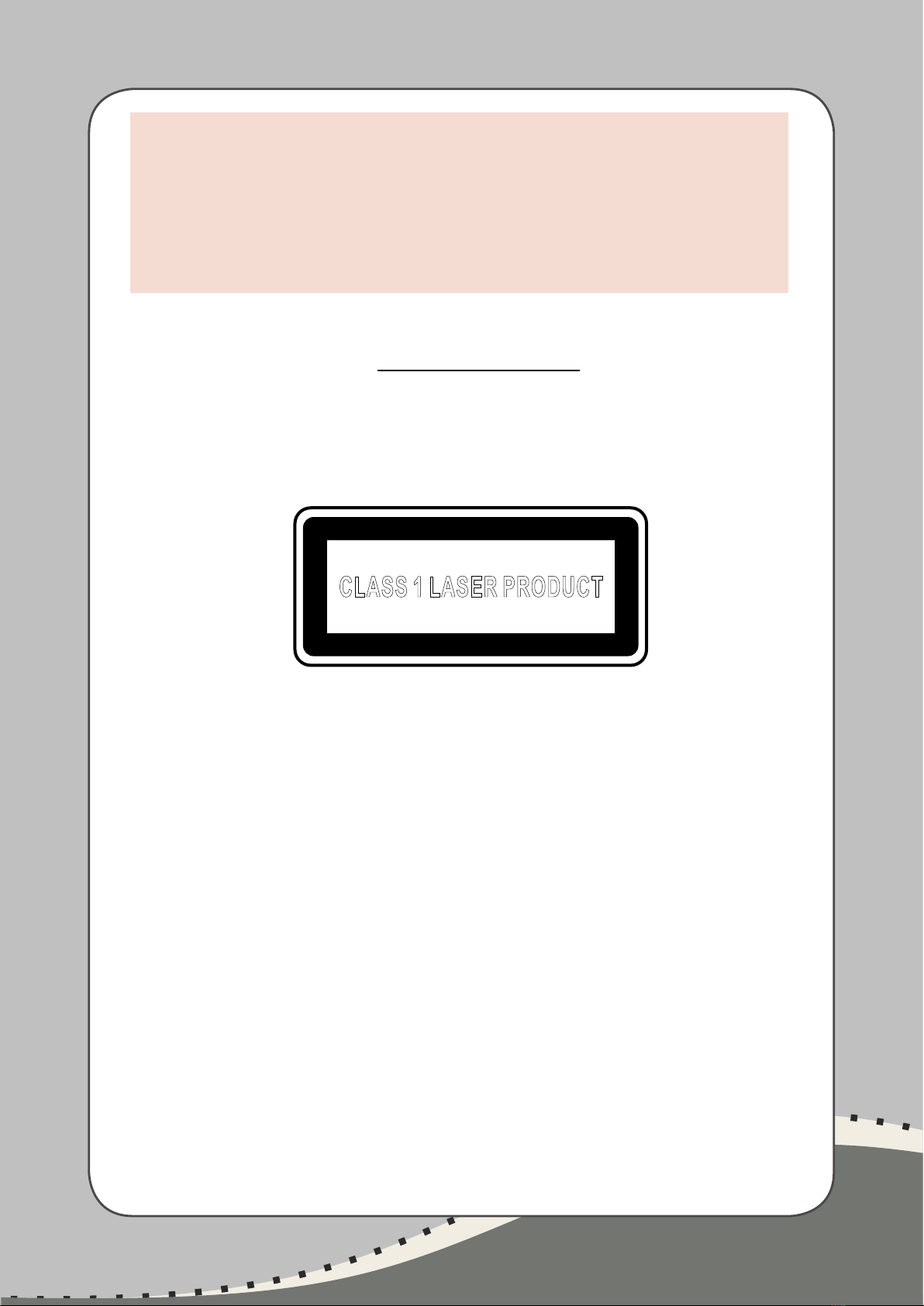
Laser Product Label
The following label or equivalent is located on the surface of laser products:
This label indicates that the product is classied as a CLASS 1 LASER
PRODUCT. This label appears on a laser device installed in your product.
CLASS 1 LASER PRODUCT

Shuttle System EMI Test Statement
Shuttle System have been via the EMI test in terms of series of regulations:
EN55013/EN55020/EN55022/CISPR22/AS/NZS3548 Class B, EN55024
(1998/AS/NZS), EN4252.1 (1994), EN61000, ANSI C63.4 (1992), CFR47
Part 15 Subpart B, and CNS13438 (1997). The items tested are illustrated as
follows:
(A) Voltage: AC 110V/60HZ & AC 230V/50HZ
(B) Tested Product Information:
Product Name: System
Status: Sample
Model Name: M1000
S/N: N/A
CPU:
External Frequency: 133 MHz
Intel Pentium M 780 2.26G, Intel Pentium M 770 2.13G
VGA Port: one port with 15 pins
DVI Port: one port with 29 pins
USB 2.0 Port: four ports with 4 pins respectively
1394 Port: one port with 4 pins and one port with 6 pins respectively
LAN Port: one port with 8 pins (10Mbps/100Mbps/1000Mbps)
Center/Bass-Out Port: eight ports
Mic-In & Earphone Ports: one port for each
IR out: three jacks
Audio TV source In: two RCA jack
Video TV source In: one RCA jack
S-Video TV source In: one port with 4 pins
TV cable/Antenna In (Coaxial): one port
FM Antenna In (Coaxial): one port
S-Video out: one port with 7 pins
Component video out: three RCA jacks
SPDIF-Out (Coaxial) Port: one port
SPDIF-Out (Optical) Port: one port
SPDIF-In (Optical) Port: one port
Clear CMOS button: one port
DIMM Memory (optional): SO-DIMM DDR333 256 MB *2
Power Cable: Detachable and Shielded (with a GND pin)
Monitor: CRT
Maximum Resolution: 2048 X 1536 V:60Hz

All CPUs have completely been tested, and values offered by the worst EMI
combination of CPU external frequency are listed as follows:
Test Mode External Frequency CPU CPU Open/Close
1 133MHz Intel Pentium M 2.26G Close
2 133MHz Intel Pentium M 2.26G Open
(C) Remedy for the Tested Product & Its EMI Interference:
Remedy: N/A
EMI Interference:
Crystal: 14.318MHz(X2)/ 25MHz(X5)/ 32.768KHz(X9)/ 12MHz(X9)
24.576MHz(ZX11)/ 24.576MHz(ZX6).
Clock Generator: ZU7
(D) Supported Host Peripherals:
Host Peripheral Product Name Model Name
# 1 Case M1000
# 2 Power Supply PC480180M
# 3 Serial ATA Seagate ST3250823SCE
# 4 DVD Player BDR-L06S
# 5 VGA Card NV6200
# 6 Tuner Card x2 Avermedia M113
(E) Notices for Assembling Computers:
1. Cases should be made of iron or other metal that has good electric conductivity.
2. Cylinders in a case should be made of metal, and as having a mainboard
mounted in a case, make sure screws are all utilized and fastened on a
mainboard.
3. An I/O shielding should be contacted with I/O metallic parts of a mainboard.
4. Cables should appropriately be arranged and xed in a case. Follow instructions:
● Leave IDE cables not crossed upon CPU and SDRAM;
● Leave power cables minimum in length, and not crossed upon a mainboard;
● Leave CPU fan cables minimum in length, and not near CPU;
● Leave cables on panels and other spare cables tied in a computer case.
5. Make sure an EMI shielding attached to a case has properly been installed.
6. Make sure a 5.25” and screws are fastened to an EMI shielding.
7. Make sure a case is closely in contact with EMI connected points.
8. Make sure there is no cleft in a case which is not deformed.
9. Make sure a PCI door is bound to a case.
10. Make sure cables of other devices (fans or some others) are xed in a case.

Federal Communication Commission Interference Statement
This equipment has been tested and found to comply with the limits for a
Class B digital device, pursuant to Part 15 of the FCC Rules. These limits are
designed to provide reasonable protection against harmful interference in a
residential installation. This equipment generates, uses and can radiate radio
frequency energy and, if not installed and used in accordance with the instru-
ctions, may cause harmful interference to radio communications.
However, there is no guarantee that interference will not occur in a particul-
ar installation. If this equipment does cause harmful interference to radio or
television reception, which can be determined by turning the equipment off
and on, the user is encouraged to try to correct the interference by one of
the following measures:
● Reorient or relocate the receiving antenna.
● Increase the separation between the equipment and receiver.
● Connect the equipment into an outlet on a circuit different from that
to which the receiver is connected.
● Consult the dealer or an experienced radio/TV technician for help.
This device complies with Part 15 of the FCC Rules. Operation is subject to
the following two conditions: (1) This device may not cause harmful interfe-
rence, and (2) this device must accept any interference received, including
interference that may cause undesired operation.
FCC Caution: Any changes or modications not expressly approved by the
party responsible for compliance could void the user’s authority to operate
this equipment.
IMPORTANT NOTE:
FCC Radiation Exposure Statement:
This equipment complies with FCC radiation exposure limits set forth for an
uncontrolled environment. This equipment should be installed and operated
with minimum distance 20cm between the radiator & your body.
This transmitter must not be co-located or operating in conjunction with any
other antenna or transmitter.
SHUTTLE INC. declared that PN18 is limited in CH1~11 from 2412 to 2462
MHz by specied rmware controlled in USA.

This device is intended only for OEM integrators under the following
conditions:
The antenna must be installed such that 20 cm is maintained between the
antenna and users, and the transmitter module may not be co-located with
any other transmitter or antenna.
As long as 2 conditions above are met, further transmitter test will not be
required. However, the OEM integrator is still responsible for testing their
end-product for any additional compliance requirements required with
this module installed (for example, digital device emissions, PC peripheral
requirements, etc.).
IMPORTANT NOTE: In the event that these conditions can not be met
(for example certain laptop congurations or co-location with another
transmitter), then the FCC authorization is no longer considered valid and
the FCC ID can not be used on the nal product. In these circumstances,
the OEM integrator will be responsible for re-evaluating the end produce
(including the transmitter) and obtaining a separate FCC authorization.
End Product Labeling
This transmitter module is authorized only for use in device where the
antenna may be installed such that 20 cm may be maintained between the
antenna and users. The nal end product must be labeled in a visible area
with the following: “Contains TX FCC ID: S8C-PN18”.
Manual Information That Must be Included
The OEM integrator has to be aware not to provide information to the end
user regarding how to install or remove this RF module in the users manual
of the end product which integrate this module.
The users manual for OEM integrators must include the following
information in a prominent location “IMPORTANT NOTE: To comply with
FCC RF” exposure compliance requirements, the antenna used for this
transmitter must be installed to provide a separation distance of at least 20
cm from all persons and must not be co-located or operating in conjunction
with any other antenna or transmitter.”

TABLE OF CONTENTS TABLE OF CONTENTS
TABLE OF CONTENTS
1 Before You Begin .......................................................... 1
Welcome.................................................................................................................................................... 1
Benefits and Features..............................................................................................................................2
Functional Overview ............................................................. 3
Front Panel ...............................................................................................................................................3
Back Panel ................................................................................................................................................4
Keyboard............................................................................ 7
Wireless Keyboard Operation...............................................................................................................9
Replacing the Keyboard Batteries.........................................................................................................9
Remote Control ................................................................... 11
Remote Control Buttons..........................................................................................................................11
Remote Control Operation ................................................................................................................... 14
Installing the Remote Control Batteries............................................................................................... 15
Inventory ...........................................................................16
Cables Included...................................................................................................................................... 17
2 Connecting Audio.........................................................18
Sound Connector Jacks ........................................................................................................................ 19
Speaker Types........................................................................................................................................19
Speaker Configurations.........................................................................................................................20
TV Audio Connection........................................................... 22
Connecting TV Audio............................................................................................................................22
AV Receiver Audio Connection ..............................................23
AV Receiver Equipment Overview ......................................................................................................23
2.0 Home Stereo Installation.............................................................................................................. 24
2.1 Home Stereo Installation............................................................................................................... 24
4.1 Home Theater Audio......................................................................................................................25
5.1 Home Theater Audio......................................................................................................................26
7.1 Home Theater Audio......................................................................................................................27
Digital Home Theater Audio................................................................................................................28
Powered Speaker Audio Connection .......................................30
Y adapter cables...................................................................................................................................30
2.1 Powered Speakers .......................................................................................................................... 31
4.1 Powered Speakers..........................................................................................................................32
5.1 Powered Speakers ..........................................................................................................................33
7.1 Powered Speakers ......................................................................................................................... 34
Digital Powered Speakers ....................................................................................................................35
Monitor Speakers...................................................................................................................................36
FM Radio Antenna ..............................................................37
3 Connecting Video Out ................................................. 38
Video Out Overview ............................................................38

TABLE OF CONTENTS TABLE OF CONTENTS
Video Out Connection Overview ........................................................................................................38
Video Output Connectors .....................................................................................................................39
Component Video Settings .................................................................................................................. 40
TV Display Overview ........................................................................................................................... 40
Audio and Video Switching Overview...............................................................................................41
Using the Remote Control with Your TV........................................................................................... 41
Typical Video Out Connections...............................................42
Video Out to TV..................................................................43
TV Out (high definition) ...................................................................................................................... 44
Video Out from AV Receiver to TV ........................................45
TV Out (through AV receiver) ........................................................................................................... 46
Video Out to Monitor...........................................................47
Video Out to TV and Monitor ...............................................48
4 Connecting TV Source In .............................................. 50
TV Source Overview ............................................................50
TV Signal Source Overview.................................................................................................................50
TV Source Connectors Overview ........................................................................................................ 51
Typical TV Source Connections ...............................................52
Cable Connection................................................................. 53
Cable Only .............................................................................................................................................53
Cable Only with Splitter...................................................................................................................... 54
One Cable TV Box or Digital Cable Receiver ...........................54
Two Cable TV Boxes, or Two Digital Cable Receiversr...............56
Satellite Connection ............................................................. 58
One Satellite Receiver...........................................................................................................................58
Two Satellite Receivers ........................................................ 60
Infrared Transmitter Connection ........................................... 62
Infrared Transmitter Overview.............................................................................................................62
Infrared Transmitter Installation...........................................................................................................63
Antenna Connection.............................................................64
5 Connecting Video Equipment......................................... 66
Video Equipment Connection Overview.................................. 66
Typical Video Equipment Connections .....................................67
VCR Connection...................................................................68
VCR Direct in Connection ....................................................................................................................68
Wall to VCR to TV Using Coaxial Cable ........................................................................................69
Video Camera Connection.....................................................72

TABLE OF CONTENTS
TABLE OF CONTENTS
Connecting a Digital Video Camera..................................................................................................72
Recognizing the camera...................................................................................................................... 74
Connecting an Analog Camcorder.................................................................................................... 74
6 Connecting the Network .............................................. 76
Connecting the Wireless Network Antenna..............................77
Connecting a DSL/Cable Modem............................................79
Connecting Through a Router ................................................80
USB Device Connection ......................................................... 81
Digital Still Camera............................................................................................................................... 81
Other USB Devices................................................................................................................................82
Connecting an Shuttle Personal Media Drive ...........................83
Installing an Shuttle Personal Media Drive.......................................................................................83
Disconnecting an Shuttle Personal Media Drive ............................................................................. 84
7 Initial Configuration..................................................... 86
Starting the Shuttle Digital Hub for the First Time ...................86
Installing the Keyboard Batteries (Initial) ...........................................................................................86
Initial Start Up .......................................................................................................................................87
Syncing the Keyboard ..........................................................................................................................88
Media Center First-Run.........................................................89
Required Set-up......................................................................................................................................89
Optional Set-up......................................................................................................................................89
If Your Connections Don’t Work ........................................................................................................90
Configuring Audio ...............................................................91
Connecting a Microphone ..................................................... 91
Selecting recording devices.................................................................................................................. 91
Adjusting the Volume ......................................................... 92
Configuring Audio Output.....................................................93
Configuring audio for Media Center................................................................................................ 94
Configuring audio for the DVD Player............................................................................................ 94
8 Troubleshooting .......................................................... 95
Problems and Solutions........................................................95
Audio .......................................................................................................................................................95
Video........................................................................................................................................................96
System......................................................................................................................................................97
Getting Help......................................................................101
Help and Support Center .................................................................................................................. 101
Microsoft Web Site .............................................................................................................................102
Autres manuels pour Digital Hub
1
Ce manuel convient aux modèles suivants
1
Table des matières
Autres manuels Shuttle Serveur