
SHUOYING WDV5300 Manuel utilisateur
1
USER MANAUAL
Product name:Wifi Camera
Model:WDV5300
Rating:5V 500mA
Operating Manual
2
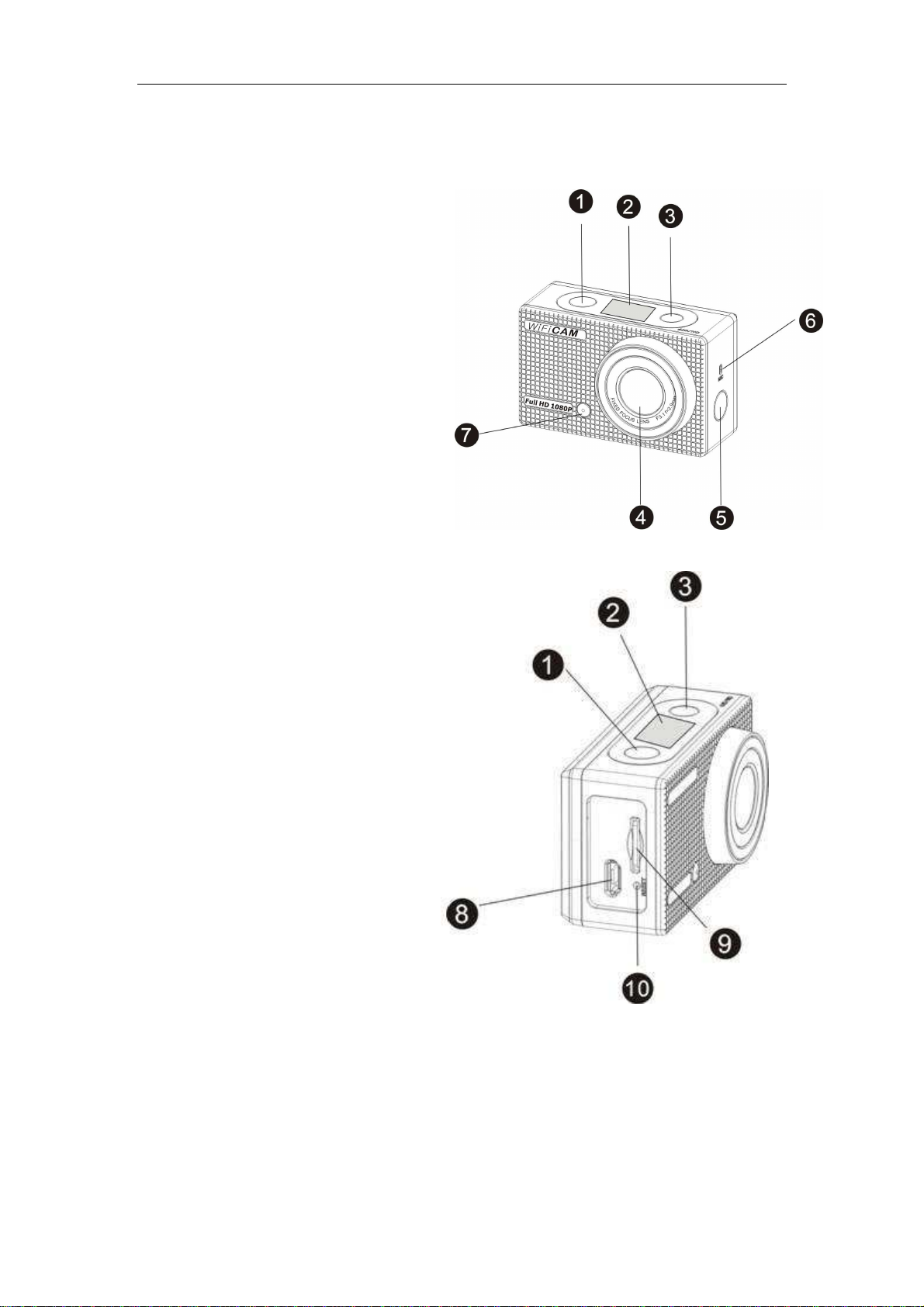
Appearance
1. Shutter button
2. LCD display
3. Power/Mode button
4. Lens
5. WIFI switch and status indicator (red)
6. Microphone
7. Work indicator
8. Micro USB port
9. TF card slot
10. Reset button

3
LCD display of the camera
The LCD displays the following status and settings:
1. Camera mode
2. Video recording mode (default)
3. WIFI icon (display when enabled)
4. TF card icon (display when loaded)
5. Resolution icon:
In photo taking mode, HI stands for 8M (
3264x2448
), and in
video recording mode, it stands for FHD (
1920x1080
);
In photo taking mode, LO stands for 5M (
2592x1960
), and in
video recording mode, it stands for 720P
(1280x720)-30FPS;
HILO only displays in video recording mode, standing for
720P (1280x720) -60FPS.
6. Mute mode, displays when enabled, and disabled by
default.
7. Counter: displays up to 999.
8. Timer: displays hours and minutes.
9. Battery icon: current battery level of the camera.
4
Note: the above icons may vary according to the status of
the camera.
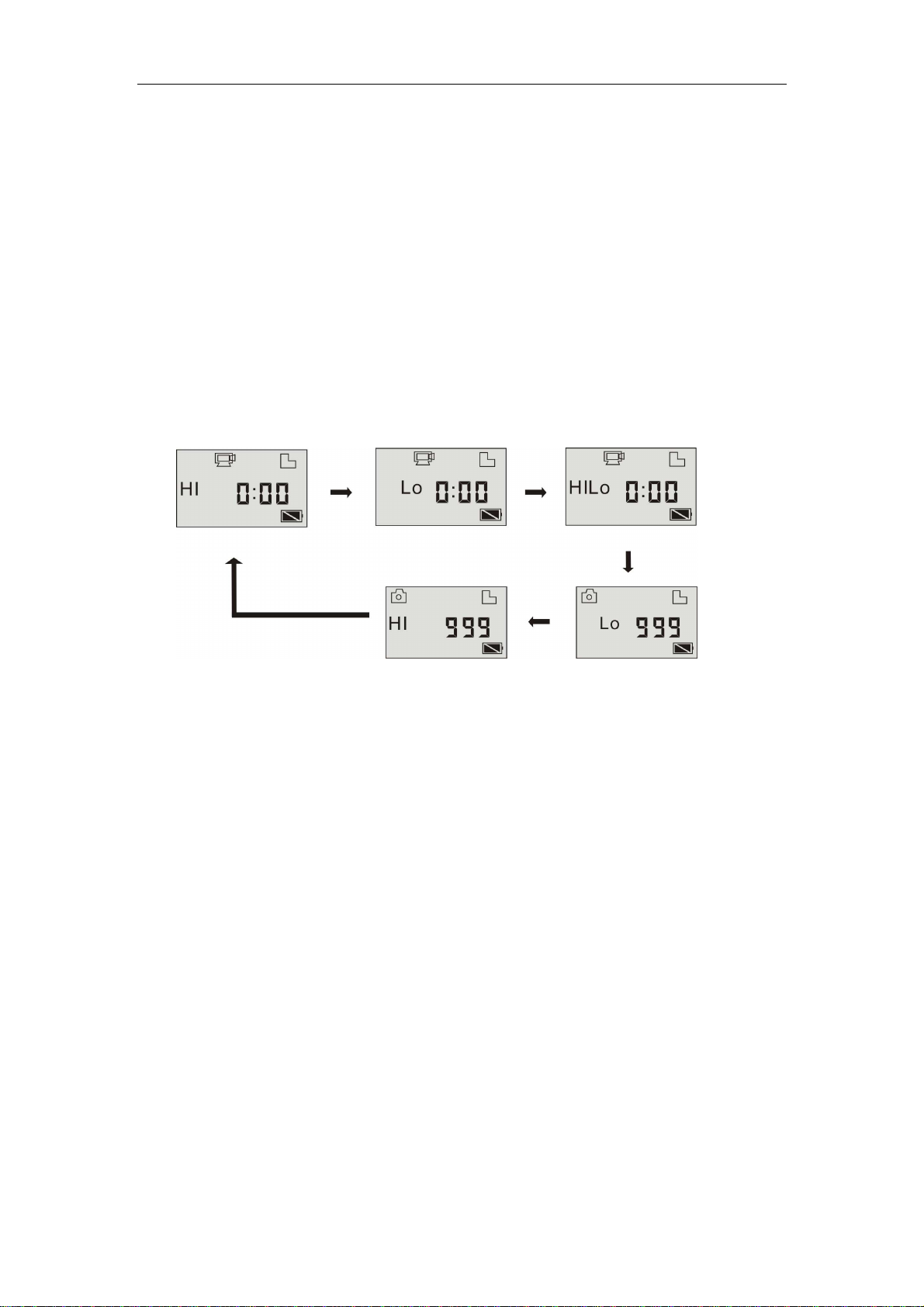
Camera mode flow chart:
Under HI video recording mode, press the Power button to
switch to LO,and under LO video recording mode, press the
Power button to switch to HILO.
Under HILO video recording mode, press the Power button
to switch to LO photo taking mode, under LO photo taking
mode, press the Power button to switch to HI photo taking
mode, and under HI photo taking mode, press the Power
button again to return to HI video recording mode.
In video recording mode, press the Shutter button to start
recording, and press it again to stop. Press the Power button
to switch to HI.
Under photo taking mode, press the Shutter button to start
taking photo, and press the Power button to switch to HI.
Video preview mode
(By default)
Video 720P(30 fps)
mode
Video 720P (60 fps)
mode
Photo 5M mode
Photo 8M mode

5
Use your WIFI DV:
1. Insert a micro SD or micro SDHC card, as shown in the
following picture.
High speed card at least Class 4 is recommended; if using
0.5s delay function or recording video in professional mode,
the card of Class 10 is required.
!
!!
!Caution: Turn off the camera before inserting or
removing the card.
2. Charging the battery. The camera uses built-in chargeable
lithium battery. Connect the camera to the PC via USB cable to
charge the battery.
Note:
During charging, the status indicator (blue) will light on:
Indicator on during charging.
Indicator off when charging completes.
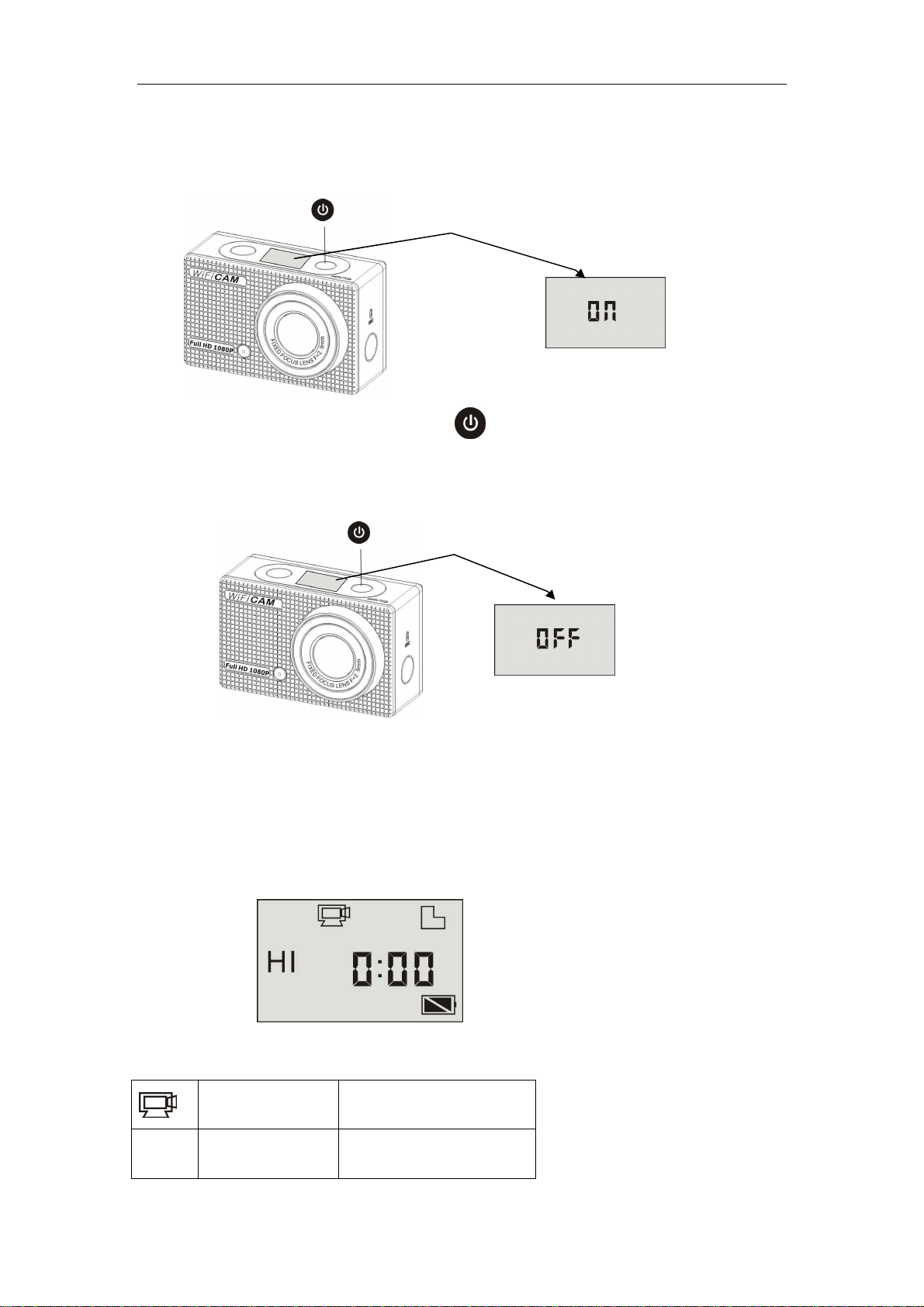
3. Turn on/off
Turn on: press and hold the button for 3 seconds, LCD
6
displays “ON” and a beep can be heard from buzzer.
Turn off: press and hold the button for 3 seconds, LCD
displays “OFF” and a beep can be heard from buzzer.
Note:
The camera will turn off automatically if it is left unused for 5 minutes.
4. Default setting: the default setting after turning on is as
follow:
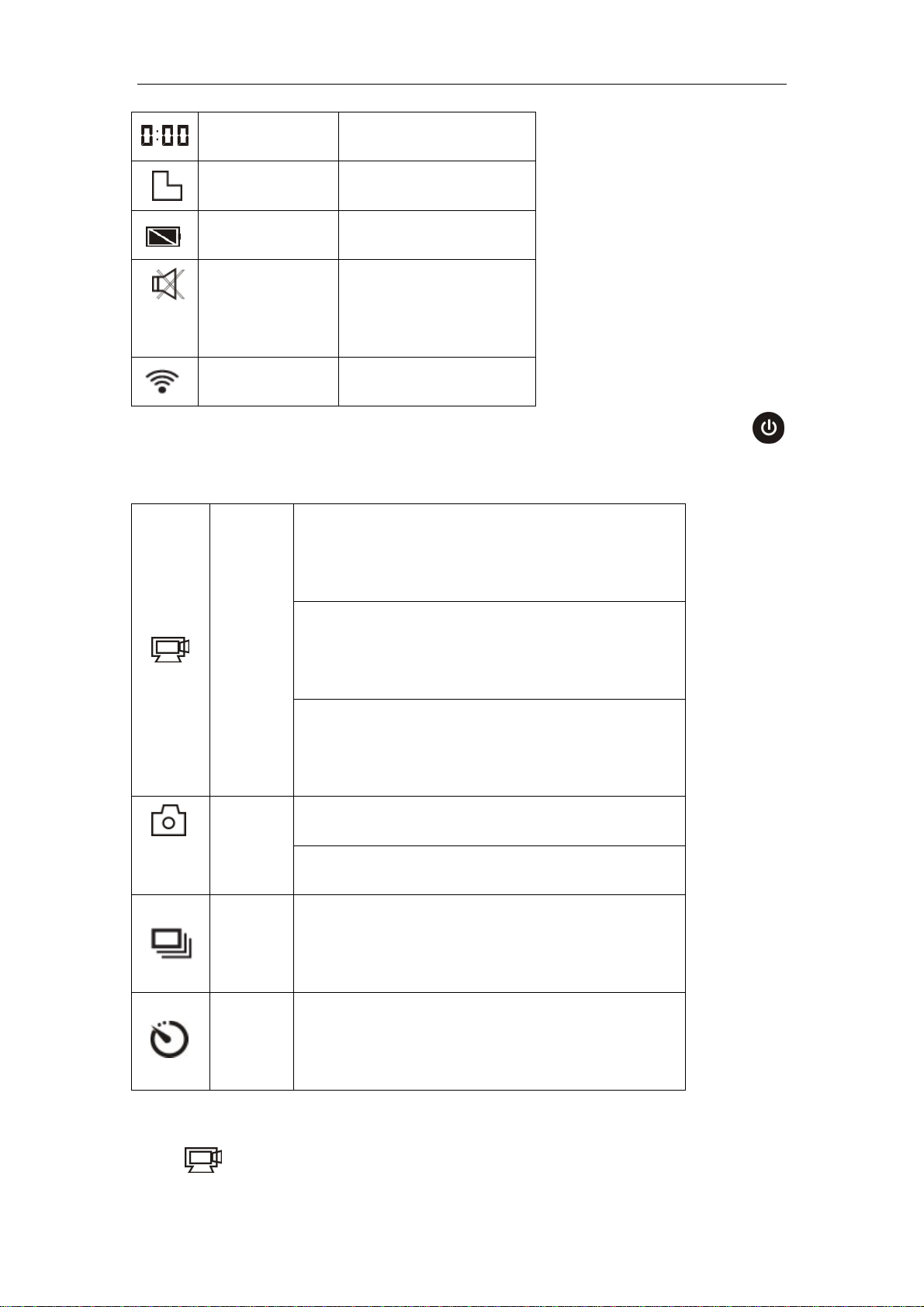
Video recording
mode icon
The camera is in video
recording mode
HI
Video resolution FHD: 1080p30fps
7
Recording time Stands for 0 hour and 00
minute
TF card icon Display when a TF card is inserted,
and otherwise no display
Battery level
Battery is full
Mute icon
The camera is in Mute mode, no Beep
will be heard when pressing the
buttons. It displays only when Mute
mode is activated.
Wi-Fi icon Display when activated
5. The camera provides different shooting modes. Press the
button repeatedly, the following functions will display in turn:
HI stands for FHD (1920x1080) 30 fps
video
Lo stands for 720P (1280x720) 30 fps
video
Video
HILO stands for 720P (1280x720) 60 fps
video
Hi stands for 8M (3264 x 2448) resolution
Photo
Lo stands for 5M (2592 x 1944) resolution
Conti
nuous
The camera supports taking 3 photos
continuously (only via App)
Time
delay
Time delay shooting, you can set 0s,
2s or 10s (only via App)
Video

8
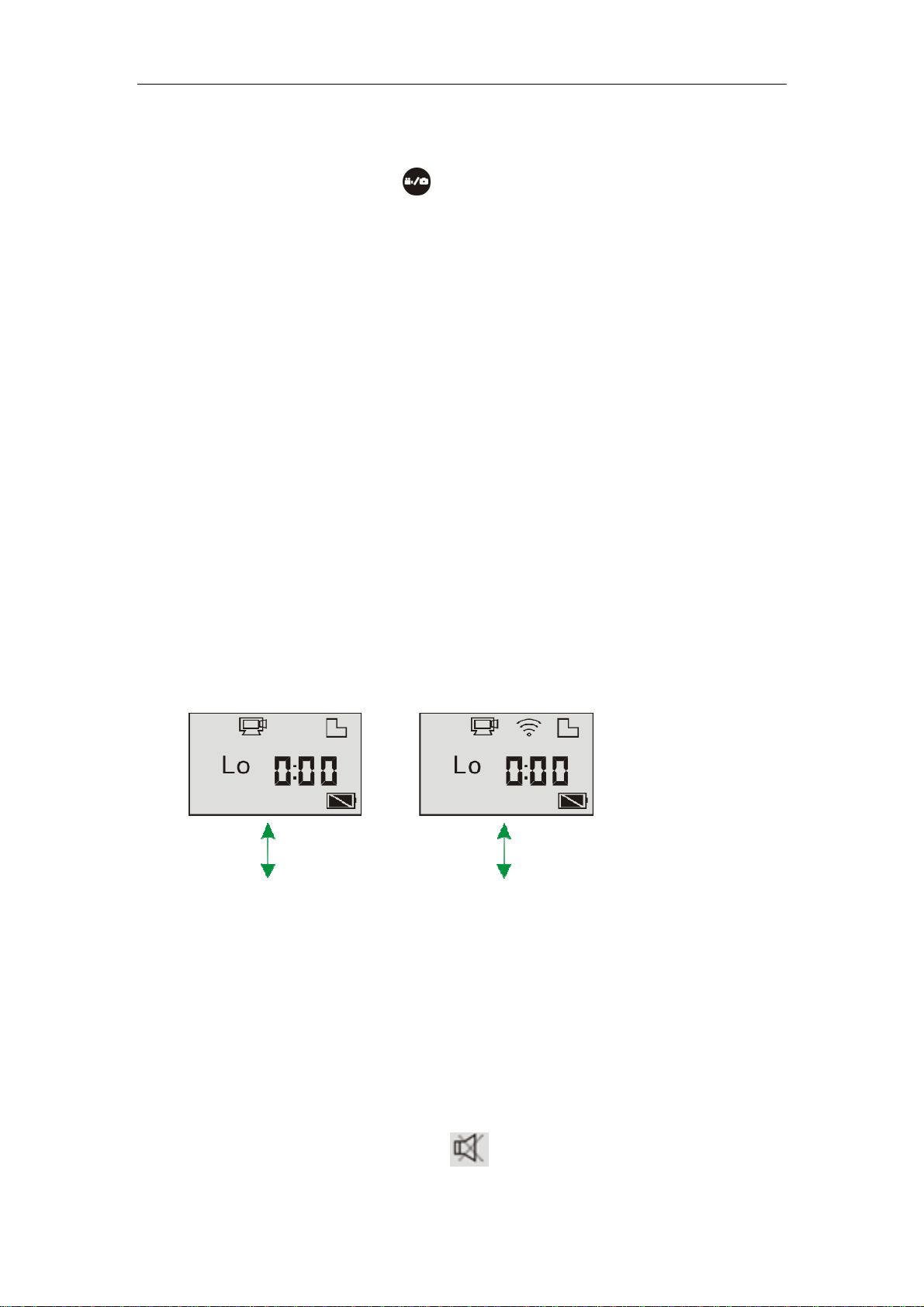
To record a video, check whether the camera is under Video
mode. If the icon is not displayed on the screen, press
the button repeatedly until it appears.
Start recording:
Press and release the button, the icon and [:]
displayed in LCD will flash. At same time the red indicator
will flash too, meaning the recording is in process.
Stop recording:
Press and release the button, the icon and [:]
displayed in LCD will stop flashing. At same time the red
indicator will stop flashing either, meaning the recording is
stopped.
When the TF card is full, or the battery runs out, the
recording will stop automatically, and the recorded video will
be saved before the camera turns off.
Photo
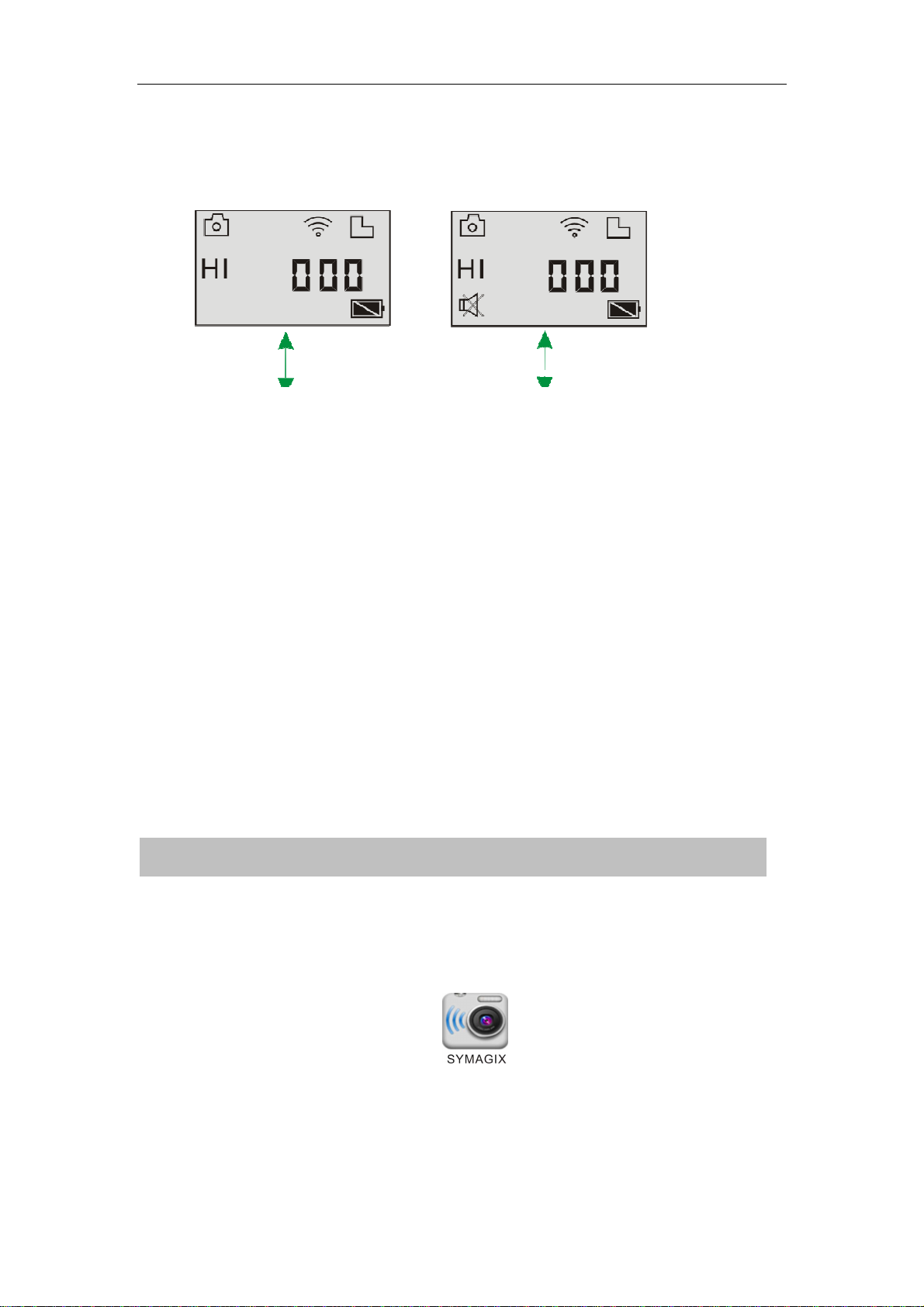
To take a photo, check whether the camera is under Photo
mode. If the icon is not displayed on the screen, press the
button repeatedly until it appears.
9
Taking a photo
Press and release the button, a beep will be heard and
the red indicator will flash, meaning a photo is taken.
Enable/disable wifi
The wifi is disabled by default. Press the wifi button on the
side of the camera to enable it. When starting connecting to
wifi network, the indicator will flash, and when a wifi
network is connected, the indicator will remain on, and the
wifi icon will display on LCD (WIFI will be automatically
disabled if no terminal is connected after 30 seconds in order
to save power).
Enable/disable Mute mode
The buzzer is enabled by default. Under the Video or Photo
mode, press and hold the Shutter button to disable the buzzer
and indicator and enter Mute mode. Under Mute mode, the
speaker icon will display “ ”; press and hold the Shutter
WIFI is disabled by default When WIFI is enabled, the WIFI icon will display on LCD
10
button again to exit Mute mode.
APP (support Android and iOS)
Before using
1 How to install an APP:
1.1 Scan the QR code printed on the packaging to
acquire SYMAGIX App; or
1.2 Search for ”SYMAGIX” in Android market (for
Android OS) or APP STORE (for iOS) to find the App and
install it according to the instruction.
Android App
Install apk file (provided by dealer or via internet) on
Android mobile phone or MID; when installation completes,
the LCD will display icon ;
Insert the TF card and turn on the camera, then press the wifi
button to enable it. Now you can see the wifi icon on the
Buzzer is enabled by default When Mute mode is enabled, the Mute icon will display on LCD


