Operation instruction
DIP for EDID Setting
[DIP]=0000: HDMI 1080p@60Hz, Audio 2CH PCM
[DIP]=0001: HDMI 1080p@60Hz, Audio 5.1CH PCM/DTS/DOL Y
[DIP]=0010: HDMI 1080p@60Hz, Audio 7.1CH PCM/DTS/DOL Y/HD
[DIP]=0011: HDMI 1080i@60Hz, Audio 2CH PCM
[DIP]=0100: HDMI 1080i@60Hz, Audio 5.1CH PCM/DTS/DOL Y
[DIP]=0101: HDMI 1080i@60Hz, Audio 7.1CH PCM/DTS/DOL Y/HD
[DIP]=0110: HDMI 1080p@60Hz/3D, Audio 2CH PCM
[DIP]=0111: HDMI 1080p@60Hz/3D, Audio 5.1CH PCM/DTS/DOL Y
[DIP]=1000: HDMI 1080p@60Hz/3D, Audio 7.1CH PCM/DTS/DOL Y/HD
[DIP]=1001: HDMI 4K2K, Audio 2CH PCM
[DIP]=1010: HDMI 4K2K, Audio 5.1CH PCM/DTS/DOL Y
[DIP]=1011: HDMI 4K2K, Audio 7.1CH PCM/DTS/DOL Y/HD
[DIP]=1100: DVI 1280x1024@60Hz, Audio None
[DIP]=1101: DVI 1920x1080@60Hz, Audio None
[DIP]=1110: DVI 1920x1200@60Hz, Audio None
GUI Control
PC System: Microsoft Windows Operation System
Installation
4x4 HDMI Matrix controller is a green software. You just need to copy “4x4 HDMI Matrix ontroller vx.x.exe” to
the P which is used to control the Matrix by RS232 OM or T P to complete installation.
Preparation
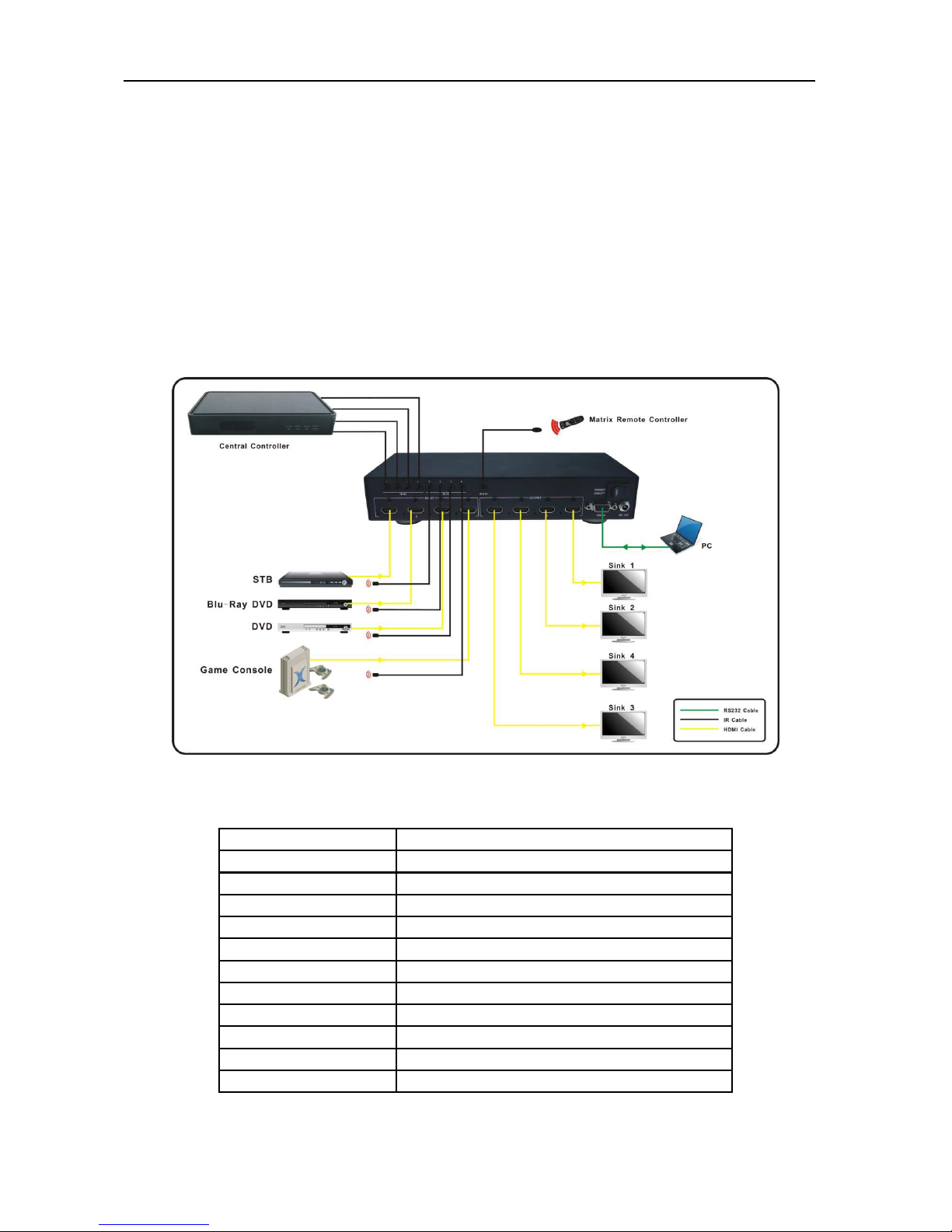
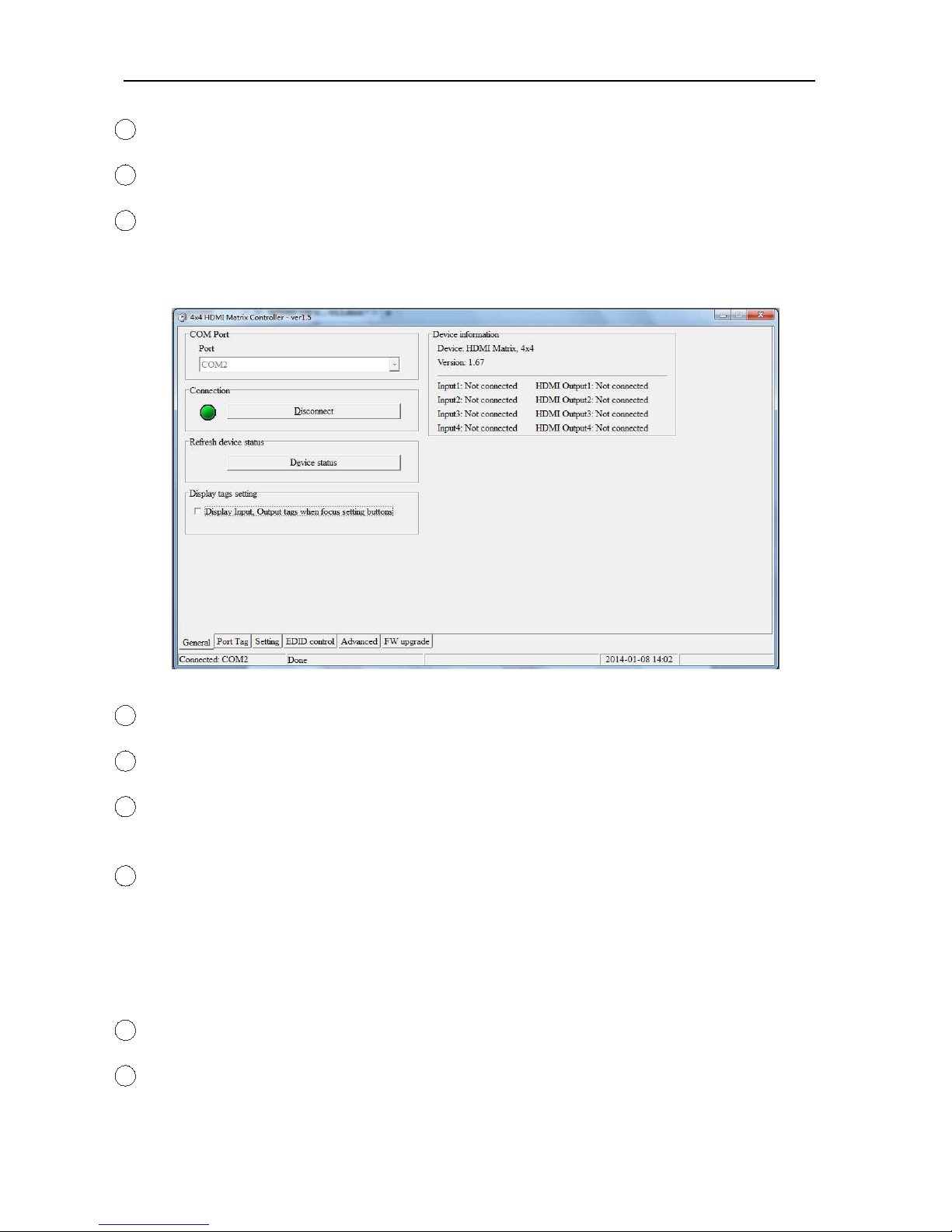
1. onnect P and Matrix by RS232 cable
2. Power up Matrix (It will take about 5 seconds to be ready with “Di” beep sound )
3. Double click “4x4 HDMI Matrix ontroller vx.x.exe” icon to run it
How to control Matrix
Common information
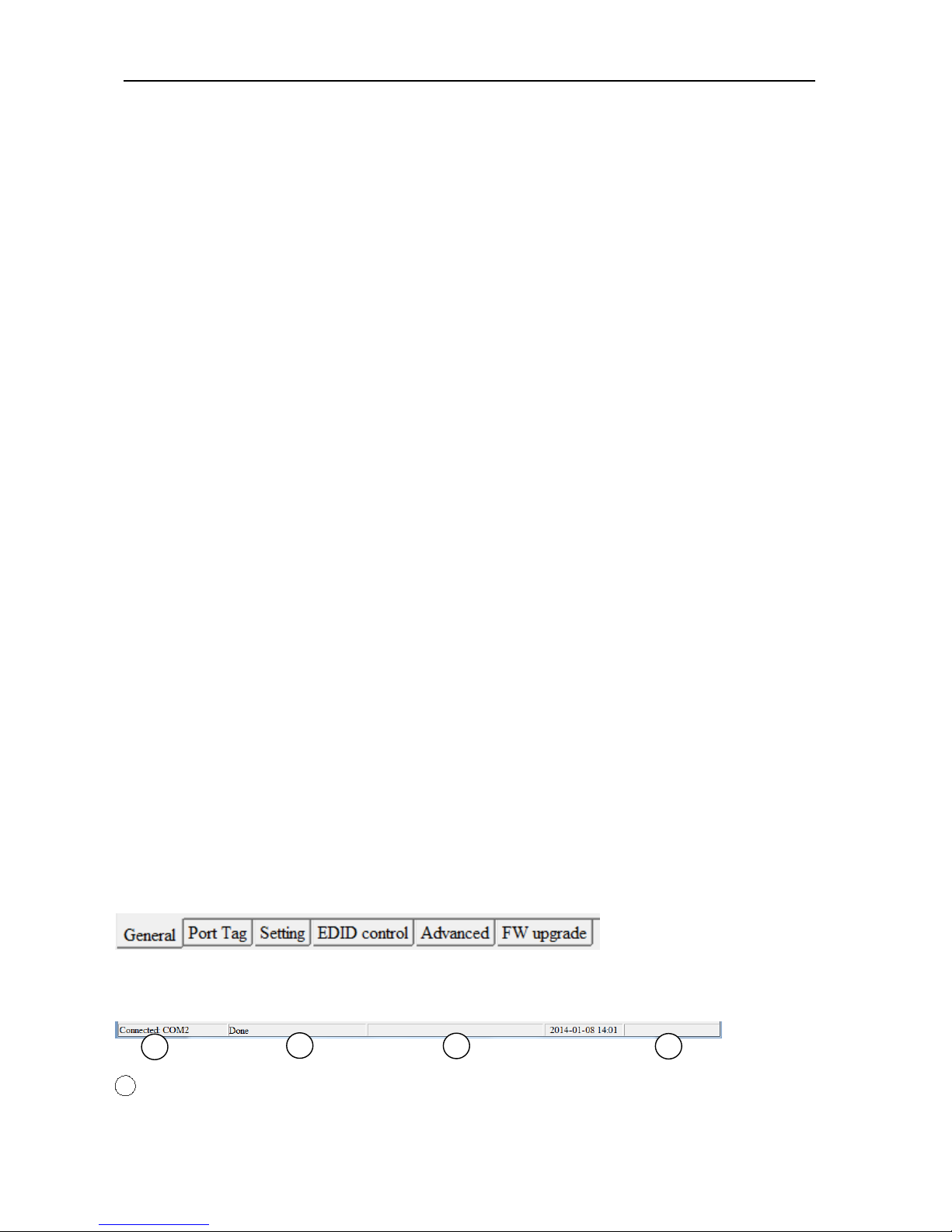
lick to select tab page
1OM port connect status
1 2 3 4