
ShopBot Desktop MAX ATC V2 Manuel utilisateur
Desktop MAX ATC V2 User Manual SBG00609
Desktop MAX Automatic Tool Changer
(ATC) V2 User Manual
© Copyright May, 2023 ShopBot Tools, Inc.
page 1

Desktop MAX ATC V2 User Manual SBG00609
© Copyright May, 2023 ShopBot Tools, Inc.
page 2

Desktop MAX ATC V2 User Manual SBG00609
Table of Contents
Desktop Tools Safety and Precautions .......................................................................................... 5
Getting Started ................................................................................................................................. 6
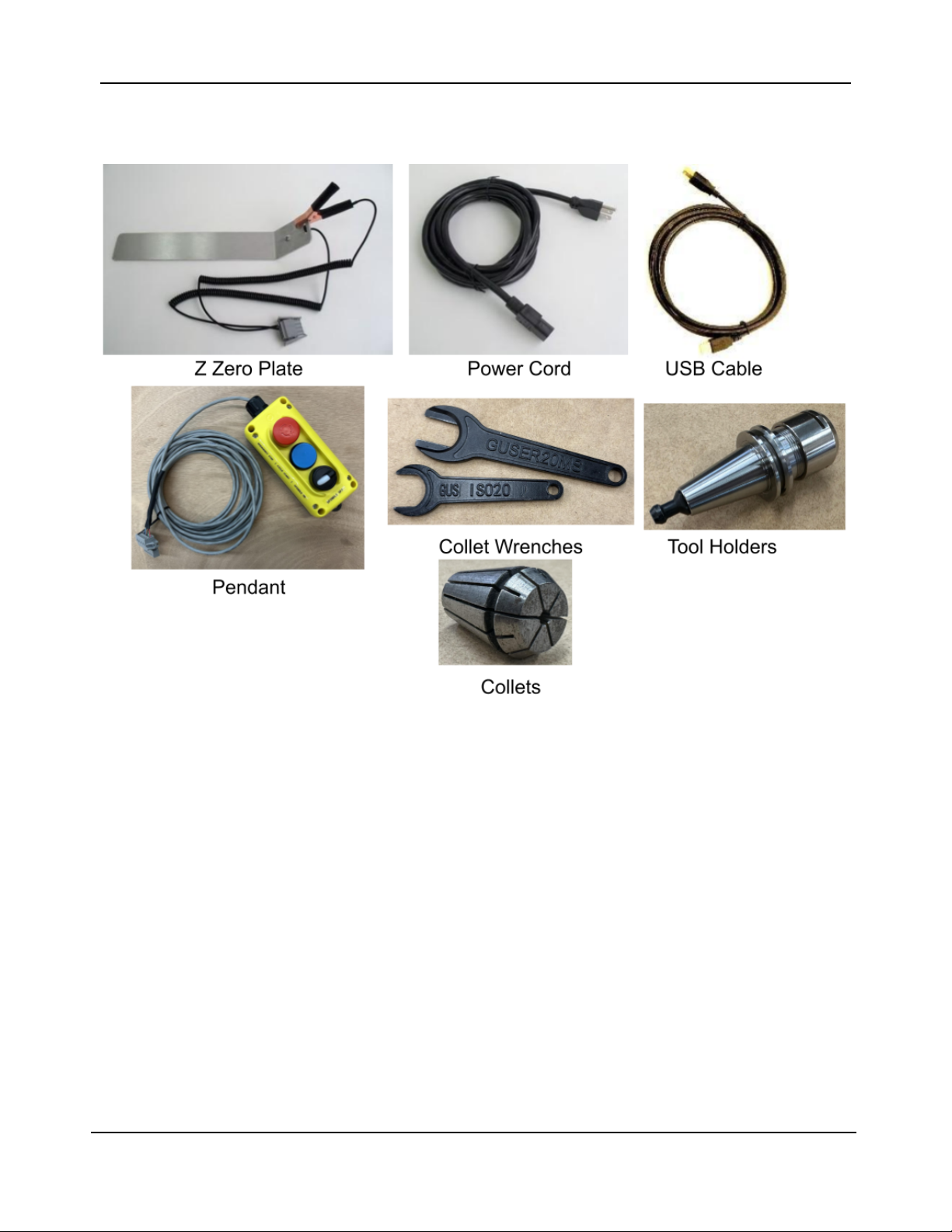
What’s in the Crate? ..................................................................................................................... 6
Uncrating ...................................................................................................................................... 8
Connecting the Dust Hose ............................................................................................................ 9
Connecting the Pneumatics .......................................................................................................... 9
Software and Computer Configuration ............................................................................................. 10
Introduction ................................................................................................................................. 10
Computer Recommendations ..................................................................................................... 11
Computer Configuration .............................................................................................................. 11
Conclusion .................................................................................................................................. 16
Machine Setup ................................................................................................................................ 19
Plug in Pendant and Connect Power ......................................................................................... 19
Launch Software ....................................................................................................................... 20
ATC Software Setup ....................................................................................................................... 21
Starting the Software .................................................................................................................. 21
Square the Machine ................................................................................................................... 21
Setting up your XY Home Position ............................................................................................. 22
Zero the X- and Y-axes ............................................................................................................... 23
Machine Features ........................................................................................................................... 24
The Position Window .................................................................................................................. 24
The Keypad ................................................................................................................................ 24
Z Zero Plate ................................................................................................................................ 24
Zero the Z-Axis ........................................................................................................................... 25
Tool Draw Bar ............................................................................................................................. 25
Inserting a Tool into a Tool Holder ................................................................................................ 26
Calibrating the ATC (CN,74) .......................................................................................................... 28
Your Calibration Numbers from the Factory: .............................................................................. 28
Measuring Tool Lengths (CN,72) .................................................................................................. 30
Plate Offset Measurement (CN,73) ................................................................................................ 31
Creating a Tool Change File .......................................................................................................... 32
Spindle Warmup Routine (C5) ....................................................................................................... 33
Run the File ..................................................................................................................................... 33
Advanced Techniques ................................................................................................................... 34
Going Above Tool #7 .................................................................................................................. 34
Setting Up for Oversized Material ............................................................................................... 35
Performing Bit Measurements with the Toolbar Removed ......................................................... 36
Using Extra Toolbars/Reinstalling Toolbars ................................................................................ 37
Troubleshooting ............................................................................................................................. 38
© Copyright May, 2023 ShopBot Tools, Inc.
page 3

Desktop MAX ATC V2 User Manual SBG00609
© Copyright May, 2023 ShopBot Tools, Inc.
page 4

Desktop MAX ATC V2 User Manual SBG00609
Desktop Tools Safety and Precautions
WARNING! Read all safety warnings, instructions, illustrations and specifications provided with this
power tool. Failure to follow all instructions listed below may result in electric shock, fire, and/or
serious injury.
Save all warnings and instructions for future reference. Refer to the General Power Tool Safety
Warnings document sent with the User’s Guide.
Learn and understand safe use of the machine. Do not allow untrained individuals to
operate the machine without supervision. Be aware of the location of the Emergency
Stop switches at all times.
Eye and ear protection MUST be worn by the machine operator as well as any
bystanders or observers. Flying sawdust, material chips, and other debris can cause
serious eye injury.
Wear closed-toe shoes at all times.
Make sure that your material is properly secured before cutting, and be aware of any
small parts that may come loose after being cut. If a small part catches the edge of a
spinning bit, it can be thrown forcefully in any direction, causing injury or damage.
Never place your hands on the rails of the ShopBot. Be aware that the machine may
move unexpectedly in any direction, which can cause serious injury if your hands are
in the path of movement.
Never wear gloves while operating the machine. As with any power tool, a glove can
get caught in moving or spinning parts and pull your hand into the machinery.
Never leave a machine running and unattended. Understand that a spinning tool
generates friction and heat, creating a risk of fire. This risk is minimized by using
correct chip load, using sharp bits, and by always double-checking your files before
cutting. Be prepared to pause or stop the cut if something seems incorrect or unsafe.
Keep a working fire extinguisher within reach of the machine, for the reasons listed
above.
© Copyright May, 2023 ShopBot Tools, Inc.
page 5
Desktop MAX ATC V2 User Manual SBG00609
Getting Started
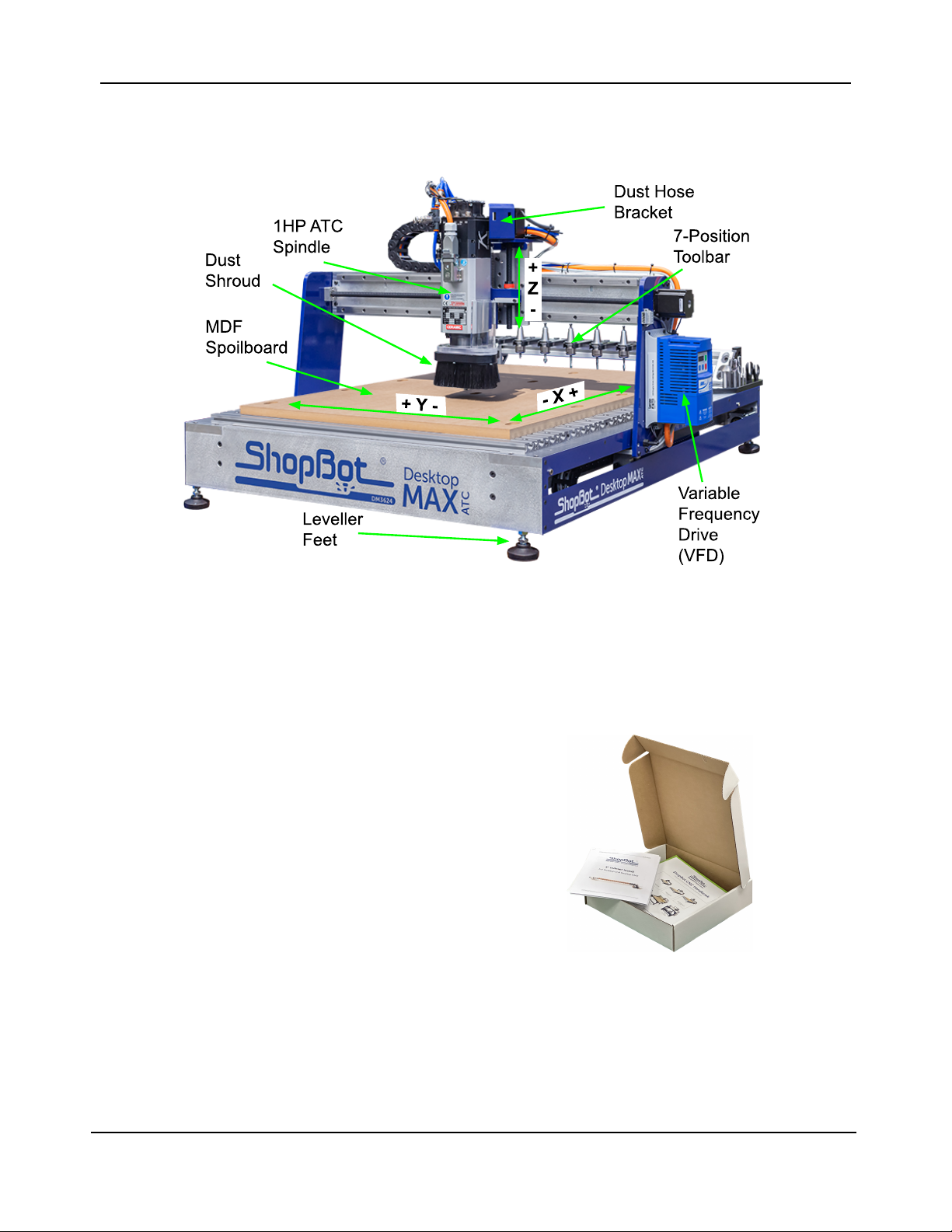
Desktop MAX ATC with T-Slot Aluminum Deck option
What’s in the Crate?
The ShopBot Automatic Tool Changer (ATC) automates the bit changing process during projects
that require multiple tool changes. The ATC reduces the time a project must remain on the
machine by automatically changing bits between cuts, thus eliminating the need to change and
calibrate tools by hand.
The ATC system includes:
● 1HP Teknomotor spindle
● Variable Frequency Drive (VFD) spindle controller
● Filter/regulator for pneumatics
● Seven-position tool bar
● Removable dust skirt
● ATC interface circuit board (inside machine)
● Machine and Accessory documentation
● USB drive loaded with SB3 control software
The 1HP Teknomotor spindle assembly is fan-cooled. The ATC requires 4 scfm at 90 psi of clean,
dry, un-oiled compressed air.
It is not recommended to leave a tool holder in the ATC spindle when not using the machine. When
you are done using the machine all tool holders should be removed and stored in the tool rack at
the rear of the tool.
© Copyright May, 2023 ShopBot Tools, Inc.
page 6
Desktop MAX ATC V2 User Manual SBG00609
What’s in the Crate (cont.)
© Copyright May, 2023 ShopBot Tools, Inc.
page 7

Desktop MAX ATC V2 User Manual SBG00609
Uncrating
Your Desktop MAX ATC has arrived on a wooden pallet wrapped in a heavy cardboard crate. To
open the crate, cut the steel banding and remove any accessory boxes from the top of the crate
then lift the lid off of the top of the crate.
Inside, you will find a cardboard frame resting on top of your machine. On top of this frame will be
some additional accessory boxes as well as the box containing this document. Remove these
additional boxes and lift the cardboard frame off of the machine. Next, remove the sides of the
crate – there may be some screws driven through the cardboard at the base of the crate, securing
it to the wooden pallet below; remove these screws to allow the crate sides to be removed from the
pallet. With the crate sides removed, it will be easier to lift the machine off of the foam supports
between it and the wooden pallet.
CAUTION! The Desktop MAX ATC can weigh up to 180lbs depending on which options have been
selected for the machine, please use at least two people to lift the machine off of the pallet to
transfer it to your work area.
Once the tool is in place on your work bench, adjust the leveler feet so that the machine is level
and does not rock. The feet can be raised and lowered by using a 5/8" wrench to rotate the hex
collar just above the black plastic foot. Once the machine is confirmed level and stable, lock the
position of the feet by using a 9/16” wrench to tighten the lock nut on the threaded stud.
© Copyright May, 2023 ShopBot Tools, Inc.
page 8
Desktop MAX ATC V2 User Manual SBG00609
Connecting the Dust Hose
The dust hose included with your machine should first be connected to the upper portion of your
dust shroud assembly. Slide one end of the hose over the clear acrylic tube next to your spindle.
Run the tube up to the blue dust hose bracket and secure it to the bracket with the included hose
clamp by passing the clamp through the two slots in the bracket and tightening it around the dust
hose. The other end of your dust hose can now be attached to your dust collection vacuum.
Connecting the Pneumatics
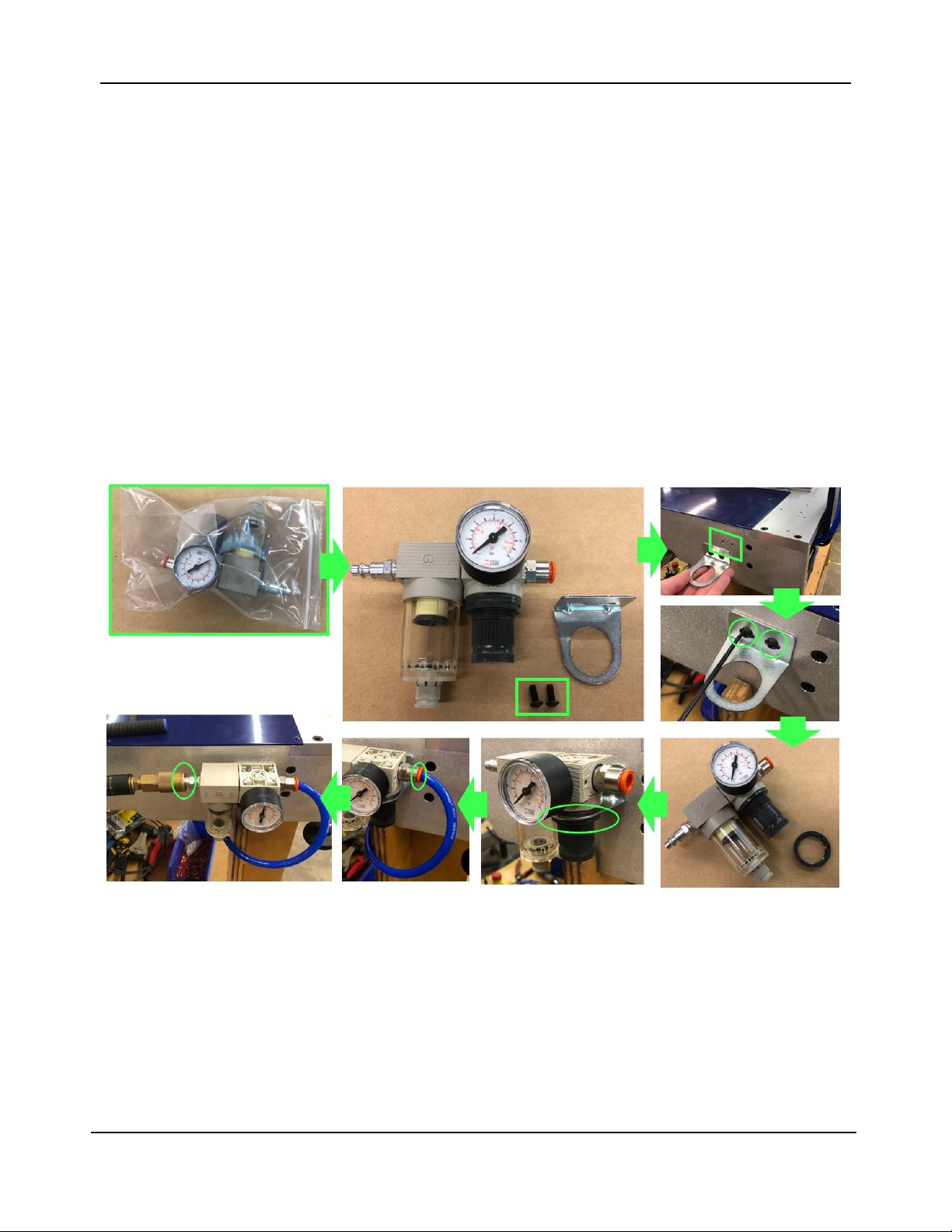
Locate the filter/regulator included with your tool. Inside the bag will be a mounting bracket and two
M5x12mm Button Head Screws. First, attach the mounting bracket to the rear of the tool on the
corner opposite the red power switch. Remove the plastic nut from the regulator and drop the
regulator into the bracket and thread the nut onto the regulator to lock it in place. Pull the blue main
pneumatics hose from under the tool and insert it into the orange quick-connect fitting. Plug your
shop’s air-line into the fitting on the left side of the filter.
© Copyright May, 2023 ShopBot Tools, Inc.
page 9
Desktop MAX ATC V2 User Manual SBG00609
Software and Computer Configuration
Introduction
The PC running ShopBot 3 will require special setup to prevent normal Windows and background
processes from interfering with tool communication and operation. All new PCs will require these
changes to their out-of-the-box state in order to optimize performance.
It is highly recommended that you exclusively run the ShopBot software from a dedicated PC. If the
PC running your tool is managed by an IT department or other group, we also advise a clean install
of Windows without any management software or settings. This will ensure that the computer is at
minimal usage.
Refer to the previous page for links to videos on how to configure your computer with Windows.
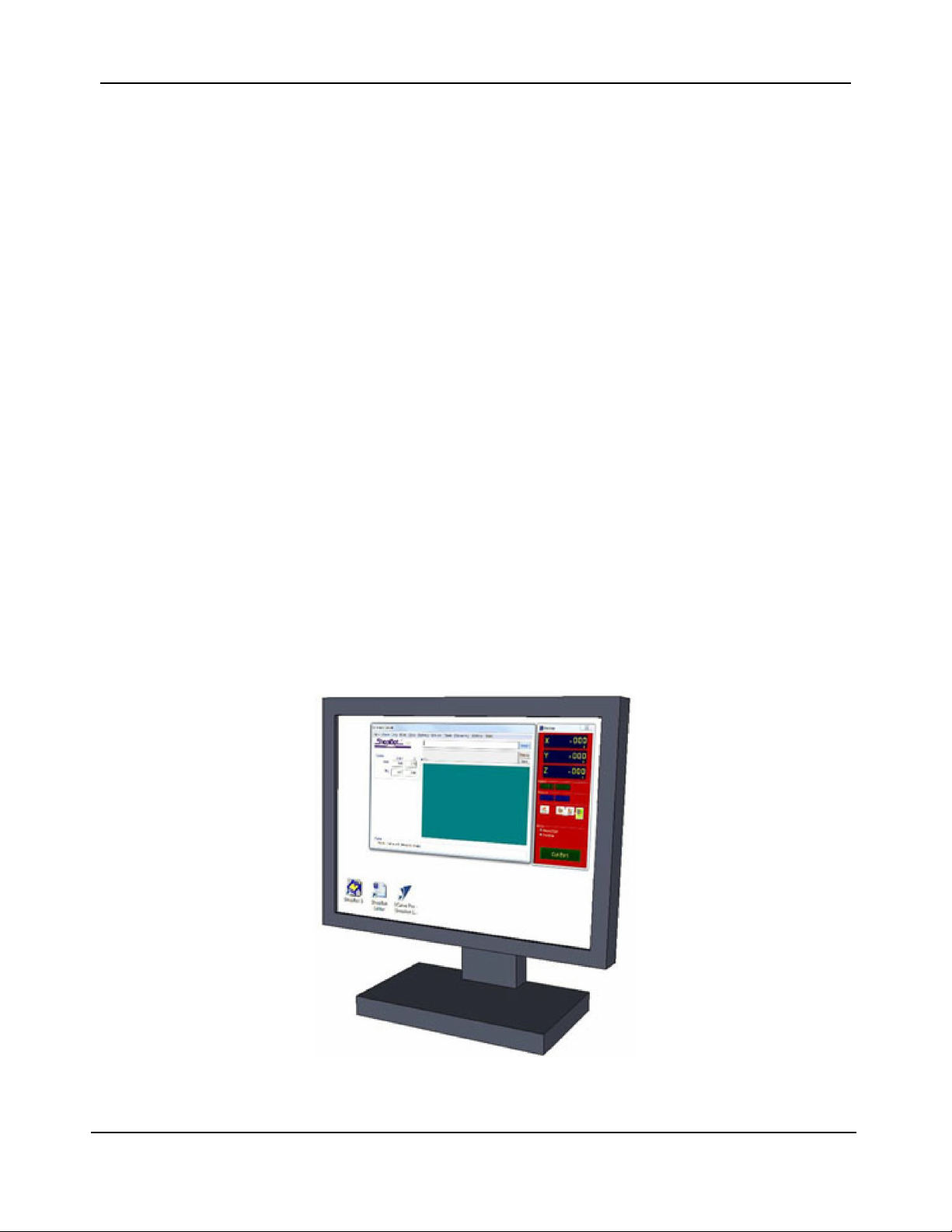
ShopBot tools are shipped with three software programs that can program, edit, and run part files.
This section covers the configuration of your Windows computer, installation of all software and
provides a basic overview of the ShopBot control software. Additional information and training can
be found in the control software “Help” menu as well as ShopBottools.com and Vectric.com.
The following software will be installed during this section:
ShopBot 3: Control software used to operate the ShopBot tool and run part files.
ShopBot Editor: Enhanced text editing software used to view and edit ShopBot part files.
VCarve Pro – ShopBot Edition: CAD/CAM software used to create and edit designs, and assign
tool paths to create part files.
© Copyright May, 2023 ShopBot Tools, Inc.
page 10
Table des matières
Autres manuels ShopBot Outils


