
serverLink Extend Cat5 Manuel utilisateur

Table of Contents
■Introduction............................................................1
■Key Features...........................................................2
■Specifications.........................................................3
■Packing Checklist ..................................................4
■Product Description...............................................5
■Installation..............................................................6
■Video Compensation .............................................7
■LED Indicators........................................................8
■Push Button: Switch to the control status ..........10
■Hotkeys Control .....................................................12
■Remote Station Unit Hotkeys Control..................13
■Local Computer Unit Hotkeys Control.................14
■Appendixes.............................................................15
Please read this manual thoroughly and follow the
Installation procedures to prevent any damage to the KVM
switch or any connecting device


1
------------------------ Introduction
The ServerLink Extend Cat5 KVM Extender consists of a Local
Computer Unit and a Remote Station Unit that can be used to
locate a keyboard/monitor/mouse set up to 150 meters away from a
computer or KVM switch using an inexpensive Category 5 UTP
(unshielded twisted pair) cable. It provides an ideal and convenient
way to remotely access the computer which is located in a secure,
clean or dirty, harsh environment.
The ServerLink Extend Cat5 KVM Extender is designed to enable
one computer to be controlled by one or two users. It also allows for a
console to control two computers locally and remotely. It is an ideal
solution for factory or construction areas where you want to secure
your computers and valuable data or manage them either in remote
or both in remote and local sites.
No software or dip switches are required, just plug and play. With one
push button, two LED indicators and simple hotkey commands, you
can manage this device easily.
Figure 1: Connection of 1-to-3 cable
Connection to
ServerLink Extend Connection to
Monitor/Keyboard/Mouse

2
------------------------ Key Features
Connects the Local Computer Unit and Remote Station Unit via
Category 5 UTP cable
Remotely locates the keyboard, mouse and monitor up to 150m
from a computer
Supports PS/2
Video compensation can be adjusted by hotkey to ensure the
optimum signal quality for any length of cable within the limit.
Easy to get and install the standard cable at lower cost
Simple indication makes operation user-friendly
Locates the computer away from your desk and work area, saving
you valuable space
Allows two users to share a single computer both in local and
remote areas.
Applicable for one console to manage two computers locally and
remotely
Beeps confirmation for key control makes the operation easier and
cross-checked
Supports for standard PS/2 keyboard & mice, including Microsoft
IntelliMouse
Compatible with XGA, VGA, and SVGA system

3
------------------------ Specifications
PS/2 Model SLX-202P
Connections CAT5/CAT5e/CAT6 – RJ45 female
miniDIN6, female x 2
HDB15 female x 1
Remote Station Unit Console
Connectors
Local PC HDB15 female x 1
miniDIN6, female x 2
HDB15 female x 1
Local Computer Unit Local Console
Connectors
PC HDB15 female x 1
LED Indicators Local
(Remote Station Unit) Remote On: Controls local PC
On: Controls remote PC
LED Indicators Local
(Local Computer Unit) Remote
On: Controls local PC
On: Local PC is controlled remotely
Flash Alternatively: Auto mode
Push Button Switch to the control status
Power Supply (min) External power adapter DC 9V, 500mA
Resolution Up to 1600 x 1200 (dependant on
CAT5/CAT5e/CAT6 cable length)
Weight 293g
Dimensions (W x D x H) 156 x 65 x 20 (mm)
Table 1: Specifications of ServerLink Cat5 KVM Extenders

4
------------------------ Packing Checklist
zServerLink Extend Cat5 KVM Extender Remote Station Unit x 1
zServerLink Extend Cat5 KVM Extender Local Computer Unit x 1
zPower Adapter – 9V DC, 600mA x 1
zUser Manual x 1
zFoot Pad x 2 sets
zKVM Cable x 2 (LKS-02H)
NOTE: USE OF POWER SUPPLY
•NOT required if you have a computer connected to both
Station and Local Computer Units
•Required if there is NO computer connected to Remote
Station Unit.

5
------------------------ Product Description
Figure 3: Indication and Connection
6
---------------------- Installation
Connection Pattern
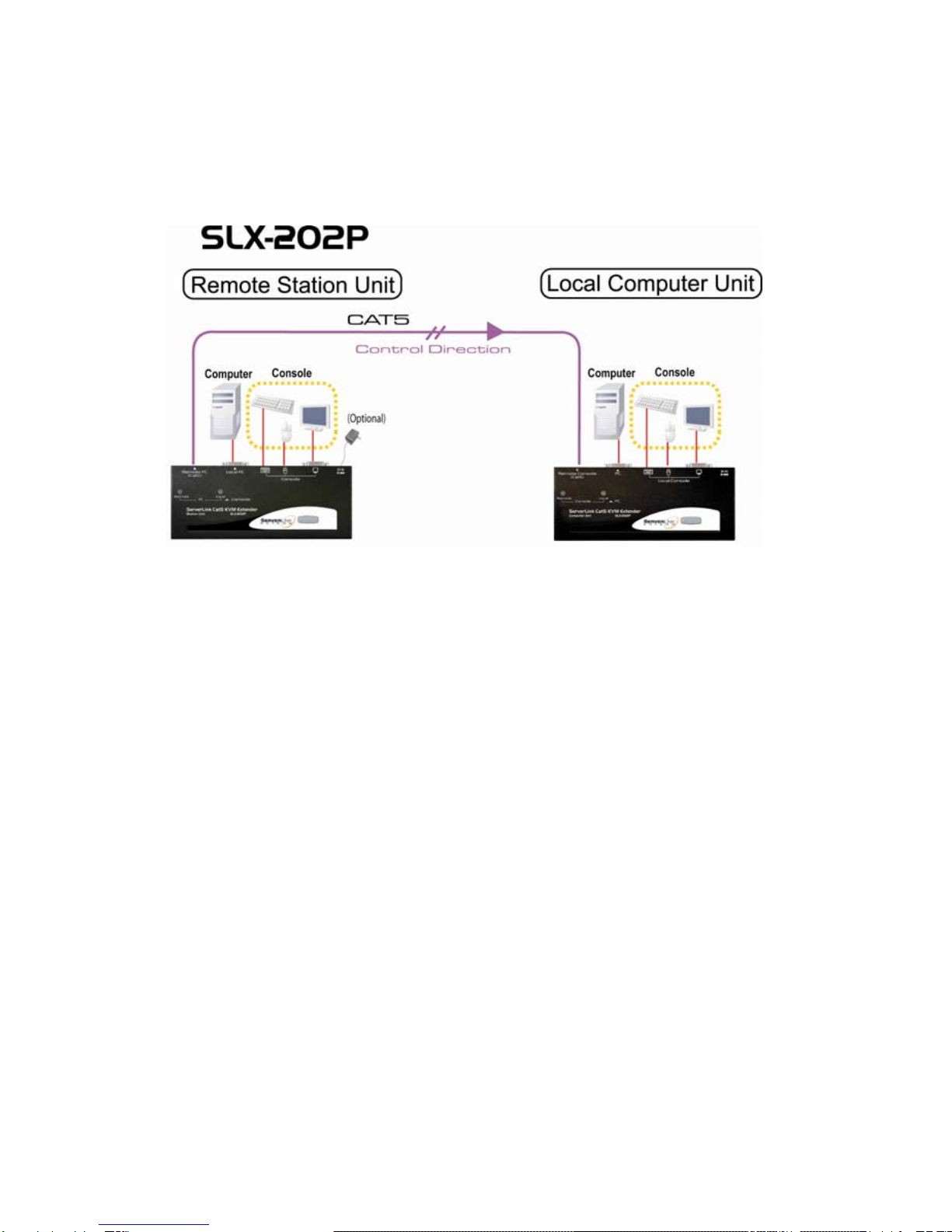
Figure 4: Connection pattern of ServerLink Extend Cat5 KVM
Extender
•A keyboard, mouse and monitor must be connected to the
Remote Station Unit.
•You do need to connect a computer to the Remote Station Unit.
•Optional Power Supply is required if there is NO computer
connected to Remote Station Unit.
•A computer must be connected to the Local Computer Unit.
•You do not need to connect a keyboard, mouse and monitor to
the Local Computer Unit if you don’t want to control the
computer locally.
•Computer connected to the Remote Station Unit cannot be
controlled from the Local Computer Unit.

7
------------------------ Video Compensation
Before operating, Video Compensation should be conducted.
Hotkeys are used to adjust the Equalization on the Remote Unit to
achieve optimum video signal for various cable lengths. There are
five segments of CAT 5 cable lengths can be chosen from. To
achieve the best visibility, please refer to the chapter of “Remote
Station Unit Hotkeys Control” to adjust the video compensation.
Verify the length of CAT 5 cable you are using, then, use the hotkeys
to adjust the video compensation. When you press Ctrl twice, and
F11 keys, different beeps will be sounded to indicate the setup of
cable length. Please refer to Operation of Hotkey Control.

8
------------------------ LED Indicators
The LEDs on the ServerLink Extend Cat5 KVM Extender show the
latest status which indicates the linking, communication, and control
situation between Local Computer Unit and Remote Station Unit.
Remote Station Unit
LED Status Control Description
Remote: Off, Local: On Remote Station Unit controls
its local PC.
Remote: On, Local: Off
Remote Station Unit is
remotely taking control of the
Local Computer Unit.
In this mode, there are two
statuses as follows:
1. If the 3 LEDs (Num, Caps
and Scroll Lock) on the
keyboard are flashing, the Local
Computer Unit is now taking
control of the system.
2. If the 3 LEDs (Num, Caps
and Scroll Lock) on the
keyboard are not flashing, the
system is waiting for Remote
Station Unit or Local
Computer Unit to take control
Table 3.1: LED - Control indication for Remote Station Unit
Power Up LED Status
LED Indicators
Local: On
Table 3.2:The Initial status and indication is displayed
when ServerLink Extend Cat5 KVM
Extender is powered up
Table des matières
Autres manuels serverLink Extenseur


