
Sentient A17RQ Manuel utilisateur
© Copyright Sentient ®. All documentation rights reserved.
i

© Copyright Sentient ®. All documentation rights reserved.
ii
Welcome
Thank you for purchasing the our 960H CCTV kit.
This user’s manual is designed to be a reference tool for
the operation of your system.
Do not worry, you do not have to read this entire
manual to be up and running. There should be a
quickstart guide found with your DVR device, which will
show you how to setup the connections to the DVR
correctly and how to setup a remote monitoring
connection.
Here you can find information about the corresponding
DVR’s features and functions, as well as a detailed menu
tree.
Before installation and operation please read the
following safeguards and warnings carefully!

© Copyright Sentient ®. All documentation rights reserved.
iii
BEFORE YOU BEGIN
Important Safeguards and Warnings
1.Electrical safety
All installation and operation should conform to your local electrical
safety codes.
We assume no liability or responsibility for any fires or electrical
shock caused by improper handling or installation.
2.Transportation security
Heavy stress, violent vibration or water splash should be avoided
during transportation, storage and installation.
3.Installation
Keep upright. Handle with care.
Do not apply power to the DVR before completing installation.
Do not place objects on top of the DVR
4.Qualified engineers needed
All examination and repair work should be done by qualified service
engineers.
We are not liable for any problems caused by unauthorised
modifications or attempted repair.
5.Environment
The DVR should be installed in a cool, dry place away from direct
sunlight and inflammable or explosive substances, etc.
This product should be transported, stored and operated in an
environment ranging from 0℃to 55 ℃.
6. Accessories
Be sure to use all the accessories available in the Sentient range.
Before installation, please open the package and check all the
components are included.
Contact your local Maplin outlet if something is broken or missing in
your package.
7. Lithium battery
Improper battery use may result in fire, explosion, or personal injury.
When replacing the battery, please make sure you use the same
model. (CR2032 Motherboard battery).

© Copyright Sentient ®. All documentation rights reserved.
iv
TABLE OF CONTENTS
1 FEATURES AND QUICK SETUP........................................................................1
1.1 Product Overview ........................................................................................................................................1
1.2 Features..........................................................................................................................................................1
1.3 Installation ....................................................................................................................................................2
1.3.1 Unpacking Inspection..............................................................................................................................2
1.3.2 Wiring Installation ....................................................................................................................................2
1.4 Quick Setup Diagram............................................................................................................................... 4
1.5 Smart Phone Setup for Live View & Remote Playback................................................................ 4
1.6 The Mouse ....................................................................................................................................................5
1.7 On-screen keyboard................................................................................................................................. 6
1.8 Power On/Off............................................................................................................................................. 6
1.8.1 Power On ......................................................................................................................................................6
1.8.2 Power Off.....................................................................................................................................................8
1.8.3 Power recovery.........................................................................................................................................8
1.9 Icon ................................................................................................................................................................ 8
1.9.1 Icons................................................................................................................................................................8
1.9.2 Operation Icons ........................................................................................................................................9
1.10 The Real-time Browser .......................................................................................................................... 9
2 OPERATIONS GUIDE................................................................................................ 10
2.1 The Right-click Menu ..............................................................................................................................10
2.1.1 The Screen Switching............................................................................................................................10
2.1.2 Color setting .............................................................................................................................................10
2.1.3 The Video Inquiry.................................................................................................................................... 11
2.1.4 Alarm output............................................................................................................................................. 11
2.1.5 The Main Menu......................................................................................................................................... 12
2.2 The Introduction of the Main Menu................................................................................................... 13
2.3 The Video Inquiry .................................................................................................................................... 13
2.4 Configuration............................................................................................................................................ 17
2.4.1 System ........................................................................................................................................................ 17
2.4.2 Record ....................................................................................................................................................... 18
2.4.3 Network..................................................................................................................................................... 21

© Copyright Sentient ®. All documentation rights reserved.
v
2.4.4 Alarm......................................................................................................................................................... 23
2.4.5 Account.................................................................................................................................................... 24
2.4.6 Abnormity ............................................................................................................................................... 25
2.5 Storage ...................................................................................................................................................... 26
2.5.1 HDD Management................................................................................................................................. 26
2.5.2 Backup ...................................................................................................................................................... 27
2.6 Output........................................................................................................................................................ 28
2.6.1 Display ....................................................................................................................................................... 29
2.7 Maintain ...................................................................................................................................................... 31
2.7.1 Log................................................................................................................................................................ 31
2.7.2 Version ...................................................................................................................................................... 32
2.7.3 Default....................................................................................................................................................... 32
2.7.4 BPS ............................................................................................................................................................. 33
2.7.5 Auto Maintain......................................................................................................................................... 33
2.7.6 Online User.............................................................................................................................................. 33
2.8 Shutdown.................................................................................................................................................. 33
3 WEB AND CLIENT ................................................................................................... 34
3.1 Web Operation ........................................................................................................................................34
3.1.1 Network Connection............................................................................................................................. 34
3.1.2 The Interface Of Web Operations.................................................................................................. 35
3.1.3 The Real-time Monitoring .................................................................................................................. 36
3.1.4 Configuration .......................................................................................................................................... 37
3.1.5 Search Record ........................................................................................................................................ 38
3.1.6 Alarm Configuration ............................................................................................................................ 39
4 TROUBLESHOOTING..............................................................................................40

© Copyright Sentient ®. All documentation rights reserved.
1
1 FEATURES AND QUICK SETUP
1.1 Product Overview
This product is designed specifically for the use in the field of video surveillance and
adopts H.264 video compression, hard disk recording, TCP/IP transmission and a Linux
based OS in addition to some of the most advanced technology in the information
technology industry. These elements help to produce a more stable, reliable and higher
quality video image. The products support synchronised video, audio recording,
playback, monitoring and the synchronisation of audio and video. The products support
advanced control technology and strong network data transmission capacity.
1.2 Features
Real-time monitoring
Composite video signal interface and support TV, VGA or HDMI output simultaneously.
Compression function
Uses H.264 video compression standard and G.711 audio compression standard and
has high definition, low code rate of the video coding to decrease the amount of data to
save to HDD storage.
Recording function
Supports timing, alarm alerts, motion detection, SATA hard and local hard disks, DVR
data backup and network backup.
Video playback function
You can search videos, within the local network, by using the playback interface. As well
as this it supports multiple videos playback, fast playing, slow playing and frame-by-
frame playback. Video playback can be displayed the exact time of the incident using a
graphical timeline to allow you to search for event footage much more efficiently.
Camera control and alarm
Remotely installed cameras can be controlled and various alarm devices can be
connected to ensure that you know when an event has been detected. The DVR
integrates Dynamic detection, video loss, video block, multiple alarm output and scene
lighting control into its controller options.
Communication Interface
Equiped with USB 2.0 high-speed interface and an ESATA interface to allow for external
video backup devices. There is also an option to store data on a remote server (cloud
storage location) by connected the DVR to a local or wide area network by using the
standard Ethernet interface port (plug and play).

© Copyright Sentient ®. All documentation rights reserved.
2
Network functions
Supports:
TCP / IP
UDP
RTP / RTSP
DHCP
PPPOE
DDNS
NTP
Also supports real-time network monitoring, video playback, control and management
functions. The built-in WEB Server will allow you to directly access the DVR through a
web browser.
Mode of operation
You can operate by the DVR’s front panel or using a mouse. A simple, intuitive graphical
interface is provided for intuitive operation.
1.3 Installation
1.3.1 Unpacking Inspection
When you receive the product pleae check that all items are present according to the
packing list on the reverse of the box.
1.3.2 Wiring Installation
Prepare for installation
Prepare your cameras, TV/display monitor, video cables, network cables, the mouse,
and power cables on a large clean flat surface.
Installation Steps:
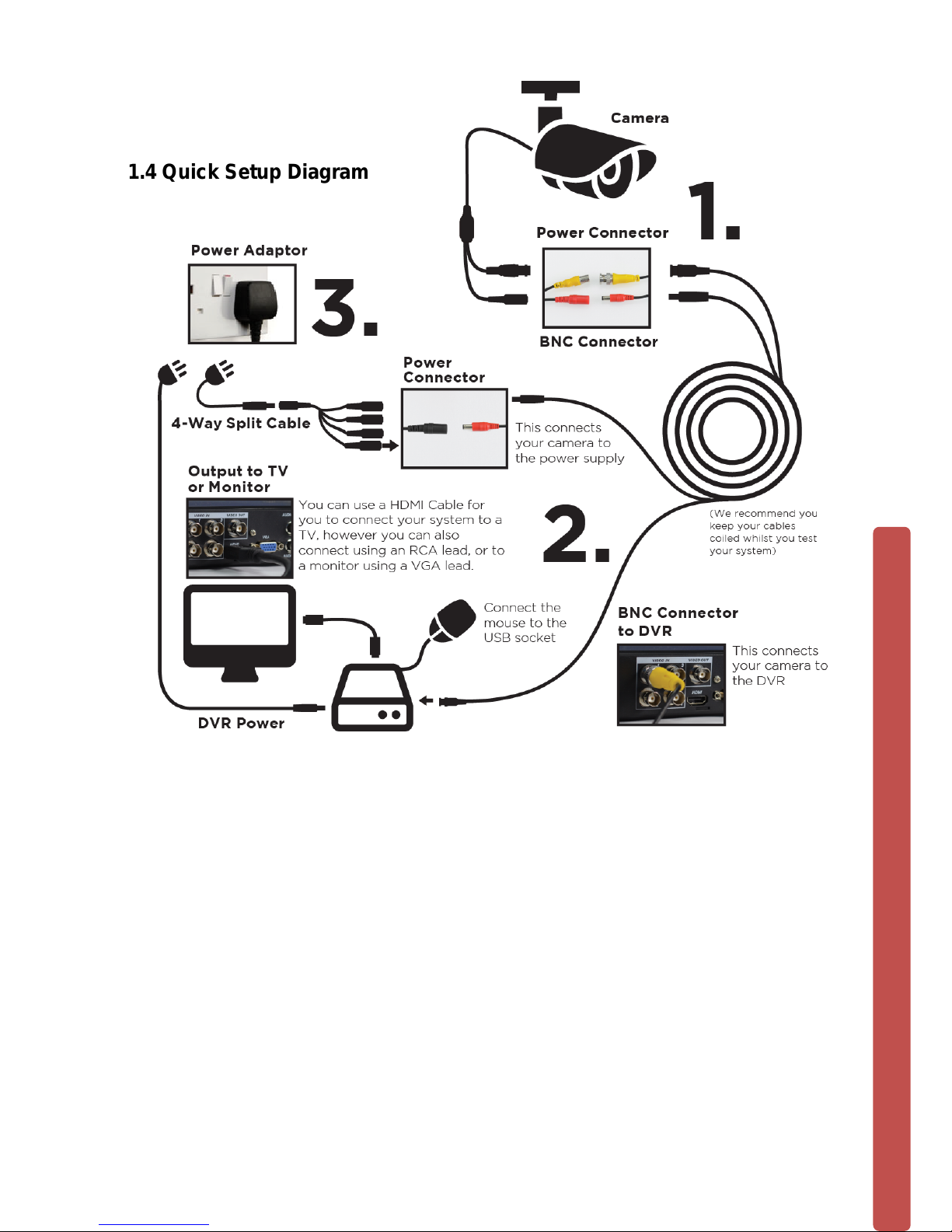
(See quick startup guide page 4)
NOTE: Before installing anything we strongly recommend that you connect
your cameras to your dvr and test your system first.

© Copyright Sentient ®. All documentation rights reserved.
3
NOTE: WE CHECK EVERYTHING TO MAKE SURE IT IS WORKING WHEN IT
LEAVES US BUT OCCASIONALLY THINGS FAIL AND IT IS BETTER TO KNOW
NOW THAN AFTER YOU HAVE FITTED EVERYTHING!
1. Place the DVR on a flat horizontal position and connect your cameras to the
video input on the rear of the DVR.
2. Connect your TV/ display monitor to the video output on the rear of the DVR.
3. Connect the network cable to the RJ45 socket on the rear of the DVR then
connect the other end of the cable to a spare socket on the router.
4. Connect the Mouse to the USB interface found in either the front or rear panels.
5. Connect your DVR a power outlet and switch on the power.
Caution
For an external alarm device or a PTZ, please refer to the relevant instructions.
Connect the power line after all lines connected correctly.
© Copyright Sentient ®. All documentation rights reserved.
4
1.4 Quick Setup Diagram
1.5 Smart Phone Setup for Live View & Remote Playback
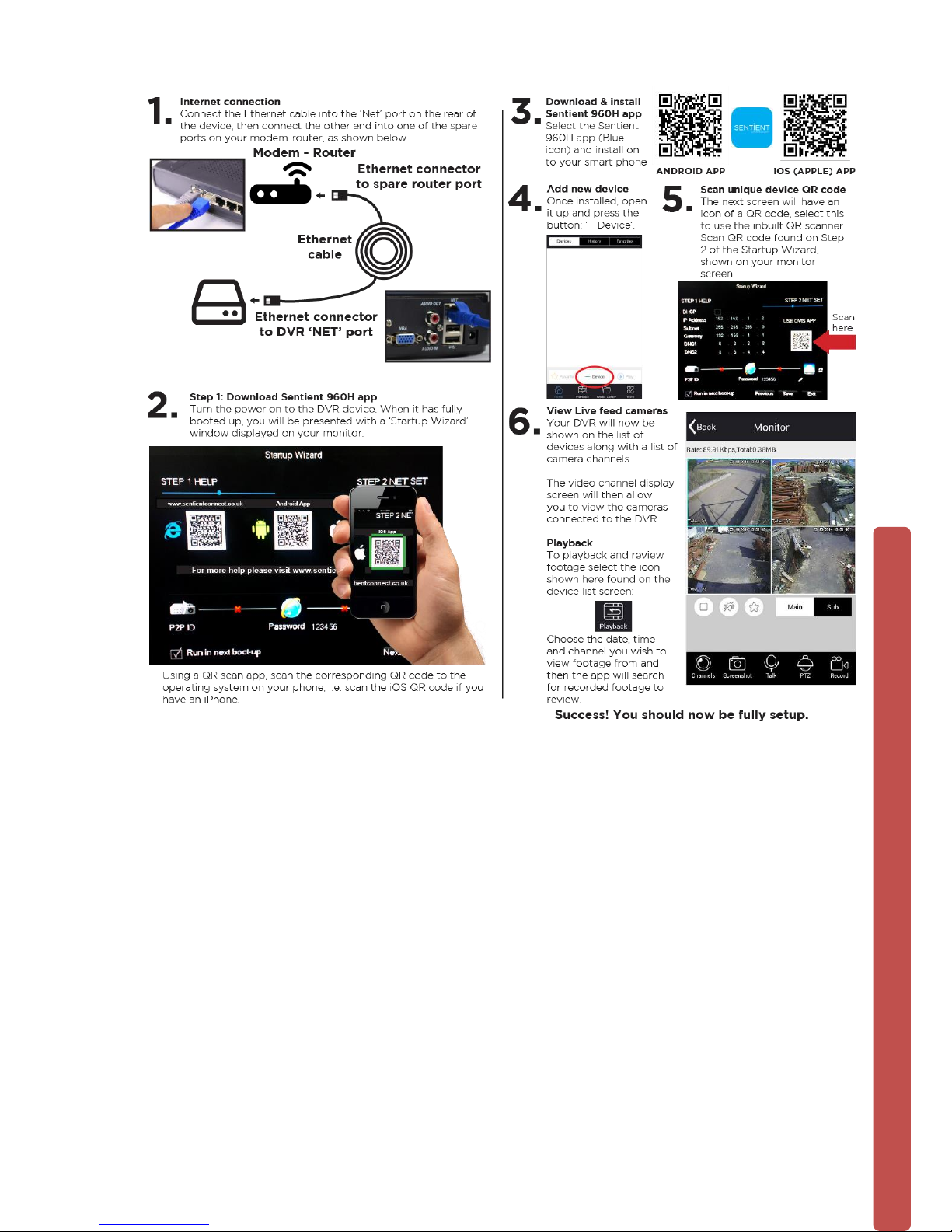
For the convenience of monitoring your Sentient security system on the move via your
smart phone we have provided a quick and simple remote connection setup service.
Please follow the steps below closely to successfully setup the connection for live view
and remote playback. See next page for step-by-step setup instructions.
© Copyright Sentient ®. All documentation rights reserved.
5
1.6 The Mouse
The mouse is used to operate all aspects DVR.
Right mouse click is used to:
Open up a new menu in the real-time monitoring screen.
Exit the current screen without saving.
Left click is used to:
Enter the desired menu or the main screen.
Select menu options.
Select/unselect the checkboxes.
When controlling a PTZ camera.
Ce manuel convient aux modèles suivants
1
Table des matières
Manuels Système de sécurité populaires d'autres marques


EDM
EDM Solution 6+6 Wireless-AE Manuel utilisateur

Highway Safety Group
Highway Safety Group EA401 Manuel utilisateur

Siren
Siren LED GSM Manuel utilisateur

Detection Systems
Detection Systems 7090i Instructions de montage

Se-Kure Controls
Se-Kure Controls MicroMini SK-4841 Manuel utilisateur

Siemens
Siemens FDM273 Manuel utilisateur