
SATO CL4NX RIDF Manuel utilisateur

Printer Driver Manual

2
Table of Contents
Before You Start............................................................ 4
1. Installing the Printer Driver.................................... 5
1.1 Preparing the Printer Driver................................................................ 7
1.2 Checking the Printer Interface ............................................................ 8
1.3 Connecting the Printer to the Computer ........................................... 14
1.4 Running the Installation .................................................................... 15
1.4.1 Installing the Printer Driver When Connected via USB or
IEEE1284........................................................................................ 15
1.4.2 Installing the Printer Driver When Connected via LAN or
Wireless LAN.................................................................................. 21
1.4.3 Installing the Printer Driver When Connected via Bluetooth........... 28
1.4.4 Installing the Printer Driver When Connected via RS-232C ........... 38
1.4.5 Installing the Printer Driver When No Printer is Connected............ 43
1.4.6 Installing the Printer Driver for Second and Later Printers ............. 51
1.4.7 WhattoDoIfthePrinterDriverIsAddedunder[Unspecied] ....... 52
2. Setting Up the Printer Driver................................ 57
2.1 [PrintingDefaults](ForAllUsers)and[PrintingPreferences]
(ForIndividualUsers) ....................................................................... 57
2.2 How to Get Administrator Privileges ................................................. 61
3. Settings on the [Driver Settings] Tab .................. 62
3.1 Stocks............................................................................................... 62
3.1.1 Page Setup..................................................................................... 63
3.1.2 Print Options................................................................................... 64
3.2 Fonts................................................................................................. 65
3.2.1 BarcodeFontSettingsandUsageExample................................... 66
3.2.2 CommandFontSettingsandUsageExample ............................... 71
3.2.3 SubstitutionFontSettingsandUsageExample ............................. 77
3.2.4 DownloadFontSettings(CL4NX/CL6NX/CL4NXPlus/CL6NXPlus/
PW4NX/S84NX/S86NXonly) ......................................................... 81
3.3 Setup ................................................................................................ 84
3.4 Maintenance(CL4NX/CL6NX/CL4NXPlus/CL6NXPlus/CT4-LX/
FX3-LX/PW208NX/PW208mNX/S84NX/S86NXonly) ..................... 86

3
3.5 Settings............................................................................................. 87
3.6 CongurePrinter .............................................................................. 88
3.7 RFIDSettings(CL4NX/CL4NXPlus/CL6NXPlusonly) ................... 89
3.8 Support ............................................................................................. 91
3.9 Help and About ................................................................................. 92
4. Settings on the [Printer Settings] Tab................. 93
4.1 Page Setup....................................................................................... 95
4.2 Print Options..................................................................................... 97
4.3 Print Mode ...................................................................................... 100
4.4 BarcodeVerier(CL4NX/CL6NX/CL4NXPlus/CL6NXPlus/S84NX/
S86NXonly) ................................................................................... 101
4.5 Graphic Options.............................................................................. 103
4.6 Custom Commands........................................................................ 104
4.7 Maintenance ................................................................................... 107
4.8 Units ............................................................................................... 108
4.9 Help and About ............................................................................... 109
4.10TestPage.........................................................................................110
5. Sharing the Printer.............................................. 111
5.1 Installing the Printer Driver on the Print Server and
Client Computers.............................................................................113
5.2 ConguringSharingSettingsonthePrintServerPrinter ................118
5.3 ConguringSharingSettingsontheClientPrinter ......................... 120
6. Updating the Printer Driver ................................ 123
7. Uninstalling the Printer Driver ........................... 127
8. Removing the Printer Driver Data File .............. 129

4
Before You Start
Aprinterdriver is asoftwarethatsendsdatacreated onacomputer(documentsand
illustrations)totheprinterandprintitonalabel.ThePrinterDriverManual(hereinafter,
"this manual") describes how to obtain and install the printer driver for the printers
manufacturedbySATO.Italsodescribeshowtocongurevarioussettingsafterinstalling
theprinterdriver,andhowtouninstallandupdatetheprinterdriver.
Printer Driver Screenshots Used in This Manual
ThismanualmainlyusestheprinterdriverscreenshotswhenCL4NXPlusisconnected
toaWindows10computer.Thescreenlayoutmaydierdependingonyour OS and
printer.
Printer Driver Version Used in This Manual
Thismanualuses printerdriverversion8.4.3.23190.Note that thescreenlayoutmay
dierdependingontheversionoftheprinterdriver.
Limitation of Liability
SATOCorporationanditssubsidiariesinJapan,theU.S.andothercountriesmakeno
representationsorwarrantiesofanykindregardingthismaterial,including,butnotlimited
to, implied warranties of merchantability and tness for a particular purpose. SATO
Corporationshallnotbeheldresponsibleforerrorscontainedhereinoranyomissions
fromthismaterialorforanydamages,whetherdirect,indirect,incidentalorconsequential,
inconnectionwiththefurnishing,distribution,performanceoruseofthismaterial.
Specicationsandcontentsinthisdocumentaresubjecttochangewithoutnotice.
Trademarks
• The following is a registered trademark of SATO Holdings Corporation and its
subsidiariesinJapan,theU.S.andothercountries.
-SATO
• WindowsisaregisteredtrademarkofMicrosoftCorporation,U.S.A.
• BluetoothisatrademarkofBluetoothSIG,Inc.,U.S.A.
• Allothertrademarksarethepropertyoftheirrespectiveowners.
Copyrights/Other Matters
Any unauthorized reproduction of the contents of this document, in part or whole, is
strictlyprohibited.
©2023SATOCorporation.Allrightsreserved.

5
1. Installing the Printer Driver
Byinstallingaprinterdriveronacomputer,datacreatedwiththecomputercanbeprinted
bytheprinter.Youmustrstconnecttheprintertoacomputerandtheninstalltheprinter
driver.Theinstallationmethodvariesdependingonhowthecomputerandprinterare
connected.
Printer Driver Operating Environment
• Acomputerscreenresolutionofatleast1024x768pixelsisrecommended.Ifitis
lowerthanthat,partofthescreenwillnotbeshown.
• TheprinterdriversupportsthefollowingOSs:
Windows 8.1
Windows10
Windows 11
WindowsServer2012
WindowsServer2012R2
WindowsServer2016
WindowsServer2019
WindowsServer2022
* Windows for ARM is not supported.
Process to Install the Printer Driver
Theprocesstoinstallprinterdriverisasfollows:
1. Prepare the printer driver installer on a computer.
An installer is used to install the printer driver.
Fordetails,referto"1.1PreparingthePrinterDriver".
2. Connect the printer to the computer using one of the interface connections.
Fordetails,referto"1.3ConnectingthePrintertotheComputer".
3. Install the printer driver on the computer.
• WhentheprinterisconnectedviaUSBorIEEE1284,referto"1.4.1Installingthe
Printer Driver When Connected via USB or IEEE1284".
• WhentheprinterisconnectedviaLANorwirelessLAN,referto"1.4.2Installing
the Printer Driver When Connected via LAN or Wireless LAN".
• WhentheprinterisconnectedviaBluetooth,referto"1.4.3InstallingthePrinter
Driver When Connected via Bluetooth".
• WhentheprinterisconnectedviaRS-232C,referto"1.4.4InstallingthePrinter
Driver When Connected via RS-232C".
4. Setuptheinstalledprinterdriverasnecessary.
Fordetails,refertothefollowingsections:

6
• "2. Setting Up the Printer Driver"
• "3.Settingsonthe[DriverSettings]Tab"
• "4.Settingsonthe[PrinterSettings]Tab"
Precautions When Installing the Printer Driver
• Beforestartingtheinstallation,closeallapplications.
• Whenyoudotheprinterdriversetup,thepropertiessettings,ortheprintsettings,log
in with Administrator Privilege.
• Whenyouusetheprinterdriver,enablebi-directionalcommunication.
In Windows 10, open [Printer properties] under [Devices and Printers], and make
surethat[Enablebidirectionalsupport]ischeckedonthe[Ports]tab.
• IftheremotedesktopserviceisbeingstartedwithWindowsServer2012,Windows
Server2012R2,WindowsServer2016,WindowsServer2019orWindowsServer
2022, change the remote desktop service to install mode. However, it is not
guaranteed that the printer driver can be used in the remote desktop service
environment.
• When using multiple printers, it is necessary to install as many printer drivers as
printers,toidentifyeachprinter.
• IfusingaCL4NX/CL6NX/CL4NXPlus/CL6NXPlus/CT4-LX/S84NX/S86NXprinter,
theresolutiondiersdependingonthemodel.Selectthemodelwhichiscompatible
withtheresolutionofyourprinterandinstallit.Theresolutioncanbecheckedonthe
printer screen.

7
1.1 Preparing the Printer Driver
Download the printer driver from https://www.sato-global.com/drivers/redirect.html onto
the computer. A compressed le will be downloaded. Extract it to anywhere on the
computer.
Downloading the Printer Driver
1. Startthecomputerandopenyourwebbrowser.
2. Go to https://www.sato-global.com/drivers/redirect.html.
3. DownloadtheprinterdriverforyourprinterfromyourlocalSATOwebsite.
Acompressedlewillbedownloaded.
Extracting the Compressed Files
1. Extractthecompressedles.
"PrnInst.exe"istheinstaller.
Thele"PrnInst.exe"isusednotonlytoinstalltheprinterdriverbutalsotoupdateor
uninstall the printer driver.

8
1.2 Checking the Printer Interface
Howtoconnecttoyourcomputerdiersdependingontheprinteryouareusing.Connect
theprintertothecomputerinoneofthefollowingwaysandinstalltheprinterdriver.
Forprinterinterfacesnotmentionedinthismanual,refertotheOperatorManualofeach
printer.
Caution
Bluetooth connection may be unstable depending on compatibility with host
devices. When using Bluetooth connection, please test the operation
beforehand in your usage environment (host device, print data, print quantity,
print frequency, etc.).
CL4NX/CL6NX/CL4NX Plus/CL6NX Plus
Theprinterdrivercanbeinstalledbythefollowingconnectionmethods:
• USB(TypeB)
• LAN
• WirelessLAN(whentheoptionalwirelessLANkitisinstalled)
• RS-232C
• IEEE1284
• Bluetooth
WirelessLANantenna(whentheoptional
wirelessLANkitisinstalled)
RS-232C connector
IEEE1284 connector
USBconnector(TypeB)
LAN connector

9
CT4-LX
Theprinterdrivercanbeinstalledbythefollowingconnectionmethods:
• USB(TypeB)
• LAN
LAN connector
USBconnector(TypeB)
• RS-232C(whentheoptionalRS-232Ckitisinstalled)
RS-232C connector
(whentheoptionalRS-232Ckitisinstalled)
TheRS-232Ckitneedstobeinstalledbythecustomerengineer.ContactyourSATO
reseller or technical support center.

10
• WirelessLAN(whentheoptionalwirelessLAN/Bluetoothkitisinstalled)
• Bluetooth(whentheoptionalwirelessLAN/Bluetoothkitisinstalled)
CheckwhetherthewirelessLAN/Bluetoothkitisinstalledtotheprinter.
WirelessLANantenna(whentheoptional
wirelessLAN/Bluetoothkitisinstalled)
The Wireless LAN/Bluetooth kit needs to be installed by the customer engineer.
ContactyourSATOresellerortechnicalsupportcenter.
Autres manuels pour CL4NX RIDF
17
Ce manuel convient aux modèles suivants
3
Table des matières
Autres manuels SATO Accessoires pour imprimantes

SATO
SATO CS-9018 Manuel utilisateur

SATO
SATO M-8485Se Series Manuel utilisateur
SATO
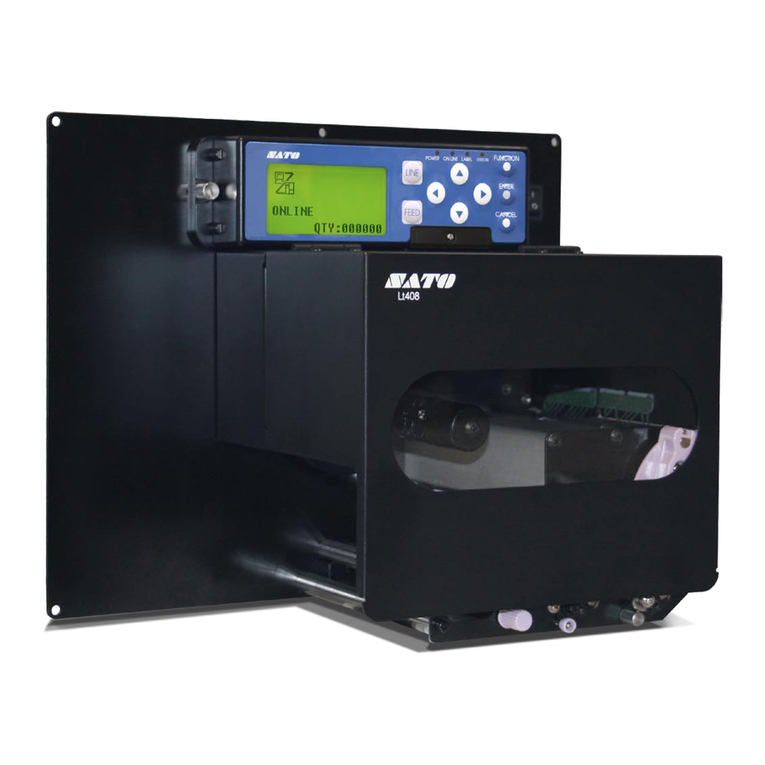
SATO LT408 Manuel utilisateur

SATO
SATO CL408e Manuel utilisateur

SATO
SATO GL4e Series Manuel du propriétaire

SATO
SATO LT408 Manuel utilisateur

SATO
SATO M-8485Se Series Manuel d'utilisation et d'entretien

SATO
SATO LT408 Manuel utilisateur


