
Sappywoon Hidden Camera Alarm Clock Manuel utilisateur
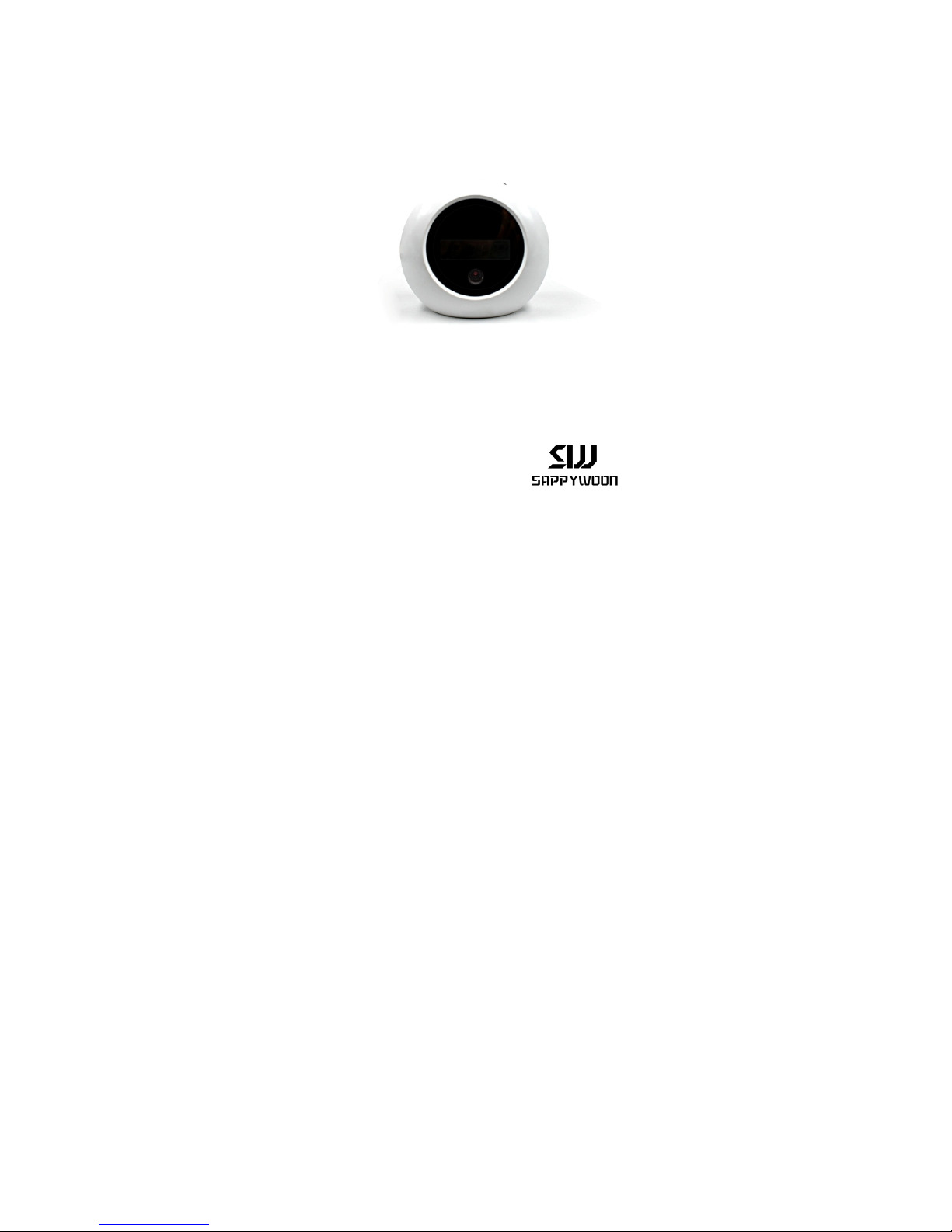
User Manual
Hidden Camera Alarm Clock

Contents
1. OVERVIEW: BUTTONS AND LIGHTS.................1
2. CONDITIONS AND PREPARATIONS..................2
2.1 INSERT MICRO SD CARD.......................................2
2.2 TURN ON/OFF THE CAMERA...................................2
2.3 CHARGE............................................................. 3
2.4 RESET................................................................ 4
3. PRIMARY FUNCTIONS...................................... 4
3.1 RECORD VIDEO.................................................... 4
3.2 TAKE A PHOTO.....................................................5
3.3 MOTION DETECTION VIDEO RECORDING................... 5
3.4 RECORD SOUND.................................................. 6
3.5 VIEW WHAT YOU RECORDED.................................. 6
4. USE MORE........................................................ 7
4.1 SYNC RECORDING TIME WITH PC............................ 7
4.2 WEBCAM........................................................... 8
4.3 SET CLOCK TIME.................................................. 9
5. SPECIFICATIONS............................................. 14

1
1. Overview: Buttons and Lights

2
2. Conditions and Preparations
Open the back cover, remove the plastic slip
inside.
2.1
Insert
Micro
SD
card
Hold golden fingers of the Micro SD card
downwards, insert it into the slot.
2.2
Turn
on/off
the
camera
2.2.1 Turn on: Slide the switch to “ON”. If there
are no operations, the camera will turn off
after 2min.

3
2.2.2 Standby mode: Press “Power” button on
the remote once, the blue light keeps on; the
camera goes into standby mode. If there are no
operations, the camera will also turn off after
2min.
2.2.3 Turn off: Press “Power” button on the
remote again to turn it off.
Take note that the clock is always working until
the battery runs out, no matter the camera is
on or off.
2.3
Charg
e
Please charge it before the first use. It can
support 12h after fully charged. To charge, use
the USB cable to connect it to your PC or
adapter (DC 5V). When charged by an adapter,
both red and blue lights keep on. After fully
charged, the red light will turn off. It takes
about 5 hours to get a full charge.
When the power is weak, the blue light keeps
blinking for 10s and then the camera turns off.
Please notice that:

4
1. Files will be saved automatically when the
battery runs out.
2. It can’t work when you connect it to your PC,
which means it will not response to what you
do with the remote controller. You can charge it
by your adapter when the camera is running.
2.
4
Reset
Simply slide the switch to “OFF” and then back
to “ON” to reset it if the camera performs
abnormally.
3. Primary Functions
Functions stated below are primary features of
this item which are easy to set up and use.
3.1
Record
video
3.1.1 Turn on the camera. Press “Power”
button on the remote once to get it into
standby mode.
3.1.2 Start recording: Press “Video” button on
the remote. The blue light blinks for 3 times
then turns off, which indicates it starts

5
recording video.
3.1.3 Stop recording: Press “Video” button
again, the blue light turns on, it will
automatically save the file and go back to
standby mode.
3.2
Take
a
photo
3.2.1 Turn on the camera. Press “Power”
button on the remote once to get it into
standby mode.
3.2.2 Press “Photo” button. The blue light
flashes once, it takes and saves a photo. And
then the blue lights turns on, it will go back to
standby mode.
3.3
Motion
detection
video
recording
3.3.1 Turn on the camera. Press “Power”
button on the remote once to get it into
standby mode.
3.3.2 Motion detection standby mode: Press
“Motion Detection Video Recording” button,
the blue light turns off. The camera is on
motion detection standby mode.

6
When a movement is detected, the camera will
start capture video. It will save a video every
3min. If no movement is detected, the camera
will go back to motion detection standby
mode.
3.3.3 Stop recording: Press “Motion Detection
Video Recording” button again, the blue light
turns on, it will go back to standby mode.
3.4
Record
sound
3.4.1 Turn on the camera. Press “Power”
button on the remote once to get it into
standby mode.
3.4.2 Start recording: Press “Sound” button,
the blue light will blink for twice then disappear,
it will start recording sound.
3.4.3 Stop recording: Press “Sound” button
again, the blue light appears, it will go back to
standby mode.
3.
5
View
what
you
recorded
3.5.1 Slide the slide switch to “OFF” to turn it
off.

7
3.5.2 Connect the camera to your computer via
USB cable, it goes into U-disc mode, a
removable disk will appear, just like when you
insert a card reader into your PC USB port. Just
open it, you will find what you have recorded.
Also, you can remove Micro SD card from the
camera, and use your card reader to connect to
your computer.
4. Use More
The following are additional functions of the
camera. The functions stated below are not
easy to set up and use. Just follow the steps
accordingly.
4.1
Sync
recording
time
with
PC
Take note that you should sync recording time
before recording video. Once reset, the camera
will go back to factory settings. You need to
sync it again.
After syncing recording time, the accurate time
when the video was recording displays in the

8
video.
4.1.1 Slide the slide switch to “OFF” to turn it
off and connect the camera to your PC via the
USB cable, it will go into U-disc mode. Open the
Micro SD card, create a TXT file in it, and
rename it to “Time”.
4.1.2 Open the TXT file, type in the time as
following format and then save the file:
[Year/Month/Date]<A space is
required>[Hour:Minute:Second]
For example,
2016/06/01 12:00:00
Then, disconnect the camera from your PC,
slide the slide switch to “ON”to turn it on,
wait about 15s, the synchronized time will
update into camera.
4.2
Webcam
4.2.1 Connect the camera to your computer via
USB cable, it will go into U-disc mode.
4.2.2 Press “Power” button on the remote
controller to get it into Webcam. Now, you can
Table des matières


