
Sandstorm S10DPF10E Manuel utilisateur

Instruction Manual
10” Digital Photo Frame
S10DPF10E

Contents
Unpacking the Photo Frame...............................................................................3
Product Overview................................................................................................4
Preparations.........................................................................................................5
Attaching the Stand ................................................................................................................ 5
Connecting to the Mains Power.......................................................................................... 6
Inserting a Memory Card / USB Flash Drive.................................................................... 7
Viewing Photos....................................................................................................8
OSD Language Selection....................................................................................................... 8
Main Menu.................................................................................................................................. 8
Selecting the Memory Drive................................................................................................. 9
Viewing Thumbnails................................................................................................................ 9
Playing a Slideshow...............................................................................................................10
Using The Tool Bar..................................................................................................................11
Changing Frame Settings ................................................................................ 12
Troubleshooting ............................................................................................... 13
Specications.................................................................................................... 14
Safety Warnings................................................................................................ 15
Settings Basic Operation Preparations Introduction and
Product Overview
Troubleshooting
and Specication
GB-3
Safety Warnings
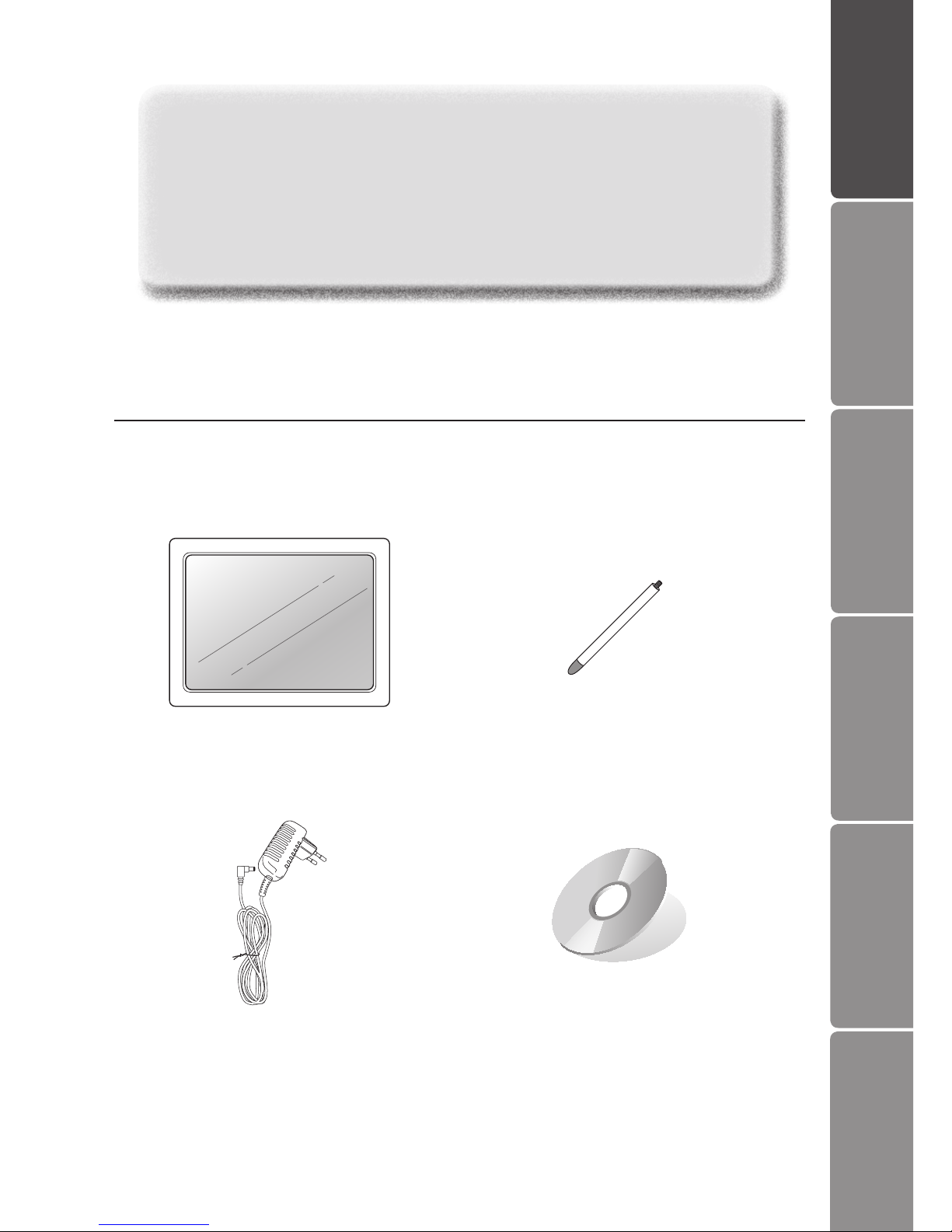
2. Photo Frame Stand
(P.N. : 27-155-06550200)
3. Mains Adapter
(P.N. : 49-501-01001059)
4. Instruction Manual
(P.N. : 54-800-74500109)
1. Digital Photo Frame
Unpacking the Photo Frame
Remove all packaging from the unit. Retain the packaging. If you dispose it please do
so according to local regulations.
If items are missing or damaged, please contact partmaster (UK only).
Tel: 0844 800 3456 for assistance.
Congratulations on the purchase of your new Sandstrøm Digital Photo Frame.
We recommend that you spend some time reading this instruction manual in order
that you fully understand all the operational features it oers. You will also nd
some hints and tips to help you resolve any issues.
Read all the safety instructions carefully before use and keep this instruction
manual for future reference.
Settings
Basic Operation
PreparationsIntroduction and
Product Overview Troubleshooting
and Specication
GB-4
Safety Warnings
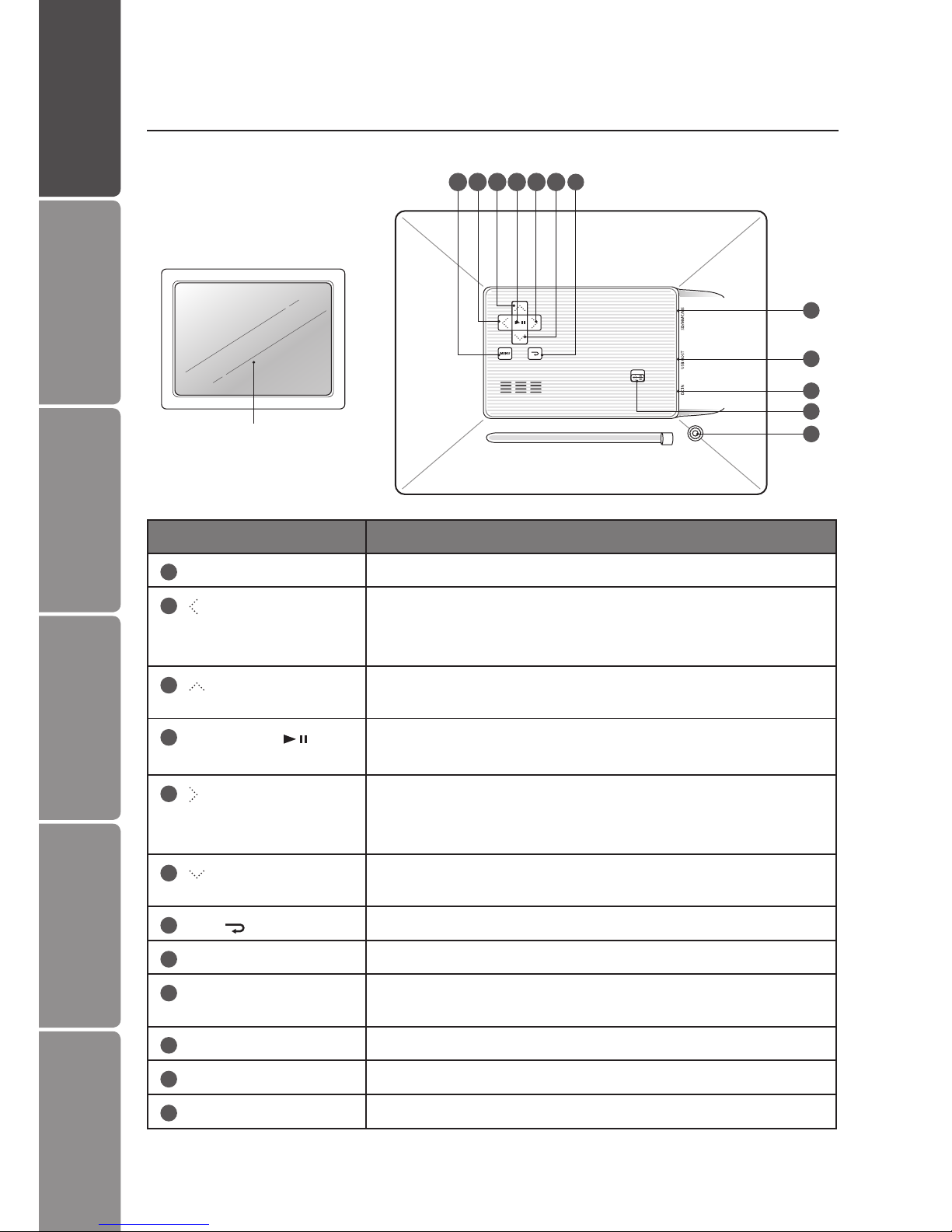
LCD Display
Product Overview
Main Unit 1 7
8
9
10
11
12
2 3
Name Description
1MENU • To access the menu mode.
2button • Press to move right in the menu / thumbnail mode /
option settings
• To display the next photo
3button • To move up in the menu / thumbnail mode / option
settings
4Play / Pause • To start / pause the slideshow
• To conrm a setting or function
5button • To move left in the menu / thumbnail mode / option
settings
• To display the previous photo
6button • To move down in the menu / thumbnail mode / option
settings
7Esc / button • To return to the main menu
8SD/MMC/MS slot • To accommodate SD, MMC, MS cards
9USB host • To accommodate USB devices such as portable USB
ash drives or ash memory card readers
10 DC-IN socket • To connect to the mains
11 ON / OFF button • To turn the photo frame on and o
12 Stand receptacle • To attach the supplied stand
4 5 6
GB-5
Settings Basic Operation Preparations Introduction and
Product Overview
Troubleshooting
and Specication
Safety Warnings
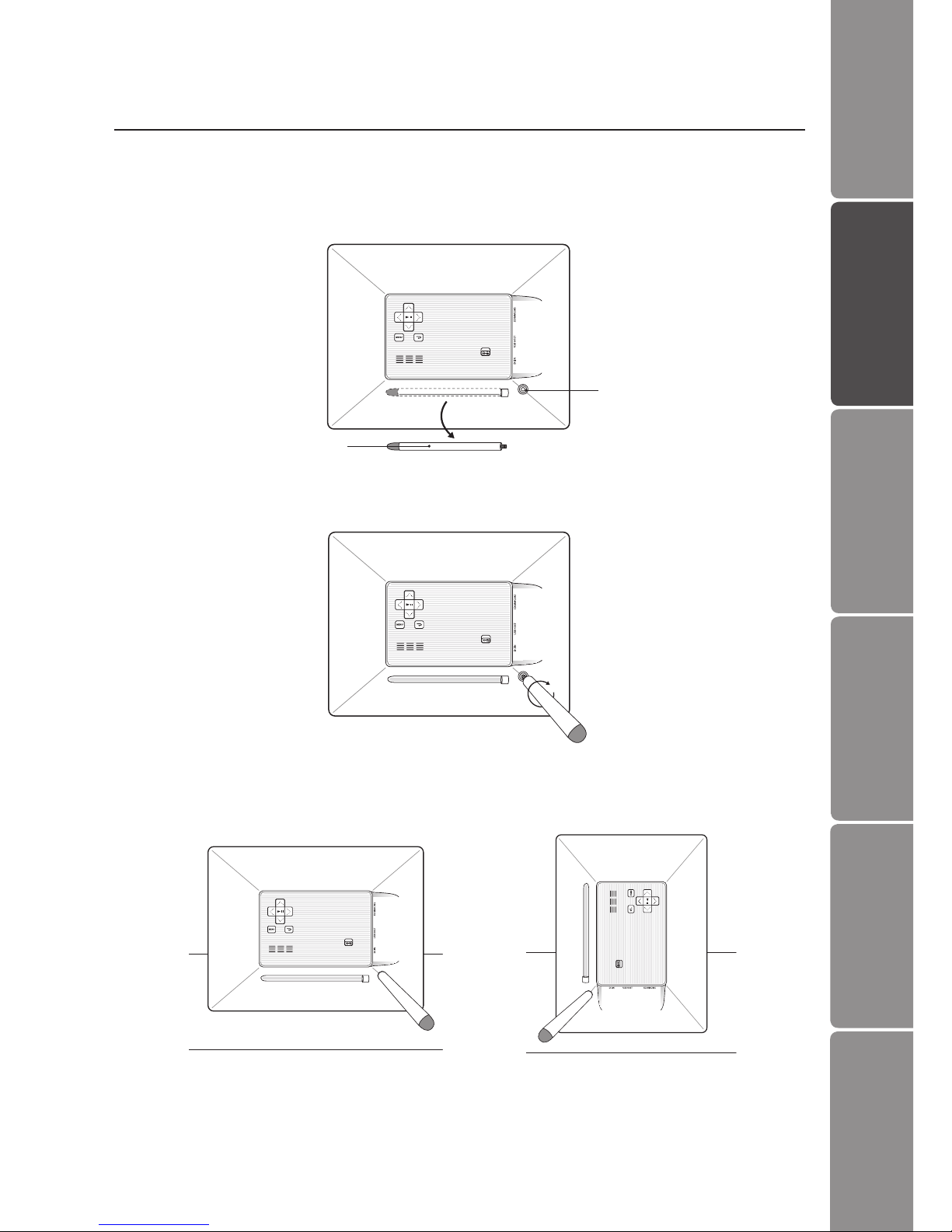
2. Screw in the stand into the stand receptacle.
3. Now the stand is xed, you can choose to display your photo frame in a landscape
or portrait position.
To take o the stand, unscrew it from its receptacle.
Preparations
Attaching the Stand
1. Take out the stand attached at the back of the photo frame.
Stand
Stand Receptacle
Landscape Position Portrait Position
GB-6
Settings
Basic Operation
PreparationsIntroduction and
Product Overview Troubleshooting
and Specication
Safety Warnings
Connecting to the Mains Power
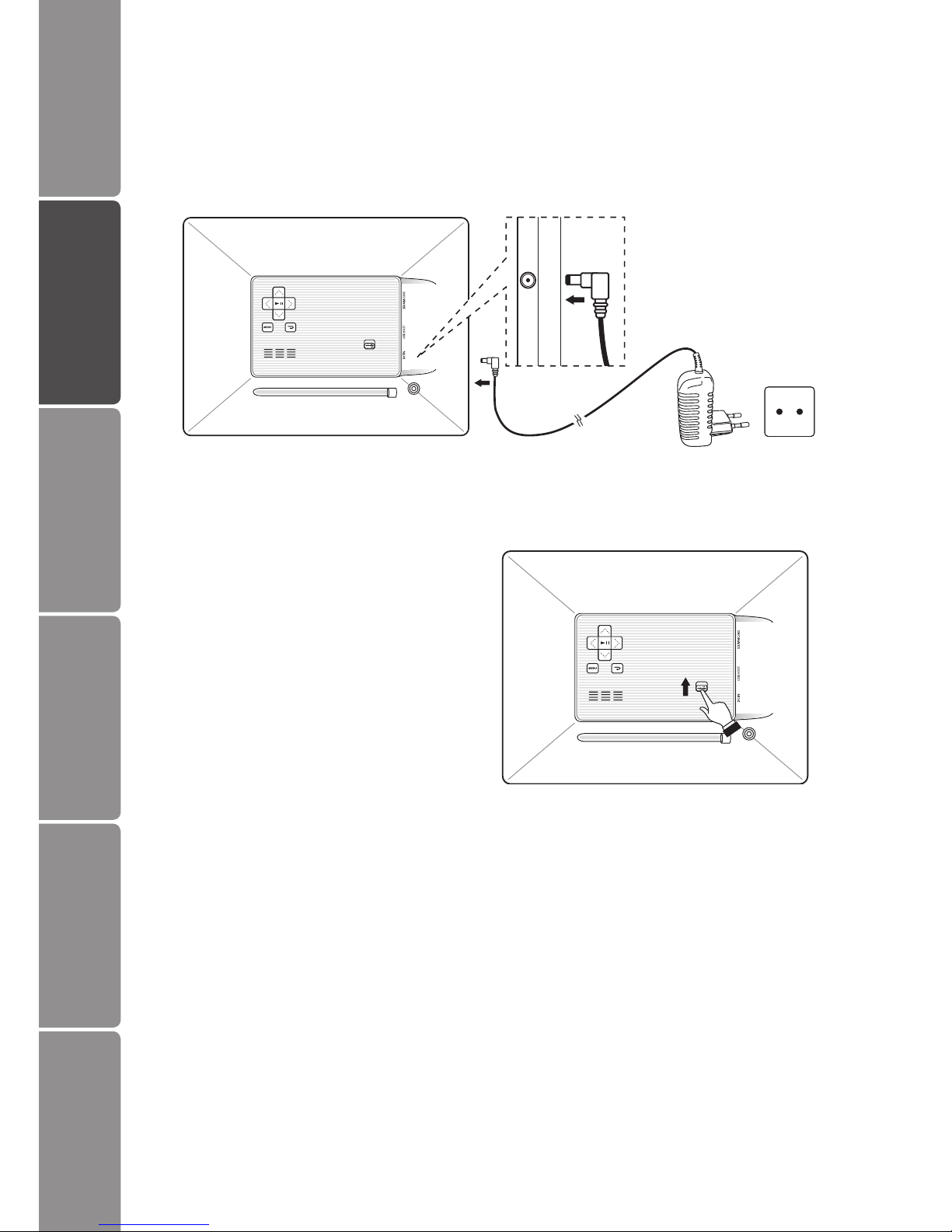
1. Connect the supplied mains adapter (5V DC, 2A) to the photo frame, and plug in
the mains adapter to the mains socket.
2. Slide the ON/OFF button on the
photo frame to turn it on.
3. To turn o the photo frame, slide the
ON/OFF button.
DC IN
GB-7
Settings Basic Operation Preparations Introduction and
Product Overview
Troubleshooting
and Specication
Safety Warnings
Inserting a Memory Card / USB Flash Disk
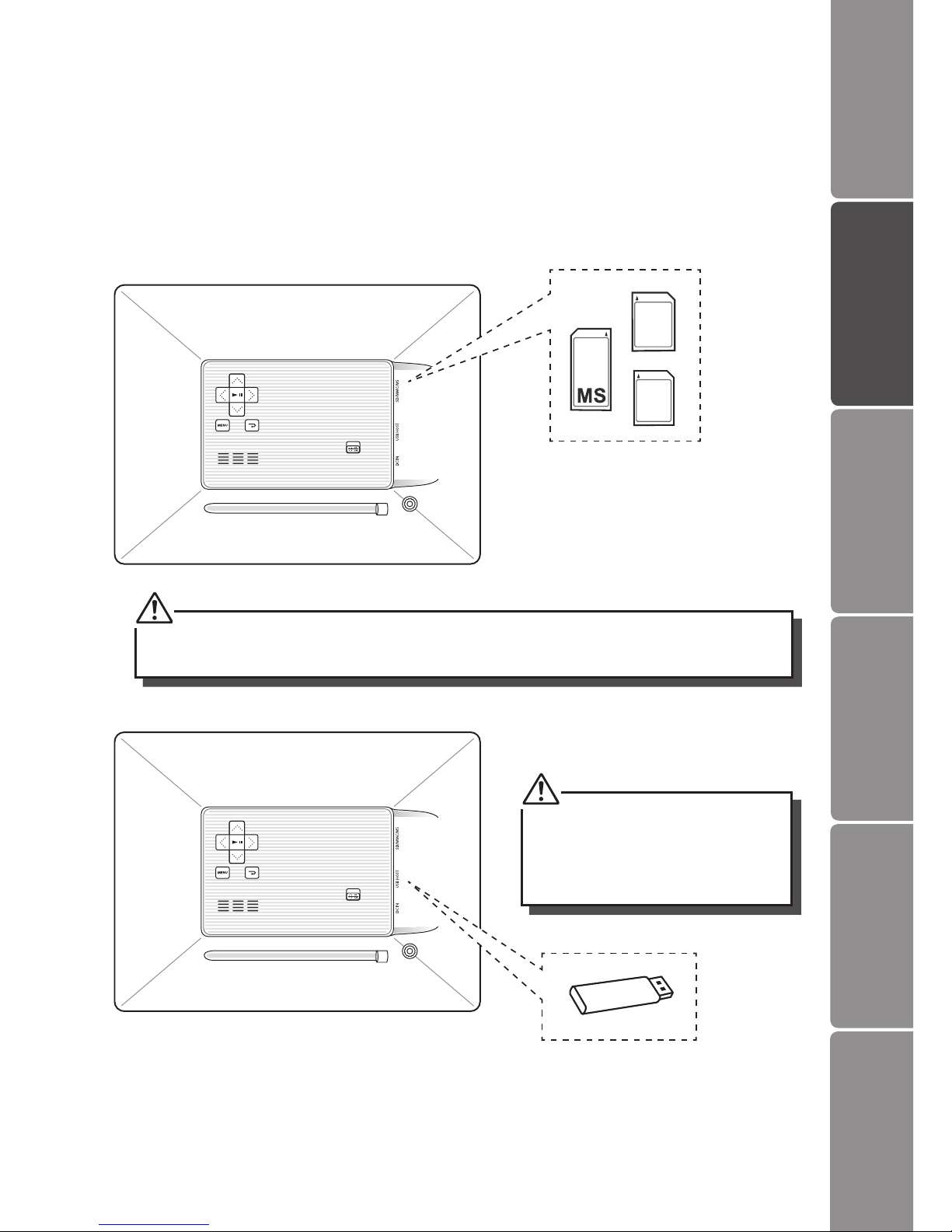
This photo frame can only display one storage media’s contents at a time.
If more than one storage device is connected, please refer to “Selecting the Memory
Drive” and select your desired drive to be displayed in the main menu.
This frame can only play images (JPEG). If les in other formats are played, please use
your computer to convert the images to a readable format.
• Insert your memory card into the
appropriate slot following the
orientation marked on the photo
frame.
• Insert a USB drive into the USB port.
MMC
SD
1. To remove MMC/SD/MS card, pull the card straight out.
2. Some of the newer higher capacity cards may not be compatible with this frame.
This device can only display one
storage media’s contents at a time. If
more than one storage media is used,
please refer to “Selecting the Memory
Drive” section on page 9.

GB-8
Settings
Basic Operation
PreparationsIntroduction and
Product Overview Troubleshooting
and Specication
Safety Warnings
Viewing Photos
OSD Language Selection
1. A language list will be displayed on the screen when you rst switch the photo
frame on.
2. Press the or button to select your desired language and then press the
button to conrm.
3. Press the or button to select “Yes” and then press the button to conrm.
Main Menu
1. When a memory device is inserted into the Digital Photo Frame, the corresponding
icon appears on the main menu.
2. On the main menu, you can select connected source to view photos or change
frame settings.
GB-9
Settings Basic Operation Preparations Introduction and
Product Overview
Troubleshooting
and Specication
Safety Warnings
Selecting the Memory Drive
Press the MENU button to access the main menu. All connected source and setup
icons are displayed.
USB Highlighted when you select a USB ash driver.
Card Highlighted when you select a SD / MMC / MS card.
Setup To customise the settings of Digital Photo Frame.
•In the main menu, if you insert a SD / MMC / MS card or a USB device, the frame will start
to the slideshow automatically. In the slideshow mode, press the button to return
to the thumbnail page and then press the MENU button to access the main menu and
select the memory drive.
•There is a button indicator on the right of the screen, indicating which button you are
pressing.
Viewing Thumbnails
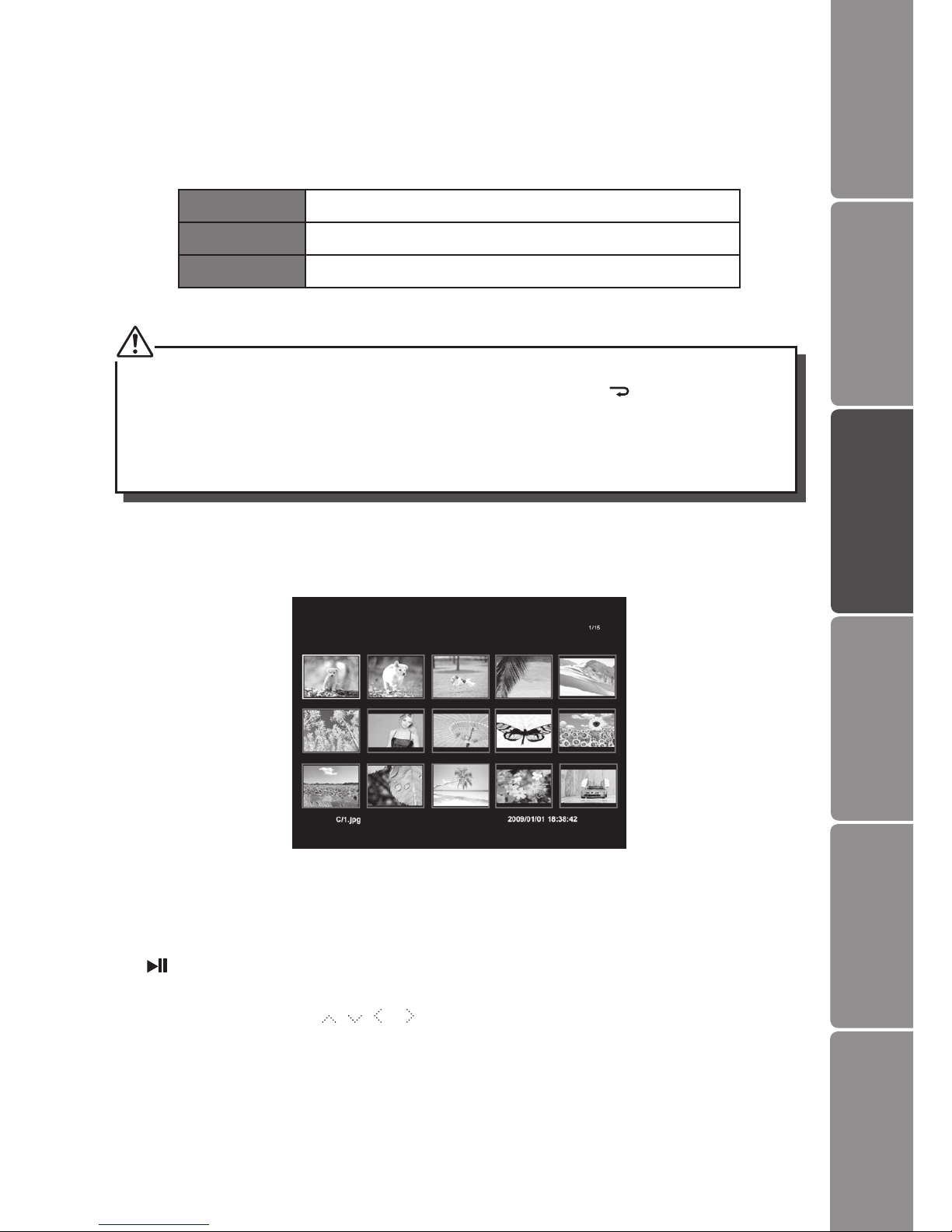
In Photo mode, the photos on the selected memory source can be displayed on the
screen as thumbnails. Up to 15 photos are displayed at a time.
1. Select a memory source (e.g. USB, SD/MMC/MS) on the main menu and press the
button. The photos are displayed on the screen as thumbnails.
2. To navigate through the thumbnails or move to the next or previous page of
thumbnails, press the , , or button.

GB-10
Settings
Basic Operation
PreparationsIntroduction and
Product Overview Troubleshooting
and Specication
Safety Warnings
Playing a Slideshow
In thumbnail mode, select a photo and then press the button to start a slide show
from the current photo. The selected photo is displayed on the screen, and a “hint” pop
up window will appear to guide user.
Do not set hint time to “0” in setup menu, if you want the Photo Frame to display a hint for
button operation.
• To pause the slideshow and view a single photo, press the button. To resume the
slideshow, press the button again.
• Skip to previous or next photo, press the or button.
• Press or button to rotate a photo clockwise or counterclockwise.
• Press the MENU button to show tool bar.
• Press the button to exit the slideshow and view the photos in thumbnail.
Table des matières


