
Rugged Computing ATLAS slim 14 Manuel utilisateur
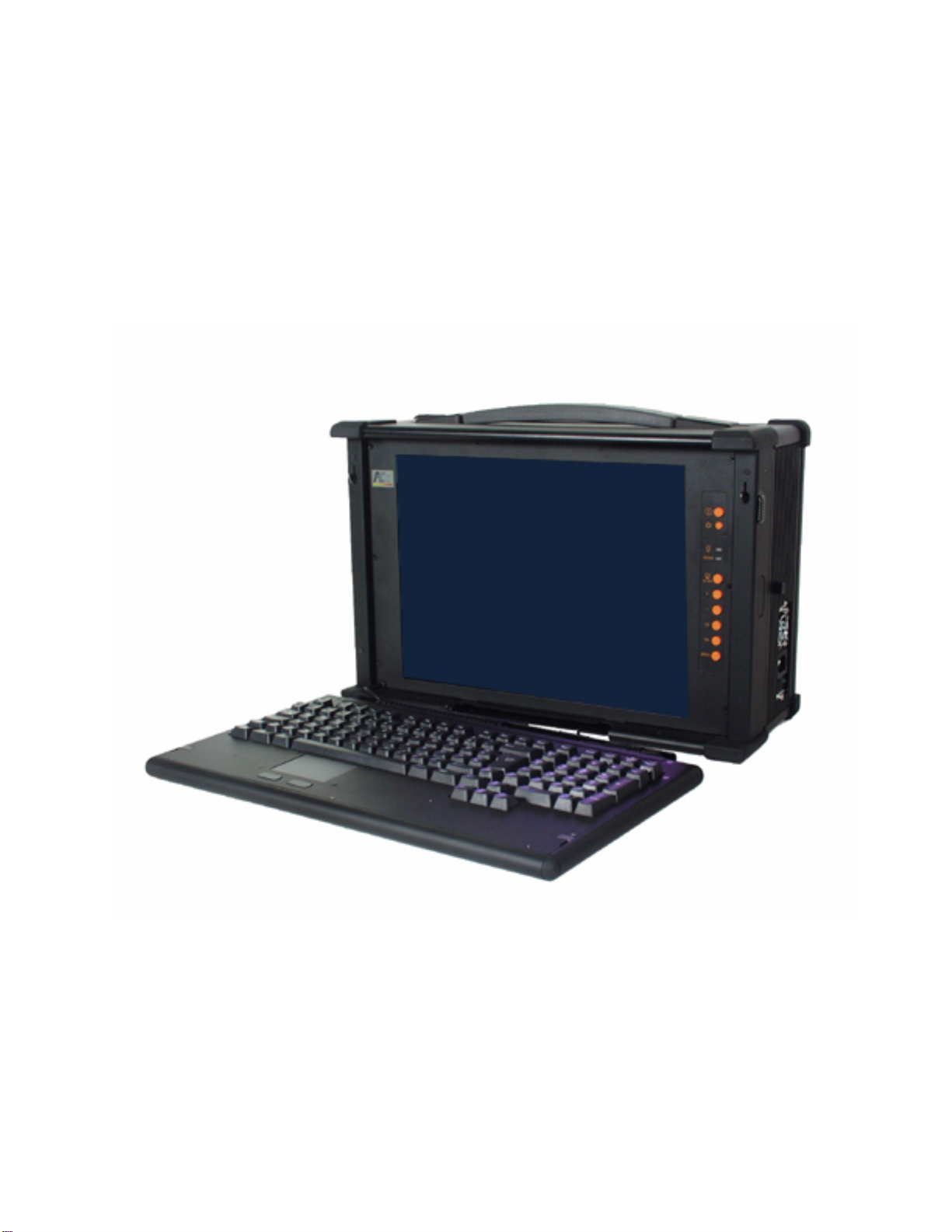
Rugged Industrial
Portable Computer
System Assembly Manual
A Technical Manual for System Integrators and Service
Technicians

The information contained in this document is believed to be accurate. However, no
responsibility is assumed for its use, nor for any infringements of patents or other rights
of third parties which may result from its use. This information is subject to change
without notice.
This manual is divided into 5 parts:
1. Getting Started
2. Opening to Chassis
3. Assemble the System
4. Using the System Controls
5. Appendix
Each part may be referenced individually, however, it is highly recommended for first
time users to go through all parts sequentially to obtain an overall understanding of the
system.
1

CONTENTS
Getting Started………………………………………………………………………………..4
Before you Start………………………………………………………………………………..5
Precautions……………………………………………………………………………………..6
Power Connections…………………………………………………………………………..6
Ventilation……………………………………………………………………………………..6
Care for the LCD……………………………………………………………………………...6
Tools and Supplies Needed………………………………………………………………...…7
Subassembly Contents…………………………………………………………………………7
Parts Contents…………………………………………………………………………………..7
Identifying Parts and Controls…………………………………………………………………8
Opening the Side Access Covers……………………………………………………………8
Removing Side Covers…………………………………………………..……………………..8
Slim Model Side Views…….. …………………………………...……………………………..8
Front View………………………………………………………………………………..…….10
Detaching the Keyboard………………………………………………………………………11
Opening the Chassis……………………………………………………………………...…12
Removing the Back Cover……………………………………………………………………13
Identifying the Internal Parts……………………………………………………………….....14
Removing the Drive Carriers…………………………………………………………………14
Removing the Power Supply…………………………………………………………………16
Removing the PICMG backplane board…….…………………………………………17
Removing the Slot Positioner metal bracket……………………………………………18
Assemble the System…………………………………………………………………….....19
Installing the PICMG and CPU card………………………………………………….…19
Installing CPU card with the PICMG backplane into the case……………………….....20
Installing the CPU card stabilizer…………………………………………………………22
Installing the ATX Enable cable……………….……………………………………22
2

Installing the interface card……………………………………………………………….24
Installing the interface card Support……………….…………………………………….25
Installing the Power Supplier And All Cables From CPU card……………………………27
Installing the Drive Assembly…………………………………………………………………29
Installing Parallel and Serial connector……………………………………...………………33
Keep Cleanness Area to prevent conflict with back Fan………………………….……34
Cover the Back case…………………………………………………………………….……35
Using the System Controls………………………………………………………………..36
Starting your System…………………………………………………………………………37
OSD Controls…………………………………………………………………………………37
Adjusting the OSD Parameters……………………………………………………………....38
Appendix……………………………………………………………………………………….39
Specifications…………………………………………………………………………………40
General Features……………………………………………………………………………40
Display Selection……………………………………………………………………………40
Environment…………………………………………………………………………………40
Dimensions & Weight………………………………………………………………………40
Troubleshooting Techniques…………………………………………………………………41
3

1. Getting Started
Before you Start………………………………………………………………………………....5
Precautions………………………………………………………………………………………6
Power Connections……………………………………………………………………………6
Ventilation…………………………………………………………………………………...….6
Care for the LCD………………………………………………………………………………6
Tools and Supplies Needed……………………………………………………………………7
Subassembly Contents…………………………………………………………………………7
Parts Contents…………………………………………………………………………………7
Identifying Parts and Controls…………………………………………………………………8
Opening the Side Access Covers……………………………………………………………8
Removing Side Covers………………………………………………………………………8
Side View…………………………………………………………………………………….…10
Front View……………………………………………………………………………………...11
Detaching the Keyboard………………………………………………………………………11
4

Before You Start
The major component of the subassembly is the chassis. The chassis comes pre-
assembled with:
• An Active Matrix LCD
• LCD Controller
• An PICMG backplane board with 2 PCI slots ( one 338mmX 118 , one half
size 175mm X 118) or 1 ISA((Max length 338 X 118mm)
• Power Supply
• Keyboard
• Ventilation fans
• Internal Speaker
To complete the System, you must add a PICMG CPU board, and peripheral devices.
Before adding these devices, it is important to follow certain basic safety precautions.
You should become familiar with the chassis both externally and internally. And you
should also have the right tools available to you.
5

Precautions
Power Connections
Use the Supplied Power Cord
The subassembly is shipped with a power cord compatible with the AC wall outlet
in your region.
Power Supply Type
Before plugging in the power cord, examine your power supply to see if you have
an autosensing or non-autosensing power supply.
Autosensing power supplies will automatically adjust to the AC outlet voltage. A
non-autosensing power supply comes with a voltage selector switch located near
the AC power connector. Make sure it is set to the appropriate voltage setting for
your power outlet.
1U Power Supply Switch
The power supply shipped with the chassis may or may not have an ON/OFF
switch. If your power supply has an ON/OFF switch, you must first press the
switch to the ON position to use power up/down button located on the front.
Note: The power up/down button located on the front of the chassis DOES NOT
turn off AC power. You must unplug the AC power cord from the AC outlet or the
chassis to remove AC power from your system.
Ventilation
The chassis comes with one intake fan, one exhaust fan and one power supply
exhaust fan.Never block any of the ventilation openings while the system is
operating. Always leave enough room around the chassis to allow adequate air
flow.
Care for the LCD
The chassis comes with a pre-assembled active matrix LCD. Liquid crystal
displays are made of glass which will break or crack if mishandled. During
system assembly, keep the keyboard latched to the chassis. The keyboard
housing is constructed of metal and provides front impact protection for the LCD
during transportation.
6

Tools and Supplies Needed
Before beginning your work, make sure you have the following tools and supplies
available:
• A #2 Phillips (cross head) screwdriver.
• An anti-static wrist strap (recommended).
Subassembly Contents
The subassembly consists of:
• This subassembly guide.
• Chassis with pre-assembled LCD, LCD controller, power supply,
cooling fans, internal speaker and keyboard with integrated pointing
device.
• An PICMG backplane board with 2 PCI slots or 1 ISA slot
• Power cord
• Carrying case
• Parts for installing the motherboard and drives
See Appendix for technical specifications.
Parts Contents
The subassembly parts kit
contains the following
hardware for installing
boards and drives.
Type# Specification
1. M3x0.5x8 Nylok®
2. M3x0.5x6 Nylok ®
3. M3x0.5x8 Nylok®
4. #6 – 32x10
5. M3x0.5x4
6. #6 – 32x6 (w/washer)
7. M3x0.5x6 (w/washer)
8. M2.6X3
9. M2X3
10. M4x0.7x8
11. M4x0.7x16
12. Interface card Support
13. Hexagon Spanner
7

Identifying Parts and Controls
Opening the Side Access Covers
The side access covers provide side impact protection for the I/O ports and drive
bays. The access covers must be opened to access I/O connectors.
Turn the thumbscrew in the counter-clockwise direction to open the access
covers. The covers are hinged to the chassis and will swing open.
Side Views
8

Use the photos below to identify the components and I/O ports that are accessible
from the two sides of the chassis. The illustration shows the external connectors
and components of a completely assembled system. Your subassembly has only
knockout holes instead.
On the left side of the chassis you
will find the following:
1. Filtered Intake Fan
2. Keyboard latch
3. Internal Speaker
4. Power connector
5. External Power Switch
On the right side of the chassis
you will find the following:
1. Keyboard latch
2. Slim CD ROM Drive Bay
3. Keyboard
4. Internal Speaker
5. 3.5” FDD Drive
6. Expansion slot outlet
9
Ce manuel convient aux modèles suivants
1
Table des matières
Autres manuels Rugged Computing Ordinateur portable


