Robe AT Series Manuel utilisateur

Version2.8

2
User manual
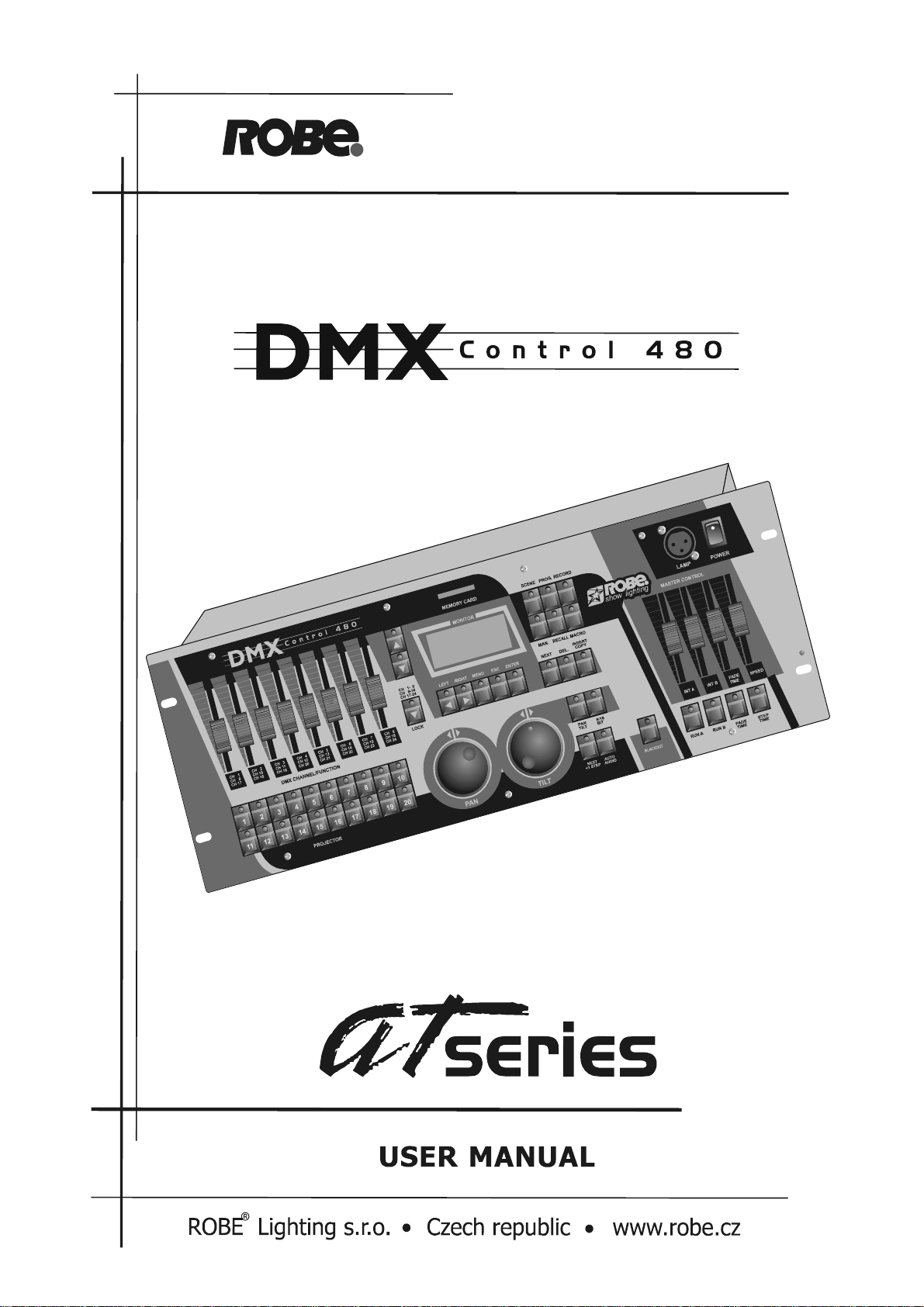
DMX CONTROL 480
Table of contents
1. Safety instructions ........................................................................................................ 4
2. Operating determinations ............................................................................................. 4
3.Before operation ............................................................................................................. 5
3.1.Powering up ............................................................................................................... 5
3.2.Sound-control ............................................................................................................. 5
3.3.Building the DMX-line................................................................................................. 5
3.4.Connecting PC .......................................................................................................... 6
3.5.Projector addressing .................................................................................................. 6
4.Control elements of the controller ................................................................................ 7
5.Operation ........................................................................................................................ 9
5.1.Browsing the menu ..................................................................................................... 9
5.2.Menu map ................................................................................................................. 9
5.3.Assigning the projectors to the projector buttons ....................................................... 10
5.4.Grouping the projectors ............................................................................................ 10
6.Projector library ............................................................................................................ 11
6.1.Setting up the projectors not defined in the projector library ...................................... 11
6.2.Copying the projectors within the projector library ..................................................... 13
6.3.Deleting the projectors from the projector library ....................................................... 13
6.4.Creating/editing the effect names ............................................................................. 14
7. Special settings ........................................................................................................... 14
7.1.LCD display adjusting .............................................................................................. 14
7.2.User setting.............................................................................................................. 15
7.3.Changing the password ........................................................................................... 15
8. Remote adjusting the projectors ................................................................................ 17
9.Uploading programs to the projectors ....................................................................... 17
10.Operating the memory card ....................................................................................... 18
10.1.Saving data to the memory card ............................................................................. 18
10.2.Loading data from the memory card ....................................................................... 19
11.Manual mode ............................................................................................................... 19
11.1.Manual control of the projectors .............................................................................. 20
11.2.Controlling the pan/tilt position with PAN/TILT wheels .............................................. 20

3
11.3.Editing/creating a chaser........................................................................................ 21
11.4.Copying a chaser ................................................................................................... 22
11.5.Running a chaser ................................................................................................... 22
11.6.Presetting a macro ................................................................................................. 23
11.7.Running a macro .................................................................................................... 23
12.Programming mode ................................................................................................... 24
12.1.Creating a scene ................................................................................................... 24
12.2.Deleting a scene .................................................................................................... 26
12.3.Copying a scene .................................................................................................... 26
12.4.Creating a program ................................................................................................ 26
12.5.Deleting a program ................................................................................................ 29
12.6.Copying a program ............................................................................................... 29
12.7.Creating a record ................................................................................................... 30
12.8.Deleting a record ................................................................................................... 32
12.9.Copying a record ................................................................................................... 32
16.Runnig mode .............................................................................................................. 33
15.1.Running scenes ..................................................................................................... 33
15.2.Running programs .................................................................................................. 33
15.3.Running records ..................................................................................................... 35
16.Factory default setting ............................................................................................... 37
17. Updating the fixture library ....................................................................................... 37
18.Technical specifications ............................................................................................ 38
19.Cleaning and maintenance ........................................................................................ 39
Appendix - Projector library........................................................................................... 40

4
Keep this device away from rain and moisture!
Unplug mains lead before opening the housing!
FOR YOUR OWN SAFETY, PLEASE READ THIS USER MANUAL CAREFULLY
BEFORE YOU INITIAL START - UP!
1. Safety instructions
Every person involved with installation and maintenance of this device have to:
- be qualilfied
- follow the instructions of this manual
CAUTION!
Be careful with your operations. With a high voltage you can suffer
a dangerous electric shock when touching the wires!
This device has left our premises in absolutely perfect condition. In order to maintain this condition and to ensure
a safe operation, it is absolutely necessary for the user to follow the safety instructions and warning notes written
in this manual.
Important:
The manufacturer will not accept liability for any resulting damages caused by the non-observance of this manual
or any unauthorized modification to the device.
Please consider that damages caused by manual modifications to the device are not subject to warranty.
Never let the power-cord come into contact with other cables! Handle the power-cord and all connections with the
mains with particular caution!
The power plug has to be accessable after installing the device.
Make sure that the power cord is never crimped or damaged by sharp edges. Check the device and the powercord
from time to time.
Always disconnect from the mains, when the device is not in use or before cleaning it. Only handle the power cord
by the plug. Never pull out the plug by tugging the power cord.
This device falls under protection class I. Therefore it is essential to connect the yellow/green conductor to earth.
The electric connection, repairs and servicing must be carried out by a qualified employee.
2. Operating determinations
This device was designed for indoor use only.
If the device has been exposed to drastic temperature fluctuation (e.g. after transportation), do not switch it on
immediately. The arising condensation water might damage your device. Leave the device switched off until it has
reached room temperature.
Do not shake the device. Avoid brute force when installing or operating the device.
When choosing the installation-spot, please make sure that the device is not exposed to extreme heat, moisture
or dust. There should not be any cables lying around. You endanger your own and the safety of others!
Operate the device only after having familiarized with its functions. Do not permit operation by persons not
qualified for operating the device. Most damages are the result of unprofessional operation!

5
Please use the original packaging if the device is to be transported.
Never put any liquids on the device or close to it. Should any liquid enter the device nevertheless, disconnect
from mains immediately. Please let the device be checked by a qualified service technician before you operate it
again. Any damages caused by liquids having entered the device are not subject to warranty!
Please consider that unauthorized modifications on the device are forbidden due to safety reasons!
If this device will be operated in any way different to the one described in this manual, the product may suffer
damages and the guarantee becomes void. Furthermore, any other operation may lead to dangers like short-
circuit, electric shock, etc.
3.Before operation
3.1.Powering up
Check carefully the controller voltage setting switch on the rear panel of the unit to ensure that the input voltage
you are using matches to its setting.The factory setting can be 115V or 230V AC at 50/60Hz.
If you want to change the voltage setting, do not connect the controller to the mains!
Connect the controller with the power cable to the mains.
The polarity of the cable provided conforms with the current international standards; should you need to replace
the cable, please note:
Cable (EU) Cable (US) Pin International
Brown Black Live L
Light blue White Neutral N
Yellow/Green Green Earth
3.2.Sound-control
If the DMX CONTROL 480 is supposed to work via a soundsignal, connect the ¼" stereo jack female connector
with the sound signal of your headphones output or a second adjustable output (if existing) of your mixer, or with
the loud-speaker output of your amplifier:
Tip: Data +
Sleeve: Ground
By pressing the AUDIO button in run mode,the controller will use the beat signal taken from jack plug.
Caution: Never connect the sound input with the DMX output.
3.3.Building the DMX-line
The DMX CONTROL 480 is equipped with 2 DMX-outputs (3-pin XLR female connectors). In this way, it is easier
for you to connect the lighting effects.
Connect the DMX-output of the DMX CONTROL 480 with the DMX-input of the nearest lighting effect. Splitting
the DMX-line is not possible. Continue the DMX-line by connecting the DMX-output of the projector with the next
DMX-input.
Use a data line appropriate for RS-485 or a shielded quality double-wire cable. As a plug contact use 3-pin XLR-
connector:
PIN 1 - Ground
PIN 2 - Data -
PIN 3 - Data +

6
Caution: At the last projector, the DMX cable has to be terminated with a 120 Ωresistor. Solder the resistance
into a 3 pin XLR-connector and plug it in the DMX-output of the last projector.
3.4.Connecting PC
The 9-pin female connector on the rear panel of the unit is reserved for connection the controller to the PC via RS-
232 interface.
3.5.Projector addressing
The DMX CONTROL 480 assigns the DMX-starting addresses every 24 steps. You have to address every projector
to the respective starting address. Otherwise, the channel assignment will not be correct. All projectors with the
same starting address will work synchronically.
Projector Starting address Projector Starting adress
Projector 1 1 Projector 11 241
Projector2 25 Projector12 265
Projector3 49 Projector13 289
Projector4 73 Projector14 313
Projector5 97 Projector15 337
Projector6 121 Projector16 361
Projector7 145 Projector17 385
Projector8 169 Projector18 409
Projector9 193 Projector19 433
Projector10 217 Projector20 457

7
4.Control elements of the controller
Top panel:
1- DMX CHANNEL/FUNCTION sliders
Every slider represents a DMX-channel of the respective projector and can be individually assigned.
Please take the DMX channel-occupation from the user manual of the respective projector.
2- CHANNEL RANGE/LOCK button
The button determines the channel range for DMX CHANNEL/FUNCTION sliders or locks the controller.
3- UP/DOWN buttons
By pressing the buttons you can adjust the desired value on the display.
4-LEFT/RIGHT buttons
By pressing the buttons you can move between editable items on the display.
5- MENU button
The button accesses the main menu.
6- ESCAPE button
For return to the main menu or submenu.
7- ENTER button
Confirming button
8- MEMORY CARD slot
9- NEXT/GROUP button
Function depends on menu where the button is used.
10 - INSERT/COPY button
Function depends on menu where the button is used.
11 - MANUAL button
For manual control of the selected projector.
12 - SCENE button
For scene running.
13 - PROGRAM button
For program running.
14 - RECALL button
Function depends on menu, where the button is used.
15 - RECORD button
For record running.
16 - MACRO button
17 - DELETE/CHASER button
Function depends on menu where the button is used.
18 - INT A slider
A slider for adjusting the light intensity of program(scene,record) running A.
19 - DESK LAMP socket
The 3 pin XLR socket for gooseneck lamp contains 12V AC ; pin 1=not connected

8
pin 2=12 V AC
pin 3= 0 V AC
20 - INT B slider
A slider for adjustment the light intensity of program(scene,record) running B.
21 - FADE TIME slider
The slider adjusts the fade time.
22 - POWER switch
24 - PROJECTOR SELECT buttons
For selecting the desired projector(s)
23 - STEP TIME slider
This slider adjusts the step time.
25 - PAN encoder wheel
26 - TILT encoder wheel
27 - LCD display
28 - PAN/TILT button
For activating the pan/tilt movement with the PAN/TILT encoder weels
29 - NEXT/+1STEP button
With this button, you can jump from one step to another.
Caution: The button works in the run mode only.
30 - AUTO/AUDIO button
For switching to the auto mode or audio mode.
If the LED is off, the controller is in Auto-mode (normal operating mode without sound-control).
If this LED shines, the controller is in Audio-mode (operation with sound control, the sound signal has to be
connected.)
31 - 8/16 BIT button
For switching the pan/tilt movement from 8 to 16-bit resolution.
32 - BLACKOUT button
The blackout function closes the light output of all connected projectors via the shutter. Please note that all
other functions of the projectors are maintained and that the programs keep running.
33 - RUN A button
The button allows to run a program(scene,record) A
34 - RUN B button
The button allows to run a program(scene,record) B
35 - FADE TIME button
The button activates the FADE TIME slider
36 - STEP TIME button
The button activates the STEP TIME slider
Rear panel:
1- FUSE holder
2- VOLTAGE SETTING switch
By the 2-position switch you can set the desired operation AC voltage 230 V/50-60Hz or 115 V/50-60Hz.
3- POWER cord
4- AUDIO INPUT connector
5- SERIAL INTERFACE connector
The 9-pin female connector for connecting personal computer.
6- DMX-OUTPUT 2 connector
7- DMX-OUTPUT 1 connector

9
5.Operation
5.1.Browsing the menu
The DMX CONTROL 480 handles 20 independently controlled projectors with a maximum of 24 channels per
projector and with a regular DMX 512 signal output.
Connect built DMX serial link to the controller's output(s).Connect the controller to the mains and switch it on,the
initial screen appears:
Robe
Lighting
DMX Control 480
Now by pressing the MENU button you access the main "MENU" where you can scroll to the desired submenu.
Needed buttons and their main functions:
<UP>,<Down> - the buttons for browsing the menu items or editing values.
<LEFT>,<RIGHT> - the buttons for the movement between editable items.
<ENTER> - the confirming button (for saving the changes you have made)
<ESC> - the escape button (for returning to the previous menu without saving the changes
you have made).
<MENU> - the button accesses the main menu.
PAN wheel,TILT wheel - the rotating wheels for adjusting the values of displayed items
Special buttons and their functions will be described in respective sections.
Caution: When you turn the device on, the controller is in blackout-mode (Blackout-LED shines).
The controller will be locked by pressing the CHANNEL RANGE/LOCK button.We suggest you change the
password after your purchase.This will prevent all anauthorized people from tampering with your programs
or running your fixtures.
Only those buttons are active where the LED shines on or flashes.If you press any others,nothing will hapen.
5.2.Menu map
Make Scene
Make Program
Make Record
Make Chaser
Make Group
Setup
Config unit
Config DMX
Rename effect
LCD Adjust
MM Card Menu
-Load data
-Save data
Rconfig DMX1
-Remote confi.
-Upload program
Rconfig DMX2
-Remote confi.
-Upload program
PC Connection
User setting
Set password
Factory setting

10
5.3.Assigning the projectors to the projector buttons
The first operation which needs to be perfomed on the DMX CONTROL 480 is projector selection.To do this,you
can use the inbuilt library of projectors or create your new projectors.
1.Press <ESC> several times until the display shows the initial screen.
2.Press <MENU> and use <UP>,<DOWN> to scroll to the "Config DMX" menu ("Setup" ==> <ENTER>==>
"Config DMX"==><ENTER>).The following screen appears:
CONFIG DMX
DMX Address: 001 Starting DMX address
Device name: 003 Device order number in the projector library
SPOT 250 XT Name of the projector
3.By pressing the PROJECTOR SELECT buttons <1>,<2>.....<20> check the projector allocation to all buttons.If
you want to assign another projectors to the buttons <1> - <20>,use this procedure:
1. Press <1> (its LED shine) and by pressing <UP> or <DOWN>select desired projector from the projector
library.
2. Press <2> and select another projector .In this way assign desired projectors to all PROJECTOR
SELECT buttons <1>,<2>.....<20>.
3. Press <ENTER>.The safety question appears:
SAVE CHANGES ?
ESC/ENT
4.Press <ENTER> to save the new allocation of projectors to the PROJECTOR SELECT buttons or <ESC> to
leave this menu without changes.
Note:If you didn´t find your projector in the projector library,see the chapter "Projector library".
5.4.Grouping the projectors
In order to simplify a control of projectors is very useful to define the groups of projectors.E.g.the first group for
the projectors standing on the stage and the second one for hanging projectors.Creation (running) of
scenes,programs and records is simpler .To create the groups,follow the instructions below:
1.Press <ESC> several times until the display shows the initial screen.
2.Press <MENU> and use <UP>,<DOWN> to scroll to the "Make group" menu and press <ENTER>.The
following screen appears:
MAKE GROUP
Group number: 01 Group order number (1-20)
3.Use <UP>,<DOWN> to select the desired group number and by pressing the PROJECTOR SELECT buttons
<1>,<2>.....<20> assign desired projectors to the current group .LEDs of wanted buttons(projectors) shine.
3.Press <ENTER>.The safety question appears:
SAVE CHANGES ?
ESC/ENT
5.Press <ENTER> to confirm the projectors in the current group or <ESC> to leave this menu without saving
changes.
Ce manuel convient aux modèles suivants
1
Table des matières
Autres manuels Robe Contrôleurs


