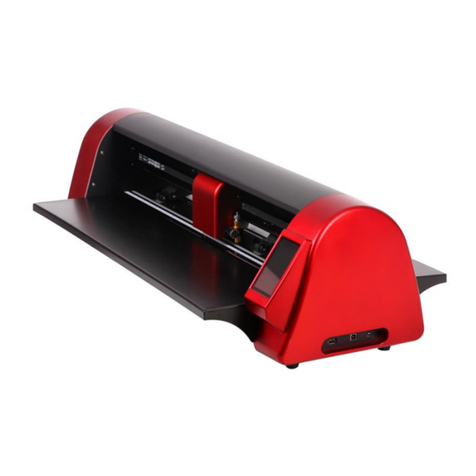
Ricoma RCP-3301 Manuel utilisateur

RCP-3301
MINI CUTTING PLOTTER
QUICK START GUIDE
RICOMA INTERNATIONAL CORPORATION
11555 NW 124th St, Miami, FL 33178
Telephone: (305) 418-4421 | Toll Free: 1-888-292-6282
ricoma.com Copyright ©2021 Ricoma
All rights reserved

Ricoma Quick Start Guide2
DEFINITION OF SYMBOLS
Warning. Any improper operation may result in a hazard of life or damage to
equipment.
A warning symbol for the possibility of electrical shock.
The symbol in the circle represents actions that are not allowed.
Do not use the power source that does not meet the voltage rating; otherwise,
re or electric shock may occur.
If smoke or a strange odor is coming out of the machine, or it makes a loud
sound, this means the machine is not functioning properly and you should
discontinue use. If you continue using it, it may result in re or an electric
shock.
Do not take out the plug when the power is on to avoid damage to the
machine.
Make sure your machine is grounded, otherwise you may experience an
electric shock or a mechanical failure.
Do not detach, repair or reconstruct the machine; otherwise, re, electric shock,
or other life hazards may result.
Do not leak any liquid or drop metal into the machine, such things may result
in re.
Do not touch the top of the knife with your nger to prevent injury or dulling of
knife head.
Do not damage or replace the supplied power cable on your own. Do not
excessively bend, pull, bundle or place weight on the power cable. Otherwise,
the power source may be damaged and electrical shock or re may occur.
If you are not going to use the machine for a long time, please unplug the
power cable from the receptacle to avoid res or electrical shortages from
occurring.

Ricoma Quick Start Guide 3
When operating the machine, do not place either of your hands on capstan to
avoid injury.
Place the machine on a stable surface; otherwise, the machine may fall and get
damaged.
To unplug the power cable from the outlet, please grab the plug instead of the
cable. Pulling the cable with too much force may result in an electrical shock
or re.
Any operation is forbidden in case of storms or lightning to prevent damage of
the machine.
Do not pull the cartridge by hand to avoid damage to the mainboard when the
plotter is powered on.

Ricoma Quick Start Guide4
STANDARD ACCESSORIES
Item Part Quantity
1 Power cord 1
2 USB Cable 1
3 Blade holder
* In machine
1
4 Blade
* 1pc in machine
3
5 Pen and pen holder 1
6Dongle/or Signmaster
*Optional
1
7 Manual 1

Ricoma Quick Start Guide 5
QUICK START
1
2
3
Step 1
Install Signmaster (in the kit-box). Refer to Video software to install and connect.
Step 2
Connect the cutter and computer with the Original Black Cable (Option 1) Recommended
2. Use Your U-Disc (USB Flash disk) and insert it into the cutter port (Option 2)
Recommended
Step 3
Basic cut: Design your work and send it to cut in Signmaster (Refer to basic cut video).
Contour cut: Design your work and send it to contour cut in Signmaster (Refer to contour
cut video).
Note:
1.Signmaster online download address:
http://fcws6.com/downloads/signmaster/craft/SignMaster_UniverCraft.exe
2. Please DO NOT lose the Signmaster PSN code. If you need to change computers to install Signmaster,
please deactivate it before installing it in another computer.
3. Signmaster is supported by all windows systems.
4. If you encounter any problems, please refer to the troubleshooting section (refer to le 1.5).

Ricoma Quick Start Guide6
To connect the cutter to the computer by USB cable, turn on the cutting plotter. Go to CD-ROM drive on
your computer, locate the folder drive, open the folder and double-click “USB Driver Setup.” After that, your
computer should display the following window:
After driver installation, windows will close
automatically and the computer will display the
following window. Click “Next”. Click “Finish”.
USB DRIVER INSTALLATION

Ricoma Quick Start Guide 7
Set up steps:
Click “My Computer” in the pop-up shortcut
menu, then click “Properties”. The dialog box
pop-up should be as follows:
Click the “Device Manager” pop-up dialog box as
follows:
Select COM:3, then click “Advanced”. To log USB “serial port (COM3)”, click the right
mouse button.
To change the port number, click on the “COM Port Number” drop down box to select the correct port number.

Ricoma Quick Start Guide8
INSTALLATION
WARNING
Make sure the machine is grounded, otherwise, electric shock or mechanical
failure may occur.
Do not use a power source that does not meet the recommended voltage
requirement. Using the wrong power source may result in re or electrocution.
Don’t pull out the plug when the power is on to avoid damage to the machine.
Place the machine on a stable surface, otherwise the machine may fall and get
damaged.
CAUTION
Don’t touch the blade top with your nger to prevent injury.
3.1 Machine Installation and connections
3.2 Installing cutting tool
3.1.1 Place the cutter on a at and spacious area.
3.1.2 Connect the cutting plotter to the computer by USB cable, or put a U-Disc directly into the cutter.
3.1.3 DO NOT connect to power until you ensure the connection is grounded and is the proper voltage.

Ricoma Quick Start Guide 9
3.2.1 Adjust the protruding length of the blade top as required for specic cutting media.
3.2.2
3.3A Signmaster Software installation (Recommended)
1. Open the Signmaster package and put the CD into your computer. Install the software and ll in the PSN
code to activate.
2. Change language if needed and then choose the cutting plotter model that corresponds to your cutter in
the Signmaster Software.
3. Follow the Signmaster Operation manual for more details and watch the informational video to learn what
a Basic cut and Contour cut are.
Contour cut: Please refer to your Signmaster Software Manual.
(1) Loosen the screw of the blade holder.
(2) Place the blade into the blade holder attached to the carriage.
(3)When the blade is in the appropriate position, tighten the screw.
Correct
Loosen Correct position
for blade holder
Wrong: Blade out
too much
Wrong: Blade in
too much
Note: There are two options to install cutting software. One is Signmaster and the other is the CorelDRAW
plugin (or dongle).

Ricoma Quick Start Guide10
Basic Cut: Import your vector le, or write the letters of your choosing, then click the Blade Tool and
start cutting. You can set the offset and overcut setting under the Properties-Cut option or through your
connection. (Establishing a connection can be done through a Windows port-le/Direct COM when linked
with any computer with a Windows system.)
Table des matières
Autres manuels Ricoma Traceur