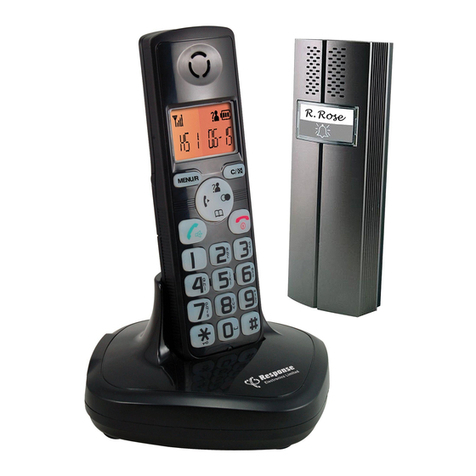
Response SC379 Manuel utilisateur

SC379
Model:
User Manual
Wireless MP3 USB
Door Chime Kit

Programming Proceedure 7
Download 7
a) Auto-Run 7
b) Editing 7
c) Build up the Play List 8
d) Play or Delete in the Play List 8
Kit Components 3
Safety Precautions 3
Contents
3Before you start
11Operation
13Troubleshooting
14Specification
4Installation
7Setting Up
Battery Installation 4
Bell Push 4
Portable Door Chime Unit 4
Installation Instructions 5
Bell Push 5
Chime Position 6
Chime Sounds 6
e) Synchronize 8
f) Memory 9
g) Disconnect 9
h) Tune/chime sound selection 9
Digital Code Set Up 9
1 First Time Operation 9
2 Interference from a similar unit
operating nearby 10
3 Front and back Door Bell Push operation 10
Door Chime Operation 11
Mode Selection 11
Adjust the Sound Volume 11
Low Battery Indicator 12
Technical Specification 14
Disposal 15
2

Before you start
■Unpacking
Unpack your chime kit and identify the following parts:
• Chime Unit
• Bell Push
• 4 x Push Inserts (1 x each white, black, silver, brass colour)
• USB Cable
• Fixings
• User Manual
■Safety Precautions
Before proceeding with the installation please note the following safety warnings:
• Always follow the manufacturer’s advice when using power tools and wear suitable protective
equipment (e.g. safety goggles) when drilling holes, etc.
• Before drilling holes in walls, check for hidden electricity cables and water pipes, the use of a
cable/pipe locater may be advisable if in doubt.
3

Installation
■Battery Installation
Bell Push
The Bell Push is operated by 1 x 3volt CR2032
Lithium battery (included)
The Lithium battery (CR2032) has been installed.
To activate the battery remove the battery cover by inserting a small
flat-bladed screwdriver into the recess and push the battery cover
forward. Remove the isolation strip from the battery compartment,
then snap the cover back on. The Bell Push is now ready to use.
Bell Push battery replacement
Follow the instructions above to remove the battery cover and replace
the battery with 1 x 3volt CR2032 Lithium battery. Ensure the battery
polarity matches the internal markings (“+” face upward). Press the
battery down so that it is sitting firmly in its compartment. Snap the
back cover of Bell Push back on.
4

Portable Door Chime Unit
Remove the battery cover by pushing upwards on the arrow and insert
2 x 1.5volt alkaline batteries (“C”, UM2 & R14 – not included), ensure
the battery polarity matches the internal markings. The door chime is
ready to learn the operation code (please see Digital Code set up).
■Installation Instructions
Bell Push
Using the two indentations of the back of the Bell Push as a template,
mark the fixing position of the bell push on the door frame, wall or
desired location by drilling through the indentations sufficiently to
leave marks indicating where to drill.
Insert wall plugs and secure the Bell Push battery compartment cover
with screws (self-tapping 3 x 16mm screw). Place the Bell Push over
the battery compartment cover and snap into place.
Important: Mounting the Push Button unit on the UPVC doorframes or a metal surface will reduce
the transmission range.
Note: The Bell Push can be fixed in position using sticky pads if preferred.
5
“C”, LR14
“C”, LR14
VolumeMode

Chime Position
The chime can be free standing
or wall mounted.
■Chime Sounds
Bell Push
The chime sound selector is located inside the Bell Push, a small switch on
the top right corner of battery compartment marked with “S”. Press the
switch once, the chime sound will change to play the next tune on the list.
The 8 pre-stored tunes are:
1) Westminster 4) Tubular – 1 7) Trumpet
2) Ding Dong 5) Orchestra 8) Dog Barking
3) Ding-Dong-Ding 6) Tubular – 2
The Door Chime can also be set up to sequentially play the stored chimes, to do this: Hold down the tune
selection button inside the bell push marked with the (S) and the push button on the bell pushes face
simultaneously for 5 seconds. After this the chime will now play each tune saved in sequence after each
press of the bell push. To disable this so it will only play a fixed tune again simply repeat the same process.
6
3mm
Chime sound
selector

Setting Up
■Programming Proceedure
Download: The programme supports: Windows 2000, XP, Vista and Windows 7.
Firstly create a folder to store your music/chime sounds in MP3 or WAV format and save to your “Desktop”.
Connect the USB cable between the chime unit and your computer. The program will auto-run. Your
computer will show the download programme display.
Note: If the program does not start, it may be blocked by virus protection, if this is the case then
please disable the virus protection programme/software. Double click “MY COMPUTER” then double
click CDROM (with earth logo), execute the “MusicPlayer.exe”. (Please remember to enable the virus
protection programme/software once installation is complete).
a) Auto-Run: The program will auto-run and your computer will display the download programme.
The ‘My Computer’ column will show your ‘Desktop’ programme/files.
Note: If the programme does not start automatically then double click ‘My Computer’ followed by a
double click on the CDROM logo.
b) Editing: Click your music/chime sound folder twice; the music/chime sound will be listed in the
“Music” column.
Select the music/chime sound that you want to edit by clicking on it once, the tune/chime sound
sound-wave will be displayed. Hold the left button on your mouse at the start of the selected section
7

and drag your mouse to the end of selected section, then release the left button, the window at
bottom right corner of the soundwave bar will show the duration time of this section. You can play
the selected section by pressing the play button on the bottom left corner of the sound wave bar.
Note: The music/chime sound duration time used as a door chime sound should be 8-15 seconds.
c) Build up the Play List: After editing the music/chime sound, you can transfer it to the play list by
clicking the large “Green Arrow” button in the centre once, the edited sound is imported to the Play
List and displayed.
You can build up a total of 8 different music/chime sounds on the Play List to replace the pre-stored
chime sounds.
Note: Only 8 chime sounds can be stored at any one time. Delete 1 or more chime sounds from the
Play List before transferring the edited/new sounds to the Play List.
Important: If a chime sound is deleted it cannot be retrieved.
d) Play or Delete in the Play List: You can play or delete the edited music/chime sound in the play
list. Click the music/chime sound once, the “Play”, “Stop” and “Delete” buttons will appear at the
bottom of the Play List column, then click the “Play” or “Delete” button once to play or delete this
music/chime sound.
Note: You can have up to 8 different sounds within the playlist to a total maximum file size of 8MB.
e) Synchronize: After the 8-chime sounds Play List is built, synchronize it to the door chime by
clicking the “Sync” button in the centre once and the door chime will store the music/chime sound on
8

the Play List in the memory. The “Synchronize is finished” icon will pop up for confirmation.
Note: Always synchronize your door chime before disconnecting the USB cable.
f) Memory: The door chime has 8 MB of memory and will store approximately 8-9 minutes of
music/chime sounds. The memory bar shows the percentage of memory used.
g) Disconnect: Disconnect the USB cable, the door chime is ready for use.
h) Tune/chime sound selection: Press the tune/chime sound selector switch inside the Bell Push to
select the chime sounds on your play list that you wish to play as your door chime sound. The Door
Chime will now play selected tune/chime sound.
■Digital Code Set Up
The Door Chime Kit is equipped with an advanced random and self-learning operation coding ability
therefore no set up is required. Read the following instructions before use.
1 First time operation:
After battery installation on both Bell Push and Door Chime units, press the Bell Push Button once to
generate a new operation code randomly. The Door Chime unit will sound to indicate that a new
operation code is registered and held in the memory.
Note: The chime unit has 2 minutes to learn the operation code after batteries are installed.
9

2 Interference from a similar unit operating nearby (i.e. the chime sounds when the Bell
Push has not been operated):
a) Remove the batteries from the Bell Push and Door Chime units and rest for 10 seconds, this will
erase the memory.
b) Insert the batteries into the Bell Push and Door Chime units, the chime unit is now ready for the
new code registration.
c) Press the Bell Push once to generate a new operation code randomly, the Door Chime unit will
sound to indicate that a new operation code is registered and held in the memory.
3 Front and back Door Bell Push operation (2nd Bell Push not included):
a) Remove the batteries from the Bell Pushes (both Front & Back Door) and Door Chime Unit(s) and
rest for 10 seconds, this will erase the memory.
b) Insert the batteries into the Bell Push and Door Chime units, the chime unit is ready for the new
code registration.
c) Press the front Bell Push button once to generate a new operation code randomly, the Door Chime
unit will sound to indicate that a new operation code is registered and memorised.
d) After, (within 2 minutes) press the back door Bell Push button once to generate a new operation
code randomly, the door chime unit will sound to indicate that a new operation code is registered
and memorised.
10
Table des matières
Autres manuels Response Système d'interphone