ResourceXpress QX+ Guide rapide

Configuration & Installation Guide

Smart Resource Booking Technology www.resourcexpress.com 2
Copyright
No part of this publication may be reproduced, transcribed, transmitted, stored in a retrieval
system or translated into any language, in any form or by any means mechanical, manual,
electronic, magnetic, chemical, optical, including photocopying or otherwise without the prior
written permission of QED Advanced Systems Ltd.
Confidentiality
This document is the property of QED Advanced Systems Ltd, and is provided on the understanding
that its use will be confined to the officers of your company and that no part of its contents will
be disclosed to third parties without the prior written consent of QED Advanced Systems Ltd. This
online publication is to be returned to QED Advanced Systems Ltd when it is no longer required
for the agreed purpose.
Version
Document version Date
Acknowledgements
QED Advanced Systems Ltd respectfully acknowledges all trademarks, trade names and other
unique identification symbols, whether implied or explicit, used within this document.
QED Advanced Systems Ltd.
The Hive
Beaufighter Road
Weston-Super-Mare
BS24 8EE
UK
tel: +44 (0)1934 836960
email: info@qedas.com
web: www.resourcexpress.com
Version 2 August
2016

Smart Resource Booking Technology www.resourcexpress.com 3
Contents
Package Contents ......................................................................................................................................... 4
Pre-Requisites............................................................................................................................................... 4
Qx+ Description ............................................................................................................................................ 4
Specification ................................................................................................................................................. 5
Rear Panel Controls .............................................................................................................................. 6
Procedures.................................................................................................................................................... 7
Power On .............................................................................................................................................. 7
Configure Wi-Fi ..................................................................................................................................... 7
Ethernet Configuration ....................................................................................................................... 10
Configure ResourceXpress URL........................................................................................................... 11
Appendix A: Changing the Default Security PIN ......................................................................................... 13
Appendix B: Mounting Instructions........................................................................................................... 14
Glass Walled Rooms ........................................................................................................................... 14
Solid or Partition Walls ....................................................................................................................... 16
Appendix C: Safety and Warnings.............................................................................................................. 17

Smart Resource Booking Technology www.resourcexpress.com 4
Package Contents
Qx+ Meeting Room Screen
Mains Power Adapter
Pre-Requisites
ResourceXpress server with at least one room profile configured for use with a Qx+ screen.
Local mains outlet and 802.11b/g/n Wi-Fi network or RJ45 LAN connection port
Qx+ Description
Qx+ is the wireless Android touchscreen for use with the ResourceXpress innovative and
intelligent resource management system
It has a large 10.1” wide screen with 1280 x 800 resolution for a clear display of room
information
Robust capacitive 5-point touchscreen technology provides excellent responsiveness to
touch
Wi-Fi 802.11b/g/n or LAN connection via the 10/100 Mbps Ethernet port with POE (Power
over Ethernet)
Low profile sleek design with 75mm VESA mounting facility
Central server managed by ResourceXpress so fully scalable for enterprise wide solutions
This model supports ResourceXpress Client v4.2 or later

Smart Resource Booking Technology www.resourcexpress.com 5
Specification
Panel Information
Screen size
10.1”
Resolution
1280 x 800
Brightness
450 cd/m2
Contrast Ratio
600:1
Aspect ratio
16:9
Viewing Angle
80/80-80/80
Touch Technology
Capacitive 5 Point
Hardware and OS
CPU
Quad Core,1.6GHz
Graphics Hardware
RK 616
Internal Memory
2GB, DDR SDRAM
Flash Memory
8GB NAND Flash
Operating System
Android KitKat
Communications
Bluetooth
4.0
Wi-Fi
802.b/g/n
Wired Ethernet
wired 10/100 Ethernet
with POE
General Information
I/O Ports
DC/ SD/USB 2.0x 1/Micro
USB/Mini HDMI/Ethernet
Port
DC Input
9-12v
Power Supply
12v/2.0A
Power consumption
14W (max)
Operation Temperature
0-40 centigrade
Relative humidity
0.85
Certifications
ROHS. FCC & CE
compliant, PSU is also UL,
UN38.3 compliant
Dimensions
Size
W252 x H178 x D24mm
Weight
594g
Product carton size
L323 x W240 x H112mm
Master carton (3 units)
L570 x W325 x H242mm
Master carton weight
4.5Kg
Certifications
ROHS. FCC & CE
compliant, PSU is also UL,
UN38.3 compliant

Smart Resource Booking Technology www.resourcexpress.com 6
Rear Panel Controls
Top
1LED
2SD Slot and Cover
3Menu/Enter Button
4Function Keys Up/Down
5Function Keys Up/Down
Bottom
6Power Switch
7DC In
8Mini HDMI Out
9Add-in module slot
10 Micro USB
11 USB Type A
12 Ethernet RJ45

Smart Resource Booking Technology www.resourcexpress.com 7
Procedures
Power On
Ensure the screen is connected to a power supply using the provided power cable. The LED
(See 1 above) will be lit up on the top edge of the device.
Configure Wi-Fi
After the power up sequence the image below will be displayed on the screen. Touch the
four corners of the screen starting top left and going clockwise, as indicated by the numbers
below.
The PIN code prompt will appear.
(The default PIN code is 11223344)

Smart Resource Booking Technology www.resourcexpress.com 8
After entering the current PIN a panel at the top of the screen will appear, select the three
dots in the top right corner. From this menu select Quit.
Pressing the Menu/Enter button (No 3 on Rear Panel Controls Illustration) on the top of the
panel will exit to the screen as shown below. Select Settings.

Smart Resource Booking Technology www.resourcexpress.com 9
Select Wi-Fi. (Ensure it is switched to ON)
Choose the correct network and enter the password.
Press the Menu/Enter button (No 3 on Rear Panel Controls Illustration) on the top of the
panel to return to the Home Screen.

Smart Resource Booking Technology www.resourcexpress.com 10
Ethernet Configuration
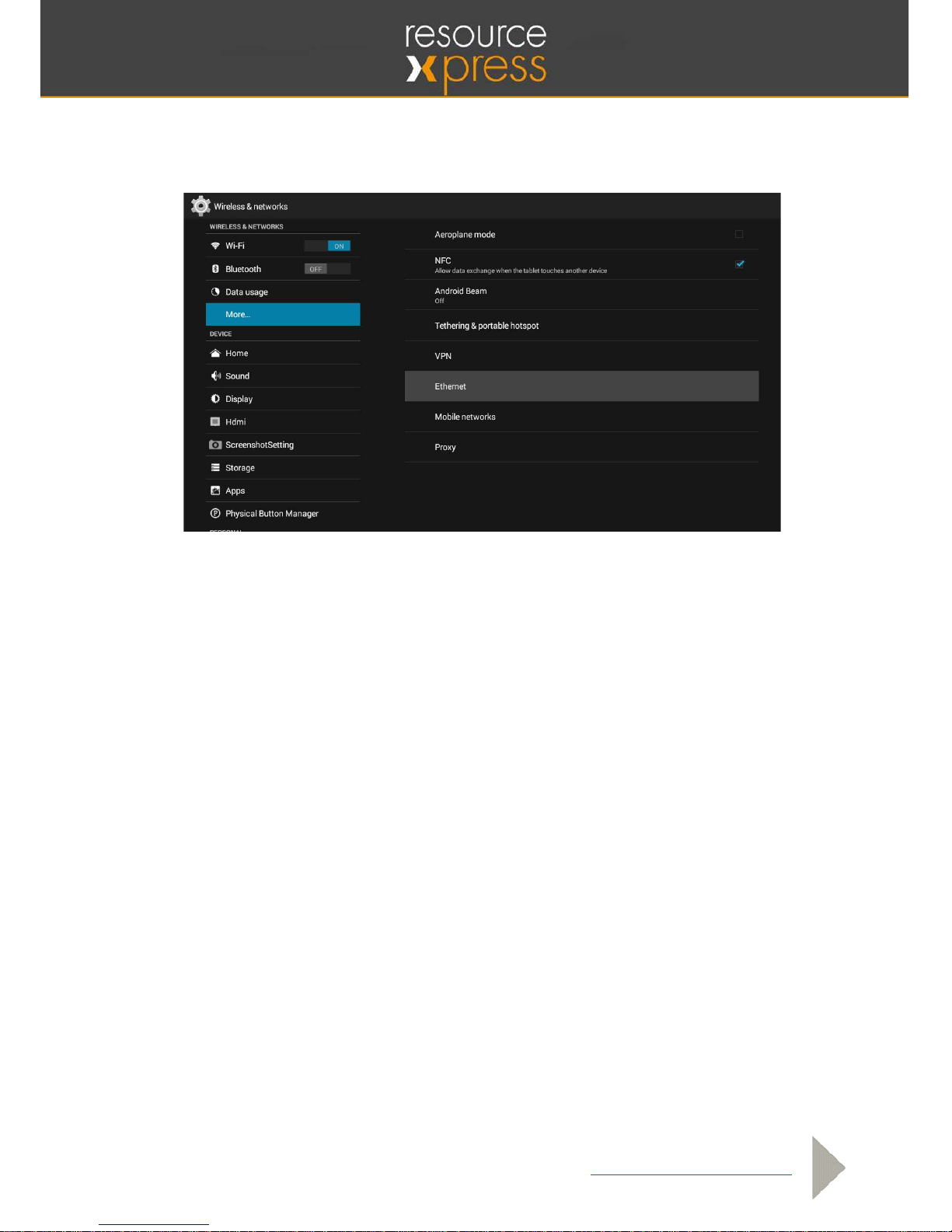
From the Home screen select Settings, then select More…, followed by Ethernet to turn the
feature on.
Table des matières
Manuels Système de conférence populaires d'autres marques

Kramer
Kramer VIA GO Manuel utilisateur

AVT
AVT MAGIC AC1 Go Manuel utilisateur

ProSoft Technology
ProSoft Technology AN-X4-AB-DHRIO Manuel utilisateur

Sony
Sony PCS-I150 Manuel utilisateur

Middle Atlantic Products
Middle Atlantic Products VTC Series Manuel utilisateur

Prentke Romich Company
Prentke Romich Company Vanguard Plus Mode d’emploi