
RCA HSFLC1WHA Manuel utilisateur

HSFLC1 QSG 03
LIGHTS, CAMERA...
ACTION
QUICK START GUIDE
English instructions.................1
Instructions en français.........13
Instrucciones en español .....25

2
WELCOME!
Floodlight
Security
Camera
WHAT YOU GET
Installation kit:
1Mount and connect
the oodlight security
camera
2Download the RCA
Security App
3Connect to Wi-Fi
4Customize your device
settings
(1) Screwdriver
(2) #8x3/8in screws
(3) Wire nuts (2) #10x3/8in screws
(2) #6x3/8in screws
IMPORTANT
The oodlight camera’s lens,
microphone, and IR sensor have
protective lms covering them when
you rst unpack this product. Make
sure you remove these protective
lms when you’ve nished
mounting the oodlight camera.
Lens
IR
sensor
Microphone

3
BEFORE YOU START
Test your WiFi signal
Your RCA Floodlight Camera needs a strong enough signal from
your WiFi router in order to send its video signal. Here’s how to
test your WiFi Signal.
First, go to where you want to put the oodlight camera. Make
sure your smartphone or other portable wireless device is
connected to the WiFi network you want to test.
Look at the WiFi icon on your device screen to see
the strength of the connection. For example, on
iOS devices look in the upper left-hand corner of
the screen for the WiFi icon (shown here).
For best results, look for a location with at least
50% strength to use the oodlight camera.
If your WiFi network signal is less than 50% where you want
to install the oodlight camera, a WiFi signal extender is
recommended to boost the signal at the installation point.
IMPORTANT: The RCA Floodlight Camera works with 2.4GHz
WiFi signals. If you have a dual-band router with separate
2.4GHz and 5GHz networks, make sure your phone is
connected to the 2.4GHz one!
IMPORTANT: You must have a junction box
and wiring already installed in order to use
this product.
The RCA Floodlight Camera is
designed to replace an existing
oodlight installation. If you
do not already have a working
oodlight or wired junction box
where you want to install the RCA
Floodlight Camera, consult an
electrician to install one.
Existing Floodlight

4
MOUNT AND CONNECT THE FLOODLIGHT CAMERA
Turn off power to your oodlight’s
circuit.
1
Remove your existing oodlight.
2
Connect the junction box and
oodlight camera 3-wire connector.
4
Find the breaker that
controls the circuit for your
oodlight. Turn it off before
you continue installation.
Carefully remove your existing oodlight
from its junction box.
Separate the back/base from the
oodlight camera.
3
Unscrew the 3 base
screws holding the
oodlight camera to the
base (keep these in a
safe place for later).
Pull the oodlight
camera completely off
the base.
Run the wires from
the 3-wire connector
through the oodlight
camera’s base.
Match each color wire
from the oodlight
camera to the same
color from the junction
box (green to green,
white to white, black to
black).
Put the ends of each pair into the three wire
nuts, then twist each nut a full turn to nish.
Existing Floodlight
Floodlight camera, front
Base screws
Turn the oodlight
camera over. Gently
unplug the 3-wire
connector from the
base of the oodlight
camera.
Floodlight camera, bottom
3-wire connector

5
Mount the oodlight camera to the
base and junction box.
5
Place each twisted wirenut in the junction
box. Then align the oodlight camera base
on the junction box so that it’s oriented
correctly.
Place 2 #8x1-1/2in screws through the base
and into the the mounting holes on the
junction box. Screw the base rmly in place.
Turn on power to your oodlight’s
circuit
6
Conrm the oodlight camera has
power
7
Turn the breaker that controls
the circuit for your oodlight
back on.
At rst power up, the oodlights come on.
Once the oodlight camera is ready for setup,
the oodlights turn off and the indicator on the
front of the camera ashes blue and red.
Note: If you’ve installed the oodlight camera
on a switchable outlet, make sure you turn the
switch on and leave it on for the oodlight
camera to function 24/7.
Plug the 3-wire connector
back into the oodlight
camera base
as shown.
Make sure it’s
completely
seated before
proceeding.
Place the oodlight
camera over the base so
that the base’s mounting
tabs t into the camera’s
slots. Find the 3 base
screws you removed in
step 3. Put the base screws
back into their slots and
tighten completely.
Floodlight camera, front
Base screws

6
In the Google Play or Apple App Stores, search
for “RCA SECURITY” and look for the icon shown
here. Then download and install the App.
DOWNLOAD THE RCA
SECURITY APP
• iOS 7 or later
• Android version 4.4 or later
Minimum Operating System
Requirements for the RCA Security App
Launch the App
Once the RCA Security App has
installed on your smarphone or
tablet, press the icon to launch
the App.
IMPORTANT: The rst time you
launch it, the App will ask if it
can send you notications. Click
“Allow” to let the App push
notications to your phone or
tablet.
1
Register as a new user
The rst time you launch the RCA Security
App, you’ll need to create a user name and
password so that you can access your camera
securely.
2
Press the New User
Registration button to
get started.
Note: If you already
have an RCA Security
user name and
password enter them in
the appropriate spaces
and press the Login
button.
CONNECT TO WIFI
You can register by mobile phone number or
by email. The App will send you a verication
code to link this number or e-mail address with
your account. Follow the steps in the App to
proceed.

7
Enter your email and create a
password, then press Next.
Connect the camera with your WiFi
network
3
In the RCA Security App, tap
the + symbol in the middle of
the screen.
continues on the next page...
Find the QR code and serial
number on the side of the
oodlight camera. Scan the QR
code with your phone when
prompted by the App (or enter
the serial number manually).
Once the App recognizes your
oodlight’s serial number, the App
asks you to connect to your WiFi
network. Tap the Connect to a
Network button in the App.
In the next screen, enter the
password for the WiFi network
your phone is connected to. Then
press the Next button in the App
to proceed.
Floodlight camera, side
QR code
Follow the directions in the App to
perform the following steps:
• copy the oodlight camera’s
password to your phone’s
clipboard for easy access
• go to your phone’s WiFi settings
and connect to the oodlight
camera and enter its password
• return to RCA Security App
and nish connecting to the
oodlight camera
The App will connect to your
oodlight camera and activate it
with your RCA Security account.
Please be patient with your WiFi network! Certain parts of the WiFi
setup, like connecting to your network, could take up to 5-6 minutes
to complete.
Got screen freeze? This is probably due to WiFi activity on your
network, especially if your network has several devices connected to
it. Exit out of the App and start again.
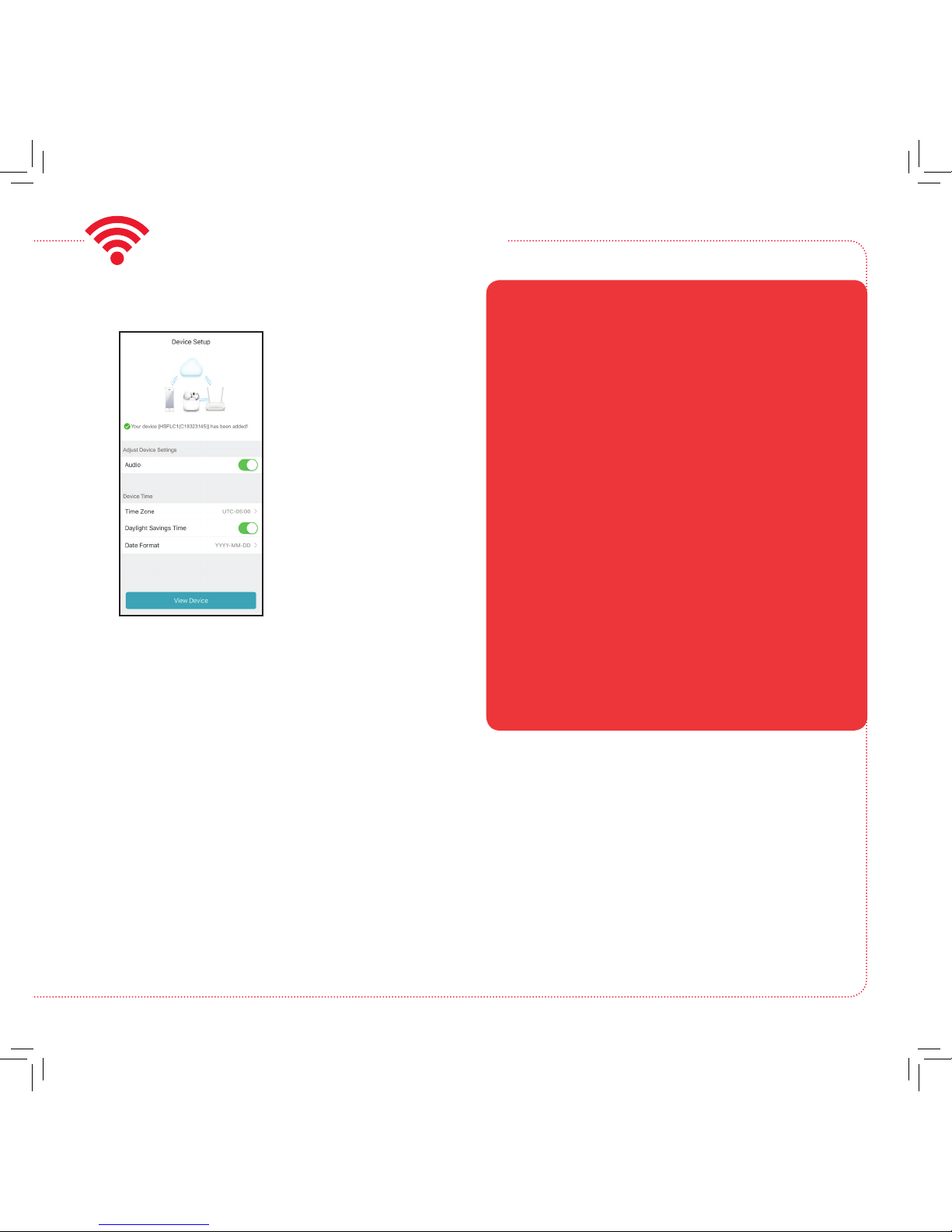
8
Once the oodlight
camera has nished
connection and activation,
the App will ask for
some nal information
to complete setup,
such as your time zone
and whether you want
audio to be on by
default. Once you’ve
nished customizing
these settings, press the
View Device button to
continue.
Finish setup
4
CONNECT TO WIFI (continued)
+ Make sure that WiFi signal is 2.4GHz. The RCA
Floodlight Camera does not support 5GHz WiFi.
+ Make sure your phone or tablet is connected to the
WiFi network you want to use (2.4GHz if your network
offers separate networks for each band).
+ Make sure the camera is getting a good signal from
your WiFi router.
+ Test your WiFi network with other devices to make sure
it’s working.
+ Double check that you’ve entered the correct password
for your WiFi network in the App.
+ Make sure that your WiFi router uses either WPA2-PSK/
WPA-PSK or AES as its encryption method.
+ Make sure that there is no MAC lter on router or add
MAC address to router whitelist.
+ Reset the camera to set up connection again. Open
the door on the side of the camera using the included
screwdriver. Find the RESET key under this door.
Press and hold RESET key for 15 seconds. The camera
announces when it is fully reset (rebooting).
Connection Troubleshooting
For additional assistance, please call
1-833-236-6561.

9
(Back) goes back to the device list screen.
(Settings) accesses the Settings menu for this camera. Press this
icon to turn motion alarms on or off, adjust camera audio, check storage
status and the version of the device’s software, adjust the time and date
settings, and more.
Camera view shows you the image from your Floodlight Camera. Turn
your phone/tablet sideways to take over the entire screen.
(Stop) and (Pause) stops/starts or pauses the live video.
(Sound On/Off) turns the sound from the camera on and off.
(Multi-Camera View) lets you see multiple cameras at once on a
single screen (if you’ve set up multiple cameras). Press the number you
want to access a multi-camera view screen.
(Flip) ips the orientation of the camera view to facilitate viewing.
(Zoom) zooms in on the live view.
(Alarm) turns the 110db siren alarm on and off.
(Talk) lets you speak through this camera’s built-in speaker. Press this
icon to start speaking.
TOUR OF THE SYSTEM: LIVE VIEW SCREEN
(Snapshot) takes a still photo of the camera video. The snapshot le is saved to your smartphone or tablet.
(Record) starts/stops recording video. The video le is saved to your smartphone or tablet.
(Video Quality) lets you switch between high- and standard-denition video on the view screen.
(Light control) turns the oodlights off and on.
Video History accesses the oodlight camera’s timeline, allowing you to access recordings stored on the
oodlight camera’s memory card by the times they occurred.

10
CUSTOMIZE AND USE!
Using the Settings Menu
Press the icon in the Live View screen to access the following
customizable parameters of your oodlight camera.
Light Setting lets you adjust the brightness of the oodlight and enable
motion detection (Light Linkage) for the lights, including setting the areas
of the camera’s vision where motion detection is active.
Audio turns audio on/off for recording and live viewing.
Status Light turns the camera’s indicator light on/off.
IR Light turns the camera’s night vision feature on/off.
Alarm Notication lets you set notication schedules for when you want
to receive alerts. Also lets you set the motion detection area for alerts and
the detection sensitivity, as well as the sound the oodlight camera makes
when motion is detected.
Time Zone, Daylight Savings Time, and Date Format let you adjust the
time zone, daylight savings time, and date format settings you made during
setup.
Wi-Fi lets you change WiFi network information for your oodlight camera
and keep the device active on the new network. This is a convenient option
if you get a new wireless router, for example.
Storage Status lets you format the inserted memory card. A dot next to this
item in the menu means that the SD card requires attention.
Device Version shows you the rmware version of the oodlight camera. A
dot next to this item in the menu means that a rmware update is available.
Choose this option and following the instructions to update.
Image Encryption increases the security of the video from the oodlight
camera. This option is on by default.
Change Password lets you change the oodlight camera’s device
password (not your WiFi password). The default password is the verication
code next to the QR code on the side of the camera.
Sleep Mode lets you put the oodlight camera to sleep. The App will
prompt you to wake the oodlight camera again when you try to view it in
the Live View screen.
Table des matières
Langues :
Autres manuels RCA Caméra de sécurité


