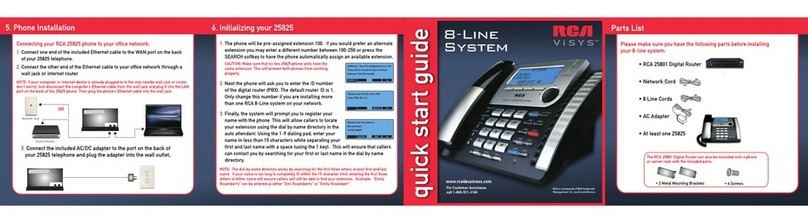
RCA IP160 Manuel utilisateur

IP160
IP Phone

2
3
Interference Information
This device complies with Part 15 of the FCC Rules. Operation is subject to the following two
conditions: (1) This device may not cause harmful interference; and (2) This device must accept
any interference received, including interference that may cause undesired operation. Privacy of
communications may not be ensured when using this phone.
This equipment has been tested and found to comply with the limits for a Class B digital device,
pursuant to Part 15 of the FCC Rules. These limits are designed to provide reasonable protection
against harmful interference in a residential installation.
This equipment generates, uses, and can radiate radio frequency energy and, if not installed and
used in accordance with the instructions, may cause harmful interference to radio communica-
tions. However, there is no guarantee that interference will not occur in a particular installation.
If this equipment does cause harmful interference to radio or television reception, which can be
determined by turning the equipment o and on, the user is encouraged to try to correct the
interference by one or more of the following measures:
• Reorient or relocate the receiving antenna (that is, the antenna for radio or television that is
“receiving” the interference).
• Reorient or relocate and increase the separation between the telecommunications equipment
and Receiver.
• Connect the telecommunications equipment into an outlet on a circuit dierent from that to
which the receiving antenna is connected.
If these measures do not eliminate the interference, please consult your dealer or an experienced
radio/television technician for additional suggestions. Also, the Federal Communications Commission
has prepared a helpful boOKlet, “How To Identify and Resolve Radio/TV Interference Problems. This
booklet is available from the U.S. Government Printing Oce, Washington, D.C. 20402. Please specify
stock number 004-000-00345-4 when ordering copies.
Warning: The changes or modications not expressly approved by the party responsible for compli-
ance could void the user’s authority to operate the equipment.
The RCA IP160 phone is designed for business environment use. It is a full-featured SIP solution,
interoperable with most IP PBX and VoIP providers.
Please read through the instruction booklet before you get started to better understand the
features of the IP160.
FCC RF Radiation Exposure Statement
This equipment complies with FCC RF radiation exposure limits set forth for an uncontrolled
environment. This equipment should be installed and operated with a minimum distance of 20
centimeters between the radiator and your body. This transmitter must not be co-located or oper-
ated in conjunction with any other antenna or transmitter.”
This is a class B device, in a domestic environment; this product may cause radio interference, in
which case the user may be required to take adequate measures. To avoid the potential eects on
the environment and human health as a result of the presence of hazardous substances in electri-
cal and electronic equipment, end users of electrical and electronic equipment should understand
the meaning of the crossed-out wheeled bin symbol. Do not dispose of WEEE as unsorted munici-
pal waste and have to collect such WEEE separately.

2
33
Table of Contents
Getting Started 7
Packing List 7
Setup the base 7
Setup the handset 8
Registration 8
SIP account Conguration 9
Base Web interface 10
Get the base IP address 10
Input SIP account information via web
interface 10
Handset menu 11
Overview 11
Base 11
Handset 12
Handset keys layout 12
Master Handset 14
Handset Menu tree 15
General Settings 16
Phone status 16
Time and date 16
Volume control 16
Ringtone selection 17
Basic Call functions 17
Making calls 17
Making an external call 17
Anonymous call 18
Incoming calls 18
Answer an incoming call 18
Reject an incoming call 18
DND 18
Call Forward 18
Call log 18
Accessing call logs 18
Call list item management 19
During an active call 19
Mute 19
Hold 19
Call Waiting 19
Call Transfer 19
Call Conference 20
Contacts 20
Advanced Functions 20
H/S Registration 20
H/S Deregistration 20
Account Settings 20
Network Settings 21
Maintenance Tasks 21
Handset Keys conguration 22
Web Interface 22

4
5
Packing List
The following components are included in your package:
IP DECT Gateway
IP160 DECT Handset
Handset Belt Clip
Charging Cradle
AC Adaptor (6V, 0.5A) for Charging Cradle
AC Adaptor (5V, 0.5A) for gateway
1.5M Ethernet Cable (Cat 5)
Quick Setup Guide
2 x AAA rechargeable Ni-MH batteries
Setup the base
1. Plug the adaptor (5V, 0.5A) into a power
outlet and connect its power plug to the base.
2. Connect the base to a router or switch
with the Ethernet cable to access the internet.
Getting Started
o
Charging
Cradle
IP DECT Gateway

4
55
Note: If inline power (i.e. Power over Ethernet) is provided, do not install the AC adap-
tor. Make sure the Ethernet cable and switch/hub are PoE compliant.
The IP address of the base is assigned dynamically by default. Make sure the
router’s DHCP server is on.
When the base is powered up, the amber led will be amber colored. Once the net-
work connection is established, the led will turn o. When the base obtains the IP
address, the amber led will light up again.
Setup the handset
Connecting the charging cradle
1. Plug the adaptor (6V, 0.5A) into a power outlet and connect its power plug to the
charging cradle.
Battery installation
1. Install the 2 AAA rechargeable Ni-MH batteries to the handset.
2. Conrm correct polarities.
Charging the batteries
1. Charge the batteries for about 6 hours before initial use.
2. The phone powers up automatically. (If the display shows nothing, put the phone
on the desktop charging cradle).
3. During charging, the battery icon at the top right hand side of idle screen ani-
mates.

6
7
Registration
On the base:
1. Hold down the page key on the back of the base.
2. After the button is held down for ve seconds, the
amber led begins blinking amber and blue. The page key
can now be released. The base is now in registration
mode.
On the handset:
1. If the handset has not registered to any base, it will show “Unregistered” on idle
screen.
2. Press “OK” button on the handset to enter the main menu.
3. Use the navigation keys to highlight the item “Settings” and then press “Select”
soft key.
4. Use up/down navigation keys to highlight the item “Registration” and then press
“Select” soft key.
5. Highlight the item “Base Registration” and press “Select” soft key
6. Select “BS 1” and press “Select” soft key. The handset will attempt to register to
the base.
7. Once the registration succeeds, “Handset X” will display on idle screen of hand-
set.
8. If registration fails, ensure that the base is still in registration mode (with the led
blinking blue and amber) and that the base and handset are in close proximity, then
try again.
Page
Key

6
77
SIP account Conguration
The SIP account can be congured through IP DECT base web interface or handset menu.
Base Web interface
Retrieving the base IP address
In order to access the web interface of the base, the IP address is required.
This information can be obtained from a properly registered handset.
Press “OK” button to enter the main menu.
Using the up and down navigation buttons, highlight the icon “System” and then
press the “Select” soft key.
Select the item “Network settings”.
Enter the Admin Password (Default password is “0000”) and then press the “OK”
soft key.
Using the left and right navigation buttons, nd the item “IP Address.” This
shows the current IP address of the base.
Inputting SIP account information via web interface
Open a web browser on a PC.
Enter the base IP address into the address bar and press “Enter”
A login window pops up. Enter the username and. The default username and
passwords are “admin” and “0000”.
The main page will load.
Click the link “System” in the top panel. The left panel shows the settings of SIP
Account Management.

8
9
Enter display name, user id, password, SIP Server and Outbound Proxy server of
the SIP account. Check the Active eld to Enable/Disable. Press the “Save” button
to conrm.
If the SIP settings are congured correctly, the handset will now be able to make
and receive VOIP calls.
Handset menu
On the handset, go to menu “Settings [ VOIP Account Setup”, Select a account
to edit. input the information (Account Name, Label, Display Name, Register
Name, User Name, Password, SIP Server, Outbound status, Outbound Proxy, STUN
Status and STUN server),

8
99
Overview
Base
Functions of registration/paging button on the base.
The registration/paging button is located at the right hand side of the gateway.
When the gateway is powered up, the status LED will be on and in amber color for
5 secs. After the initialization, the led status indicators are as follows:
LED status Description
Steady amber Network link is up
O Network link is down
Blinking amber (0.3s on, 03s o) Data activity on the LAN port
Blinking blue (0.5s on, 0.5s o) In registration mode
Registration/Paging
Button
Status LED

10
11
Handset
Handset key layout
Functions of Key on the handset
Key Function
Left Soft Key Perform the contextual operation as
shown on the left side of current display
Right Soft Key Perform the contextual operation as shown
on the right side of current display
Talk On/Speaker Phone Key When the phone is in idle mode, press the
talk button once to hear a dial tone. Press it
again while the line is open or on a call to
turn on the speakerphone. To bring up the
line selection screen, hold down the talk key
during idle mode for 2 seconds.
Navigation Up Key When the phone is in idle mode, press this
key to open redial list.
Navigation Down Key When the phone is in idle mode, press this
key to open handset list for intercom calls.
Navigation Left Key When the phone is in idle mode, press this
key to open the contact list.
Left Soft Key
Talk On/
Speakerphone Key
Right Soft Key
Voicemail Key Mute Key
Autres manuels pour IP160
1
Ce manuel convient aux modèles suivants
1
Table des matières
Autres manuels RCA Téléphone IP

RCA
RCA 25424 Manuel utilisateur

RCA
RCA IP115 Manuel utilisateur

RCA
RCA VISYS 25255 Manuel utilisateur

RCA
RCA IP120 Manuel utilisateur

RCA
RCA IP170 Manuel utilisateur

RCA
RCA IPX500TC Manuel utilisateur

RCA
RCA 25260 ViSYS Manuel utilisateur

RCA
RCA IP170 Manuel utilisateur

RCA
RCA IP172 Manuel utilisateur

RCA
RCA IP150 Manuel utilisateur