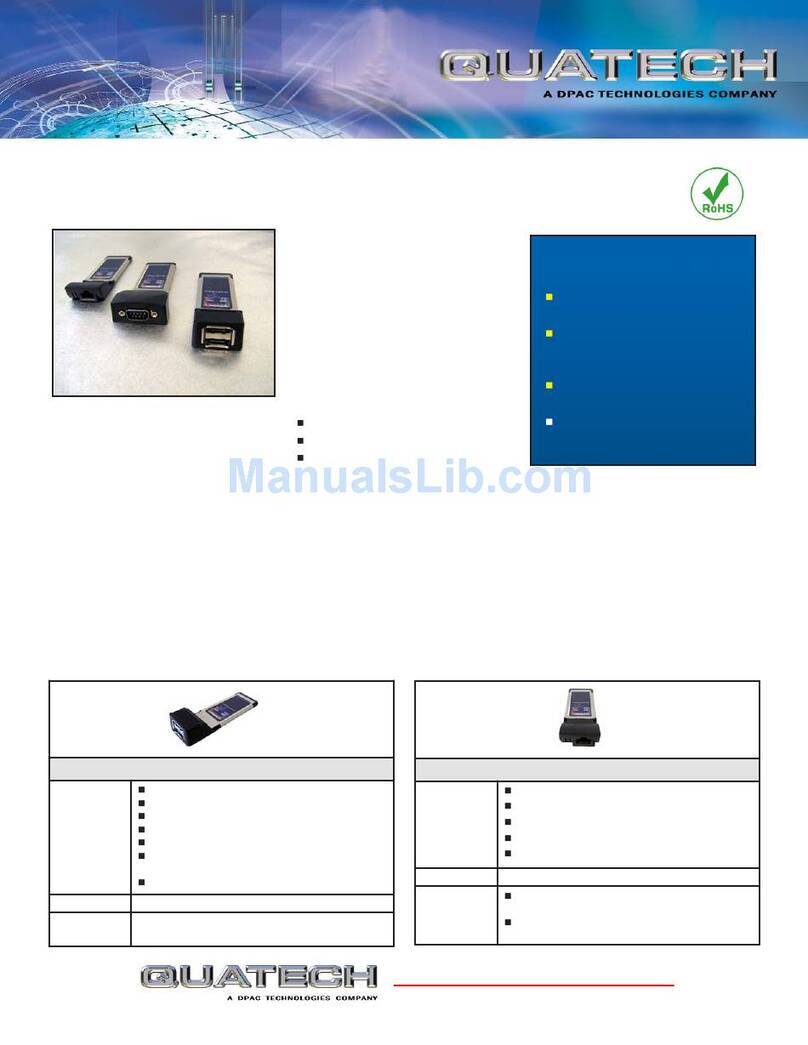
Quatech SATA2PX-100 Manuel utilisateur

May/07 MN
1
SATA2PX-100
with RAID
User Manual
Ver. 2.00
All brand names and trademarks are properties of their
respective owners.

May/07 MN
2
Features and Benefits
zFully compliant with ExpressCard Specification 1.0
zExpressCard/34 Form Factor Module
zSerial ATA generation 2 transfer rate of 3.0Gbps
zAdds two eSATA (external Serial ATA) ports
zSupport RAID 0 (stripe) and RAID 1 (mirror)
zSupports Native Command Queuing (NCQ), Non-zero offsets
NCQ, and Out-of-order data delivery NCQ
zSupports Hot Plugging on Extend Serial ATA port
zSupports Windows® 2000, XP, Server 2003 and Vista
Package Contents
z1 x SATA2PX-100 ExpressCard
z1 x Driver CD
System Requirements
zWindows® 2000/XP/Server 2003/Vista
zExpressCard-enabled system with an available ExpressCard slot

May/07 MN
3
Hardware Description
Hardware Installation
General instructions for installing the card are provided below. Since
the design of system may vary, refer to your system’s reference manual
for further information, if needed.
Insert the Card into the ExpressCard slot of your system. Make sure it
is inserted all the way in for a solid connection.

May/07 MN
4
RAID Arrays
RAID Arrays are setup in the SiI 3132 SATA PCIe RAID adapter’s
BIOS.
RAID 0 (Striping)
This RAID array to be used on New/Blank hard drives. Striping will
destroy existing data on the hard drive. Auto Configuration is
recommended. For applications that require custom chunk size,
Manual Configuration is offered.
Auto configuration (recommended)
The default chunk size is 64k when selecting Auto configuration.
1. As the BIOS boots press Ctrl+S or F4 when prompted to enter
the RAID BIOS.
2. At the next screen select Create RAID Set, then press Enter.
3. Select RAID0, then press Enter.
4. Select Auto configuration, then press Enter.
5. Input the RAID size, press Enter.
6. When asked Are You Sure (Y/N)?, press Y to accept.

May/07 MN
5
7. Press Ctrl+E to exit the BIOS.
8. When asked Are you sure to exit (Y/N)?, press Y to exit and
reboot.
9. Continue with FDISK and FORMAT steps as if you were
installing a conventional hard drive.
Manual configuration
1. As the BIOS boots press Ctrl+S or F4 when prompted to enter
the RAID BIOS.
2. At the next screen select Create RAID Set, then press Enter.
3. Select RAID0, then press Enter.
4. Select Manual configuration then press Enter.
5. Select chunk size from 8k, 16k, 32k, 64k or 128k, then press
Enter.
6. Select the first drive, press Enter.
7. Select the second drive, press Enter.
8. Input the RAID size, press Enter.
9. When asked Are You Sure(Y/N)?, press Y to accept.
10. Press Ctrl+E to exit the BIOS.

May/07 MN
6
11. When asked Are you sure to exit(Y/N)?, press Y to exit and
reboot.
12. Continue with FDISK and FORMAT steps as if you were
installing a conventional hard drive.
RAID 1 (Mirror)
For New/Blank Hard Drives
1. As the BIOS boots press Ctrl+S or F4 when prompted to enter
the RAID BIOS.
2. At the next screen select Create RAID Set, then press Enter.
3. At the next screen select RAID1 then press Enter.
4. Select Auto configuration, then press Enter.
5. Input the RAID size, press Enter.
6. When asked Are You Sure(Y/N)?, press Y to accept.
7. Press Ctrl+E to exit the BIOS.
8. When asked Are you sure to exit(Y/N)?, press Y to exit and
reboot.
9. Continue with FDISK and FORMAT steps as if you were
installing a conventional hard drive.

May/07 MN
7
For Existing Hard Drives with Data
1. As the BIOS boots press Ctrl+S or F4 when prompted to enter
the RAID BIOS.
2. At the next screen select Create RAID Set, then press Enter.
3. At the next screen select RAID1 then press Enter.
4. Select Manual configuration, then press Enter.
5. Select the Source drive, press Enter.
6. Select the Target drive, press Enter.
7. Select Create with data copy, then press Enter.
8. Select online copy, then press Enter.
Note: Selcting Online Copy builds the mirror while in Windows.
Selecting Offline Copy builds the mirror before exiting the RAID
BIOS.
9. Input the RAID size, press Enter.
10. Press Ctrl+E to exit the BIOS.
11. When asked Are you sure to exit(Y/N)?, press Y to exit and
reboot.

May/07 MN
8
CONCATENATION (JBOD)
This RAID array allows you to use one or two hard drives to a JBOD
(Just a Bunch Of Disks) array. Although JBOD doesn’t offer other
RAID functionality, it makes the hard disks appear to be a single one
by combining the drives into one larger logical one without any
capacity loss.
Rebuilding a Failed Mirror Set
When a failure to one member occurs, you will be notified by the
RAID BIOS during boot. The steps below will guide you in rebuilding
a failed mirror set.
1. Replace the failed drive(s) with one of equal or greater capacity,
then start the computer.
2. During boot press Ctrl+S or F4 to enter the RAID BIOS.
3. Select Create RAID Set press Enter.
4. Select SPARE DRIVE, then press Enter.
5. Select the single hard drive then press Enter.

May/07 MN
9
6. Input RAID size, press Enter. When asked Are You Sure(Y/N)?,
Press Y to confirm.
7. Select Rebuild Raid 1 Set, press Enter.
8. When asked Are you sure(Y/N)?, press Y confirm. The mirror
will begin rebuilding. Do not interface with process.
9. When rebuilding is finished, press Ctrl+E.
10. When asked Are you sure to exit(Y/N)?, press Y to exit and
reboot.
Deleting RAID Arrays
1. As the BIOS boots press Ctrl+S or F4 when prompted to enter
the RAID BIOS.
2. Select Delete RAID Set, then press Enter.
3. Select the RAID set then press Enter.
4. When asked Are You Sure(Y/N)?, press Y to confirm.
Resolving Conflicts
When a RAID set is created, the metadata written to the disk includes
drive connection information. If, after a disk failure, the replacement

May/07 MN
10
disk was previously part of a RAID set (or used in another system), it
may have conflicting metadata. If so, this will prohibit the RAID set
from being either created or rebuilt. In order for the RAID set to
function properly, this old metadata must be first overwritten with the
new metadata. To resolve this, from the main BIOS window select
Resolve Conflicts, then press Enter, the correct metadata, including
the correct drive connection information, will be written to the
replacement disk.
Low Level Format
Low Level Format is built into the RAID BIOS to make it more
convenient to erase the entire contents of a hard disk drive, including
data, drive, and partition information. The Low Level Format utility
works on single hard drive only, before the RAID set is configured.
Logical Drive Info
This menu item allows the display of the assignment of physical drives
within a logical set(RAID0, RAID1, etc.). This function is for display
only.
Table des matières
Autres manuels Quatech Lecteur de cartes