
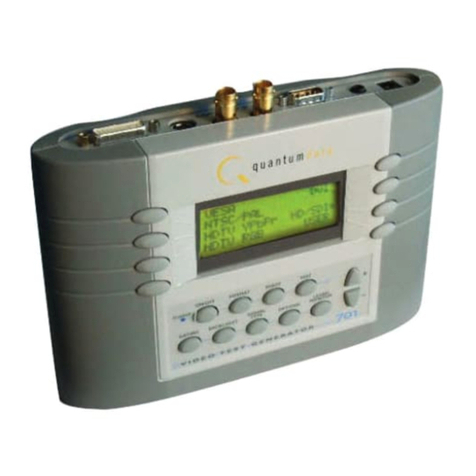
Quantum Data 700 Manuel utilisateur

1

2
Model 700, 701Video Test Generators
Quick Start Guide
Getting Started ........................................................................................................... 2
Computer Interfaces .................................................................................................... 3
User Interface ............................................................................................................. 4
Selecting Formats ....................................................................................................... 5
Selecting Images ........................................................................................................ 6
Gating Outputs ............................................................................................................ 6
Setting Power Save Preferences ................................................................................. 7
Calibrating Generator .................................................................................................. 8
Adjusting Horizontal Scan Frequency ........................................................................ 10
Detecting Formats Supported by a Monitor ............................................................... 11
Using Test Sequences ............................................................................................... 12
Using Generator with CS-1 Probe .............................................................................. 14
Testing Audio ............................................................................................................ 14
Testing HDCP Interfaces ........................................................................................... 15
Generating Psuedo Random Noise ............................................................................ 15
Using Video Generator Manager ................................................................................ 16
Creating Video Formats ............................................................................................. 17
Modifying Test Sequence .......................................................................................... 18
Pattern Descriptions .................................................................................................. 19
Updating Firmware .................................................................................................... 23
Specifications ........................................................................................................... 24
Service and Support Contacts .................................................................................. 25
Contents

3
Getting Started
Using AC Power
Use only the AC adaptor provided with the generator to avoid operator injury and damage to the
generator.
Using Battery Power
The generator uses six AA rechargeable nickel metal hydride (NiMH) batteries, which can be re-
charged about 1000 times.
You may use alkaline batteries instead, but not while the AC charger is connected to the generator.
Only NiMH batteries can be safely recharged in the generator.
All batteries in the generator must be the same type.
The supplied batteries may not come fully charged. Use the supplied AC charger to charge the
batteries for at least 18 hours. The AC adaptor may be used to operate the generator and to recharge
the batteries at the same time.
With fully charged batteries, the generator should operate for about 8 hours using VESA mode. Using
the LCD backlight, DVI, NTSC/PAL, or RF features will reduce the battery life. The generator displays a
low battery message when the NiMH batteries need recharging, or when the alkaline batteries need
to be replaced.

4
Computer Interfaces
RS-232 9-Pin D-Sub Plug
Pin Signal
1 No connection
2 Data in (Rx)
3 Data out (Tx)
4 DTR out
5 Ground
6 No connection
7 RTS out
8 CTS in
External DC Power /
Battery Recharge Input
arning: Usin an external power source other than the
Quantum Data supplied AC power supply may injure the
operator and dama e the enerator.
Center pin: +12.0 VDC
Outer sleeve: - (Ground)
Factory defaults
9600 baud
8 data bits
No parity
1 stop bit
X on - X off
Pinout same as for 9 pin PC-AT serial port connector
DVI interface on 700
outputs analog signals
only, using included
DVI-to-VGA adaptor.
DVI-I
Pin Signal Pin Signal
1 TMDS data 2- 16 Hot plu detect
2 TMDS data 2+ 17 TMDS data 0-
3 TMDS data 2/4 18 TMDS data 0+
shield 19 TMDS data 0/5
shield
4 TMDS data 4- 20 TMDS data 5-
shield 21 TMDS data 5+
5 TMDS data 4+ 22 TMDS clock shield
6 DDC clock 23 TMDS clock+
7 DDC data 24 TMDS clock-
8 Analo vertical sync
9 TMDS data 1-
10 TMDS data 1+
11 TMDS data 1/3 C1 Analo red
shield
12 TMDS data 3- C2 Analo reen
13 TMDS data 3+ C3 Analo blue
14 +5V power C4 Analo horz sync
15 Ground C5 Analo round
S-Video
Chrominance (C) Luminance (Y)
Ground Ground
NTSC/PAL BNC
NTSC/PAL RF
(Active on 701 only)
Stereo Audio - 3.5 mm phone jack
Tip Left channel (1 KHz)
Rin Ri ht channel (2 KHz)
Sleeve Ground
17 24
16 C5
C1 C218
9
C3 C4

5
User Interface
LCD Display
The LCD window displays messages and menu options.
Function Buttons
_Item_1______Item_5*
_Item_2______Item_6
_Item_3______Item_7
_Item_3______Item_8
Asterisk indicates active
menu item.
Item 1
Item 2
Item 3
Item 4
Item 5
Item 6
Item 7
Item 8
Buttons activate items in current
menu list. Use +/ buttons below
to scroll menu screens when
more than 8 items available.
LEARN MONITOR
Obtain EDID data rom
unit under test via DDC
connection.
ON/OFF FORMAT IMAGE TEST
GATING
SIGNAL
TYPE OPTIONS
LEARN
MONITOR
CHARGE
BACKLIGHT
+ / -
Page through
menu screens
when more
than 8 items
available
FORMAT
Menu o available video
ormats (set-ups) o the
selected signal type.
ON/OFF
Toggle generator
power on and o
CHARGE
External power
source (charger)
connected when lit
IMAGE
Menu o available
test images.
TEST
Menu o available
testing modes.
BACKLIGHT
Toggle LCD backlight on
and o . Goes out 20
seconds a ter any button
press on batteries. Stays on
when using external power
OPTIONS
Menu o
generators
con iguration
options.
SIGNAL TYPE
Menu or which
ormat types are
shown by FORMAT
button
GATING
Menu or gating video
and sync compontents
on and o

6
Selecting Formats
Viewing Formats by Signal Type
Press the Signal Type button, and then select a
signal type, to list formats based on the
selected signal type.
VESA Red, green, blue component color
videoper VESAstandards.(DVI-to-VGA
adaptor used for outputs.)
NTSC/PAL Composite color baseband video
signal (BNC connector) and Separate Luminance and Chrominance video signals (S-Video
connector) or RGB component video per NTSC and PAL standards.
Names of formats using modulated RF output end with _Cnn, where nn is the NTSC-M or PAL-G
television channel used.
HDTV/SDTV-RGB Luminance plus color difference signals per HDTV standards
HDTV RGB RGB component color video signals per HDTV standards
DVI Digital video signals (701 only)
USER User-defined formats, of any type, stored in non-volatile memory
Selecting Formats
Press the Format button to select from a list of video formats of the type selected from the Signal Type
menu.
Reloading Standard Formats
If you modify or delete standard formats, you can restore the original formats by reloading the
standard formats.
To reload the standard formats:
1. Select Options > Clr_Fmts to delete all formats, including user-created formats.
2. Select Options > Reload Fmts to restore the standard formats to their original memory locations.
The standard formats will replace any user-created formats in the original memory locations.
User-created formats in locations not previously occupied by a standard formats will not be
replaced.
*VESA DVI
_NTSC/PAL
_HDTV/SDTV RGB
_HDTV RGB USER

7
Selecting Images
GatingOutputs
Press the Gating button to gate outputs, and to switch sync types.
Note: Color gating works for all images except Ramp.
*CutOff________ _GrayBar
_Wind w Regulate
_F cus Checker
_C l rBar______ D t_12
Selecting Images
Press the Image button to select from list of
available test images (patterns).
You cannot modify the images, or add your own
images.
*RED__ GATING___ _ACS_
*GRN F rmat _ __ DCS_
*BLU__ Image _ ___ DSS*
_____ OUT*
Red Color
Component
ON/OFF
Green Color
Component
ON/OFF
Blue Color
Component
ON/OFF
ACS - Select Analog
Composite Sync
(Composite Video)
DCS - Select Digital
Composite Sync
DSS - Select Digital
Separate (H&V) Sync
OUT - All test signal
outputs ON/OFF
Current
format
Current
image

8
Options Menu
Press the Options button to set system-level options.
Setting Power Save Preferences
Pwr Save:On
NTSC_CAL___ Calibrate
Clr_Fmts__ Rel adFmts
Power Save - Sets Power Saver preference
Calibrate - Displays calibration menu
for settin RGB analo video and
sync amplitudes. Appears only if the
enerator has been confi ured to
allow recalibration.
Reload Fmts - Restores factory
default formats
NTSC_CAL - Displays calibration menu for settin peak white si nal on the TV output
BNC connector
Clr Fmts - Clears all formats from user memory
Setting Power Save Preference
When the Power Save preference is on, and the generator is on battery power, the generator will turn
off after 30 minutes of no front panel activity.
If the generator is running a test sequence in Burn-in mode, the Power Save preference is ignored.
To set the Power Save preference, select Options > Pwr Save.

9
Calibrating
Model 700 and 701 generators use programmable hardware to set the amplitude calibration factors
for analog video outputs. These calibration factors are stored in Flash EPROM, and are not lost if the
batteries are run down or removed.
Quantum Data calibrates the analog video and sync output amplitudes in new generators to pub-
lished specifications. You can recalibrate these amplitudes over a nominal range to meet your
specific testing conditions.
WARNING: Recalling the original factory calibration settings is not possible after saving
your own settings.
Equipment Needed for Calibration
•DC voltmeter capable of measuring from 0 to 1 volt with a minimum resolution of 2 millivolts
•Precision 75 ohm (+/- 1%) input terminator for the voltmeter
•Test cable to connect the voltmeter to the R, G, B and ground pins on the VGA connector
•Oscilloscope with a precision 75 ohm (+/- 1%) input impedance and suitable gain and band-
width to display a 1.00 Volt pk-pk signal with 3.579 MHz color carrier
•75 ohm coaxial cable to connect the oscilloscope to the BNC TV output
•Vector scope

10
Calibrating
Calibrating Outputs
1. Select Options > Calibrate > Reset to set the generator’s
calibration factors to default nominal values.
2. Press Options > Calibrate > Full Scale.
3. Set the voltmeter’s scale factor to be able to measure a nominal
1000 millivolts DC.
4. Using a VGA-to-BNC cable, connect the generator’s red output to
the positive input on the voltmeter, with a 75 ohm (+/- 1%) input
terminator. Connect the negative lead of the meter to any ground
pin.
5. Select R_FS+ or -R_FS to set the DC output level to 1000 mV
+/- 3 mV.
6. Repeat steps 4 and 5 for the green and blue outputs.
7. Select Save.
8. Select Options > Calibrate > Zero.
9. Connect the red output to the positive input of the voltmeter.
10. Select R_Zero+ or -R_Zero to set the DC output level to 0 mV +/- 3 mV.
11. Repeat steps 9 and 10 for the green and blue components.
12. Select Save.
13. Select Options > NTSC_CAL.
14. Adjust the oscilloscope's timebase and sweep trigger to view the entire waveform. Adjust the
G_NTSC so that its chrominance is 100 IRE or 714mV.
15. Using a vector scope, use the R_NTSC and B_NTSC options to adjust the red and green outputs
using so that their signals align with the 2% boxes.
16. Press Save.
Note: The modulated RF output does not have any calibration settings.
_____ Calibrate
_
_Full_Scale____ Zer
_Reset
_R_FS+_____ ___-R_FS
_G_FS+_______ _-G_FS
_B_FS+_______ _-B_FS
_Save_________ _Back
_R_Zer +____ -R_Zer
_G_Zer +____ -G_Zer
_B_Zer +____ -B_Zer
_Save__________ Back
Autres manuels pour 700
1
Table des matières
Autres manuels Quantum Data Générateur portable

Quantum Data
Quantum Data 881 Manuel utilisateur

Quantum Data
Quantum Data 822S Manuel utilisateur

Quantum Data
Quantum Data 801GC, 801GF, 801GX Manuel utilisateur

Quantum Data
Quantum Data 802 Series Manuel utilisateur

Quantum Data
Quantum Data 881 Manuel utilisateur

Quantum Data
Quantum Data 700A Series Manuel utilisateur

Quantum Data
Quantum Data 700 Manuel utilisateur

Quantum Data
Quantum Data 802R-PCI Manuel utilisateur

Quantum Data
Quantum Data 802BT Manuel utilisateur
Quantum Data
Quantum Data 701A Manuel utilisateur


