
QUANTA G200 SERIES Manuel utilisateur

G200 SERIES NOTEBOOK PC
QUICK START GUIDE
October 2002

2
This manual and any examples contained herein are provided “as is” and are subject to
change without notice. Quanta Computer Inc. makes no warranty of any kind with regard to
this manual, including, but not limited to, the implied warranties of merchantability and fitness
for a particular purpose. Quanta Computer Inc. shall not be liable for any errors or for
incidental or consequential damages in connection with the furnishing, performance, or use
of this manual or the examples herein.
Consumer transactions in Australia and the United Kingdom: The above disclaimers and
limitations shall not apply to Consumer transactions in Australia and the United Kingdom
and shall not affect the statutory rights of Consumers.
©Copyright Quanta Computer Inc. 2002. All rights reserved. Reproduction, adaptation, or
translation of this manual is prohibited without prior written permission of Quanta Computer
Inc., except as allowed under the copyright laws.
The programs that control this product are copyrighted and all rights are reserved. Repro-
duction, adaptation, or translation of those programs without prior written permission of
Quanta Computer Inc. is also prohibited. Portions of the programs that control this product
may also be copyrighted by Microsoft Corporation, Phoenix Technologies, Ltd.,ATI
Technologies Inc., S3 Graphics Incorporated, Intel Corporation, and Adobe Systems
Incorporated. See the individual programs for additional copyright notices.
This product incorporates copyright protection technology that is protected by method
claims of certain U.S. patents and other intellectual property rights owned by Macrovision
Corporation and other rights owners. Use of this copyright protection technology must be
authorized by Macrovision Corporation and is intended for home and other limited viewing
uses only unless otherwise authorized by Macrovision Corporation. Reverse engineering or
disassembly is prohibited.
Microsoft©, MS-DOS©, and Windows© are U.S. registered trademarks of Microsoft
Corporation. Pentium and the Intel Inside logo are U.S. registered trademarks and
Celeron™ and SpeedStep™ are U.S. trademarks of Intel Corporation. Adobe© and Acro-
bat© are trademarks of Adobe Systems Incorporated.
NOTICE

3
CONTENTS
NOTEBOOK PC ............................................................................................. 1
QUICK START GUIDE ................................................................................... 1
NOTICE........................................................................................................... 2
TAKING CARE OF YOUR NOTEBOOK PC ................................................... 4
1 BEFORE YOU START .............................................................................. 7
1-1 Making sure you have everything .................................................. 7
1-2 Finding where everything is located .............................................. 8
1-2-1 OPENING THE DISPLAY PANEL ................................................................... 8
1-2-2 TOP AND FRONT COMPONENTS ................................................................. 8
1-2-3 LEFT-SIDE PANEL COMPONENTS ............................................................. 10
1-2-4 RIGHT-SIDE PANEL COMPONENTS ............................................................11
1-2-5 BACK PANEL COMPONENTS ..................................................................... 12
1-2-6 BOTTOM COMPONENTS ............................................................................ 13
2 GETTING STARTED ............................................................................... 15
2-1 Power Sources............................................................................... 15
2-1-1 CONNECTING THE POWER ADAPTERS .................................................... 15
2-1-2 RECHARGING THE BATTERIES .................................................................. 16
2-1-3 REPLACING THE BATTERY ........................................................................ 17
2-3 Starting Your Notebook PC ........................................................... 18
2-3-1 POWER ON ................................................................................................. 18
2-3-2 BOOT SEQUENCE ...................................................................................... 18
2-3-3 BIOS SETUP UTILITY .................................................................................. 19
3 TROUBLESHOOTING ............................................................................ 20
3-1 Identifying the Problem ................................................................. 20

PB
TAKING CARE OF YOUR
NOTEBOOK PC
To prevent possible overheating of the computer’s
processor, make sure you don’t block the open-
ings provided for ventilation.
DO NOT place or drop objects on the computer
and DO NOT apply heavy pressure on it.
DO NOT subject the computer to magnetic fields.
DO NOT place on uneven or unstable work sur-
faces.
DO NOT press or touch the display panel.
DO NOT use your notebook computer under harsh
conditions.
4

5
DO NOT place near fire or other sources of heat. DO NOT tamper with the batteries. Keep them away
from children.
DO NOT expose to direct sunlight. DO NOT use or store in extreme temperatures.
Avoid sudden changes in temperature or humidity
by keeping it away fromA/C and heating vents.
DO NOT expose the computer to rain or moisture.

PB
DO NOT expose to dust and/or corrosive chemi-
cals.
DO NOT slam your notebook shut and never pick
up or hold your notebook by the display.
DO NOT spray water or any other cleaning fluids
directly on the display.
If you are traveling with your computer, remember
to carry it as hand luggage. Do not check it in as
baggage.
6

7
1 BEFORE YOU START
1-1 Making sure you have everything
When you receive your notebook PC, unpack it carefully, and check to make sure you
have all the items listed below. For a pre-configured model you should have the follow-
ing:
• Notebook Computer
• Lithium ion battery, pre-installed
• AC adapter with AC power cord
• Phone/Modem (RJ-11) telephone cable
• Driver and Applications CD
• Quick Start Guide (this document)
• User Guide
Depending upon the configuration of your notebook, you may have also received the
following items:
• DVD Application CD
• CD-RW Application CD
• DVD / CD-RW Combo Application CD
Once you have checked and confirmed that your notebook system is complete, read
through the following pages to learn about all of your notebook components.
PB
1. BEFORE YOU START
1-2 Finding where everything is located
1-2-1 OPENING THE DISPLAY PANEL
1. Slide the latch located at the top of the display panel to the right. This releases the
locking mechanism and raises the display slightly.
2. Lift the display backwards, being careful not to touch the screen, until it is at a
comfortable viewing angle.
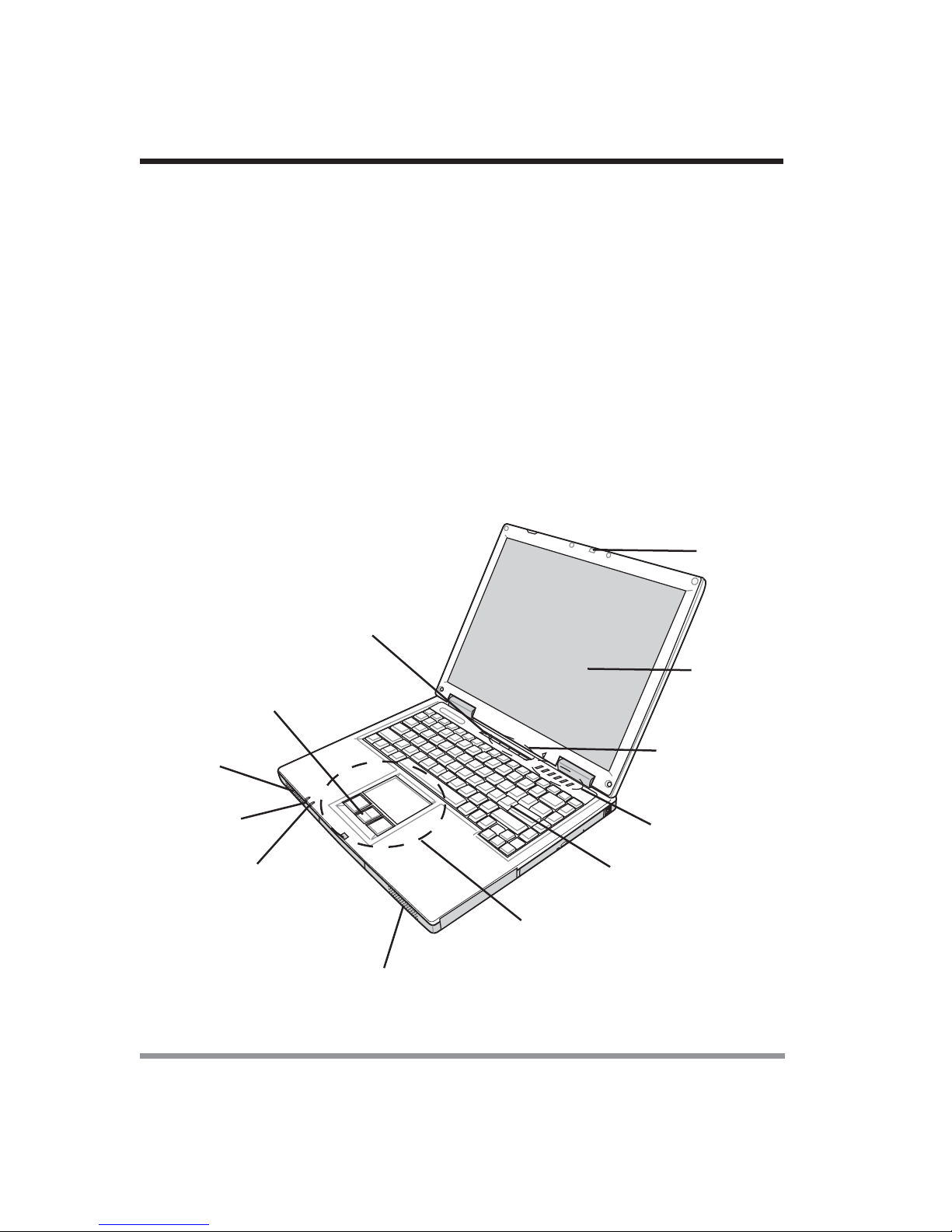
1-2-2 TOP AND FRONT COMPONENTS
The following is a brief description of your notebook’s top and front components.
Suspend/Resume/
PowerOnButton
ScrollButton
TouchPadPointingDevice
StereoSpeaker
Stereo
Speaker
Battery
Indicator
Power
Indicator
StatusDisplay
Indicator
Application
Panel
Keyboard
DisplayPanel
DisplayPanel
Latch
8

9
1. BEFORE YOU START
Display Panel Latch
The display panel latch locks and releases the display panel.
Display Panel
The display panel is a color LCDpanel with back lighting for the display of text and
graphics.
Application Panel
TheApplication Panel allows you to either launch your favorite applications with the
touch of a button or to use as a Optical Drive when your unit is on.
Status Display Indicators
The Status display indicator lights correspond to specific components of your notebook.
(See suspend notebook activity without powering off, resume your notebook from
suspend mode, and power on your notebook when it has been shut down from Win-
dows. (See Suspend/Resume/Power On Button in 2-3-1 Power On for more
information.)
Stereo Speakers
The built-in dual speakers allow for stereo sound.
Keyboard
Afull-size keyboard with dedicated Windows keys.
Touchpad Pointing Device
The Touchpad pointing device is a mouse-like cursor control with three buttons (left,
right, and scroll buttons).
Power/Battery Indicators
The power and battery LEDs on the front of the unit allow you to monitor power and
battery status while the system is closed.

10
1. BEFORE YOU START
1-2-3 LEFT-SIDE PANEL COMPONENTS
The following is a brief description of your notebook’s left-side components.
Anti-theft Lock Slot
The anti-theft lock slot allows you to attach an optional physical lock-down device.
Modem (RJ-11) Telephone Jack
The Modem (RJ-11) telephone jack is used to attach a telephone line to the internal
56K modem.
Microphone Jack
The microphone jack allows you to connect an external mono microphone.
PC Card Slot
The PC Card Slot allows you to install one Type II or Type III PC Card.
Internal Floppy Disk Drive
A standard floppy disk drive to accommodate 3.5” floppy disks.
Headphone Jack
The headphone jack allows you to connect headphones or external speakers with
amplifer.
LAN Jack (RJ-45)
The LAN jack is designed to support a 10 Base-T or 100 Base-TX standard RJ-45
plug.
Anti-Theft
Lock Slot
Modem
Port
(RJ-11)
LAN Port
(RJ-45)
Internal Floppy
Disk Drive
Floppy Disk
Eject Button
Microphone
Jack
Headphone
Jack
PC Card
Slot
PC Card
Eject Button
Table des matières


