
Quanta Computer G200 Series Manuel utilisateur

EG8L
EG8L ST
G200 SERIES
NOTEBOOK Computer
USER’S GUIDE
October 2002

FEDERAL COMMUNICATIONS COMMISSION
INTERFERENCE STATEMENT
This equipment has been tested and found to comply with the limits
for a Class B digital device, pursuant to Part 15 of the FCC Rules.
These limits are designed to provide reasonable protection against
harmful interference in a residential installation. This equipment
generates, uses and can radiate radio frequency energy and, if not
installed and used in accordance with the instructions, may cause
harmful interference to radio communications. However, there is no
guarantee that interference will not occur in a particular installation. If
this equipment does cause harmful interference to radio or television
reception, which can be determined by turning the equipment off and
on, the user is encouraged to try to correct the interference by one or
more of the following measures:
-- Reorient or relocate the receiving antenna.
-- Increase the separation between the equipment and receiver.
-- Connect the equipment into an outlet on a circuit different from that
to which the receiver is connected.
-- Consult the dealer or an experienced radio/TV technician for help.
CAUTION:
Any changes or modifications not expressly approved by the grantee
of this device could void the user's authority to operate the equipment.
FCC RF Radiation Exposure Statement
This equipment complies with FCC RF radiation exposure limits set
forth for an uncontrolled environment.

2
Thispageisintentionallyleftblank.

3
CONTENTS
G200 SERIES NOTEBOOK PC ..................................................................... 1
USER’S GUIDE ............................................................................................. 1
NOTICE........................................................................................................... 2
TAKING CARE OF YOUR NOTEBOOK PC ................................................... 5
1 BEFORE YOU START .............................................................................. 9
1-1 Making sure you have everything .................................................. 9
1-2 Finding where everything is located ............................................ 10
2 GETTING STARTED ............................................................................... 17
2-1 Power Sources............................................................................... 17
2-2 Display Panel ................................................................................. 20
2-3 Starting Your Notebook PC ........................................................... 22
2-4 Status Display Indicators .............................................................. 24
2-5 Using the Keyboard ....................................................................... 27
2-6 Volume Control .............................................................................. 29
2-7 Power Management ....................................................................... 30
3 USING YOUR NOTEBOOK PC .............................................................. 33
3-1 Touchpad Pointing Device ............................................................ 33
3-2 Internal Floppy Disk Drive ............................................................. 35
3-3 Optical Drive ................................................................................... 37
3-4 PC Cards ........................................................................................ 43
3-5 Memory Upgrade Module .............................................................. 45
3-6 Device Ports ................................................................................... 49
4 TROUBLESHOOTING ............................................................................ 55
4-1 Identifying the Problem ................................................................. 55

4
This page is intentionally left blank.
5
TAKING CARE OF YOUR
NOTEBOOK PC
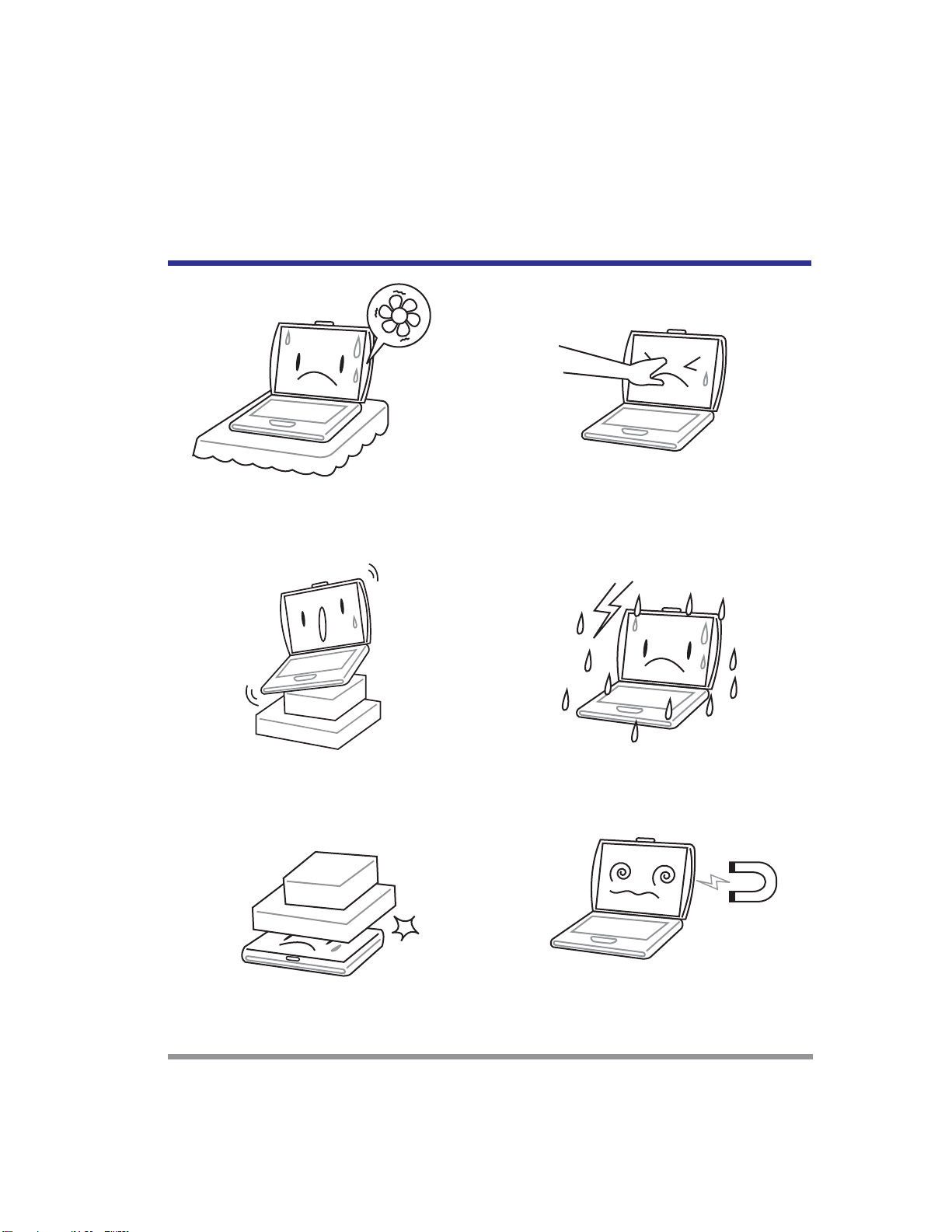
To prevent possible overheating of the computer’s
processor, make sure you don’t block the open-
ings provided for ventilation.
DO NOT place or drop objects on the computer
and DO NOT apply heavy pressure on it.
DO NOT subject the computer to magnetic fields.
DO NOT place on uneven or unstable work sur-
faces.
DO NOT press or touch the display panel.
DO NOT use your notebook computer under harsh
conditions.
6
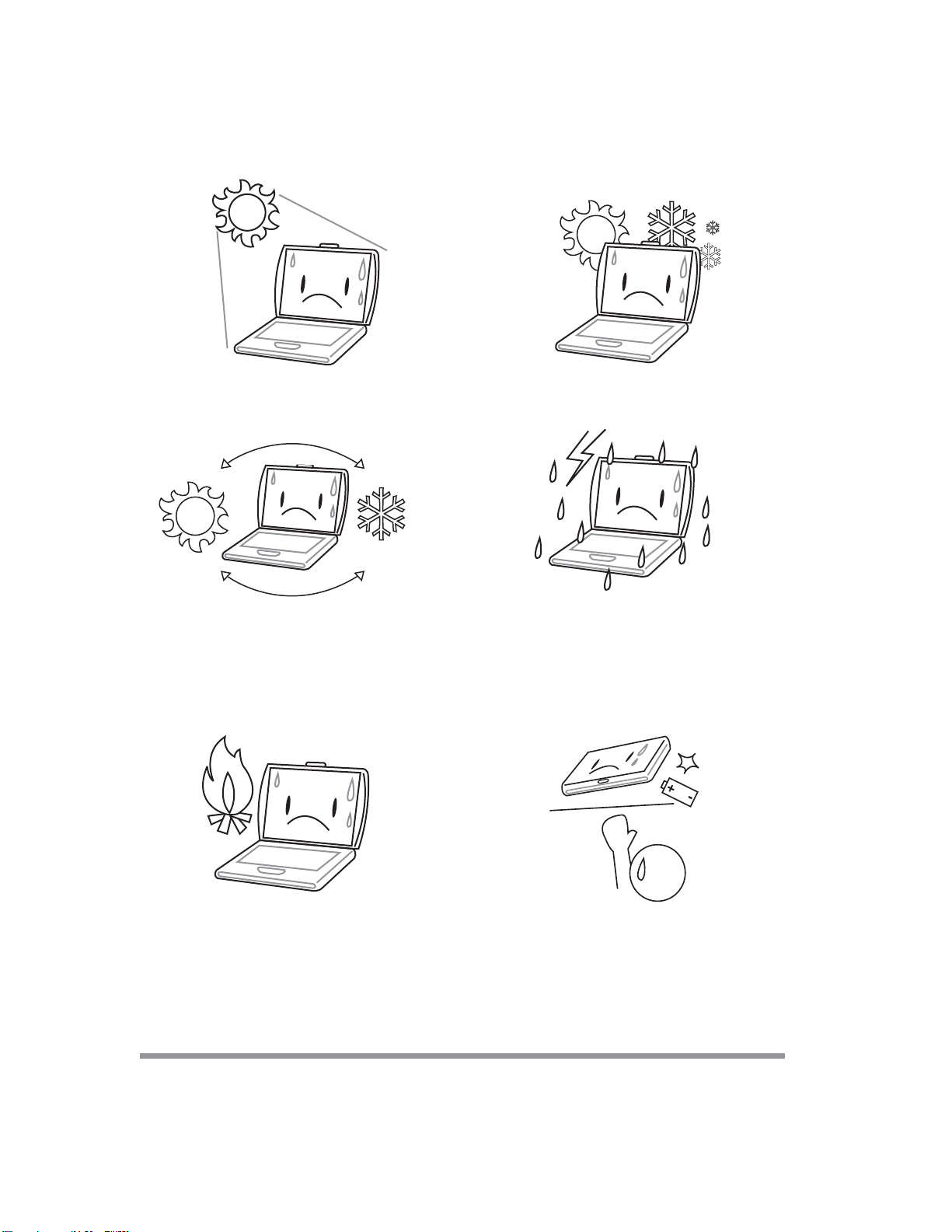
DO NOT place near fire or other sources of heat. DO NOT tamper with the batteries. Keep them away
from children.
DO NOT expose to direct sunlight. DO NOT use or store in extreme temperatures.
Avoid sudden changes in temperature or humidity
by keeping it away fromA/C and heating vents.
DO NOT expose the computer to rain or moisture.
7
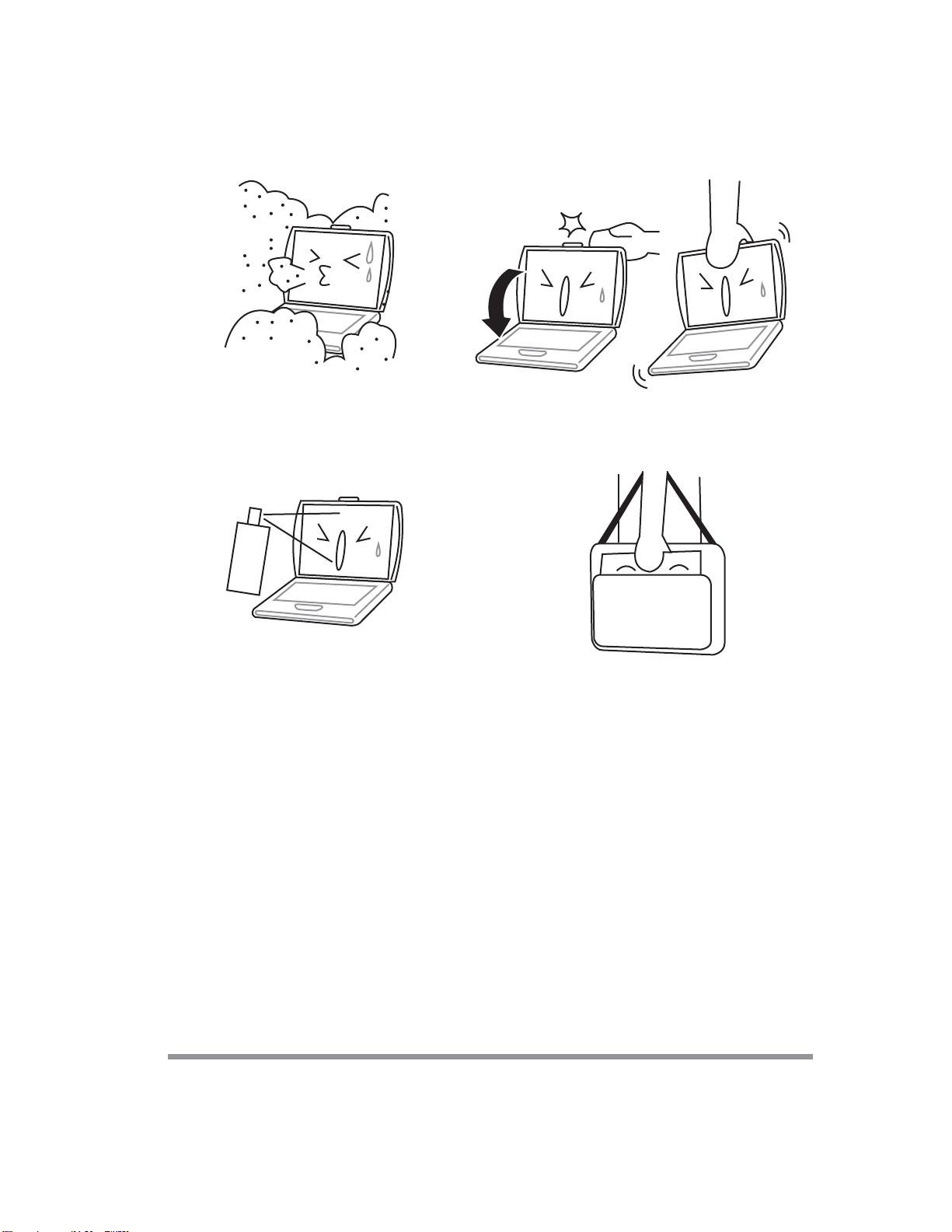
DO NOT expose to dust and/or corrosive chemi-
cals.
DO NOT slam your notebook shut and never pick
up or hold your notebook by the display.
DO NOT spray water or any other cleaning fluids
directly on the display.
If you are traveling with your computer, remember
to carry it as hand luggage. Do not check it in as
baggage.

8
This page is intentionally left blank.
9
1 BEFORE YOU START
1-1 Making sure you have everything
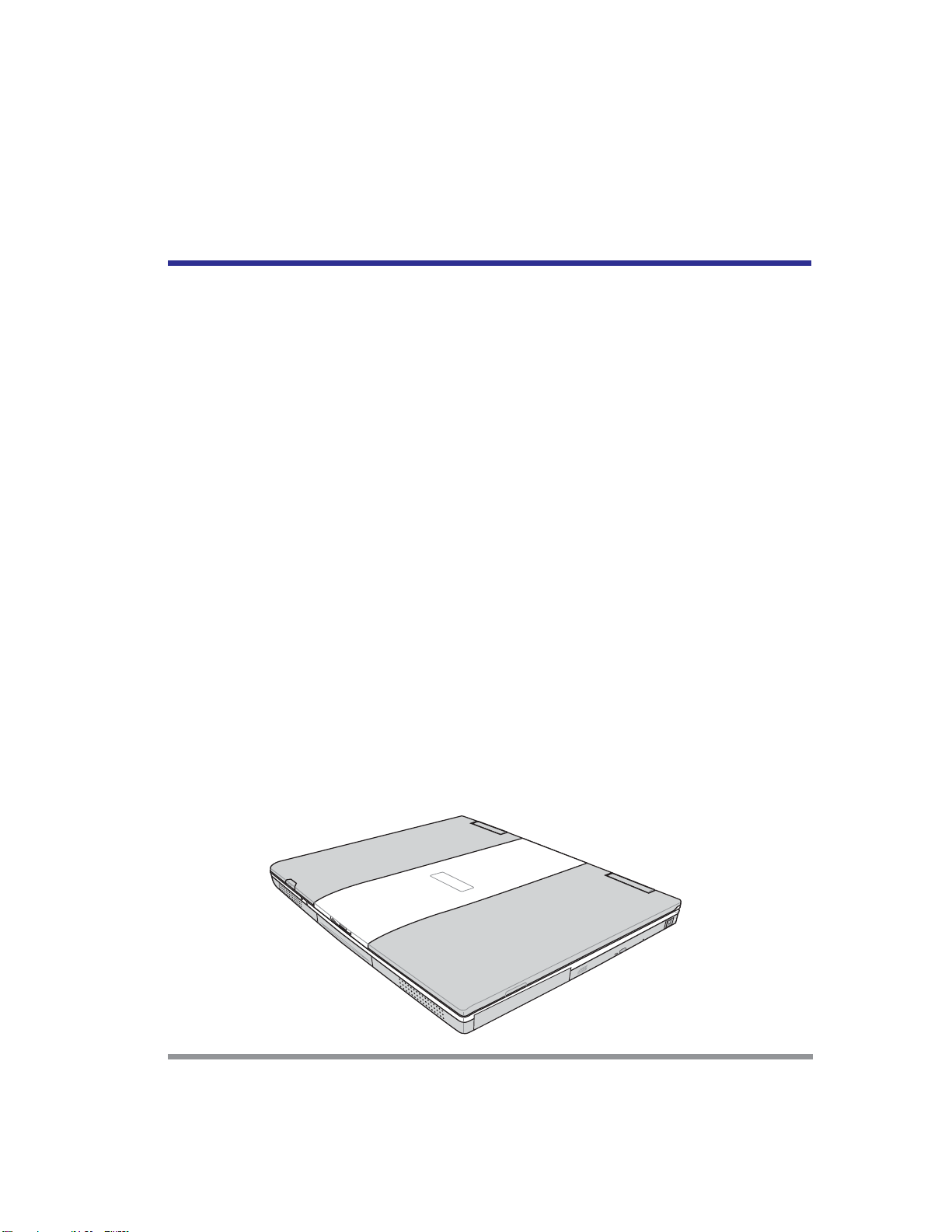
When you receive your notebook PC, unpack it carefully, and check to make sure you
have all the items listed below. For a pre-configured model you should have the following:
• Notebook Computer
• Lithium ion battery, pre-installed
• AC adapter with AC power cord
• Phone/Modem (RJ-11) telephone cable
• Driver and Applications CD
• Getting Started Guide
• User Guide (this document)
Depending upon the configuration of your notebook, you may have also received the
following items:
• DVD Application CD
• CD-RWApplication CD
• DVD / CD-RW Combo Application CD
Once you have checked and confirmed that your notebook system is complete, read
through the following pages to learn about all of your notebook components.
Ce manuel convient aux modèles suivants
3
Table des matières
Autres manuels Quanta Computer Ordinateur portable


