
Qomo QIT600F1 Manuel utilisateur

1
QIT600F1
USER'S GUIDE

2
IMPORTANT SAFEGUARDS
Warnings:
1. Read all of these instructions. Save these instructions for later use, please.
2. Unplug this monitor from the wall outlet before cleaning. Do not use liquid cleaners or aerosol cleaners. Use a damp cloth
for cleaning.
3. Do not use attachments not recommended by the monitor manufacturer as they may cause hazards.
4. Do not use this monitor near water. For example near a bathtub, washbowl, kitchen sink, or laundry tub, in a wet basement,
or near a swimming pool, etc...
5. Do not place this monitor on an unstable cart, stand, or table. The monitor may fall, causing serious injury to a child or
adult and serious damage to the appliance. Use only with a cart or stand recommended by the manufacturer or sold with
monitor. Wall or shelf mounting should follow the manufacturer’s instructions, and should use a mounting kit approved by
them manufacturer.
6. Slots and openings in the cabinet and the back or bottom are provided for ventilation, and to insure reliable operation of the
television receiver and to protect it from overheating, these openings must not be blocked or covered. The openings should
never be blocked by placing the monitor on a bed, sofa, rug, or other similar surface. This monitor should never be placed
near or over a radiator or heat register. This monitor should not be placed in built-in installation such as a bookcase unless
proper ventilation is provided.
7. This monitor should be operated only from the type of power source indicated on the marking label. If you are not sure of
the type of power supplied in your home, consult your monitor dealer or local power company.
8. This monitor is equipped with a three-wire grounding type plug, a plug having a third (grounding) pin. This plug will only
fit into grounding-type power outlet. This is a safety feature. If you are unable to insert the plug into the outlet. Contact your
electrician to replace your obsolete outlet. Do not defeat the safety purpose of the grounding-type plug.
9. Do not allow anything to rest on the power cord. Do not locate this monitor where the cord will be abused by persons
working on it.
10. Follow all warnings and instructions marked on the monitor.
11. For added protection for this monitor, when it is left unattended and unused for long periods of time, unplug it from the
wall outlet. This will prevent damage to the monitor due to power-line surges.
12. Do not overload wall outlets and extension cords as this can result into fire or electric shock.
13. Never push objects of any kind into this monitor through cabinet slots as they may touch dangerous voltage points or
short out parts that could result in a fire or electric shock. Never spill liquid of any kind on the monitor.
14. Do not attempt to service this monitor by yourself since opening or removing covers may expose you to dangerous
voltage or other hazards. Refer all servicing to qualified service personnel.
15.Unplug this monitor from the wall outlet and refer servicing to qualified service personnel
under the following conditions:
a. When the power cord or plug is damaged or frayed.
b. If liquid has been spilled into the monitor.
c. If the monitor has been exposed to rain or water.
d. If the monitor does not operate normally by following the operating instructions. Adjust only those controls that are
covered by the operating instructions as improper adjustment of other controls may result in damage and will often require
extensive work by a qualified technician to restore the monitor to normal operation.
e. If the monitor has been dropped or the cabinet has been damaged.
f. When the monitor exhibits a distinct change in performance this indicated a need for service.
16. When replacement parts are required, be sure the service technician has used replacement parts specified by the
manufacturer that have the same characteristics as the original parts. Unauthorized substitutions may result in fire, electric
shock, or other hazards.

3
17. Upon completion of any service or repairs to this monitor, ask the service technician to perform routine safety checks to
determine that the monitor is in safe operating condition.
18. The socket outlet shall be near the equipment and shall be easily accessible.
19. The power supply cord is used as the main disconnect device.

4
1. Introduction
1.1 About the Product
QIT600F1 tablet monitor combines the advantages of LCD monitor with Pen Input Technology. It utilizes electromagnetic
technology which guarantees high tablet resolution and fast pen tracking speed. You could work more freely and effective by
using pen on screen. The monitor features include the following:
Active matrix TFT LCD technology
1920x 1080 FULL HD resolution
21.5”± viewable display area
Pen-Input technology
Tablet resolution:2000Lpi
Tablet Pressure: 1024 levels
Direct Analog signal Output/Input
Dual-hinge Stand (12 ~ 130 degree )
1.2 Package Overview
After unpacking, make sure that all of the following parts are included.
No.
Name
Qty
(1)
21.5-inch LCD monitor
1
(2)
Battery Stylus pen
1
(3)
Spare pen tips
2
(4)
Pen Clip
1
(5)
Adapter
1
(6)
Power cable
1
(7)
HDMI cable
1
(8)
USB cable
1
(10)
CD-ROM- includes User’s Guide
1

5
1.3 Display overview

6
External control buttons
1
Automatic image setting
4
Menu
2
Down adjust
5
Power on/off
3
Up adjust

7
1.4 Installation
1.4.1 System Requirements:
Before using the QIT600F1, make sure your PC Operation system is Windows XP, Windows 7, Windows 8, Windows 10
or Mac 10.9 or above.
1.4.2 Connection Procedure
(1) Connect the HDMI cable to the HDMI input port on the side of the QIT600F1, and tighten the screws to fasten.
Connect the other end of the cable to the PC HDMI port, and tighten the screws to fasten.
VGA, DVI and HDMI must choose one in three when you use QIT600F1. You can’t connect them at
the same time. And the standard package is HDMI cable.
a. Connect the DVI cable to the DVI input port on the side of the QIT600F1, and tighten the screws to fasten. Connect
the other end of the cable to the PC DVI port, and tighten the screws to fasten.
b. Connect the VGA cable to the VGA port on the side of the QIT600F1. Connect the other end of the cable to a VGA
port on the PC.
(2) Connect the USB cable to the USB port on the side of the QIT600F1. Connect the other end of the cable to a USB
port on the PC.
(3) Connect the power cable from the AC socket of the LCD to theAC mains socket nearby.
(4) Connect the audio cable to the Audio in port on the side of the QIT600F1. Connect the other end of the cable to an
audio port on the PC.
a. Connect the audio cable to the Audio out port on the side of the QIT600F1. Connect the other end of the cable to a
loudspeaker box.
8
1.4.3 Writing Calibrate
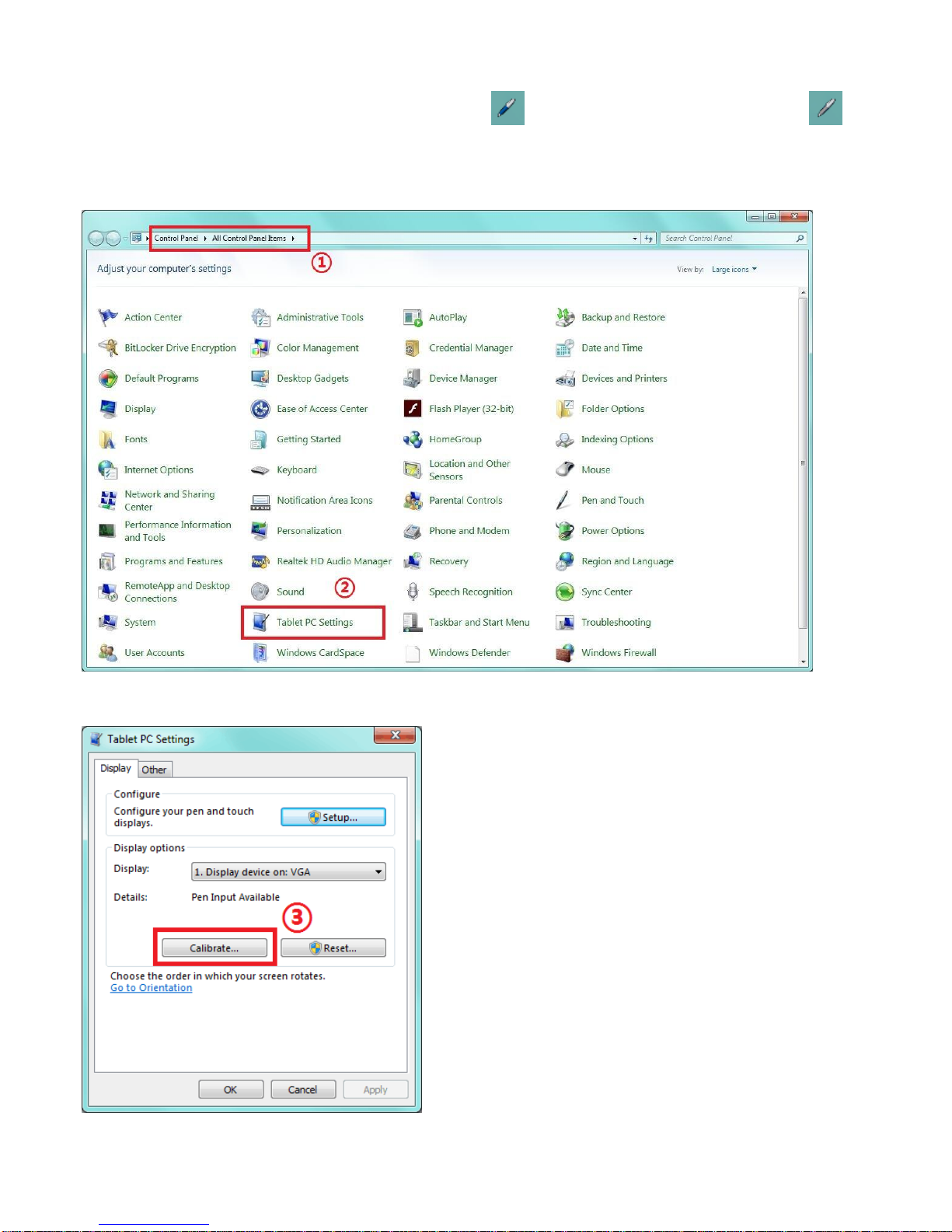
If the writing function installs successfully, there will be this icon on the taskbar. If not, there will be this icon on
the taskbar.
And if the configure is not correct, please calibrate it. Find Tablet PC Settings on the control panel.
Enter Tablet PC Settings, please click “Calibrate “.

9
Please use pen to follow and click this icon .

10
Table des matières
Autres manuels Qomo Moniteur

Qomo
Qomo BUNDLEBOARD G PANEL Manuel utilisateur

Qomo
Qomo QIT600F2 Manuel utilisateur

Qomo
Qomo Journey 13 Manuel utilisateur

Qomo
Qomo Journey 13 series Manuel utilisateur

Qomo
Qomo JOURNEY 14 Manuel utilisateur

Qomo
Qomo Journey 13 series Manuel utilisateur

Qomo
Qomo QITBB65H Manuel utilisateur

Qomo
Qomo QIT600F3 Manuel utilisateur


