
Qbex Slim Note QBA 769 PLUS Manuel utilisateur

1
User’s Manual

2
Tablet Slim Note QBA769PLUS
This manual contains important Operational and security
information to guide the user to the correct use of the
product.
Certain brands or names appearing in this manual may or
may not be registered trademarks or copyrights of their
respective companies, and they are used only for
identification or explanation and to the owner’s benefit,
with no intent to infringe the rights of the trademark’s
owners.
Copyright of this manual belongs to QBEX AMERICA and the
user is not authorized to copy or reproduce in any manner,
other than for backup purposes.
Content may change, or be corrected at any time without
prior notice and the updated version will be published in our
product page.
Manufacturer provides this manual “as is” without warranty
of any kind, and will not be liable for any indirect, special,
incidental or consequential damages (including damages
for loss of profit, loss of business, loss of use of data,
interruption of business and the like).

3
Table of Contents
1SAFETY INFORMATION.................................... 4
2GETTING STARTED .......................................... 7
ICONS .................................................................. 7
KEY EXPLANATIONS ................................................. 9
USING THE TOUCHSCREEN ........................................10
OPEN YOUR SLIM NOTE ...........................................10
SIM CARDS INSERTION ...........................................11
3CALL FUNCTIONS .......................................... 14
4NOTIFICATIONS BAR .................................... 16
5KEYBOARD AND TEXT IMPUT ........................ 19
6SETTINGS...................................................... 21
7APPLICATIONS.............................................. 26
CONTACTS ............................................................26
PLAY STORE..........................................................27
BROWSER .............................................................27
FM RADIO ............................................................28
MESSAGING ..........................................................30
FLASHLIGHT..........................................................31
WIDGETS .............................................................32
8TROUBLESHOOTING ...................................... 35
9FCC REGULATORY COMPLIANCE .................... 36

4
1Safety Information
Device Safety
Do not text and drive.
Do not expose it to water, sand, fuel chemicals or
moisture to avoid damage.
Keep carefull record of accounts, passwords or any
other security information to avoid loss of use of the
device.
Battery Safety
Install the battery gently not using force or pressure
If any liquid in the batteries goes into the eyes or skin,
do not rub and immediately rinse the eyes with clear
water and go to the hospital for treatment.
Do not use or place the batteries near high
temperature elements, sunlight or fire.
If battery overheats, changes color, or form during
use, charging, or storage, stop using it and replace it
with a new battery.
Do no let the battery get wet to avoid damage.
For better performance do not use the device before
having it charged completely. Optimal performance is
usually achieved after the first three or fours charge

5
cycles.
Please have in mind that overcharging may affect the
life of the battery.
Do not dispose old batteries with normal waste and do
not throw them in a fire, to avoid exploding. Follow
environmental guidelines and regulations.
Misstreatment will cause the battery to leak, overheat,
crack and catch fire.
Charging your Slim Note
When you connect the charger to the Slim note, make
sure the tip of the charger is inserted gently into the
Slim Note socket and in the proper side and position
to avoid damage.
When connected properly the battery level indicator
flashes on the screen, even if the Slim note has been
turned off, the charging image still appears,
indicating that the battery is being charged. If the
battery was drained completely, it may take longer for
the indicator to appear on the screen and begin
charging.
The battery level indicator will show 100% or closer
below when the battery is full and it will advise
charging has been completed. The charging process
usually takes 3 to 4 hours, and if during this process,

6
the battery, or the charger gets warm, it is a normal
phenomenon.
Upon the completion of charging, disconnect the
charger from both AC power outlet, and Slim note.
During charging, the Slim note must be placed in
well-ventilated environment. Using improper charger
might cause damage and invalidate the warranty.
Make sure the battery has been installed before
charging and do not remove it while charging.
Please connect it only to 110 volts AC. The use of any
other voltage will cause battery leakage, fire and
cause damage to the Slim Note and charger.
Do not short circuit the charger, or expose to water to
avoid damage or electrical shock.
Cleaning and maintenance
Use a soft, dry cloth to clean the Slim note, battery
and charger.
Please do not use alcohol, thinner, benzene or other
solvents to wipe the Slim Note.

7
2Getting Started
Appearance and Key Functions
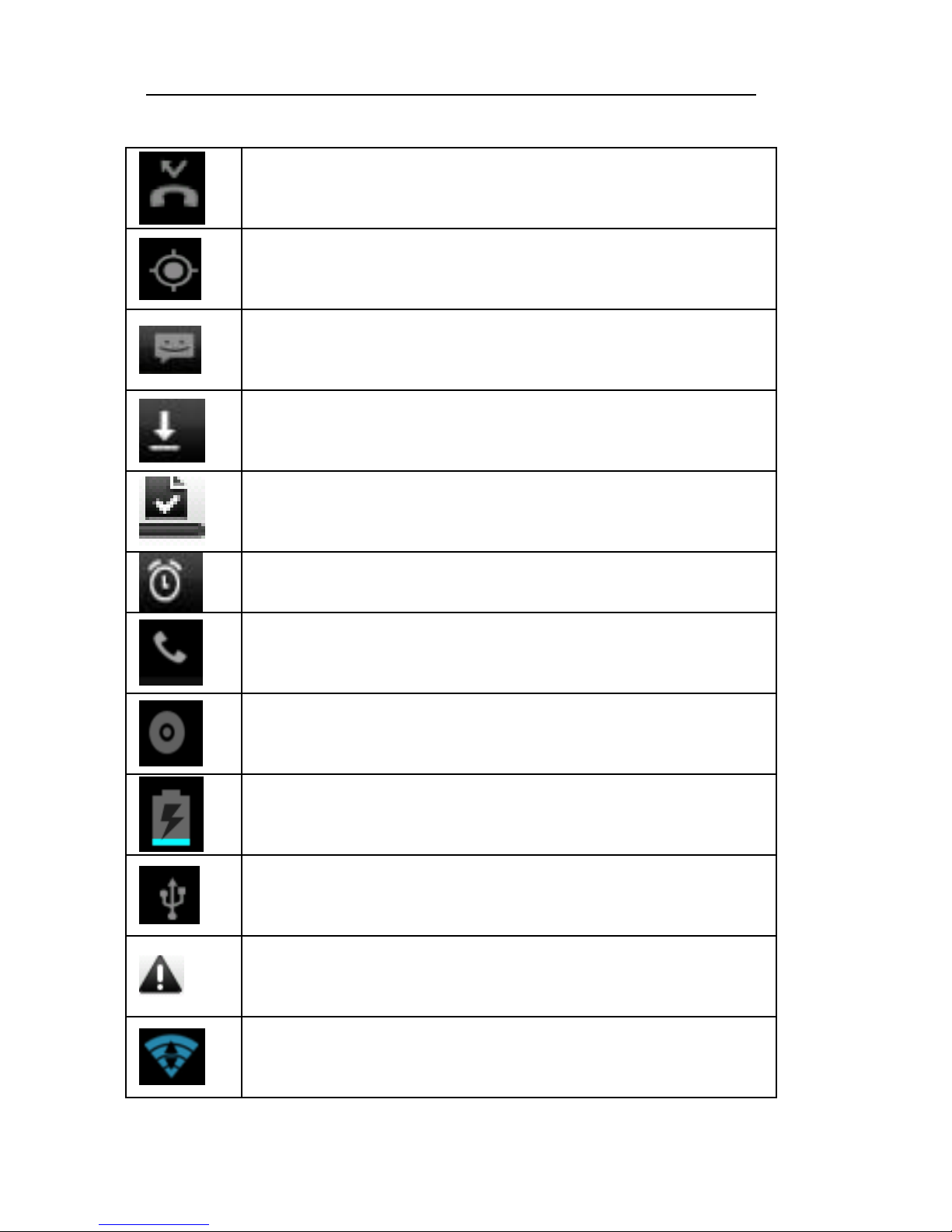
Icons
In the standby mode, the following icons may appear
in standby screen:
Icon
Description
Indicate the intensity of network signals.
8
Show missed calls.
Location by satellite.
Text Messages.
An application is being downloaded.
The downloading is over.
The alarm clock has been set and activated.
A call is in progress.
The Slim note is playing a song.
Show battery level.
USB Enabled.
The access is blocked.
Get connected to the Wi-Fi network

9
Bluetooth is turned on.
No SIM card
No memory card
Data conection
Key explanations
In this guide, “press the key” refers to pressing and
thereafter releasing a key. “Hold down a key” refers to
pressing a key and keeping it depressed for 2 seconds or
longer.
The descriptions and functions of keys depend on the
model of your Slim Note.
Key
Explanations
Return key
●Return to the previous menu.
Menu key
●Show options of current
menu.
Home key
●At any status, press the key
to return to the Home screen.
10
Power key
● Hold down this key to turn
your Slim note off and on.
● Generally, press this key to
lock the Slim note.
Side
volume
keys
● During the conversation,
press up or down to adjust the
volume.
● While playing an audio file,
press up or down to adjust the
volume.
Using the touchscreen
Your Slim Note provides many touch keys in the Main
screen. Meanwhile please follow this instructions:
Do not touch the screen with wet hands.
Do not touch the screen applying force or pressure.
Do not touch the screen with any metallic or
conductive object.
Open your Slim Note
Table des matières
Autres manuels Qbex Comprimé


