Wireless USB A/V Adapter Set User Guide
www.q-waves.com Page 3
Table of Contents
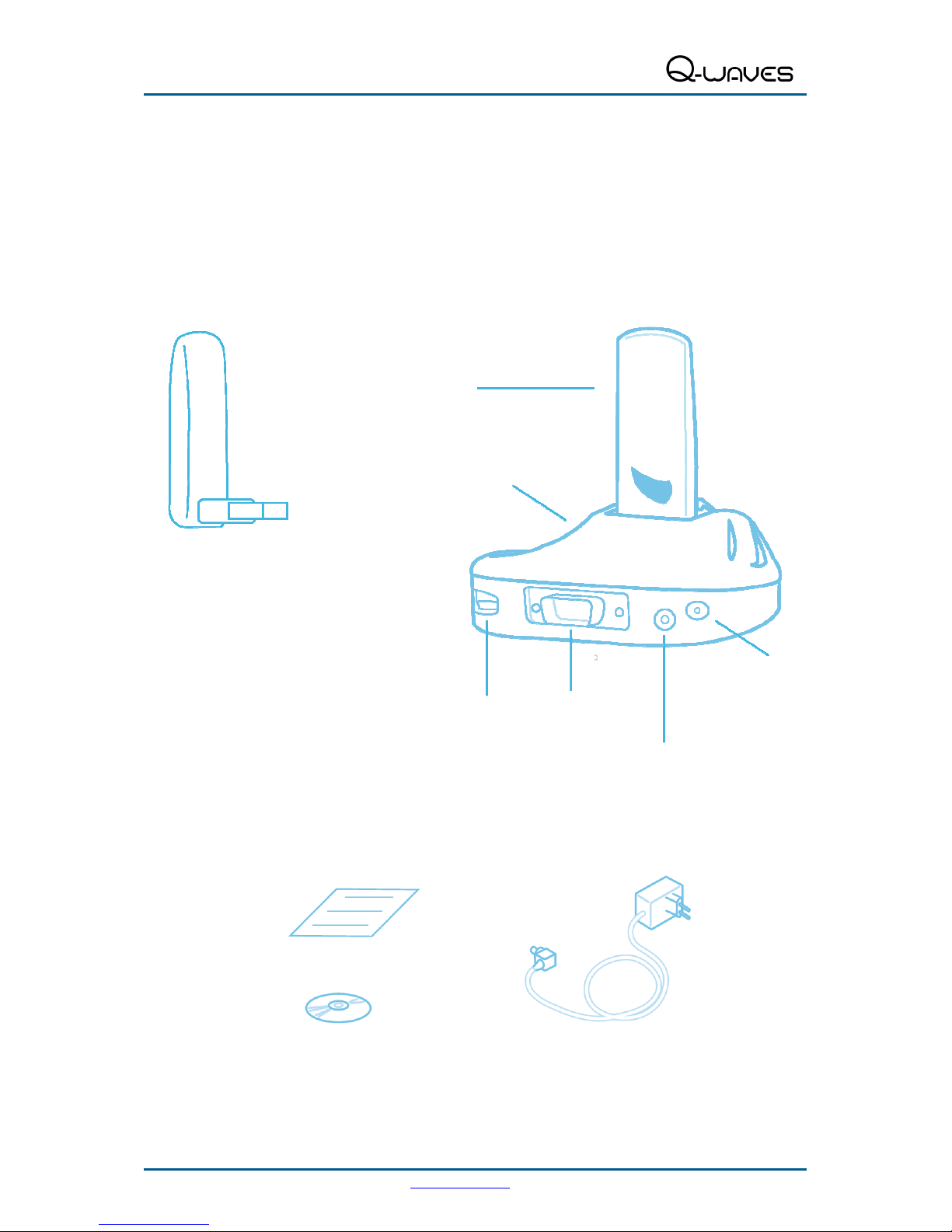
1 What's in the Package ..................................................................................... 4
2 Positioning the A/V Adapter ........................................................................... 5
2.1 Positioning the PC Adapter...................................................................................... 6
3 Software Installation and First Connection ................................................... 7
3.1 Connect the PC Adapter to the PC ........................................................................ 11
3.2 Connect the A/V Adapter ....................................................................................... 11
3.2.1 Connecting Audio.............................................................................................................11
4 Wireless USB Manager User Interface......................................................... 13
4.1 Wireless USB Manager System Tray Icon ............................................................. 13
4.2 Accessing the Wireless USB Manager................................................................... 13
4.3 Blocking or Disassociating a Device ...................................................................... 16
4.4 Changing Device Names in the Wireless USB Manager ........................................ 17
4.5 Advanced Settings................................................................................................. 17
5 Using and Configuring the A/V Adapter ...................................................... 19
5.1 Using the A/V Adapter ........................................................................................... 19
5.1.1 Using Mirror Mode ...........................................................................................................19
5.1.2 Using Extend Mode..........................................................................................................20
5.1.3 Laptop Operation with the Lid Closed.............................................................................. 20
5.1.4 External Display Only.......................................................................................................20
5.2 Configuring the Display via the Display Icon Context Menu ................................... 21
5.2.1 Setting Mirror Mode .........................................................................................................22
5.2.2 Setting Extend Mode........................................................................................................23
5.3 Configuring the Display via Windows Display Properties ....................................... 24
5.3.1 Selecting the Correct Display Monitor .............................................................................24
5.3.2 Setting the Display to Extend or Mirror Mode ..................................................................24
5.3.3 Adjusting Screen Resolution............................................................................................ 25
5.3.4 Adjusting Color Level ....................................................................................................... 25
5.3.5 Setting the A/V Adapter as the Primary Display ..............................................................25
5.4 Optimizing Wireless Video Display......................................................................... 26
5.4.1 Optimizing Internet Video Viewing ................................................................................... 26
5.4.2 Setting Aero Desktop Theme in Vista..............................................................................27
5.4.3 Recommended Media Player Applications ...................................................................... 28
5.4.4 Recommended Minimum System Requirements ............................................................28
5.5 Setting Audio Output Device.................................................................................. 28
6 LED Indications.............................................................................................. 30
Appendix A: Troubleshooting Help ....................................................................... 31
Appendix B: Pairing Procedure ............................................................................. 35