
Promate LumiTab Manuel utilisateur

lumiTab
7” Android Tablet with In-built Projector

Introduction
• lumiTab
• Stand
• AC power charger
• Screen protector
• Pouch
• Micro-USB Sync cable
• User Guide
• Warranty card
Packaging Contents
1
Thank you for purchasing Promate lumiTab – a 7” Android Tablet
with an In-built Projector. The lumiTab offers an amazing tablet
experience with extraordinary features. It is the World’s First
Android Tablet with an In-built Projector. Sharing multimedia has
never been easier. With lumiTab, you can enjoy interactive games,
process important documents, read e-books with your family,
make presentations, mirror and control your laptop PC, listen to
music or even play videos or movies. All of this happens with the
freedom of displaying everything in widescreen, by using its one
button projection system. All you have to do is just point the
lumiTab to any plain open space or a wall and view your tablet
screen on a bigger display. Perfect for wide scale viewing, Powered
with Dual core processor which supports the latest Android 4.2
platform (Jelly Bean), with evolved UI and innovative projection
quality. The advanced DLP technology delivers an incredibly sharp
1080p HD image. Slim and fast, the lumiTab is equipped with full
Google Mobile apps and services such as Gmail, Google Maps,
Google Talk, Google Search and Youtube.
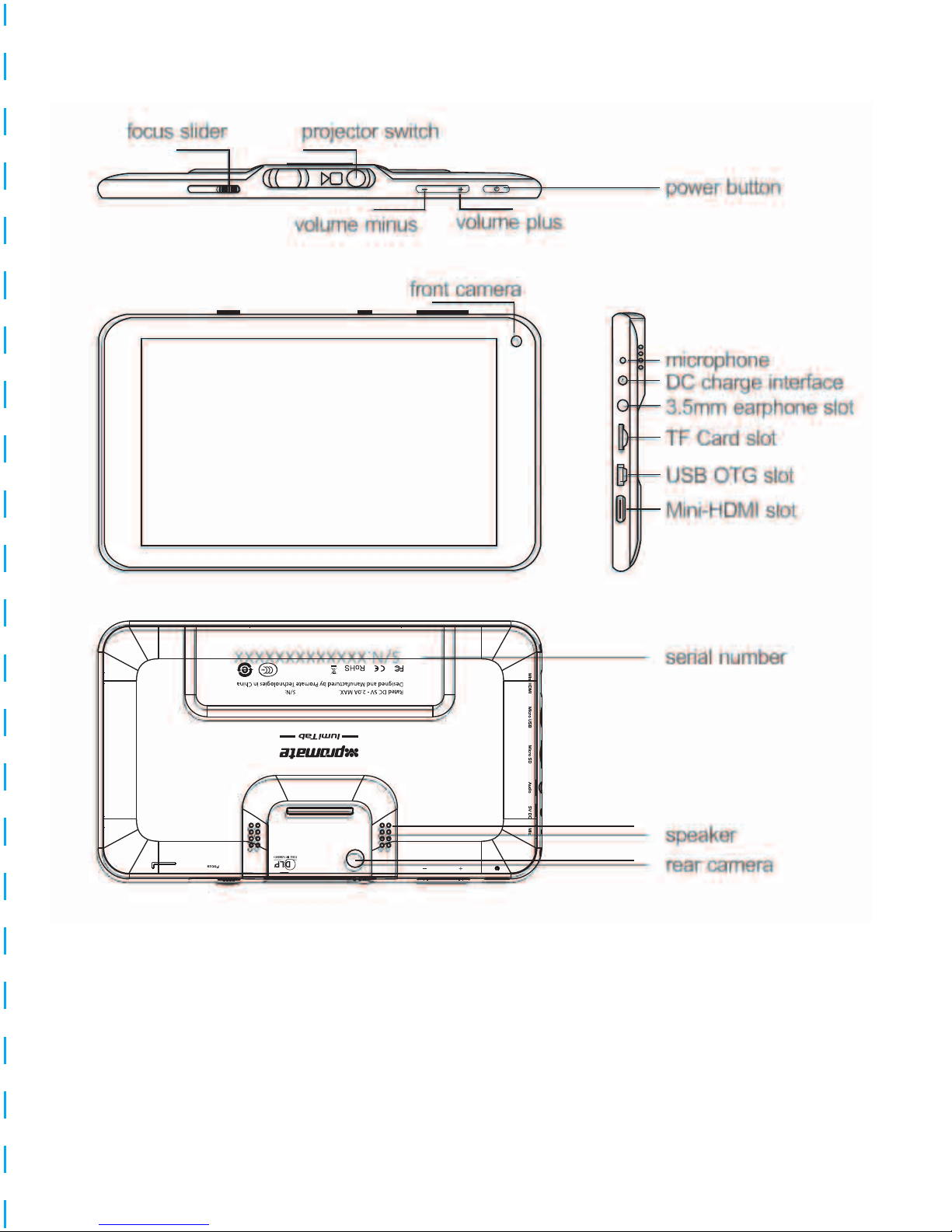
Power Button: Long press to turn On/Off. Short press for
Hibernating/Awakening
Volume Plus: Increase the volume
Volume Minus: Decrease the volume
Projector Switch: Turn on/off the projector
Focus Slider: Adjust the projection focus
Appearance and Interface Description
2
Focus Slider Projector Switch
Volume Up
Front Camera
Microphone
DC Charge Input
3.5mm Audio Jack
Micro SD Card Slot
OTG-USB
Mini HDMI slot
Speaker
Rear Camera
Volume Down
Power Buon

Technical Specification
3
Function: • Hardware 1080p video decoding
• 3D Graphics acceleration
• HDMI video output
• 2M pixels front camera
• 2M pixels rear camera
Connectivity: • IEEE 802.11 b/g/n Wifi network
• Bluetooth 4.0
• USB 2.0 High-speed OTG support
Sensor: • Three-axis accelerometer
• Microphone
Screen: • 7-inch 1024x600 wide viewing angle
high-definition IPS screen
• Capacitive multi-touch touch screen
Pico Projection: • Display Technique: DLP
• Resolution: WVGA (854x480)
• Illuminant: LED, 20,000 hours life span
• Luminance: 35 Lumens
• Projection size: up to 100”
• Projection ratio: 1.5
Operating System: Google Android 4.2 (Jelly Bean)
CPU: TI OMAP4460 Dual Core ARM Cortex-A9
Frequency: 1.5Ghz
Memory: 1GB LPDDRII RAM
Storage: 16GB built-in flash memory; Micro SD card slot
Audio: • 3.5mm standard stereo headphone port
• High-quality stereo loudspeakers
Battery: 4800mAh Built-in Lithium Polymer Batter
Power Supply: • Input Voltage: 5V
• Maximum Power: 10W

Please make sure that the battery is fully charged before your first
use. To charge battery, please connect the supplied charger to
mains power outlet, and insert the DC jack end into the charge
interface of lumiTab. Switch On the AC mains. After a few seconds,
the charging instructions will appear on the screen. During battery
charging, you can view the charging progress by pressing the
power button. Once the charging is complete, please unplug the
charger from lumiTab and the power supply connection.
Battery Charging
4
Baery Charging Diagram

Turning the device On/Off
Hold down the power button until the Promate logo appears on
the screen. Wait for a few seconds, after the system startup is
complete then enter into the main interface.
Hibernate
Once booted up, a short press of power button will put the
lumiTab to hibernate state. During hibernation, lumiTab’s screen
will turn off and enter into the standby condition, where it will
consume only a small amount of power. Another short press of
power button will bring the lumiTab out of hibernation and you
can continue with your operation.
Shutdown and forced shutdown
If you are not using the lumiTab for several days, we recommend
you to shut down the machine. Hold down the power button for
two seconds, and select "Power off" from the pop-up window
"Tablet options" to completely shut down the lumiTab.
In case of a system crash where the lumiTab stops responding to
commands, please hold down the power button for 10 seconds or
more and select “Reboot” from the pop-up window to force shut
down.
Projection
Turn on the projector switch. Adjust the focus slider to get the
sharpest projection images. (The best projection distance is about
160cm.)
During projection, short press the power button to turn off screen
to extend the battery life.
Instructional Usage
5
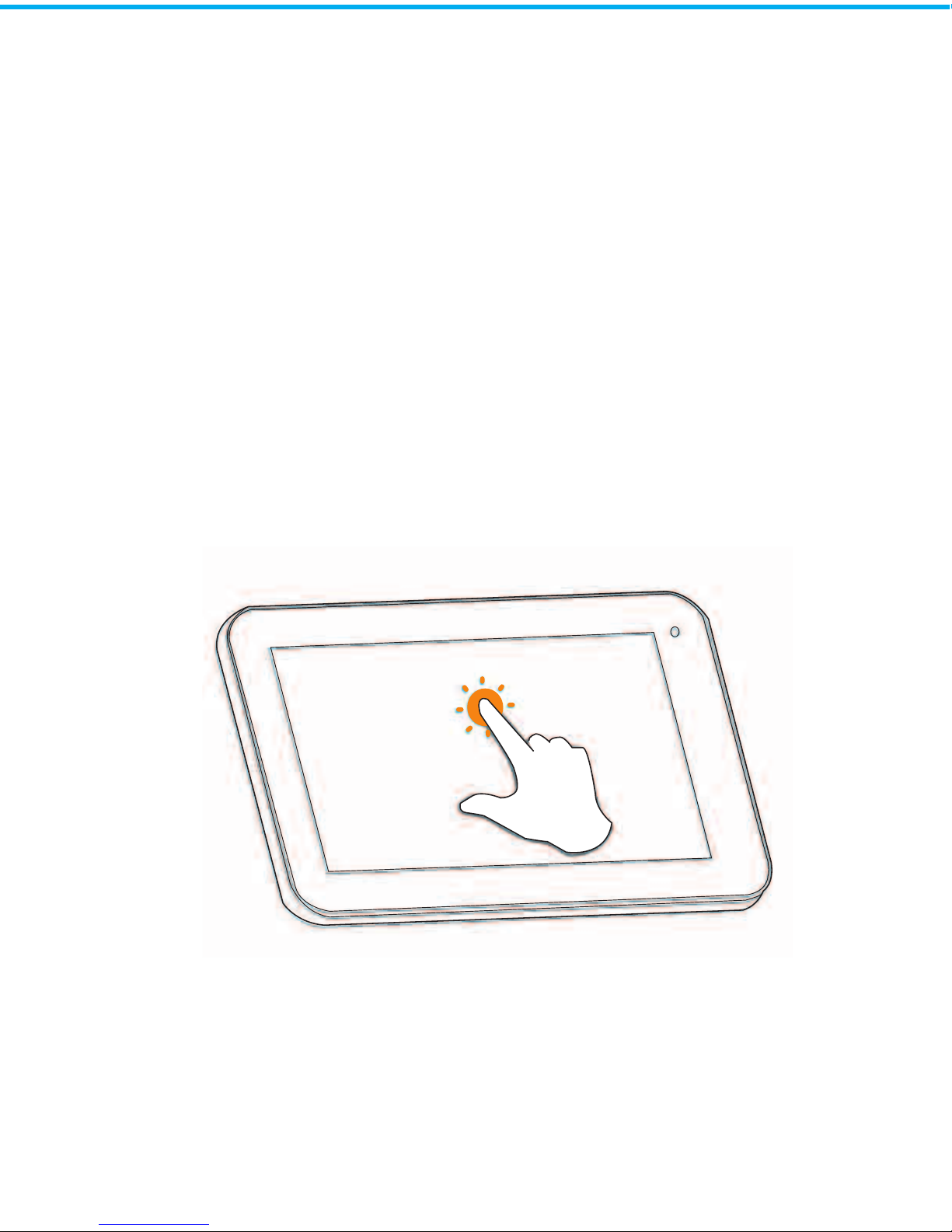
Screen Operation
Projector brightness and color temperature
Tap “Settings”→ “Projector”, select the “Brightness” option on the
right, then you can adjust the brightness and the color
temperature of the projection.
When the color temperature is higher, the picture will turn
relatively cool white. When it’s lower, the picture will be warm
yellow.
A quick touch on the application, the option or the menu icon on
the screen will start or execute the corresponding program or
function.
Touch Operation
6

Press and hold operation
Drag Operation
To drag a list or a control bar across the screen, slide your finger up
and down or left and right while you continue to touch, hold the
selected control bar or the list.
A longer touch on the screen will show you the display screen
Gallery wallpapers
Screen Unlock
7

“Settings”→ choose “Lock Screen” → “Screen Security” →”Screen
Lock”
You can choose from the following options:
• None
• Slide- Drag the lock icon to the unlock icon side using your finger.
The main interface appears
• Pattern - you can choose and set your pattern
• Pin- Create your own pin lock- screen.
• Password - You are able to amend your own password.
Slide:
8
Fri. November 30
AM
?
08:59

Slider Shortcuts
To display the pre-installed applications, tap the icon “ ” that is
located at the top right corner or center of the main interface
screen. Touch the application icon in the list to select and start any
specific application.
You can connect your lumiTab to a computer (plug and play) with
Windows Vista, 7 and 8 operating system using the supplied
Micro-USB sync and charge cable. The connection may take a few
minutes. Once they are connected, lumiTab storage and the file in
the TF Card are accessed through the file explorer.
If your computer operating system is Windows XP, please install
Windows Media Player 11 in your system.
Go to Settings→ Lock Screen→ Slider Short Cuts→ Touch the circle
and you will have to drag the circle to assign a shortcuts.
Connecting to your Computer
9
1
2
Table des matières


