Polstar PolNav Navigation Manuel utilisateur

PolNav Navigation Software
User’s Manual
Version 2008 R4.0
For use with PC/PDA/Personal Navigators

ii
Polstar Technologies, Inc.
http://www.polstargps.com
Tel: +886-3-552-5279
Fax: +886-3-552-5269
Address: 5F-1 No.28 Taiyuan St, Jhubei City, Hsinchu County 30288, Taiwan
© Copyright 2008 Polstar Technologies, Inc. All rights reserved.
Polstar™, The RoadMentor™ Series, PolNav™, The Polstar™ Logo are
registered trademarks of Polstar Technologies, Inc. in Taiwan and/or other
countries. All other trademarks, registered trademarks, trade names and
service marks are properties of their respective owners
No part of this user manual may be reproduced or transmitted by any means,
for any purpose other than for the user’s own use, without the prior written
consent of Polstar Technologies, Inc.
This document is subject to change without notice.
You must read the warnings and the disclaimer at the back of this manual
prior to using PolNav.

iii
Contents
1. INTRODUCTION..............................................................................................................................1
2. INSTALLATION AND HARDWARE SETUP...............................................................................2
2.1 SOFTWARE INSTALLATION..............................................................................................................2
2.1.1 Map code................................................................................................................................2
2.1.2 Registration............................................................................................................................2
2.1.3 Device ID...............................................................................................................................3
2.1.3 Device ID...............................................................................................................................4
2.2 HARDWARE CONFIGURATION (PC/PDA ONLY) .............................................................................4
3. GETTING STARTED WITH GPS NAVIGATION AND POLNAV............................................5
4. USER INTERFACE...........................................................................................................................9
4.1 MAIN MENU ...................................................................................................................................9
4.2 MAP SCREEN ................................................................................................................................10
4.2.1 Functions..............................................................................................................................10
4.2.2 Map Displays......................................................................................................................10
4.2.2 Map Displays.......................................................................................................................11
4.3 ZOOM IN/ZOOM OUT ....................................................................................................................12
4.4 PANNING (BROWSING THE MAP)...................................................................................................12
4.5 LOCATION MENU..........................................................................................................................13
4.6 NAVIGATION SCREEN ...................................................................................................................14
4.7 FREE RUN SCREEN........................................................................................................................15
5. FINDING DESTINATIONS..................................................................................................................16
5.1 BY ADDRESS-CITY/POSTAL CODE FIRST......................................................................................16
5.2 BY POINTS-OF-INTEREST (POI) ....................................................................................................18
5.3 BY RECENT DESTINATIONS ..........................................................................................................21
5.4 BY GPS COORDINATES.................................................................................................................21
5.5 ENTERING INFORMATION..............................................................................................................22
5.6 SEARCHING IN DIFFERENT COUNTRIES.........................................................................................22
5.7 BY PHOTO.....................................................................................................................................23
6. ADVANCED ROUTING FEATURES...........................................................................................24
6.1 MAKING DETOURS........................................................................................................................24
6.2 ADDING INTERMEDIATE WAYPOINTS ...........................................................................................25
6.3 CHANGING THE END DESTINATION...............................................................................................25
6.4 SETTING STARTING LOCATIONS/CLEARING ROUTES/SETTING SIMULATED STARTING LOCATIONS
...........................................................................................................................................................26
6.5 ROUTE SIMULATION .....................................................................................................................26
6.6 CHANGING ROUTING OPTIONS .....................................................................................................27
7. ROUTE MANAGEMENT...............................................................................................................28
7.1 ROUTE INFORMATION ...................................................................................................................28
7.2 TURN LIST ....................................................................................................................................28
7.3 ITINERARY LIST............................................................................................................................29
8. MANAGING FAVOURITES, ITINERARIES AND TRAILS ....................................................30
8.1 MY FAVOURITES...........................................................................................................................30
8.2 MY ITINERARY .............................................................................................................................31
8.3 MY TRAIL.....................................................................................................................................31
8.4 CLEAR DATA ................................................................................................................................32
9. CONFIGURING THE POLNAV....................................................................................................33
9.1 GENERAL SETTINGS......................................................................................................................33
9.1.1 Volume .................................................................................................................................33

iv
9.1.3 Language..............................................................................................................................34
9.1.4 Unit ......................................................................................................................................35
9.1.5 Time Zone.............................................................................................................................35
9.1.6 Guidance..............................................................................................................................36
9.2 ADVANCED SETTINGS...................................................................................................................37
9.2.1 Safe Mode.............................................................................................................................37
9.2.2 Speed Alert...........................................................................................................................38
9.2.3 POI Icon...............................................................................................................................38
9.2.4 Factory Default....................................................................................................................39
9.3 ROUTE OPTIONS ...........................................................................................................................39
9.3.1 General ................................................................................................................................39
10. INFORMATION ............................................................................................................................41
10.1 GPS............................................................................................................................................41
10.2 STATISTICS .................................................................................................................................41
10.3 MAP............................................................................................................................................42
10.4 ABOUT........................................................................................................................................42
11. GPS SETTINGS..............................................................................................................................43
12. DISCLAIMER................................................................................................................................44
13. IMPORTANT MESSAGES...........................................................................................................44

1
1. Introduction
Congratulations on purchasing the Polstar PolNav Navigation Software. PolNav is a
state of the art navigation software designed to make your journey more efficient and
productive. PolNav offers the following features to make travelling and navigating
through your neighbourhood easier:
•Dynamic route calculation
•Set and manage multiple waypoints en route to your destination with ease
•Powerful and convenient address search (Postal code/street search)
•Accurate moving map display
•Turn-by-turn voice instructions and mini maps
•Voice output engine
•Comprehensive and detailed map and Points-of-Interest (POI) database
•Easy to use and intuitive interface
•Space efficient
•Compatible with PC, PDA and Personal Navigator Packages.
Polstar would like to thank you again for purchasing PolNav, and hope that it will assist
you in your travels in the many years to come.
For the latest news and updates, product support, and information regarding Polstar’s
range of GPS products, please visit Polstar’s website at http://www.polstargps.com.

2
2. Installation and Hardware Setup
2.1 Software Installation
To run the software legally, the user has to get a license key by registration process.
The license key is encrypted by the combination of the device ID, which could be your
SD card ID, and a map code. Also, please note that the license key is per map region.
Each map region has its own map code, and thus you should have different license key
for each map region. E.g. the map codes for BeNeLux, Germany and Taiwan could be
BeNeLux@2007, Germany@2007 and Taiwan@2007, respectively.
If the software you have is not equipped with legal map licenses, the security warning
pages will pop up to remind you of finishing the process to have legal licenses at the
beginning of running PolNav.
2.1.1 Map code
As explained above, the license key is encrypted by the combination of the device ID
and the map code.
To know your map code, enter Main Menu, choose Info ->Map.
As shown above, each entry has an icon, indicating if the corresponding map is legal or
not, a map code and the date code. As an example, the first two illustrates the region
Australia has a map code Australia @2007 and the region Austria/Switzerland has a
map code Australia@2007.
2.1.2 Registration
The software may not run with full functionalities and successfully if the map data is not
with legal license.
The license key is calculated based on map code and device ID. If you have not a legal
license of map data, you will be warned by the message “Unregistered map(s) found!”

3
at the moment you run the software as below. Press OK to check the illegal map data
you use, where a forbidden icon are shown below.
To get a license key, you need to send the Device ID and the map code to the original
distributor to request a legal license key to that map data once you have paid for it.
It would be strongly recommended to register your personal information to the server of
the original distributor once you have the license key in case you need to retrieve the
map data due to the SD card corrupted.
After having the license key for that map region, simply press Register button in Map
Info page to finish the activation process as shown below.

4
2.1.3 Device ID
To know your Device ID, entering Main Menu ->Info ->About
2.2 Hardware Configuration (PC/PDA Only)
After installing PolNav on your PC/PDA, please ensure your GPS hardware has been
correctly setup. For instructions on GPS hardware setup, please refer to your GPS
hardware manual. You will only need to do this once. Once the GPS hardware has been
setup, please take note of the Port Settings for your GPS. You will need this to
configure the settings in PolNav.
Press the Settings in the Main Menu and then press GPS Port. Now change the COM
Port and Baud Rate to the given values.

5
3. Getting Started With GPS Navigation and PolNav
This tutorial will get you started on using PolNav for navigation. Before you start, you
should ensure that the software has been installed and the necessary hardware
configured. Instructions for installation and configuration can be found in the Hardware
Configuration Section of this manual.
Step 1
Start PolNav and wait for your GPS receiver to obtain a position fix.
Press the center area on the touch screen to obtain the Main Menu, and press the Find
Button in the Menu.
If you do not have a GPS fix, or want to simulate a route, select a starting location
first using this tutorial up to Step 5, then select a destination using this tutorial a
second time.

6
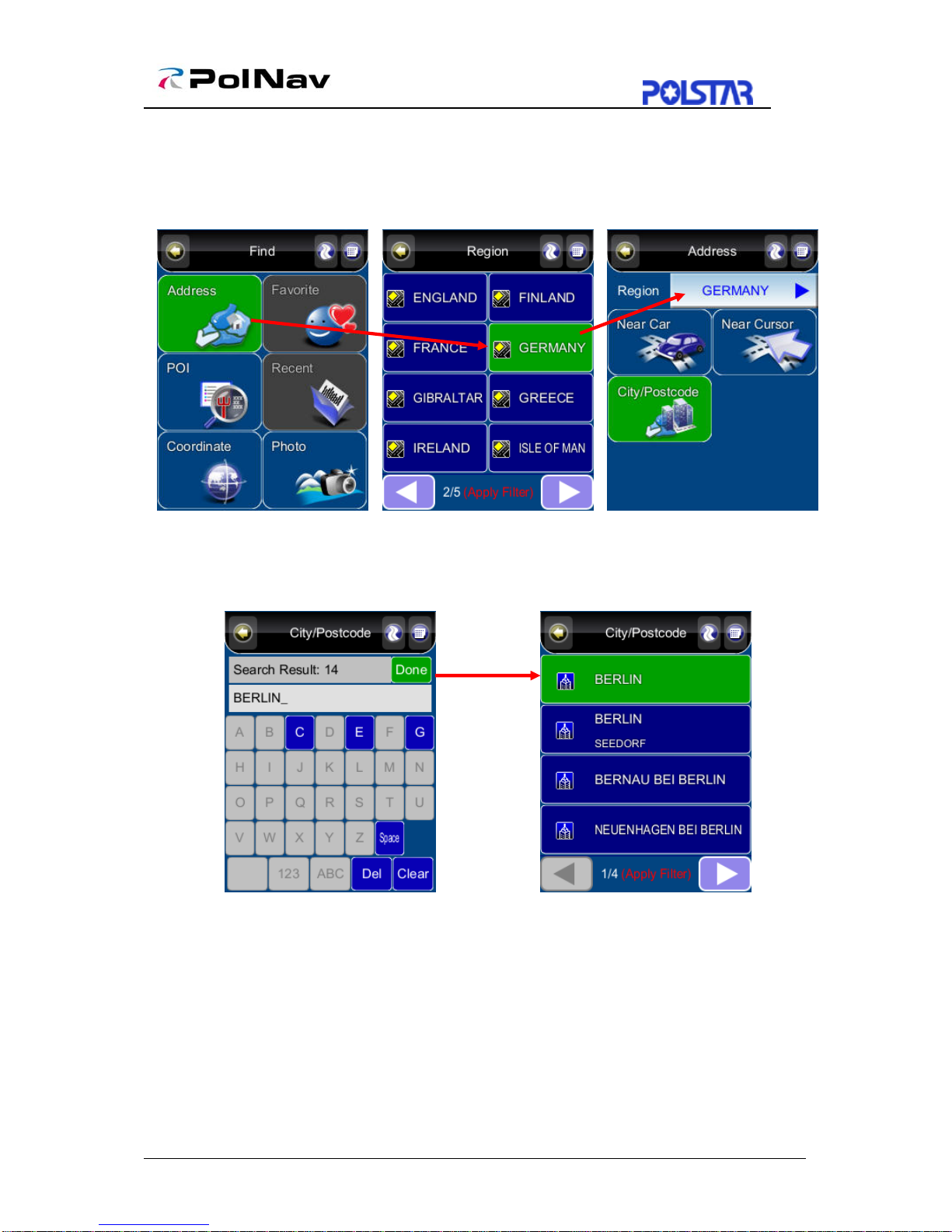
Step 2
Press the Address Button in the Find Menu, the press the City/PostCode Button
once you are in the Address Menu. Press the Region Name Tab to switch the country
you are searching to Germany if you have not already done so.
Step 3
Enter BERLIN on the onscreen keyboard and press the Done Button. Select the first
entry in the Results Screen.
Table des matières
Manuels Logiciel populaires d'autres marques

PS Audio
PS Audio PowerPlay Manuel du propriétaire

Brady
Brady LOCKOUT PRO 3.0 Manuel de service

Avaya
Avaya Interaction Center Manuel utilisateur

Texas Instruments
Texas Instruments TI-83 Plus Silver Edition Manuel

Novell
Novell GROUPWISE 8 - INTERNET AGENT Manuel utilisateur

Oracle
Oracle Application 9i Manuel utilisateur

Acer
Acer RDM Manuel utilisateur

Canon
Canon Vixia HF21 Manuel utilisateur

Canon
Canon ZR950 Manuel utilisateur

Samsung
Samsung Auto Backup Manuel utilisateur

Polycom
Polycom Vortex EF2201 Instructions d'installation et d'utilisation

Brocade Communications Systems
Brocade Communications Systems Brocade 8/12c Manuel utilisateur