
POER PTV30 Manuel utilisateur
smart controls
Power to control your heating
Anytime, Anywhere
Add.: 19th. Floor, Xintu Building, No.451 Wulianwang Street,
Binjiang Zone, Hangzhou City, 310051 Zhejiang Pro., CHN.
Tel.: +86-571-87117288 Fax: +86-571-28190666
E-mail: [email protected] www.poersmart.com
ZHE JIANG LANCABLE TECHNOLOGY CO.,LTD
Model No.: PTV30
Scan for App
Smart Radiator Controller
User Manual

13
13
13
20
14
19
20
21
22
3. Smart radiator controller’s
function and operation
23
4. Users’ option
5. Product specification 27
3.1 Setting and controlling PTV30 with APP
3.2 Setting and controlling PTV30 with
control buttons
3.2.1 Clock setting
3.2.2 Program setting (Auto Mode setting)
3.2.3 Override mode setting
3.2.4 Manual control mode setting
3.2.5 Holiday mode setting
3.2.6 ECO mode setting ECO
3.2.7 OFF mode setting
3.2.8 Child lock setting
3.2.9 Mac id display
22
23
CONTENTS
02
02
03
04
05
04
05
05
06
10
07
1.1 Application system
1.2 Features
1.3 Control button and screen display
1. Overview
2. System installation
2.1 Installation of smart radiator controller
2.1.1 Installation of smart radiator controller
2.1.2 Boot of device
2.2 Disassembly of smart radiator controller
2.2.1 Shutdown of device
2.2.2 Disassembly of smart radiator controller
2.3 RF signal pairing between smart radiator
controller and gateway
2.3.1 Automatic pairing by mobile phone APP
2.3.2 Manual paring radiator controller with gateway
06

01 02
Attentions:
1. This product can fit on standard Angle valve with
connector M30X1.5mm, and it might request adaptor for
some specific model Angle valves (may consult the
installer or supplier).
2. This product does not have the heating function, if room
temperature can not reach set temperature, please raise
the heat medium temperature, or check the heating
system.
3. Before using this product, please read this manual
carefully.
4. The product passed the CE certification.
1. Overview
1.1 Application system
Smart radiator controller (PTV30) with built-in high
precision temperature and humidity sensor, can real-timely
sense indoor temperature; And with a micro motor, it
controls Angle valve’s opening, by regulating heat
medium’s flow to achieve a constant indoor temperature.
PTV30 have RF communication function with additional
smart gateway PTG10 (sold separately) and installed with
our APP. you can control home temperature anytime and
anywhere via smart phone.
Wireless router
WIFI
signal
Receiver
TRV
Gateway
Application
TRVTRV
Voice
control
1.2 Features
Touch buttons: Use four touch keys and operate
friendly.

03 04
Remote operation: Connect to smart gateway (PTG10),
temperature can be controlled anytime and anywhere
through the phone APP.
Programmable: Equipment factory with 3 section of the
program, and you can modify or personalize
programming.
1.3 Control button and screen display
Confirmation
Up-turning
Return
Down-
turning
Display
area
LCD display: LCD display screen to display time,
temperature and humidity, and other information.
Holiday
mode
Auto
mode
Manual
mode
Child
lock
Copy
Clock
set
Program
set
RF
connection
Forst
protection
Batteries
power
Time
Days
Humidity
Temperature
2. System installation
Important attention: Before installation,
please ensure that Radiator Controller
PTV30 is turned off.
Hold PTV30 valve body in hands, joint connector with
angle valve threads, rotates in clockwise, and realize
connection with angle valve.
1
2.1 Installation of smart radiator controller
2.1.1 Installation of smart radiator controller
Rotate PTV30 valve body until screen display to the
right angle that you are satisfied, then fasten the connector.
2
Note: For more accurate temperature, it is
recommended that you install the radiator
controller PTV30 horizontally.
Hold valve
Rotate in
clockwise
Connector
Note: When disassemble PTV30, please
avoid being scald by attention to the
connector’s temperature.
05 06
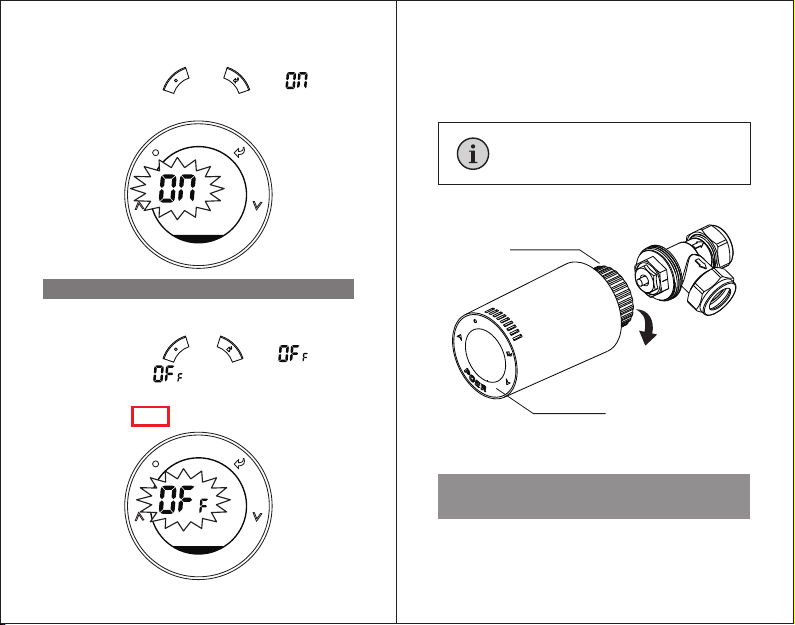
2.1.2 Boot of device
Press simultaneously and until display
on the screen, the boot is finished.
2.2 Disassembly of smart Radiator Controller
2.2.1 Shutdown of device: Before disassembly, please
turn off the device!
Press simultaneously and until display
on the screen, after flashes for 3 seconds, the
radiator controller starts shutdown. When radiator
controller’s valve opens to 100%, shutdown is completed.
Hold radiator controller PTV30, rotate connector in
anticlockwise until divide PTV30 from angle valve.
2.2.2 Disassembly of smart radiator controller
2.3 RF signal pairing between smart
radiator controller and gateway
Smart radiator controller PTV30 can be connected with
smart gateway through mobile phone’s APP; APP makes
its setting and controlling more simple and convenient.
Hold valve
Rotate in
clockwise
Connector

07 08
2.3.1 Automatic pairing by mobile phone APP
Open the App. which already connected with gateway
PTG10 (how to add a gateway on App. please refer to
gateway’s manual for details), choose Add Radiator
Controller from the interface.
1 Scan bar code on the PTV30 valve body for getting
MAC idof device. If scanning failed, may type the MAC id
manually.
2

(3-1) Long press button to enter menu page, press
button to make choice. When flashes, press
button to enter code page. Display flashing in
temperature area and press button to send pairing
command with gateway.
Smart radiator controller PTV30 send pairing command
with gateway:
3
Start gateway’s pairing mode by hold pressing until its
LED is blinking slowly.
2
2.3.2 Manually pairing smart radiator controller
with gateway
Preparation: Make sure gateway PTG10 was plug in
the socket correctly and has been added on APP (how to
add a gateway on App. please refer to gateway’s manual
for details).
1
09 10
After successfully get MAC id, choose Add to start
paring radiator controller PTV30 with gateway, after adding
successfully, radiator controller’s screen displays icon,
and the “HOME”page of APP displays newly added device.
3

11 12
(3-3) If pairing failed, please check:If the gateway PTG10
is under pairing mode;If the distance between radiator
controller PTV30 and gateway PTG10 is less than 5
meters; Then keep pressing button to continue
sending paring command to gateway PTG10 until pairing
succeed.
(3-2) After paring successfully, the time area displays
flashing ; otherwise, the time area displays a
flashing means paring failed.
Succeed Failed
(3-4) Gateway is still under paring mode even one radiator
controller’s paring succeed, if you had more devices need
to be paired, you may continue to pair them with gateway
manually. (1 gateway could RF communicate with 10
devices at one time).
(3-5) Exit pairing mode by long pressing icon until
gateway LED recovers the state before paring.
(3-6) After paring successfully, radiator controller’s screen
displays icon, and the “HOME” page of APP displays
newly added device.

3.2.2 Program setting (Auto Mode setting)
When radiator controller PTV30 leaves factory, it has been
preset program. Preset program as following:
3. Smart radiator controller’s
function and operation
3.1 Setting and controlling PTV30 with APP
With mobile phone APP, it can be easily set and control
PTV30. Please explore the specific operation on the
mobile phone APP.
13 14
3.2.1 Clock setting
Enter time setting page: Long press button, enter
menu page, press button until flashes. And
press to enter time setting page.
1
3.2 Setting and controlling PTV30 with button
Year setting: when displays a flashing , press
or button to choose the right year, press button
to confirm the setting and enter month-setting page.
2
Year setting
Month setting
Clock setting
Following same operation to complete date and time
setting accordingly. You can return last setting page by
pressing button. Return main menu page after
completing setting.

(1-1) Enter program setting page: Long press button
to enter menu page, press button until
flashes. Press button to enter program page,
program page is shown below:
Event 1234567
Temperature
Time
7 °C 20 °C 16 °C 16 °C 16 °C 21 °C 7°C
Event 1234567
Temperature
Time
7 °C 20 °C 18 °C 21 °C 18 °C 21 °C 7°C
00:00
~
6:30
6:30
~
8:30
8:30
~
12:00
12:00
~
14:00
14:00
~
16:30
16:30
~
22:30
22:30
~
24:00
00:00
~
7:00
7:00
~
9:00
9:00
~
12:00
12:00
~
14:00
14:00
~
16:30
16:30
~
23:00
23:00
~
24:00
Event 1234567
Temperature
Time
10 °C 21 °C 16 °C 21 °C 16 °C 21 °C 10°C
Event 123456
Temperature
Time
10 °C 21 °C 18 °C 21 °C 18 °C 10 °C
00:00
~
6:30
6:30
~
8:30
8:30
~
12:00
12:00
~
14:00
14:00
~
16:30
16:30
~
22:30
22:30
~
24:00
00:00
~
7:00
7:00
~
9:00
9:00
~
12:00
12:00
~
14:00
14:00
~
23:00
23:00 24:00~
Event 1234567
Temperature
Time
16 °C 21 °C 19 °C 21 °C 19 °C 21 °C 16°C
Event 1234567
Temperature
Time
16 °C 21 °C 18 °C 21 °C 18 °C 21 °C 16°C
00:00
~
6:00
6:00
~
8:30
8:30
~
12:00
12:00
~
14:00
14:00
~
17:30
17:30
~
22:30
22:30
~
24:00
00:00
~
7:00
7:00
~
9:00
9:00
~
12:00
12:00
~
14:00
14:00
~
16:30
16:30
~
23:00
23:00
~
24:00
15 16
Personalize preset program:
1
Program3:Program1:
Program2:
Monday to Friday
Saturday and Sunday
Monday to Friday
Saturday and Sunday
Monday to Friday
Saturday and Sunday
Table des matières


