
PNY Vibe 1GB Manuel utilisateur

www.pny.com
PNY Technologies, Inc.
299 Webro Road.
Parsippany, NJ 07054-0218

Contents
Safety Precautions ..................................................................................................................3
Components ..............................................................................................................................4
Components ........................................................................................................................4
Name of Each Part ..............................................................................................................5
Replacing the Battery .........................................................................................................7
Connecting to the PC ..............................................................................................................8
Installing the VIBE Software ..............................................................................................9
Using USB ...........................................................................................................................12
Removing VIBE Safely .......................................................................................................14
Formatting VIBE ..................................................................................................................15
Using VIBE ................................................................................................................................16
Before Using ........................................................................................................................16
LCD Screen by Each Mode ...............................................................................................17
Button Functions .................................................................................................................19
Basic Functions ...................................................................................................................22
Listening to Music ...............................................................................................................22
Voice Recording ..................................................................................................................23
Listening to Radio Channels ..............................................................................................23
Menu Setup .........................................................................................................................25
Firmware Upgrade ...................................................................................................................33
Specifications ...........................................................................................................................34
When VIBE does not work properly .....................................................................................35
Precautions ...............................................................................................................................36
FCC .............................................................................................................................................37
- 1 -
*mp3 2004.3.17 7:24 PM ˘`1


Components
- 5 -
Components
- 4 -
1VIBE Player 2Earphone/Necklace
3Installation CD 4One AAA Battery
5Manual 6USB Cable
Front
Name of Each Part
Components

Components
- 7 -
Components
- 6 -
Side
Back
Open the battery cover by pressing it down on the latch.
Insert a new battery with the correct polarity as shown in the battery cavity.
Replacing the Battery
1 2
3 4

Connecting to the PC
- 9 -
1Insert the installation CD in the CD-ROM to display the automatic
execution as shown below.
Connecting to the PC
- 8 -
• Minimum PC Specification
• Pentium 133MHz or higher
• Windows 98/ME/2000/XP
• Hard Disk Memory more than 20MB
• CD-ROM Drive
• USB Port
Note Please make sure your computer systems has the latest version of your
operating system.
2Click “Setup.Program”to
install the installation
program.
3Click Next button to see the
privilege contract as shown
below.
Installing the VIBE Software

Connecting to the PC
- 11 -
Connecting to the PC
- 10 -
4If the user agrees to the privilege contract, click Yes button.
5Select the folder to install the program, and click Next button.
6Please wait while the
program is being installed.
7After installation is completed,
click Finish button.
Note After installation is completed in Windows 98/ME, the PC
must be rebooted so that the program can function properly.

Connecting to the PC
- 13 -
Connecting to the PC
- 12 -
1The VIBE software must be installed if you
are using Windows 98.
2Remove battery pack from
VIBE and connect VIBE to
PC. (Use a USB cable when
needed.)
3This is recognized as a “portable
disk” in My Computer, the use
can use it like a hard drive.
Note
The user can use the portable disk like a normal hard drive.
As shown above, folders can be created to store music thereby
maximizing the VIBE folder function. Data folders can also be created
to store various data other than music thereby improving the initial
booting speed. . FM folder and Voice folder are automatically created
in VIBE and FM and Voice recording files.
Using USB

Connecting to the PC
- 15 -
Note When formatting in Windows XP, if File System is FAT32
or NTFS , VIBE does not work.
1Choose Format in “Removable Disk” as
shown below.
Connecting to the PC
- 14 -
1For Windows ME/2000/XP
Close all windows relating to VIBE.
Click “Removing USB Drive”on the lower-left part. The message that
the product is completely removed is displayed. Then disconnect VIBE
from the PC.
2For Windows 98
Close all windows relating to VIBE.
When “USB Connected…” blinks on the LCD, data is being
transmitted to/from VIBE. When “USB Connected…” is not blinking,
VIBE can be disconnected from the PC.
2After setting File system to FAT, press
Start button to format.
Removing VIBE Safely Formatting VIBE
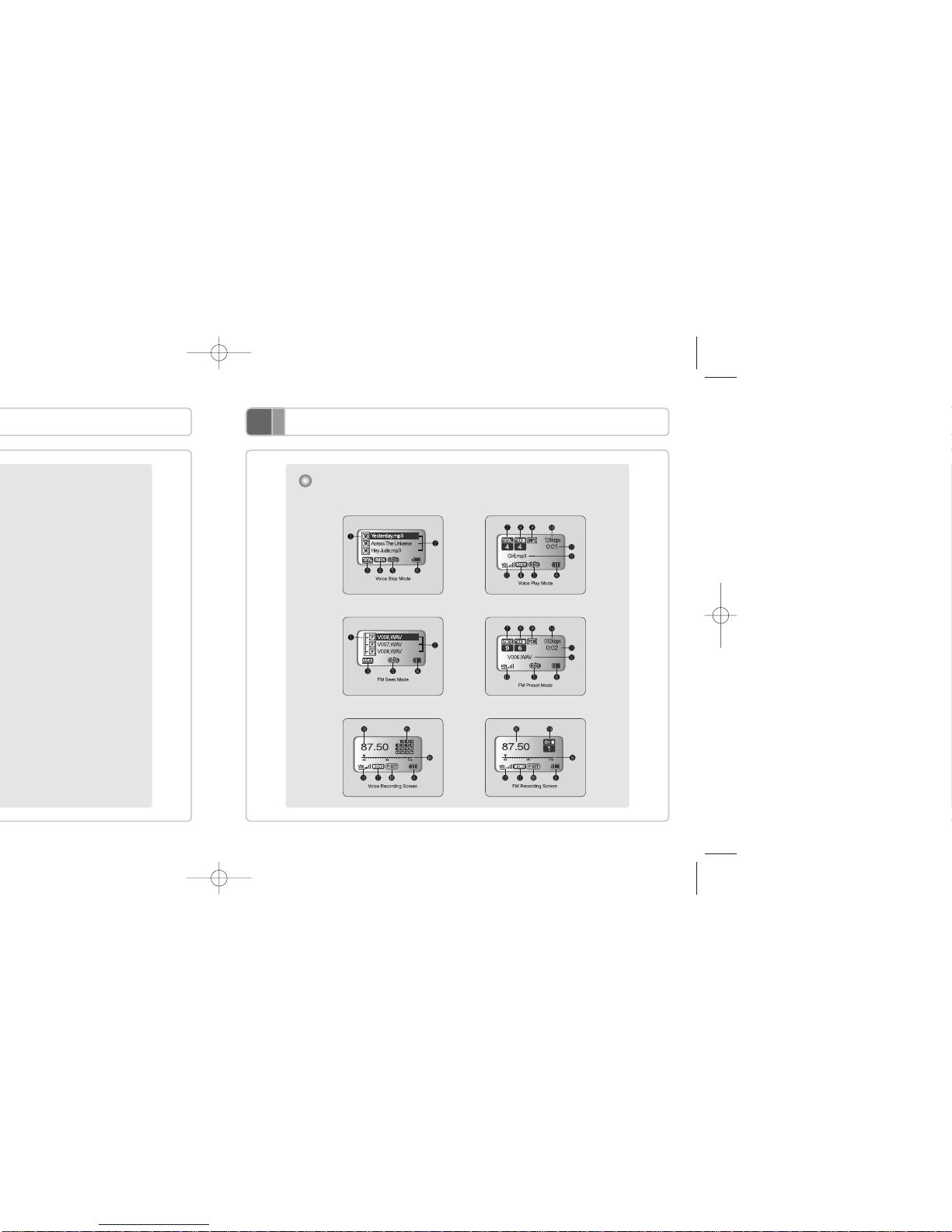
Using VIBE
- 17 -
LCD Screen by Each Mode
Using VIBE
- 16 -
Before Using
1For files except music files, make a “Data” folders and store non-music
files there.
2To listen to music in order, insert digits in front of music files.
(Insert “01. 02. 03.”in front of music files to store them in VIBE.).
3When formatting VIBE in Windows XP, it is necessary to change the
File System to FAT. VIBE will not function if formatted in FAT 32 or
NTFS file systems.
To use VIBE more efficiently, please keep the following in mind: MUSIC PLAY MODEMUSIC STOP MODE
VOICE PLAY MODEVOICE STOP MODE
FM PRESET MODEFM SEEK MODE
*mp3 2004.3.17 7:25 PM ˘`16
Autres manuels pour Vibe 1GB
1
Ce manuel convient aux modèles suivants
1
Table des matières
Autres manuels PNY Lecteur MP3

Manuels Lecteur MP3 populaires d'autres marques

Blaupunkt
Blaupunkt Compact Drive MP3 Manuel utilisateur

Memorex
Memorex MMP9008 - 8GB USB 2.0 Manuel utilisateur

Meizu Electronic Technology
Meizu Electronic Technology E5 Manuel utilisateur

Naxa
Naxa NMV-173NX Manuel utilisateur

Philips
Philips PSA250 Manuel utilisateur

Zipy
Zipy go! Waving Manuel utilisateur


