
PI ALF Series Manuel utilisateur

ALF user manual
(english)
Art.Nr. 9352-ALF
14.05.2019
© PI 2019

Content
1 Description .......................................................................................................................................4
2 System Re uirements .......................................................................................................................4
2.1 Operating system(s) ..................................................................................................................4
2.2 Software ....................................................................................................................................4
2.3 Hardware ...................................................................................................................................4
3 Operational-/deployment Modes ......................................................................................................4
4 Installation ........................................................................................................................................4
4.1 Hardware ...................................................................................................................................4
4.2 Software ....................................................................................................................................5
5 Control elements ...............................................................................................................................5
5.1 Display LEDs ............................................................................................................................5
5.2 WPS button ...............................................................................................................................5
5.3 Webbrowser ..............................................................................................................................5
5.4 Web browser Categories ...........................................................................................................6
5.4.1 Status .................................................................................................................................6
5.4.2 Easy Setup .........................................................................................................................6
5.4.3 Advanced ...........................................................................................................................6
6 Configuration ....................................................................................................................................7
6.1 Web-Interface ............................................................................................................................7
6.1.1 Status .................................................................................................................................7
6.1.2 Easy Setup .........................................................................................................................7
6.1.2.1 Operation mode .........................................................................................................7
6.1.2.1.1 AP Router ...........................................................................................................7
6.1.2.1.2 AP-Bridge ..........................................................................................................8
6.1.2.1.3 Client Router ......................................................................................................9
6.1.2.1.4 Client Bridge ....................................................................................................10
6.1.3 Advanced .........................................................................................................................12
6.1.3.1 Management ............................................................................................................12
6.1.3.2 Advanced Settings ...................................................................................................13
6.1.3.3 System Log ..............................................................................................................14
6.1.3.4 Tools ........................................................................................................................14
6.1.3.5 Firewall Settings ......................................................................................................15
6.1.3.5.1 MAC/IP/Port Filtering .....................................................................................15
6.1.3.5.2 VirtualServer ....................................................................................................15
6.1.3.5.3 DMZ ................................................................................................................16
6.1.3.5.4 Firewall ............................................................................................................16
6.1.3.5.5 QoS ..................................................................................................................17
6.1.3.5.6 Content Filtering ..............................................................................................17
6.1.3.6 Network Settings .....................................................................................................18
6.1.3.6.1 WAN ................................................................................................................18
6.1.3.6.2 LAN .................................................................................................................18
6.1.3.6.3 VLAN ..............................................................................................................19
6.1.3.6.4 DHCP Static Leases .........................................................................................19
6.1.3.6.5 Advanced Routing ...........................................................................................19
6.1.3.7 Wireless Settings .....................................................................................................20
6.1.3.7.1 Basic ................................................................................................................20
6.1.3.7.2 Advanced .........................................................................................................21
6.1.3.7.3 Access Control .................................................................................................22
Handbook ALF Page 2 of 24

6.2 Factory settings and Restart ....................................................................................................22
7 Glossary ..........................................................................................................................................22
8 Technical specifications ..................................................................................................................23
Page 3 of 24 Handbook ALF

1 Description
Connecting of a network or a network-user via wireless to an access point;
also works as an access point-router or PPPoE.
2 System equirements
2.1 Operating system(s)
•Windows 98 + SE
•Windows ME/NT/2000
•Windows XP
•Windows Vista
•Windows 7
2.2 Software
•PLC - programming software (eg PG 2000, Step © 7, S7 for Windows, Microwin)
•Webbrowser
2.3 Hardware
•NIC 10/100MBit
3 Operational-/deployment Modes
AP outer
In this mode, ALF is an access point for the wireless
network and through the WAN port connected to a DSL
modem provides Internet access.
AP Bridge
In this mode, ALF is an access point for your wireless
network. There is no connection to a DSL modem and
therefore to the Internet
Client outer
In this mode, ALF is a client to an existing access
point. It provides additional router functionality.
Client Bridge
In this mode, ALF is a client to an existing access
point.
Handbook ALF Page 4 of 24

4 Installation
4.1 Hardware
Connect the external 24 V power adapter into the Phoenix socket.
ALF to network users
Connect a network cable with one end to the "PoE LAN" jack of the ALF and the other end into the
network port of your networks-Switchs/ network-users.
ALF to Switch/Hub
In this case, the network cable is connected from port "PoE LAN" of the ALF to the port of the
Switch / Hub. If you use a crossover cable, please connect it to the Uplink port of your Switch /
Hub. If you have an Switch with capable auto-negotiation, you can connect the crossover cable into
any available port on the Switch.
4.2 Software
To work with a PLC you need a programming software (eg PG 2000, Step© 7, S7 for Windows,
MicroWIN).
5 Control elements
5.1 Display LEDs
Power LED off: ALF is turned off
Power LED on: ALF is turned on
WAN LED off: Link off (no connection to the network)
WAN LED on: Link on (A connection exists to the network)
WAN LED is blinking: Transmission (data transmission in progress)
LAN LED off: Link on (A connection exists to the network)
LAN LED on: Link off (No connection to the network)
LAN LED is blinking: Transmission (data transmission in progress)
WLAN LED on: WLAN connected
WLAN LED off: WLAN not connected
WLAN LED is blinking: AP-Mode WLAN open
WPS LED off (button): Default: WPS off
WPS LED is blinking: WPS active
Page 5 of 24 Handbook ALF
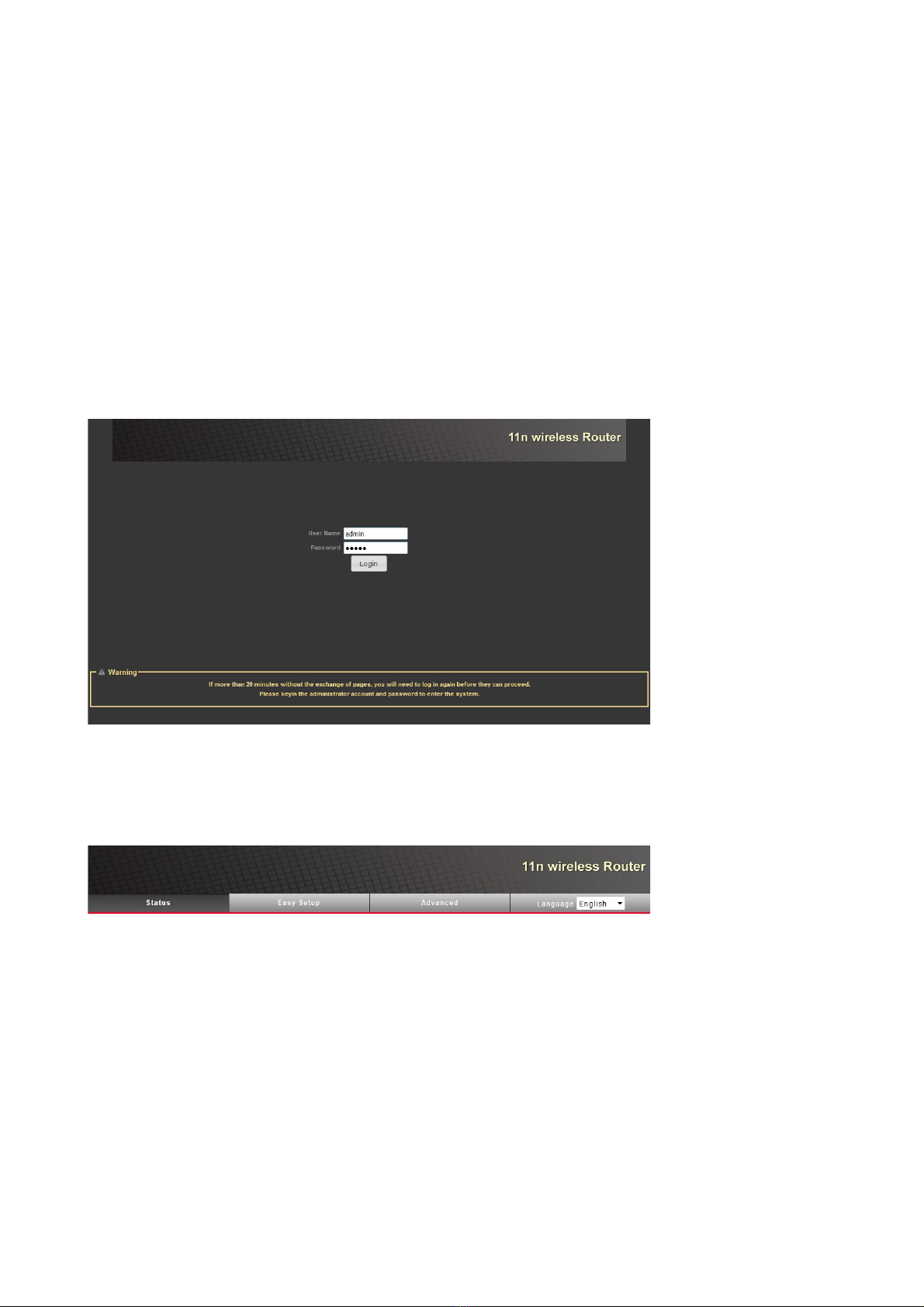
5.2 WPS button
With the WPS button, you can uickly and easily set up a wireless connection to an existing access
point. This access point must support WPS.
5.3 Webbrowser
Open the web browser on your computer and type in the address bar the IP address of your ALF
(default IP of LAN / WLAN: 192.168.2.1) and confirm with <Enter>. It will open the login screen
of the ALF in which you must enter the user name and password.
Login data (default):
User Name: admin
Password: admin
5.4 Web browser Categories
In the menu above you can choose between three categories in which you can make various
adjustments to your ALF.
5.4.1 Status
Here you can see an overview of the Internet and LAN configuration, some system information,
statistics, the DHCP list and the list of stations.
5.4.2 Easy Setup
Here you can make uickly and easily the most important settings to maintain your ALF
operational.
Handbook ALF Page 6 of 24

5.4.3 Advanced
Here you find menus to change configurations and parameters.
Furthermore, you can here call up the management system with which you can change, among other
things, the login data or perform a firmware upgrade.
Further steps to configure your router are described in the chapter Configuration.
6 Configuration
6.1 Web-Interface
Start your Web browser and type in the address bar the IP address of the router. Confirm with the
key to load the start page.
6.1.1 Status
Here you can get a general overview of the connections established.
Status: Shows the current WAN and
LAN parameters. moreover, the
firmware version and the operating
mode.
Statistics: Showing the memory
state of the router and the statistics
of the received / sent packets.
DHCP Clients: This table shows all
the DHCP clients with their
respective IP addresses and MAC.
Station-List: This table lists all
stations with their MAC addresses,
speed and RSSI.
6.1.2 Easy Setup
First, you must select a "Operation mode" from the list and subse uently click "Next" to the next
page.
Page 7 of 24 Handbook ALF

6.1.2.1 Operation mode
Here you select the operating mode of the ALF.
6.1.2.1.1 AP outer
When configuring the AP router, you must first parameterize the WAN. First you must select the
WAN connection that apply to you and parameterize them.
By clicking on "Next" you come to the next page.
Now configure your wireless network giving first an SSID to it. You can optionally check the box
"Hide" to hide the SSID assigned. You can also enable and parameterize the WPS option to uickly
configure a WPS supporting client on your wireless network.
Then select and configure an encryption for your wireless network. You can choose from different
types of encryptions.
By clicking on "Done" the ALF is now configured according to your specifications.
6.1.2.1.2 AP-Bridge
The configuration of AP-Bridge-mode is similar to the configuration in AP-Router-mode except for
the missing WAN.
Attention: In operation-mode AP-Bridge the DHCP-function is disabled by default. You should
before you switch your PC in this operation-mode assign a fixed IP-address in the address-space of
the ALF or adjust the LAN-settings of the ALF to your network.
Hence you must configure only your WLAN when configuring the AP-Bridge.
Now configure your wireless network giving first an SSID to it. You can optionally check the box
Handbook ALF Page 8 of 24

"Hide" to hide the SSID assigned. You can also enable and parameterize the WPS option to uickly
configure a WPS supporting client on your wireless network. Now you have to select a WLAN
encryption method and parameterize them. You can choose between different types of encryption.
By clicking on "Done" the ALF is now configured according to your specifications.
6.1.2.1.3 Client outer
The configuration as client-router re uires the creation of a profile or use of an existing profile. The
first step to create a new profile is assigning a name and specify the parameters of an existing
wireless network.
By clicking on "Site Survey" you can alternatively view a list of available wireless networks, select
one of them and take over its parameters by clicking "Select". In order to refresh the list click
"rescan".
Page 9 of 24 Handbook ALF

Last you need to configure the "Ack Timeout" settings.
ACK/CTS Timeout: Enter the
timeout. It must be between 35 and
409.
Fragmentation Threshold: Please
enter a value between 256 and 2345
if needed.
TS/CTS:Please enter a value
between 256 and 2345 if needed.
Click “Next” to go to the next page.
When configuring the client-Router you must now also parameterize its WAN. To do so please
select your WAN connection and parameterize it.
By clicking on "Next" the ALF is now configured according to your specifications.
6.1.2.1.4 Client Bridge
The configuration of the client bridge mode is similar to the client router mode except for the
missing WAN.
Attention: In operation-mode Client-Bridge is the DHCP-function not available. You have before
you switch your PC in this operation-mode to assign a fixed IP-address in the address space of the
Handbook ALF Page 10 of 24
Ce manuel convient aux modèles suivants
1
Table des matières
Manuels Point d'accès sans fil populaires d'autres marques

D-Link
D-Link DWL-2100AP - AirPlus Xtreme G Manuel utilisateur

Ubiquiti
Ubiquiti NanoStation NSM2 Manuel utilisateur

Cisco
Cisco Aironet 1550 Series Manuel utilisateur

Aruba
Aruba IAP-335 Manuel utilisateur

Advantek Networks
Advantek Networks AWN-AP-54MR Manuel utilisateur

IP-COM
IP-COM AP355 Manuel utilisateur


