Paradox Hellas S.A. fighter Manuel utilisateur

User Guide
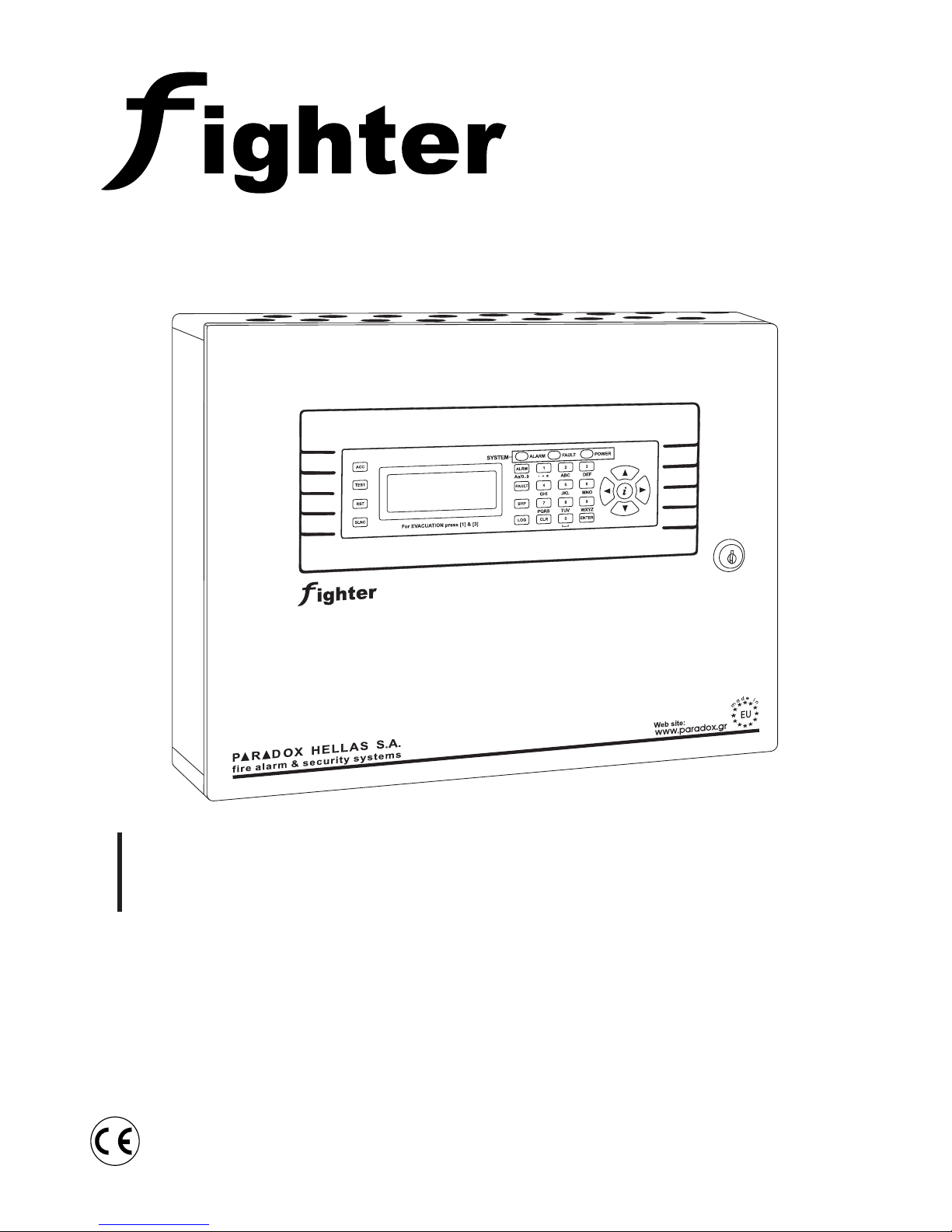
Advanced Analogue Conventional Fire Alarm & Extinguishing Control
Panel BUS Technology 8 – 72 Zones
Version: 1.0
Revision: 2
ΕΝ 54-2: 1997/Α1: 2006/AC: 1999
ΕΝ 54-4: 1997/Α2: 2006/AC: 1999
ΕΝ 12094-1:2003 (Extinguishing)

Declaration of Conformity
Advanced conventional re alarm control panel Fighter is certied from EVPU (Notied body No.1293) ac-
cording to European Directive CPD (Construction Products Directive 93/68/EEC) with certication number
Νο.1293-CPD-0308 of July 2, 2012.
-Standards:
EN 54-2: 1997/A1: 2006/AC: 1999
EN 54-4: 1997/A2: 2006/AC: 1999
ΕΝ 12094-1:2003 (Extinguishing)
Certicates can be found online at paradox.gr.
Manufacturer's Declaration
The design of the Fighter re panel has been carried out under strict compliance with our ISO9001 quality
management system. It covers software and hardware development and production procedures. All electrical
components have been selected for proper operation of the panel and operate within their ratings when the
environmental conditions outside the cabinet comply with class 3k5 of EN 60721-3-3.
IMPORTANT INFORMATION
Warranty
Paradox Hellas warrants its products to be free from defects in materials and workmanship under normal
use for a period of two (2) years (the “Warranty Period”) from the production-delivery date, identied by date
code(s) indicated on the products. Because Paradox Hellas does not install or connect the products and be-
cause the products may be used in conjunction with products not manufactured by Paradox Hellas, Paradox
Hellas cannot guarantee the performance of the re alarm system and shall not be responsible in any way
whatsoever for faulty installation or connection.
RoHS directive compliance
The EC RoHS guideline has been released in order to reduce the heavy metal load in electrical and
electronic products caused by e.g. lead and mercury. All manufacturers are obligated to provide only
RoHS-compliant products to the European market, effective from July 1st, 2006.
Paradox Hellas hereby states that Fighter panel is fully compliant with RoHS 2002/95/EC directive.
Disposal of your old appliance
1. When this crossed-out wheeled bin symbol is attached to a product it means the product is covered
by the European Directive 2002/96/EC.
2. All electrical and electronic products should be disposed of separately from the municipal waste
stream via designated collection facilities appointed by the government or the local authorities.
3. The correct disposal of your old appliance will help prevent potential negative consequences for the
environment and human health.
4. For more detailed information about disposal of your old appliance, please contact your city ofce,
waste disposal service or the shop where you purchased the product.

3
Fighter - Advanced Analogue Conventional Fire Alarm & Extinguishing Control Panel
TABLE OF CONTENTS
1. Introduction 4
2. System operation & Features 4
2.1 Keyboard description 4
2.1.1 Data entry operation 6
2.2 Access Levels 7
2.3 Users (master / normal, installer) 8
3 System Information and status 8
3.1 Zone descriptions (ALM1.1) 9
3.2 Zones overview (Zone states) (ALM1.2) 9
3.3 Zone conguration (ALM1.3) 10
3.4 Installed modules, Module Identication (ALM1.4) 10
3.5 Power levels (ALM1.5) 12
3.6 System info (ALM1.6) 12
3.7 Contact info (ALM1.7) 12
4. Access Level 2 (A.L.2) 13
4.1 Evacuation (ALM2.1) 13
4.2 Zone Bypasses (Zone disablements) (ALM2.2) 13
4.3 Relay Bypasses (ALM2.3) 14
4.4 Bypass Information Screens 14
4.5 User’s Code (ALM2.4) 15
4.6 Zone Descriptions (ALM2.5) 15
4.7 Periodic Test (ALM2.6) 15
4.8 Time/Date Adj. (ALM2.7) 16
4.9 Walk Test (ALM2.8) 16
4.10 Intellizone Cancel (ALM2.9) 17
FIGHTER Fire Alarm Control Panel Operation Summary 18

4User Guide
1. Introduction
Thank you for purchasing the Fighter Fire Panel. The panel's main design goal was low
cost (using conventional detectors) high modularity and exible, easy installation with
the use of a 4 wire system interconnect bus.
The Fighter panel is an advanced multipurpose analogue conventional re alarm panel.
It is expandable by means of modules that interconnect with 4 wire bus system. This
allows the panel to be expanded up to 72 re alarm zones, 72 relays and 8 keyboards.
It can also be used for re extinguishing applications.
The panel is fully customizable via a user interface from the keyboards. All parameters
are displayed with hierarchical menus in 3 different access levels in an easy to under-
stand and use manner. The system general status can be easily viewed at a glance
from the led indicators on the keypads and the user can retrieve more information from
the LCD character display and perform actions using the keyboard.
The layout and operation is designed with the user in mind and meant to be user friend-
ly. The menus are designed to be logical and easily accessable.
2. System operation & Features
2.1 Keyboard description
Figure 1. Fighter keypad
Each keypad (Figure 1) has several buttons with some having different functions de-
pending on the system’s state. The following table summarizes each key's functionality.
The following table summarizes each key’s functionality:
[ACC] Button/Indicator
Enters access level 2 or 3. The corresponding access code is
required.
Factory default access codes are "2222" and "3333" for access
levels 2 and 3 respectively.
[TEST] Button/Indicator
Tests the keypad by turning on all LEDs, the buzzer and dis-
play a test pattern on the LCD screen.
NOTE: The TEST LED which is combined with the test button,
is also used as communication status indicator. When the LED
is lit the keypad is sending data to the main board.

5
Fighter - Advanced Analogue Conventional Fire Alarm & Extinguishing Control Panel
[RST] Button/Indicator
Resets the panel’s state including alarm zones, faults etc. (needs
access level 2 or 3).
[SLNC] Button/Indicator
Silences alarms or faults (needs access level 2 or 3).
<ALRM>
(Aa / 0..9)
Button
Displays the system's ALARMS in two different screens. The
rst press shows a list of zones in Alarm; by pressing the button
again the zones overview screen is shown. Further presses of
the <ALRM> button alternates between these two screens.
Alternative function: During text input eld editing (access
level 2 & 3 programming), changes character entry mode from
numeric to T9 (text entry mode as used on mobile and telephone
devices).
[BYP] Button/Indicator
Displays the system's disablements in two different screens. The
rst press shows a list of bypassed zones; by pressing the button
again the zones overview screen is shown. Further presses of
the [BYP] button alternates between these two screens.
<FAULT> Button
Displays the system’s FAULTS in two different screens. The
rst press shows a list of zones in fault; by pressing the button
again the zones overview screen is shown. Further presses of
the <FAULT> button alternates between these two screens.
Alternative function: During text input eld editing (access
level 2 & 3 programming), deletes the character that the cursor
is over.
<LOG> Button
Shows the log events from the main board. While in the LOG
screen the user can navigate through the log using the arrow
keys (UP=RIGHT=get next log and DOWN=LEFT=get previ-
ous log).
<CLR> Button
Returns to the previous menu or to main menu depending the
current menu.
<ENTER> Button
Selects an option/menu or submits a change during editing.
<NUM PAD>
(keys 0-9)
Button
Keys use for data entry and menu item selection. They can be
operated either in numeric mode or in T9 (text and numbers)
entry mode.
< >
(info key)
Button
Displays help information about a menu or action. In the main
screen it displays the Menu of Access Level 1 (informational).
<ARROW KEYS> Button
Navigate through menus, lists and log.
Table 1. Keyboard description

6User Guide
2.1.1 Data entry operation
The LCD and Keypad are used in various operations for data entry such as zone de-
scriptions, dates, numeric settings etc. During data entry mode a designated area on
the LCD is used for the input. The LCD characters allocated for the data eld are en-
closed in square brackets Figure 2. If the length of the data is greater than the available
LCD character space, horizontal scrolling takes place. In this case the Left or Right (or
both) square brackets enclosing the data are changed to "less than" or "greater than"
signs indicating the direction of existing but not visible characters.
The data entry takes place in two different modes:
- Numeric data entry: The keypad is in numeric mode, and every time a key is pressed
the corresponding number is produced on the screen.
- T9 entry mode: Each key has a set of characters (4 or 5) that are selected by prompt-
ly pressing the same key as many times needed. The characters allocated to each key
are printed above them on the keypad mask (Figure 1). This mode is very popular with
cellular phones and used for SMS text messaging.
>Data entry________]
<ata entry field Dat]
[eld Data entry fiel>
Figure 2. Data entry examples
The operation of the keys during data entry is as follows:
<0> to <9>: Characters 0-9, A-Z and symbols.
<ALRM>: Switch keypad mode between Numeric and T9.
<FAULT>: Delete the character that the cursor is over.
<CLR>: Cancel editing and exit data entry mode.
<ENTER>: Accept editing saving data eld and exit data entry mode.
<Left Arrow>, <Right Arrow>: Move cursor in the corresponding direction.
<Up Arrow>, Down Arrow>: Increase or decrease the character or numeric value
highlighted by the cursor.

7
Fighter - Advanced Analogue Conventional Fire Alarm & Extinguishing Control Panel
2.2 Access Levels
The re panel during it's operation is said to be in a specic access level; from 1 to 3.
Each access level denes what operations are allowed and what are protected. Each
Access Level may be activated or "entered" by entering the requested code (or PIN) for
the corresponding access level. Factory default access codes are "2222" and "3333"
for access levels 2 and 3 respectively. There are operations and menus that require an
elevated access level (other than 1, see Table 2 for operations summary). If the user
initiates an operation that requires increased access level the system will prompt for the
PIN, and once successfully entered, it will execute the operation and return to access
level 1. Alternatively the user may request the menus of access level 2 or 3 (by pressing
[ACC] key). In this case he/she will be prompted for the PIN and once successful, the
access level menu will be displayed for further operations. While the access is granted,
any operation under the specic access level is possible and the user will not be asked
for the PIN every time. Elevated Access levels are canceled if the user willingly exits (by
pressing <CLR>) or the menu times out due to user inactivity.
The Table 2 summarizes the basic functions and their required access level.
Basic Function Access Level Required
Access level 2 menu A.L.2 / A.L.3
Access level 3 menu A.L.3
Zones Reset A.L.2 / A.L.3
Silence A.L.2 / A.L.3
Bypass A.L.2 / A.L.3
Test A.L.1
Log A.L.1
Display alarms A.L.1
Display Faults A.L.1
Display bypasses A.L.1
Evacuation A.L.1 / A.L.2 / A.L.3
System Programming A.L.3
Date/Time set A.L.2 / A.L.3
Walk Test A.L.2 / A.L.3
Periodic Test Conrmation A.L.2 / A.L.3
Table 2. Basic functions required access levels
Since the system may have more than one installed key display units, an interlocking
system ensures that only one is active at access levels 2 or 3. In this case the [ACC]
key is constantly lit on the active key display. On the rest of the key display units the
[ACC] key is producing three short ashes every 5 seconds. The user may press [ACC]
on a locked key display to nd out which unit is currently in elevated access mode.
Figure 3 shows the information screen. To ensure that the system will never be locked
untenanted in elevated access level, it detects user inactivity and drops to access level
1 automatically after a period of 30 seconds.

8User Guide
Display 4 logged
at access level 2.
Figure 3. Access denied information screen
2.3 Users (master / normal, installer)
The re panel apart from having two elevated access levels, also provides 9 users for
access level 2; one Master and 8 Normal users. All users are limited to access level 2
operations (including the Master user). The Master user though may change the PIN
codes for himself as well as all 8 Normal Users. Each Normal user can change only
him/her own PIN. This system ensures that the Master user can have control over who
is authorized to operate the system without disclosing his/her own PIN. This ensures
future user control in the case of access revocation for a specic user.
The Access level 3 (A.L.3) user has full control over the entire system, including the
Master and Normal user codes, programming and operation of the system. In other
words Access level 3 (A.L.3) may perform operations that belong to the Access level 2
(A.L.2) group.
3 System Information and status
1.Zone descriptions
2.Zone overview
3.Zone configuration
4.Installed modules
Figure 4. Access Level 1 menu screen
In Access level 1 (A.L.1) the user may request through the level's menu a number of
information screens. The A.L.1 menu is shown by pressing the < > button while on the
main screen (Figure 4). The items of the A.L.1 menu is as follows:
Zone descriptions1.
Zone overview2.
Zone conguration3.
Installed modules4.
Power levels5.
System info6.
Contact info7.
Pressing < > on some screens will display a help screen with useful related informa-
tion.

9
Fighter - Advanced Analogue Conventional Fire Alarm & Extinguishing Control Panel
3.1 Zone descriptions (ALM1.1)
This screen shows a scrollable list of all installed zones along with their description.
Selecting a zone (with the up/down arrows) and pressing <ENTER> will request A.L.2
code and enter the zone description editor.
————= ALL ZONES =————
>1: ZONE 01
2: ZONE 02
3: ZONE 03
Figure 5. Zones descriptions screen
3.2 Zones overview (Zone states) (ALM1.2)
X034RLSD
_________________
____________________
____________ NO FLTR
Figure 6. Zones overview screen
This screen shows an overview of all the installed zones. Each zone is represented by
one LCD character. Each character space may have one of the following characters
signifying a zone condition:
||: Zone active and idle.
|Z|: Zone is in fault condition.
|R|: Relay corresponding to the zone is in fault.
|F|: Zone and corresponding relay in fault.
|A|: Zone is in alarm.
|I|: Intellizone is in pre-alarm state.
|a|: Zone is in alarm and corresponding relay is bypassed.
|z|: Zone is bypassed.
|r|: Relay is bypassed.
|b|: Zone and corresponding relay are bypassed.
|X034|: Cross-zone area in prerelease. 034 is shown as an example and indicates the
time remaining before the release state is reached (in this case 34 seconds).
|H034|: Cross-zone area in prerelease state and HOLD button pressed. 034 is shown
as an example and indicates the time remaining before the release state is reached (in
this case 34 seconds).
|RLSD|: The cross-zone area is in the Released phase.
|S|: Cross-zone stopped from HOLD button in Pre-released phase.
|HOLD|: Cross-zone in the Released phase but stopped from the HOLD button.

10 User Guide
While in the zones overview screen the bottom right of the screen shows one of the
following labels meaning:
|NO FLTR|: No Filter. All conditions may appear on the character spaces.
|ALARMS|: Only alarm indications are displayed for each zone (character |A|, |I|, |a|
and cross-zone indications (|X034|)).
|FAULTS|: Only fault indications are displayed for each zone (characters |Z|, |R| and
|F|).
|BYPASS|: Only bypass indications are displayed for each zone (character |z|, |r| and
|b|).
These lters may be activated by pressing the <ALRM>, <FAULT> and [BYP] buttons
while in the Zones overview screen.
3.3 Zone conguration (ALM1.3)
CCHE
________________
____________________
______________
Figure 7. Zone conguration screen
Like the zones overview, this screen uses the same representation of one character
space for each installed zone. Each character space represents the conguration that
applies to the zone. The following character have the meaning:
||: Normal zone.
|C|: The zone belongs to a cross-zoning group (4 zones) and is one of the two detector
zones.
|E|: Extinguish button.
|H|: HOLD button input.
|i|: The zone belongs to an Intellizone group.
3.4 Installed modules, Module Identication (ALM1.4)
M12345678
RL: _______
ZM: ______
KD: ___ ____
Figure 8. Installed modules screen
This screen represents an overview of the installed modules (expansions) with each
LCD character representing one module. The top LCD line forms an index with the
module ID. The next 3 lines display the Relay expansion modules (|RL|), Zone modules
Table des matières
Autres manuels Paradox Hellas S.A. Panneau de contrôle


