
OptiSense PaintChecker Mobile Manuel utilisateur

PaintChecker Mobile
Quick Start Guide
Version 23.02

Scope of delivery
❶Sensor with connection cable
❷Gray glass reference
❸Controller
❹Charger
❺USB power supply
❻Two sets of 4 rechargeable batteries
❼Shoulder strap
❽USB data cable
❽USB drive with user manual,
OS Manager software, etc.
Setup
Your PaintChecker Mobile is a portable
hand-held instrument for non-contact
coating thickness testing of wet,
powderous or solid coatings. The photo-
thermal method allows the coating
thickness to be measured without
touching the surface.
Controls and connectors
❶Display
❷Function keys
❸Measuring button
❹On/O button
❺Sensor connector
❻USB port
Safety instructions
Caution:
The PaintChecker Mobile uses short,
intense light pulses (also in the non-visible
range) for measurement. Please observe
the following safety instructions:
• Do not look into the sensor
• Do not point the sensor at the skin
• Do not point the sensor at ammable
material
• Do not operate a damaged sensor
• Do not use the device in potentially
explosive atmosphere (ATEX)
Please also observe the comprehensive
safety instructions in the operating
instructions for the mobile handheld
devices in point 2.
Safety instructions
Page 2 | Version 23.02 Version 23.02 | Page 3
PaintChecker Mobile
Quick Start Guide
Setup
❹
❺
❻
❼
❷
❸
❸
❽
❶
❹
❻
❷
❺
❶
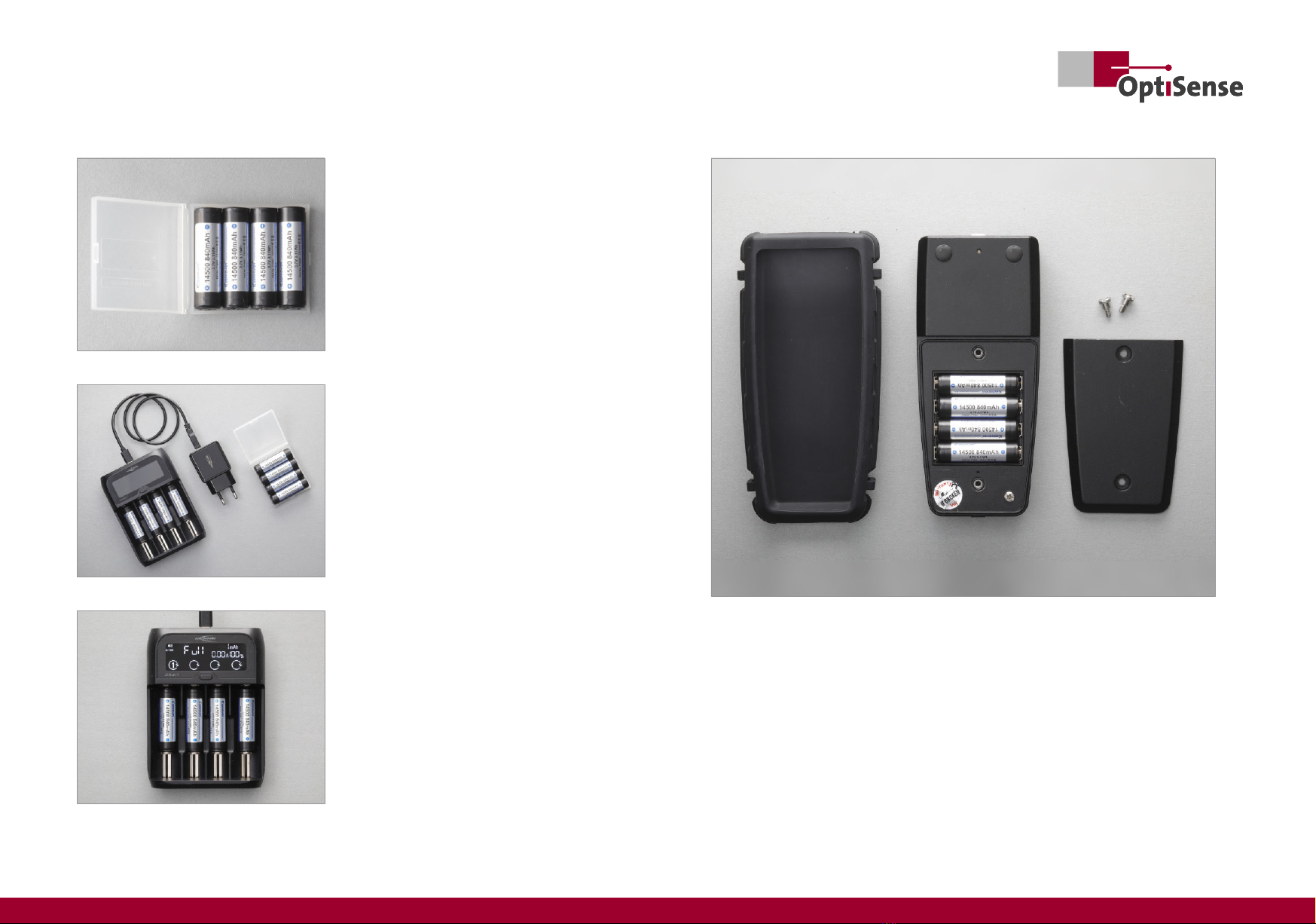
• Take the included batteries out of the
transport box
• Insert batteries into the charger (observe
polarity; always charge all four batteries)
• Connect charger to the USB power supply
• Plug USB power supply into a mains
socket
• Charging starts automatically
Once the charger display shows that
charging is complete, you can remove the
batteries.
Battery charging
Your PaintChecker Mobile is powered by
rechargeable lithium-ion batteries.
Caution: Do not insert AA batteries, NiCd
or NiMH rechargeable batteries of the
same size into the controller or charger
Insert batteries
• Pull the controller out of the rubber
sleeve
• Unscrew the battery cover on the back
• Insert the batteries (observe polarity)
• Attach the battery cover and screw it
down
• Put the rubber sleeve back on
Page 4 |Version 23.02 Version 23.02 | Page 5
PaintChecker Mobile
Quick Start Guide
Setup
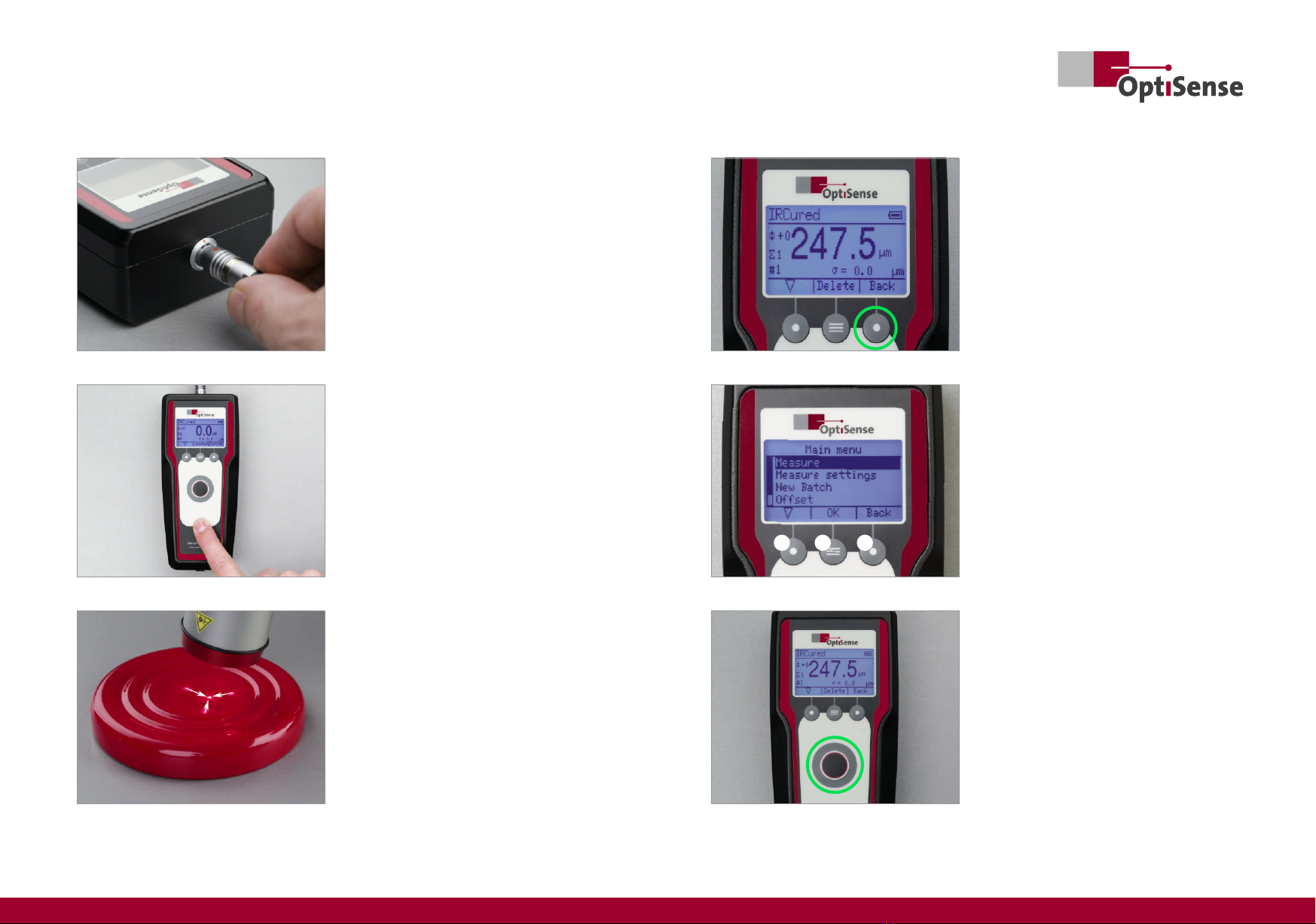
Taking a measurement
• Press the measuring button on controller
or sensor to start the measurement
• Do not shake the sensor, keep the
measuring distance aligned
• A beep indicates that the measurement
is complete
• The display shows the coating thickness
measurement result
Power up and align sensor
• Press and hold the On/O button until
the diplay shows the measurement view
• The top display line indicates the
measuring prole (application; gure left:
IR Cured) and the battery status
• Activate the sensor by pressing the
measuring button once
• The three light spots of the sight appear
• Align the measuring distance so that the
three spots meet in the centre
The PaintChecker Mobile consists of a hand
sensor and a controller, connected to each
other by a cable:
• Take controller and sensor out of the
case
• Plug the sensor cable into the controller
• The red dots on sensor plug and
controller socket have to match
First measurements
Page 6 |Version 23.02 Version 23.02 | Page 7
PaintChecker Mobile
Quick Start Guide
Navigation
In measurement view, you can switch to the
Main menu by pressing the Back button.
The Back button toggles between Measure-
ment view and Main menu.
Your PaintChecker Mobile is operated via a
menu system and three function keys:
1. Select a menu item (▽)
2. Conrm selection (OK)
3. Return to the parent menu (Back)
The function is shown in the display above
the respective key.
❷❶ ❸

Set language
• Switch to Main menu
• Select Instrument Settings and conrm
with OK
• Select Language and conrm with OK
• Select a language from the list and
conrm with OK
Menu operations
Change measuring unit
You can choose to display the measured
coating thickness in 1/1000 millimetres (μm,
microns) or 1/1000 inch (mils):
• Switch to Main menu
• Select Instrument Settings and conrm with
OK
• Select Units and conrm with OK
• Select microns or mils and conrm with OK
Change application
Depending on the measuring task (e.g.
freshly applied or baked powder coating),
you need to select a suitable measurement
prole, the so-called application:
• Switch to Main menu
• Select Measure settings and conrm with
OK
• Select Application and conrm with OK
• Select Load and conrm with OK
• Select an application from the list and
conrm with OK
After returning to measurement view,
the selected application is displayed in the
head line.
Page 8 |Version 23.02 Version 23.02 | Page 9
PaintChecker Mobile
Quick Start Guide
Statistical analysis
All measurements are recorded in a batch
and statistically evaluated. The display
shows the number of measurements taken
(#) and the statistical key gures. You can
scroll through the statistics parameters with
the select button:
σ: Standard deviation of the measurements
⤒: Maximum value
⤓: Minimum value
x
: Mean value
You can reset the batch and statistics by
selecting New Batch in the Main menu (see
below).

Self-test
You can check proper operation of the
PaintChecker Mobile using the included
gray glass reference:
• Switch to Main menu
• Select Instrument Settings and conrm
with OK
• Select Check instrument and conrm with
OK
• Place the sensor rmly on the gray glass
reference and start the test by pressing
OK twice
If both Power and Test Function are
indicated as OK, the self-test has passed
Turn sound on/o
By factory default, the PaintChecker Mobile
acknowledges each measurement with a
beep. You can turn the sound o in Instru-
ment Settings:
• Switch to Main menu
• Select Instrument Settings and conrm
with OK
• Select Sound and conrm with OK
• Select On or O and conrm with OK
Menu operations
Power o
To turn o the PaintChecker Mobile, press and
hold the On/O button until the display goes
blank.
Factory reset
A factory reset deletes all batches and user-
installed applications and returns all Paint-
Checker Mobile settings to their factory
defaults:
• Switch to Main menu
• Select Instrument Settings and conrm
with OK
• Select Factory reset and conrm with OK
• Start the Factory reset with OK
Page 10 | Version 23.02 Version 23.02 | Page 11
PaintChecker Mobile
Quick Start Guide

OptiSense GmbH & Co. KG
Annabergstraße 120
45721 Haltern am See
GERMANY
Tel. +49 2364 50882-0
Mail [email protected]
Web www.optisense.com
OptiSense is certied according
DIN EN ISO 9001:2015
WEEE-Reg.-No. DE 69647320
Table des matières
Autres manuels OptiSense Équipement de test

Manuels Équipement de test populaires d'autres marques

SMART
SMART KANAAD SBT XTREME 3G Series Manuel utilisateur

Agilent Technologies
Agilent Technologies BERT Serial Manuel utilisateur

Agilent Technologies
Agilent Technologies N3280A Manuel utilisateur

Vernier
Vernier Go Direct Voltage Manuel utilisateur

Lifeloc
Lifeloc R.A.D.A.R. Manuel utilisateur

Fluke
Fluke T5-600 Instructions d'utilisation et d'installation


