
Oppo SONICA Manuel utilisateur
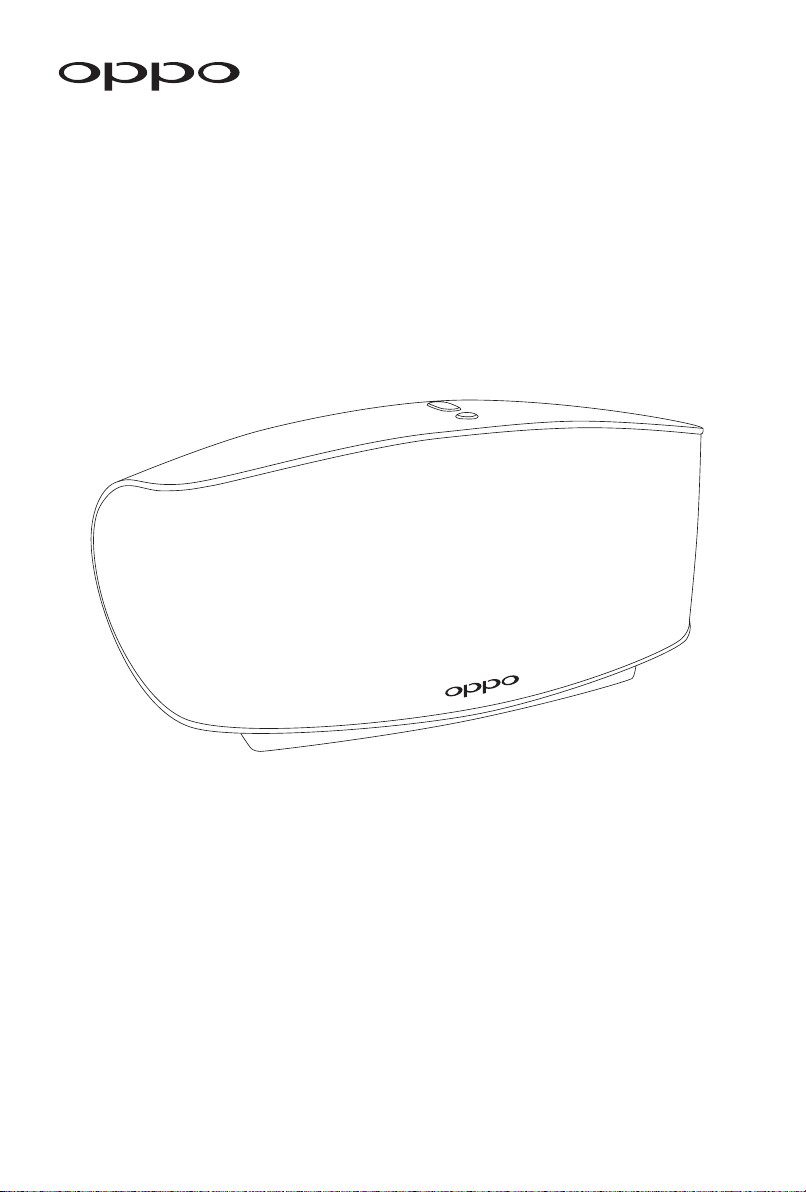
Sonica
User Manual


01
Introduction
OPPO Sonica is a Wi-Fi speaker designed with state of the art technology and
features delivering unbeatable sound quality in a compact package. Its ability to
be placed virtually anywhere you have a power outlet makes it perfect for high
resolution, multi-room music streaming that anyone with a smartphone or tablet
can easily use.
Sonica comes equipped with both Wi-Fi and Bluetooth capabilities, allowing you
to enjoy the benets of each of these technologies. With Wi-Fi, you get the benet
of controlling the speakers from anywhere in your home, higher quality sound, and
the ability to stream to multiple speakers throughout your home. With Bluetooth,
you have the convenience of a quick and simple connection for locations where
Wi-Fi is not available.
Sonica is controlled via a dedicated app that can stream high resolution audio les
up to 192 kHz / 24-bit from your mobile devices, USB drives, DLNA servers, or NAS
drives. Sonica supports AirPlay and DLNA when connected via Wi-Fi or Ethernet,
Bluetooth, and direct connection via a 3.5 mm analog input.
Sonica’s lifelike and dynamic sound is unparalleled in its class. Its curved shape is
purposefully designed for a wider sound eld and its internal reinforcement ribs
for maximum stability. Sonica’s amplifiers are specially matched to each of the
speaker drivers, and each driver is optimally integrated using a DSP chip to achieve
the best sound balance.
Sonica also features bass radiators, which are unique for a product in this price
category. The bass radiators work to cancel out unwanted vibrations, ensuring
that Sonica does not move or shake when music is played at very high volumes. In
addition, Sonica features multiple sound optimization presets that can be used to
tune the speaker’s sound for dierent room environments and listening preferences.

02
About Sonica
1 2 3 4
5
6
7
8
9
1. Ethernet LAN Port
2. USB Type A Input
3. AUX Input
4. Power Cord Connector
5. Bluetooth Status Indicator
6. Speaker Status Indicator
7. Volume Up
8. Volume Down
9. Mute
Speaker Status Indicator Description of Speaker Status
Flashing Blue
Sonica is ready for you to set up its network
connection. When connecting via Wi-Fi, you will
need the password for your Wi-Fi network.
Flashing Orange
Sonica is connecting to the network. This will occur
during initial configuration, after power-cycling,
when adding another speaker to the network, or
after a network interruption.
Flashing White Sonica is updating the rmware.
Solid White Sonica is connected to the network and ready to use.
Solid Orange Mute is enabled, so there is no audio output.
03
Setting Up
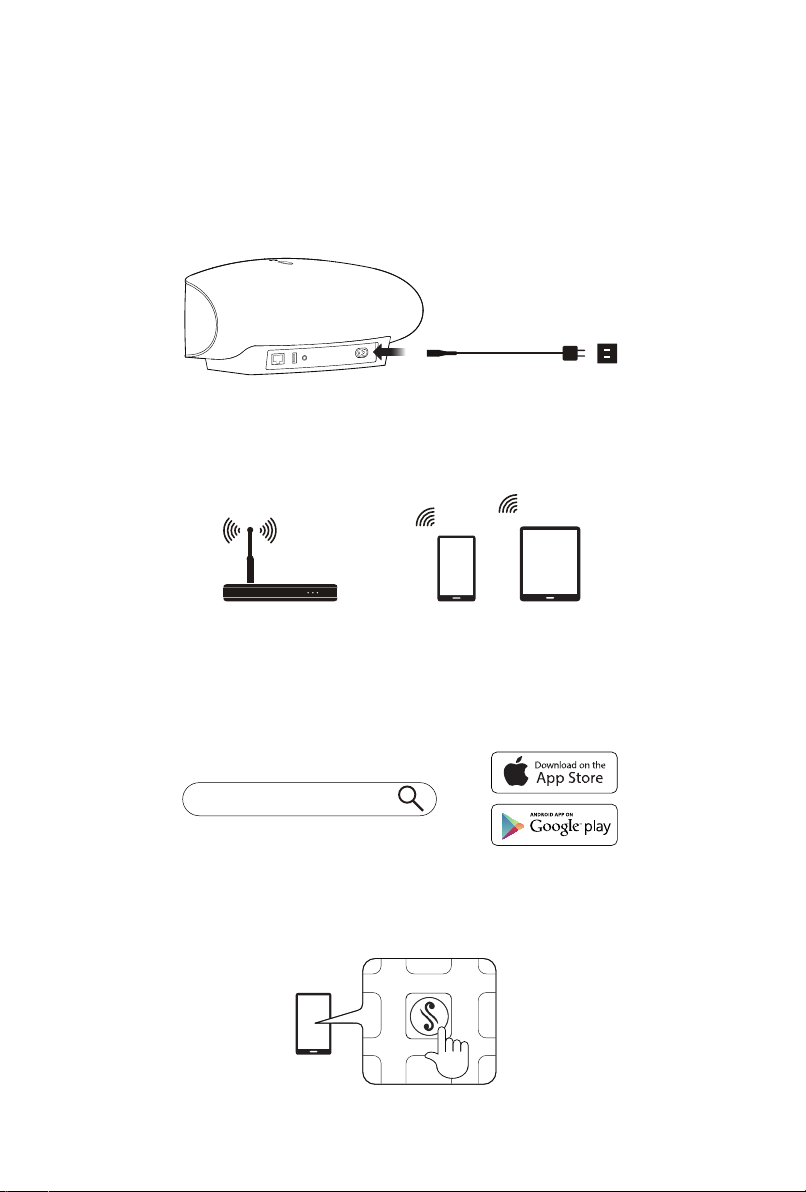
Step 1 Connect the included power cord into the Sonica speaker and plug it in to
a power outlet.
Step 2 Connect a smartphone or tablet to your network.
Step 3 Download the Sonica app from the App Store or Google Play Store using
your smartphone or tablet.
Step 4 Open the Sonica app and follow the in-app guide to begin the setup process.
Smartphone TabletRouter
Sonica
04
Music Playback
Playing Music from the Sonica App
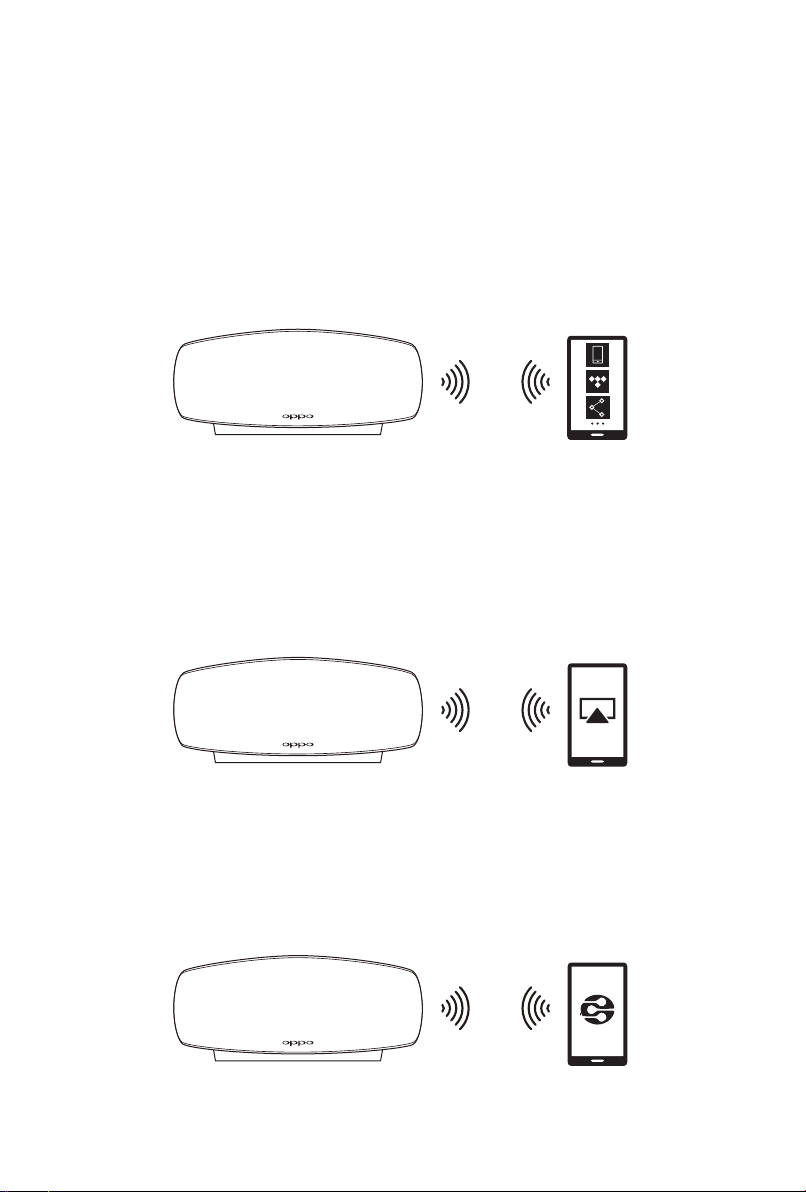
Once the Sonica speaker is set up, use the Sonica app to play music stored on your
mobile device, from a supported music streaming service (e.g. TIDAL), or from a
media server on your home network.
AirPlay
Ensure that your device is on the same network as Sonica. Start playing a song
from your local music library or music streaming app on your iOS device, tap the
AirPlay button in the iOS Control Center and select a Sonica speaker to stream to.
AirPlay supports streaming to one speaker at a time.
DLNA
Ensure that your device is on the same network as Sonica. Open an app that is
DLNA compliant, start playing a song in the app and select a Sonica speaker to
cast to. DLNA casting support will vary for dierent devices and apps.
05
AUX
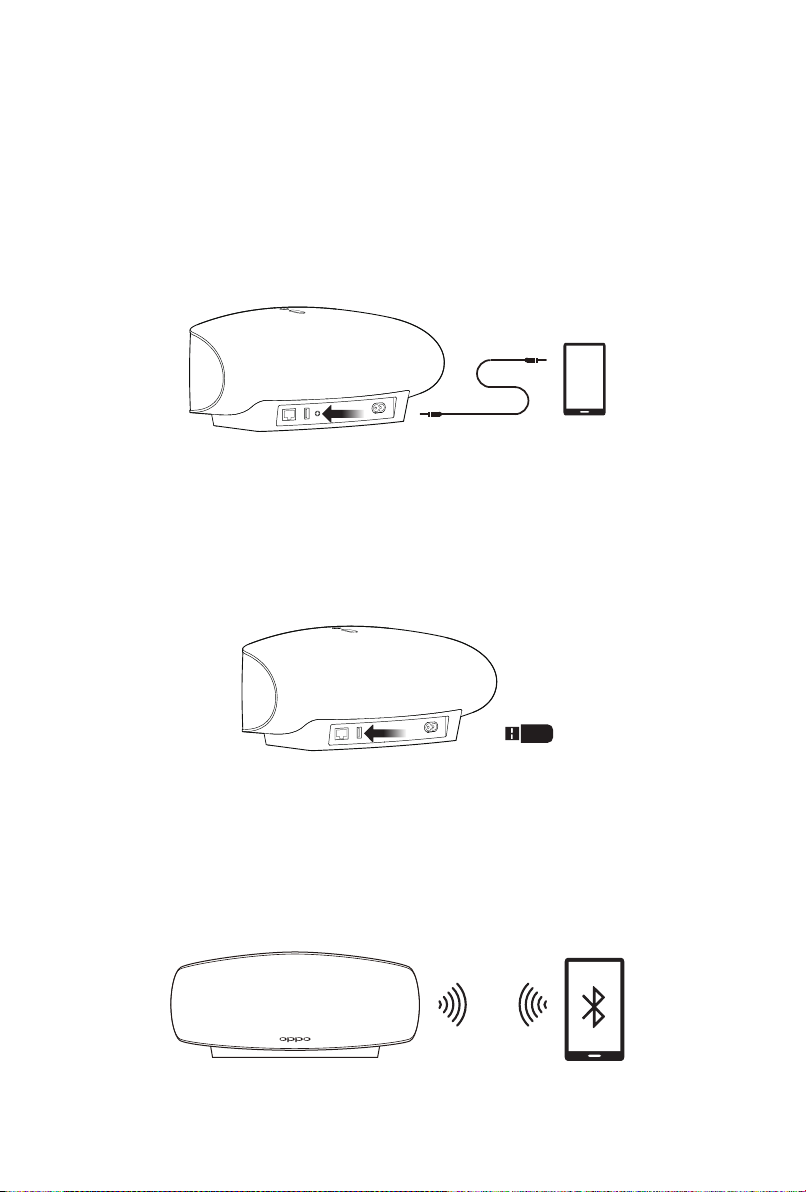
Connect a 3.5 mm stereo audio cable (not included) between the AUX Input
connector of Sonica and your playback device.
USB
You can transfer media files from your computer to a USB drive and play them
through Sonica. Plug the USB drive into Sonica’s USB port in order to browse music
using the Sonica app.
Bluetooth
Enable Bluetooth on your device and then pair it with Sonica. Play music from your
device either through its local library or other apps.
06
To pair Sonica to a device via Bluetooth, activate Sonica’s pairing mode by pressing the
and buttons on the speaker simultaneously or by setting Pairing
Mode to ON under Settings within the Sonica app. When Pairing Mode is set to
ON, the Bluetooth status indicator will ash white for two minutes and the speaker
can be paired with a Bluetooth device. When Sonica is in pairing mode, enable
Bluetooth on your device and pair it with Sonica; the Bluetooth status indicator will
become solid white when it has been paired and connected successfully. Sonica
will leave its pairing mode after two minutes if pairing is unsuccessful.
For devices that have already paired with Sonica, enable Bluetooth on your
portable device and choose Sonica under paired devices to connect and start
streaming.
Bluetooth Status Indicator Description of Bluetooth Status
OFF Pairing mode is o. Sonica is not visible
to unpaired devices.
Flashing White Sonica is in pairing mode.
Solid White A Bluetooth device is connected.
07
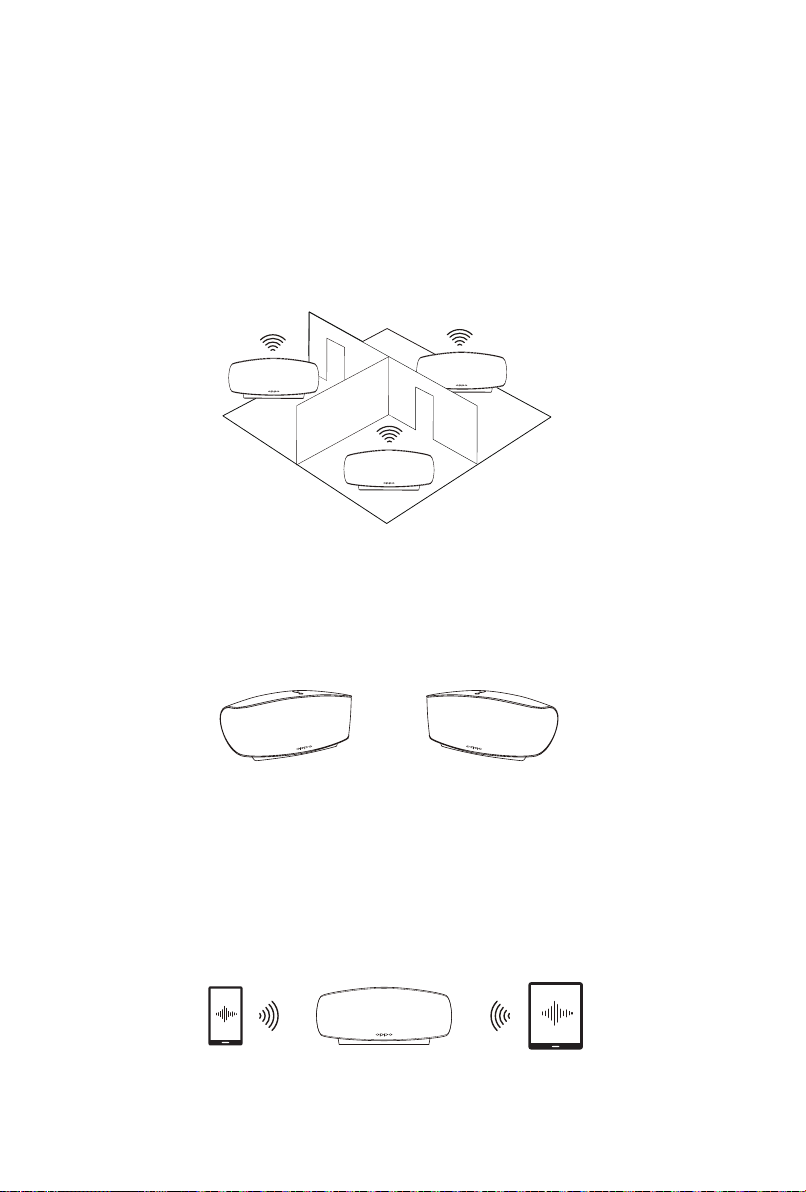
Using Multiple Speakers
Multi-Room Expansion
By conguring the speakers into dierent groups, you are able to play the same
music on multiple speakers simultaneously or dierent music on dierent speakers
simultaneously.
Control with Multiple Devices
Sonica can be controlled by multiple devices simultaneously, whether it is your
smartphone or tablet.
Stereo Configuration
Enjoy stereo sound by choosing two of the same model Sonica speakers and
conguring them to play as a stereo pair using the Sonica app.

08
Additional Functions
Troubleshooting
Sound Optimization
For the best listening experience, Sonica includes a number of sound optimization
presets that help to ensure that Sonica sounds great in any listening environment.
Just answer a few questions about your room size and speaker location, and the
Sonica app will recommend a suitable preset.
Indicator Lights
You can enable and disable the speaker status indicator, Bluetooth status indicator,
and mood light in the Sonica app. The mood light has several display modes to
choose from, and the mood light’s color can be adjusted as well.
Sleep Timer
You can use the Sonica app to set a sleep timer to stop playback after a certain
amount of time for each speaker or the entire group.
Reconfigure Network
If you have not yet configured Sonica and the speaker status indicator is not
flashing blue, press the and buttons simultaneously to reset the
speaker so that you can recongure its network connection.
Moving Sonica to a Different Network
If you move Sonica to a dierent Wi-Fi network, you will need to recongure its
network settings. Please follow the Recongure Network procedure above.
For more information, please visit www.oppodigital.com/Sonica/help.
Autres manuels pour SONICA
3
Table des matières
Autres manuels Oppo Intervenants


Manuels Intervenants populaires d'autres marques


Peavey
Peavey DTH 218 Manuel utilisateur

Avantree
Avantree Pluto Air Manuel utilisateur

Morel
Morel Integra Series INTEGRA OVATION 4 Manuel utilisateur

Bose
Bose SoundLink Wireless Music System Manuel utilisateur

Rocksteady
Rocksteady Stadium Manuel utilisateur

Bowers & Wilkins
Bowers & Wilkins 4 Manuel utilisateur


