
OpenVox FA100 Manuel utilisateur

FA100 User Manual
OpenVox Communication Co. Ltd | www.openvox.c
1
OpenVox FA100 User Manual
OpenVox Communication Co. Ltd.
Address: F/2, Building No.14,Shangsha Science & Technology Park,
No.9283,BinheRoad, Futian District, ShenZhen ,Guangdong
518048,China
Tel: +86-755-82535095, 82535461,
Fax: +86-755-82535174
Email for Sales: [email protected]
Email for Technical Support: [email protected]
Business Hours: 9:00AM-18:00PM from Monday-Friday
Thank You for Choosing OpenVox Products!

FA100 User Manual
OpenVox Communication Co. Ltd | www.openvox.c
2
Table of Contents
FA100 Description ................................................................................ 3
FA100 Features..................................................................................... 4
FA100 Installation Guide ...................................................................... 5
Hardware Connection 5
Device Driver Detection 6
FA100 Operating Instruction 7
FA100 Software Installation ............................................................... 10
Software Download 10
Software Installation 10
Explanation of Configuration Files 11
Steps to Use 12
Technical Support............................................................................... 14

FA100 User Manual
OpenVox Communication Co. Ltd | www.openvox.c
3
FA100 Description
Most of the time, users need to reconnect PSTN line to analog
telephone to make it work when the PBX Sever faces a power failure. It
may cause only a little extra work for people who use simple and small
PBX servers. But for those who run complex PBXs in server rooms, it
becomes real problems.
How to eliminate this problem? The release of OpenVox FA100
failover box solves it. The FA100 can automatically switch the PSTN line
to analog telephone when the power of the PBX server has been cut off
and will automatically switch back to normal when the power is on again.
In this way, you will no more need to worry whether the power is cut off.
FA100 is controlled through an Asterisk loadable module
res_failover.so. This module keeps sending “running” signal to FA100
when Asterisk is running. Once Asterisk is down or system power is cut
off, the module will not be able to send out the “running” signal, thus
FA100 will automatically switch to the standby telephone.
FA100 provides a reliable and flexible solution to Asterisk PBX.

FA100 User Manual
OpenVox Communication Co. Ltd | www.openvox.c
4
FA100 Features
Easy installation: Connected to computer or server by USB port. In
order to provide more stable power supply, the number of USB port
connected to hosts is two.
Industry standard USB type B connector.
Support USB 2.0 and 1.1.
Support all compatible analog cards and E1/T1/BRI cards.
Two indicator lights: red and green. Two light, Asterisk and FA100
work normal. Only green lights, Asterisk hangs and FA100 switches
PSTN line to the backup phone.
Support up to 8 standby Analog ports and 2 E1/T1/BRI/Ethernet
Ports.
Supports multiple FA100 devices in one system.
Two network ports. Each network interface is divided into four ports,
A, B, C, D respectively, the port A and B are interconnected. The NET
port of Digital cards can be connected to port A or B. And the other
one port can be connected to our TAP cards to record, so as to meet
your requirement of functional diversification. C and D are connected
to CPE port of Digital cards, D is the port of the primary server, and C
is the standby server. For cable connection, LAN line is connected to
port A or B, D is connected to the main server and C is connected to
backup server.
Supports software watchdog.

FA100 User Manual
OpenVox Communication Co. Ltd | www.openvox.c
5
FA100 Installation Guide
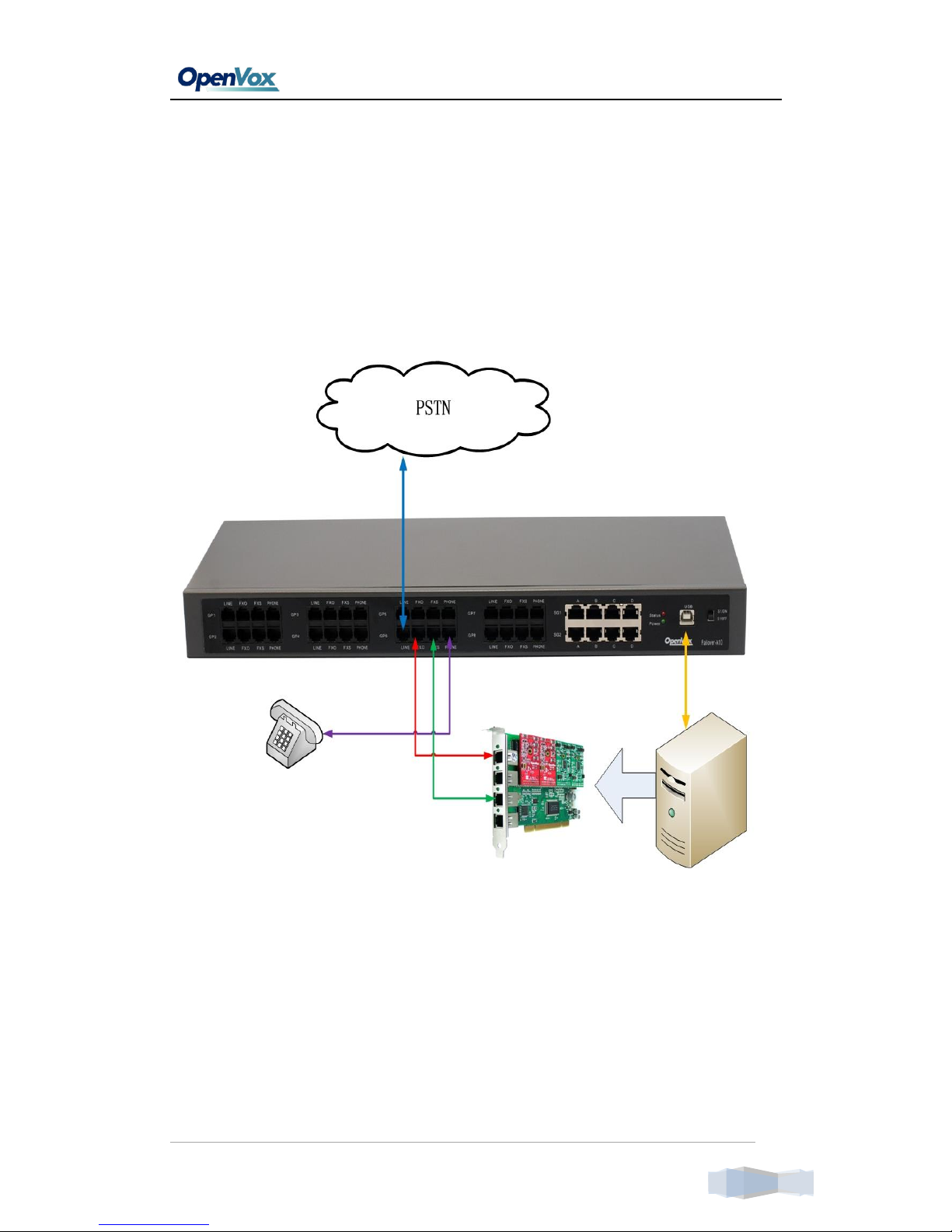
Hardware Connection
FA100 User Manual
OpenVox Communication Co. Ltd | www.openvox.c
6
Device Driver Detection
Usually under Linux, you do not need to install driver program.
Generally system already comes with a USB - to - Serial Drivers support.
Users can run the following command to see if the FA100 has been
recognized or detected by the system.
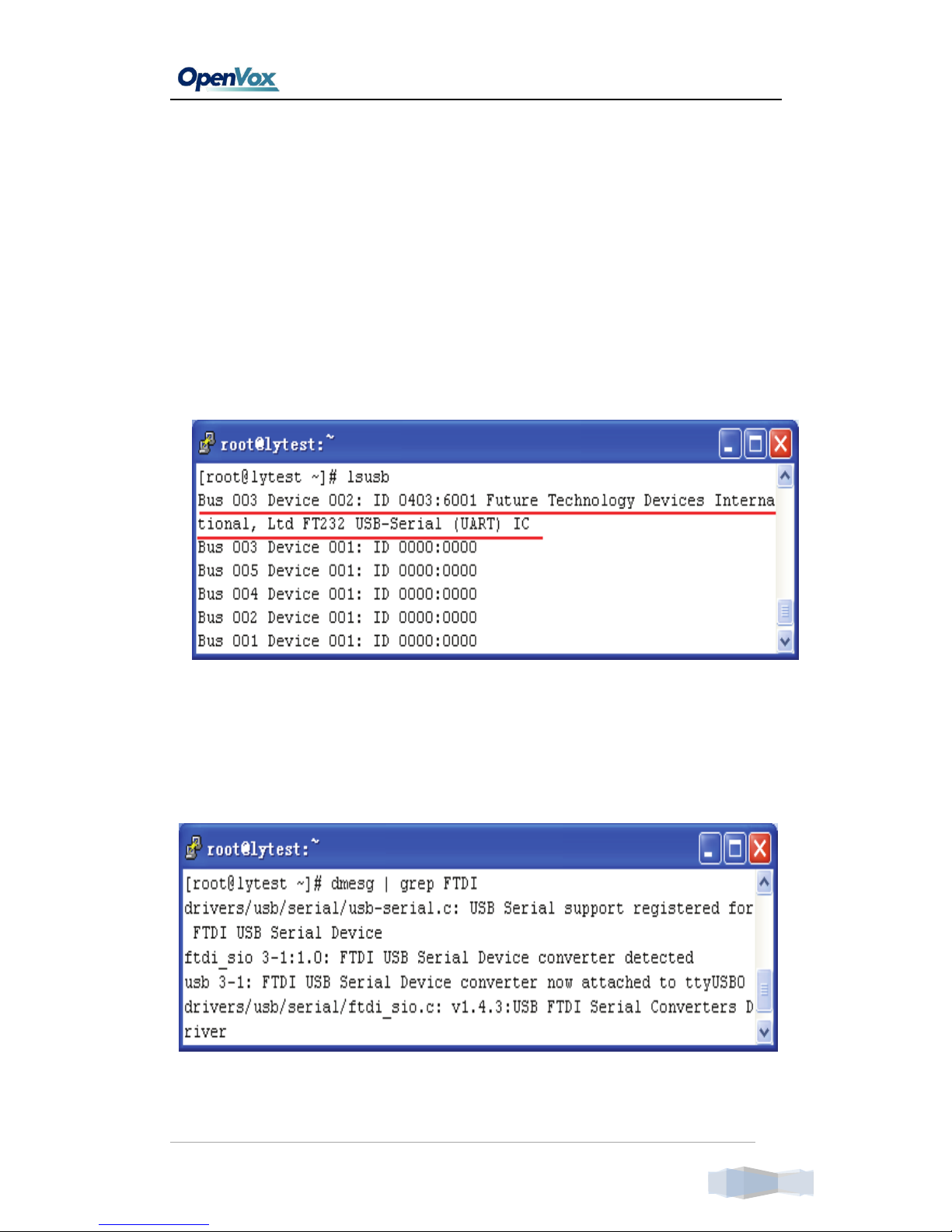
# dmesg | grep FTDI
Users can also run “lsusb”command to check if the FA100 device is
connected.
# lsusb
FA100 User Manual
OpenVox Communication Co. Ltd | www.openvox.c
7
FA100 Operating Instruction
The following picture shows how the FA100 works when the PBX Server
and Asterisk work. The PSTN signal goes from:
1->(blue)2->(red)3->(green)4->(purple)
When dial out from internal, the PSTN signal goes inversely.

FA100 User Manual
OpenVox Communication Co. Ltd | www.openvox.c
8
If the PBX Server stops working (power off) or Asterisk works abnormally,
FA100 will launch automatic switching function, and the PSTN signal goes
as follows:
1->(blue)2->(purple)
When dial out from internal, the PSTN signal goes inversely.

FA100 User Manual
OpenVox Communication Co. Ltd | www.openvox.c
9
The picture below shows FA100 network ports connection, such as the
connection between Network cable, PRI, BRI and port A or B.
When Asterisk normally works, the PSTN signal goes:
1->LAN (red) 2->main network (green)
When Asterisk works abnormally,the PSTN signal goes:
1->LAN (red) 2-> Redundant network (purple)
If FA100 doesn’t receive the "running" signal from the Main Server, then
the internal circuits will be switched to Redundant Server automatically.

FA100 User Manual
OpenVox Communication Co. Ltd | www.openvox.c
10
FA100 Software Installation
Before installation, make sure whether the host system (LINUX) is
running well, whether the DAHDI and Asterisk have been installed well,
whether boards (Analog cards) drivers have been loaded into the system.
If you have bought our cards, but don’t know how to install them, you
can go to our official website to download user manuals. After
everything prepared well, follow next steps.
Software Download
#wget
www.openvox.cn/download/drivers/failover/failover-1.0.1.tar.gz
Software Installation
1)Unzip the file
#tar –xvzf failover-1.0.1.tar.gz
#cd failover
2)Copy the file to res directory under asterisk
# cp res_failover.c /usr/src/asterisk-**/res/
3)Copy the configuration file to /etc/asterisk directory
# cp failover.conf /etc/asterisk/
Table des matières


