Onstep GOTO Manuel utilisateur

OnStep GOTO Quick Start Guide
for Hubble Optics
UP12G/UL16G/UL20G/UL2 G
(R 1.3.1, 10/3/2023)
1 Introduction.................................................................................................................2
2 Hardware Setup...........................................................................................................4
3 OnStep drivers Installation..........................................................................................
4 OnStep GoTo Controller.............................................................................................6
4.1 Power Supply.......................................................................................................9
4.2 LED Operation.....................................................................................................9
4.3 DB9 Encoder Port Connection...........................................................................10
Smart Hand Pad.........................................................................................................11
.1 Initialization Sequence.......................................................................................12
.2 Starting Up.........................................................................................................12
.3 Button Functions................................................................................................12
.4 Use......................................................................................................................13
. Icons...................................................................................................................13
.6 Menu structure 3.x.............................................................................................1
.6.1 Main Menu [center button long press]........................................................1
.6.2 Feature Key menu.......................................................................................20
6 Telescope Encoder Wiring and Setup.......................................................................20
7 Using Browser to Configure and Control the Controller..........................................21
8 Quick Start Operations via OnStep Android App.....................................................27
9 Quick Operation Guide on Sky Safari......................................................................33
10 Quick Operation Guide on Stellarium.....................................................................3
10.1 Quick Operation Guide on Stellarium Mobile Plus.........................................36
10.2 Quick Operation Guide on Stellarium on MS Windows platform...................39
11 Telescope control via ASCOM Planetarium programs...........................................4
12 Smart Telescope Setup via INDI on Raspberry Pi 4B...........................................4
12.1 Smart Scope using stellarmate.........................................................................46
12.2 Smart Scope using ASiair Pro / Plus................................................................46
13 Imaging with ULXXG............................................................................................46
14 Limited Warranty....................................................................................................46
1 Technical Support...................................................................................................47
Appendix A: Motor and Motor Encoder Pin Out.........................................................47
1

1 Introduction
The state-of-the-art OnStep GoTo controller, designed by Howard Dutton, is
extremely powerful and feature-rich. However, this document will only explain the
basic configuration and operation applicable to Hubble ULXXG scopes. For advanced
users who want to explore the full potential of the OnStep controller, please refer to
the OnStep Instruction Wiki.OnStep instruction WiKi
The Hubble OnStep controller supports:
INDI (WiFi) and ASCOM (WiFi, Bluetooth, and USB) under the LX200
protocol.
WiFi 802.11n/g/n connection with a built-in website accessible from any
browser on any platform, and direct WiFi support for Sky Safari and
Stellarium.
Bluetooth classic 4.2 support for host computer ASCOM connection and
direct wireless support to Sky Safari & Stellarium.
iOS App and Android Virtual Handpad Apps for controlling the scope,
including initialization, configuration, alignment, and movement (slewing and
GoTo). You are strongly recommended to use the Android-based OnStep
Controller2 for the initial setup!
Smart Hand Controller with approximately 30,000 objects. Although the scope
can be fully controlled — including initialization, configuration, alignment,
and movement (slewing and GoTo) — without any other device needed, the
use of the Android-based OnStep Controller2 is strongly recommended for the
initial setup!
Telescope Encoders for extra accuracy in pointing and tracking.
Real-Time Clock (RTC): The RTC module maintains seconds, minutes, hours,
day, date, month, and year information.
Please refrain from flashing the OnStep firmware on the controller and handpad
independently without prior consultation with Hubble Optics. Failing to adhere
to this directive may result in damage to the controller and/or handpad and will
consequently void the warranty.
MPORTANT: Safety Warning Regarding Stepper Motors and Electrical
Equipment
Stepper motors are powerful and, if misused, can cause extreme damage to equipment
and pose significant risks to human life. Exercise utmost caution to ensure that your
telescope does not move to a mechanical limit, such as the ground, to prevent damage
to motors or gears and avoid injury to yourself and others. This product is NOT a toy
and should not be operated by children.
Adhere to the following safety precautions rigorously:
Avoid utilizing the equipment in adverse conditions.
Be mindful of electrical safety: shocks and bodily injuries can occur if devices
using electricity are mishandled, particularly outdoors. Proper setup and
2

operation are vital to prevent electronic components from shocking,
overheating, melting, or exploding.
Specifically:
1. Avoid Wet Conditions: Never operate the equipment or handle cabling if it is
wet or moist, or if there's even a slight chance that parts of the equipment may
be damp.
2. Ensure Proper Grounding: Connect all grounding points to the battery (-)
terminal before powering on any equipment. Never disconnect the grounds
while the unit is powered on.
3. Avoid Reversing Power Leads: Ensure power leads are not reversed.
Misconnection will certainly cause component failure. Components may
overheat and explode with violent force.
4. Mechanical Limits: Be mindful to prevent your telescope from moving to a
mechanical limit (like the ground) to avert damage and injury.
5. Voltage Caution: Utilize 12VDC – Even though the controller can operate
between 12V-24VDC. We recommend 12VDC only, for the safety reasons.
WARNING: DC voltages higher than 12 volts can be lethal upon shock!
6. Avoiding Cable Wrapping: Ensuring that cables do not wrap around ALT
pulleys is vital for safety and maintaining equipment integrity. The ALT
pulley can easily breaks the cable, resulting in a short circuit, a potential
electric shock, and significant damage. It is strongly advised to attach a battery
to the telescope rocker, ensuring that all cables stay stationary relative to the
OTA as the telescope moves. It's essential to select the battery that can deliver
a constant 12VDC output, as not all products guarantee this.
It's imperative to observe these safety guidelines strictly. Your wellbeing and the
integrity of your equipment depend on cautious and correct operation. If uncertain
about any procedure, please consult the product manual or contact customer support.
3

2 Hardware Setup
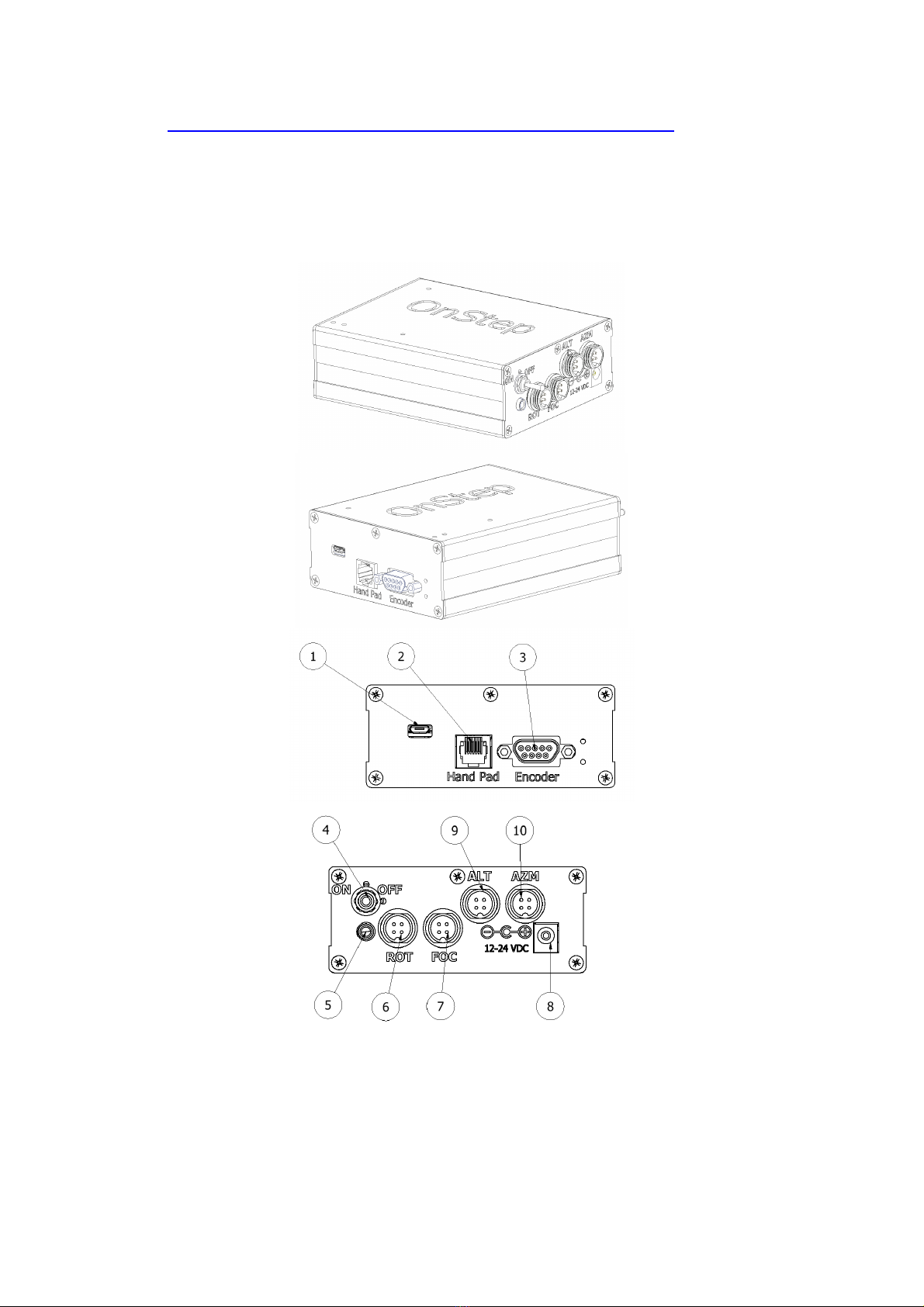
The sketch below illustrates the vital components of the OnStep control system. Note
that the following features and functions are optional and not provided by default:
Rotator and Focuser Control: These functionalities are not enabled and not
included.
Home Switches: The necessary wiring for home switches is not provided.
Limit Switches: While the features for limit switches are enabled, the actual limit
switches and necessary wiring are not included.
4

3 OnStep drivers Installation
To install the OnStep ASCOM driver, you will need to use a PC based on the MS
Windows operating system. For utilizing the OnStep INDI driver, a Raspberry Pi
system is required. Notably, the OnStep INDI driver is included in the standard
Astroberry releases.
Please proceed as follows:
For the ASCOM Driver:
Download and install the latest ASCOM platform.
Subsequently, install the OnStep ASCOM driver, which can be obtained from:

. Locking Toggle Power Switch: This switch features a safety mechanism to
prevent accidental toggling. To change the switch positions, the toggle actuator
must first be pulled upward (or outward) in a "pull-to-unlock" motion. Only then
can the switch's position be altered.
5. Auxiliary Port (For limit switches)
6. Optional Rotator Motor Port
7. Optional Focuser Motor Port
8. Power Supply Socket (21.-2.5mm, center positive)
9. ALT Axis Motor Port
10. AZM Axis Motor Port
Power Cable
Motor Cables
7

Encoder Cable
Smart Hand Pad Cable
8

Cable Management
.1 Power Supply
The controller features a . mm-2.1mm power connector (center positive). Ensure to
utilize a regulated supply or battery; a 12VDC supply with a 3-amp capacity is
recommended. If employing a 12VDC battery, ensure it can maintain a constant
12VDC output.
WARNING:
Power Supply Polarity: Pay keen attention to the power supply polarity for the
OnStep controller! The wire with the white stripe is positive. Reversing the power
connections will likely blow the fuse and potentially damage other components.
Voltage Caution: DC voltages exceeding 12 volts can be lethal upon contact!
Motor Cable Management: Do not disconnect the motor cable while the unit is
powered on.
USB Connection Protocol: Preferably, power on the unit before connecting the
USB cable to the USB port. Always disconnect the USB cable before powering
off the unit.
.2 LED Operation
9

1. Power Supply LED
2. Scope Tracking LED
3. WiFi Status LED
4. CPU Status LED
The controller is equipped with four LEDs, labeled as LED 1, LED 2, LED 3, and
LED 4. These LEDs serve to keep you informed about the controller's status and
activity.
LED 1 indicates the Power Supply status: It should remain illuminated while the
controller is powered on.
LED 2 reflects the scope's tracking status: It flashes while tracking and remains
steadily illuminated otherwise.
LED 3 indicates the status of the WiFi service: A flashing LED signifies that the
WiFi service is being established, while a steadily illuminated LED indicates that
the WiFi service is ready.
.3 DB9 Encoder Port Connection
The RS232 serial port is a 9 pin modular jack which is mainly used for the telescope
encoders. But it can also be used by other purpose.
Pin 1: Ground
Pin 2: Vsel ( V)
Pin 3: Encoder 1B, encoder 1 input B
Pin 4: Encoder 2B, encoder 2 input B
Pin :
Pin 6: Aux3, typically used for a Home SW on RA or Azm but can be used any
purpose (dew heater for instance, on/off switch, etc.). Not wired and not enabled.
10
Autres manuels pour GOTO
1
Table des matières