
OneTech OTP-R60 Manuel utilisateur
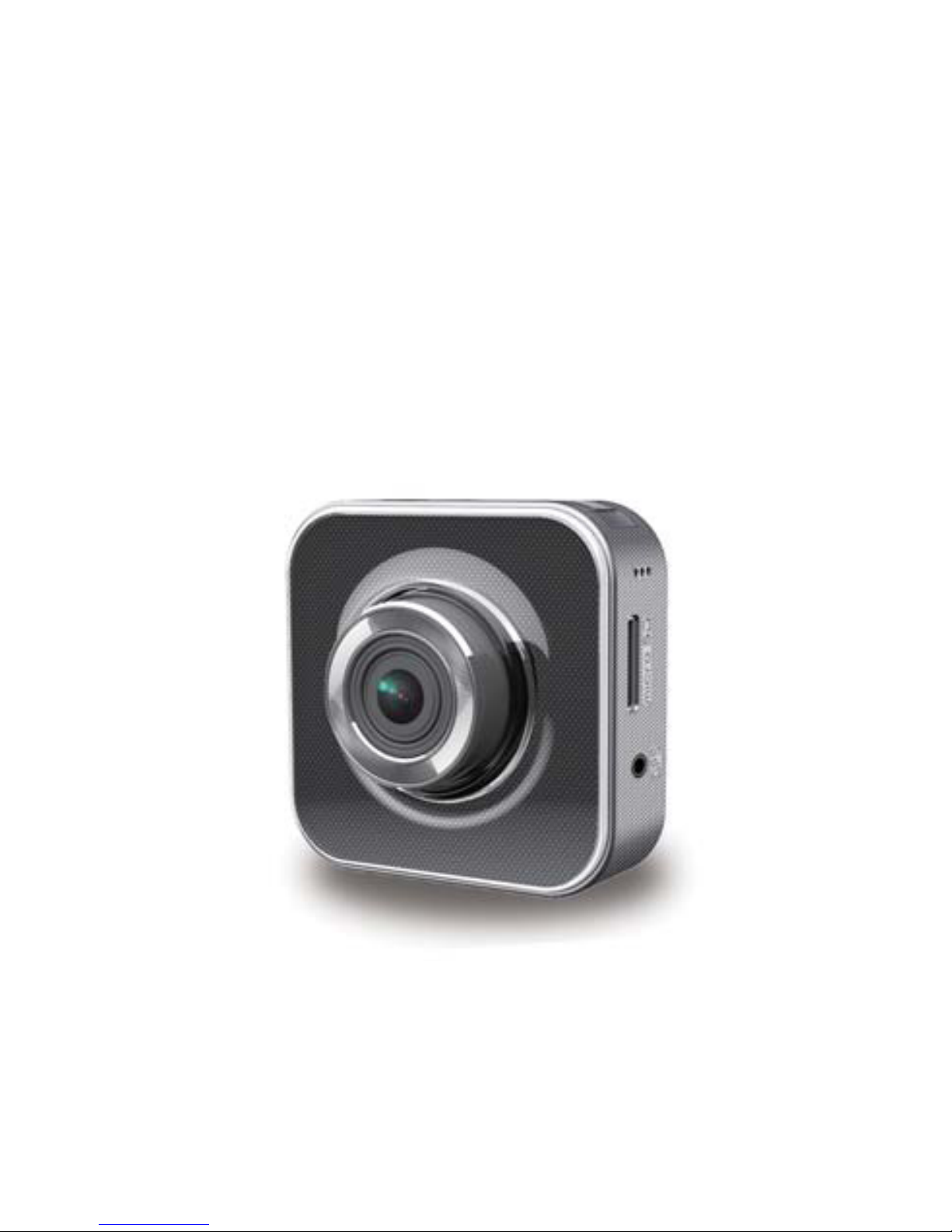
Wi-Fi Camcorder
User Manual
Focus Cam
| 1
English
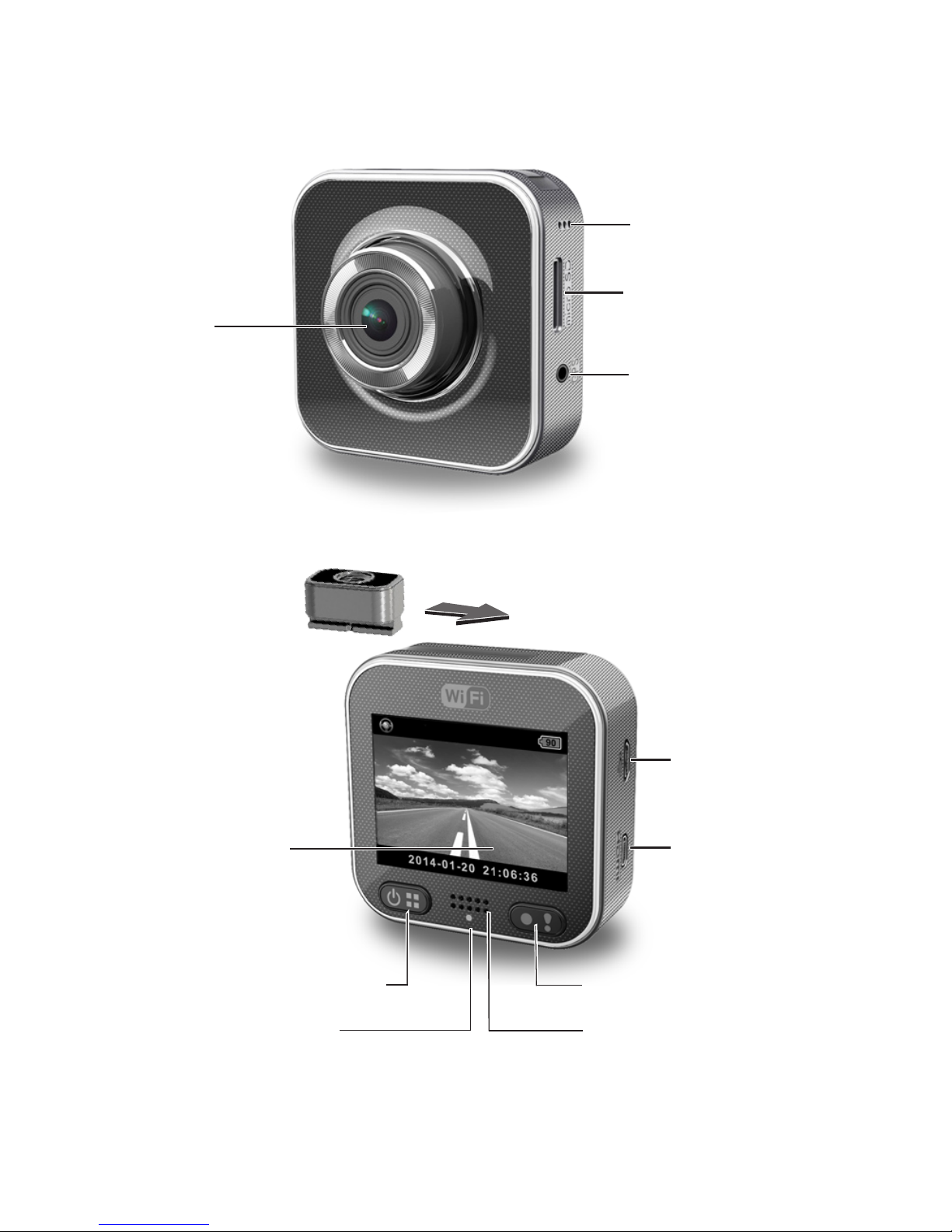
Names of Parts
Speaker
LCD Panel
Status Indicator
Tripod
Mount
Mic
microSD
Card Slot
Lens
GPS Receiver Slot
Power/Menu Button Record / Emergency Button
Micro USB Port
Micro HDMI Port
2 | English
Shooting a Video
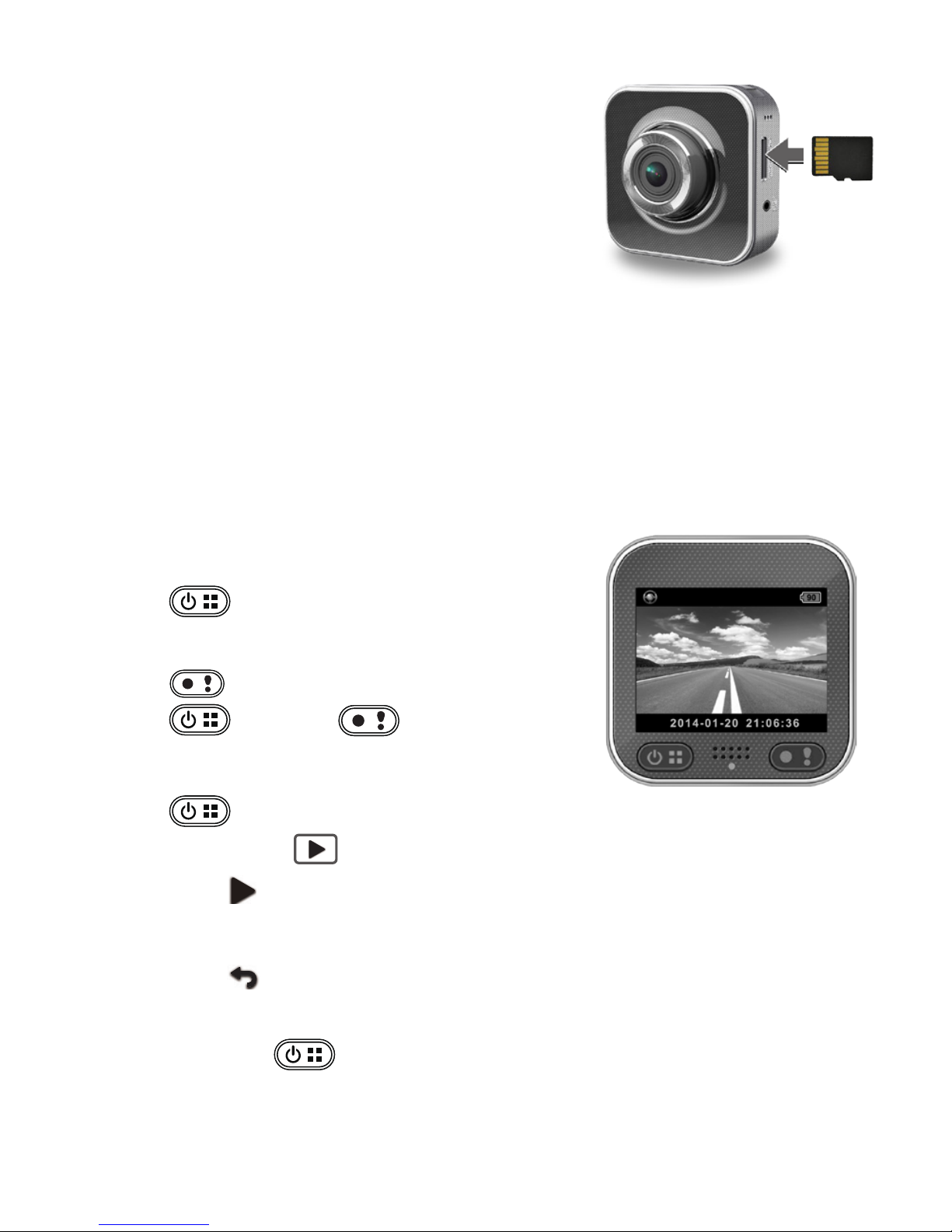
1. Power on:
Press to turn on camcorder.
2. Record:
Press to start recording.
Press and then to stop.
Inserting a microSD Card
Before initial use, insert a microSD card.
(suggested at least 4GB, up to 64GB)
Getting Started
microSD
card
Charging the Unit
Fully charge camcorder for initial use by:
• Car charger
• PC USB port
• USB adapter
(not included)
During charging, screen shows battery icon or status indicator ashes in
orange
. When camcorder is fully charged, the indicator turns off.
4. Return to preview:
Switch to [ ] to return.
5. Power off:
Press and hold for 2 seconds.
3. Playback:
Press to enter menu settings.
Select [Playback ].
Press [Play ] to play the video and press [Stop] to stop.
| 3
English
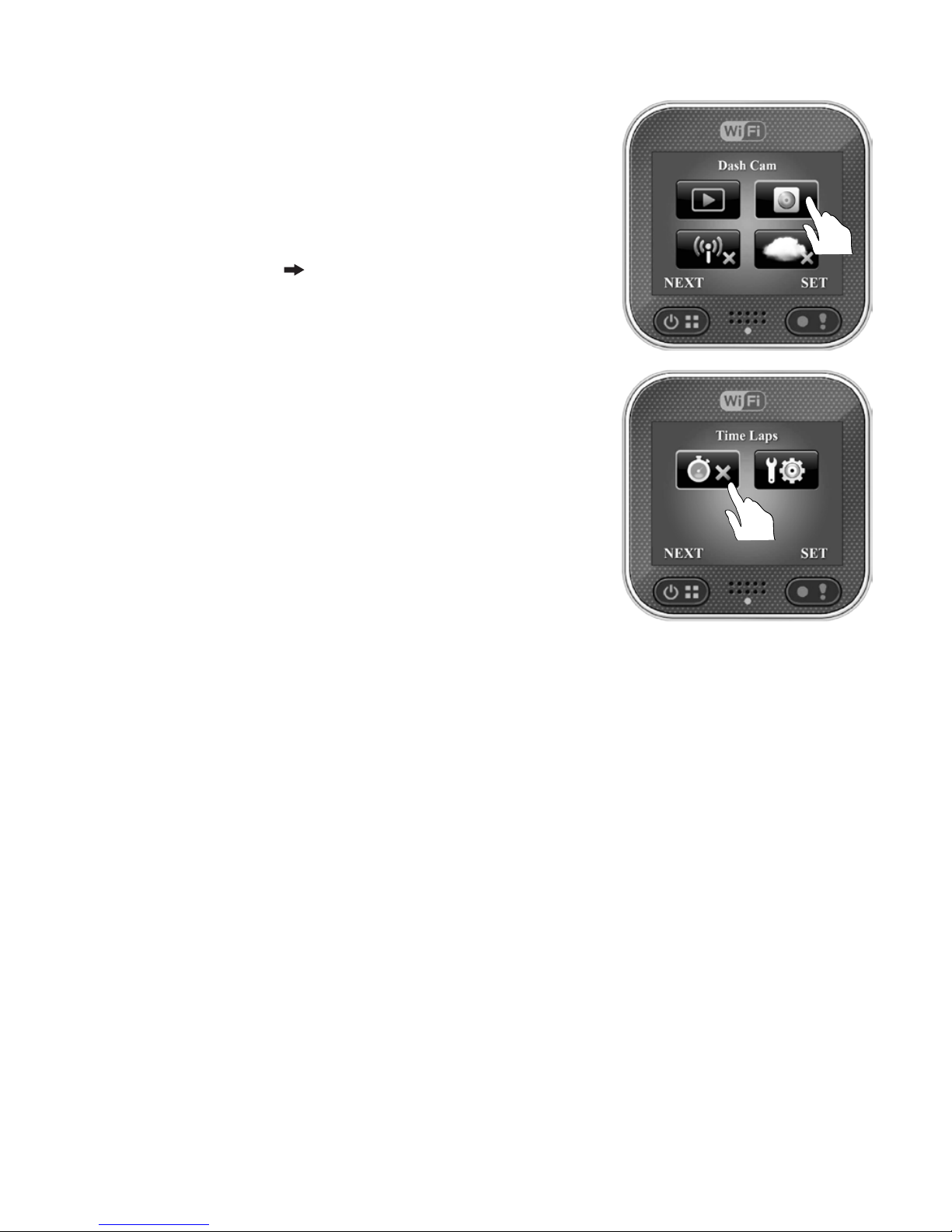
Camcorder Operation
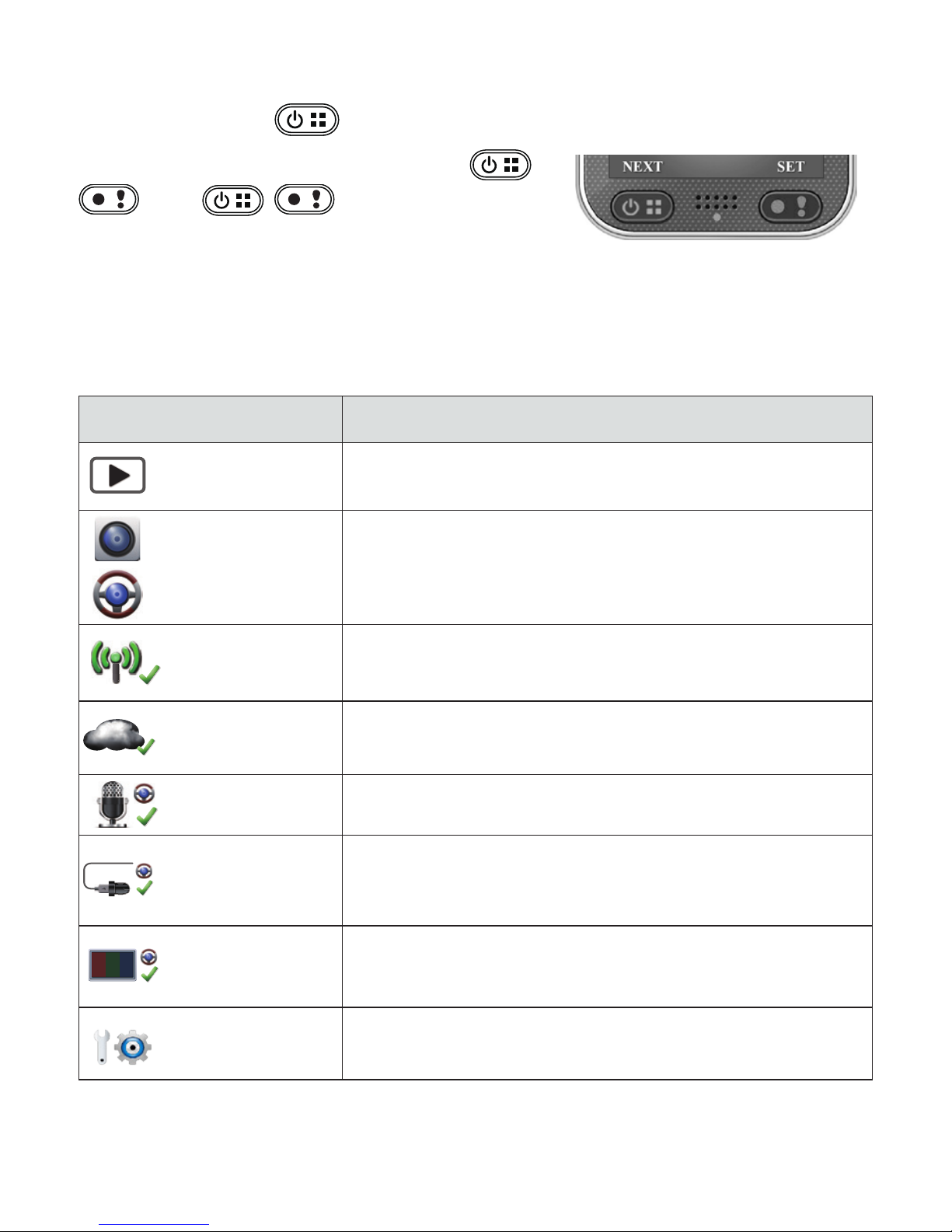
In preview, press to enter menu settings
.
Menu Settings Descriptions
Play recorded videos
Switch between Action Cam and Dash Cam.
Enable/Disable WiFi for wireless connection
Enable/Disable internet cloud connection
Enable/Disable voice recording (Dash Cam only)
Auto REC
Enable/Disable
auto recording when car
engine starts (Dash Cam only)
60 SEC
OFF
Screen turns off after 60 seconds of non-
operation
(Dash Cam only)
Reset to factory default settings or format SD
card.
Screen Auto Off
Settings
Voice Record
WiFi - Local
Auto Record
Dash Cam
Playback
Action Cam
WiFi - Cloud
Menu Settings
Camcorder has eight menu settings. Advanced settings can be set up via
mobile APP.
Button functions indicated above
.
Use
to navigate menu
settings.
Note: After 10 seconds of non-operation in menu settings, screen
returns to preview.
4 | English
Transfer Files to PC:
1. Connect camcorder to PC via Micro USB cable.
2. Find video at "My computer\Removable Disk\".
3. Copy, move, delete, and playback videos on PC.
View Camcorder Screen on TV:
1. Connect camcorder to TV
via
Micro HDMI cable (not included).
2. Turn on camcorder.
3. Camcorder screen displays on TV simultaneously.
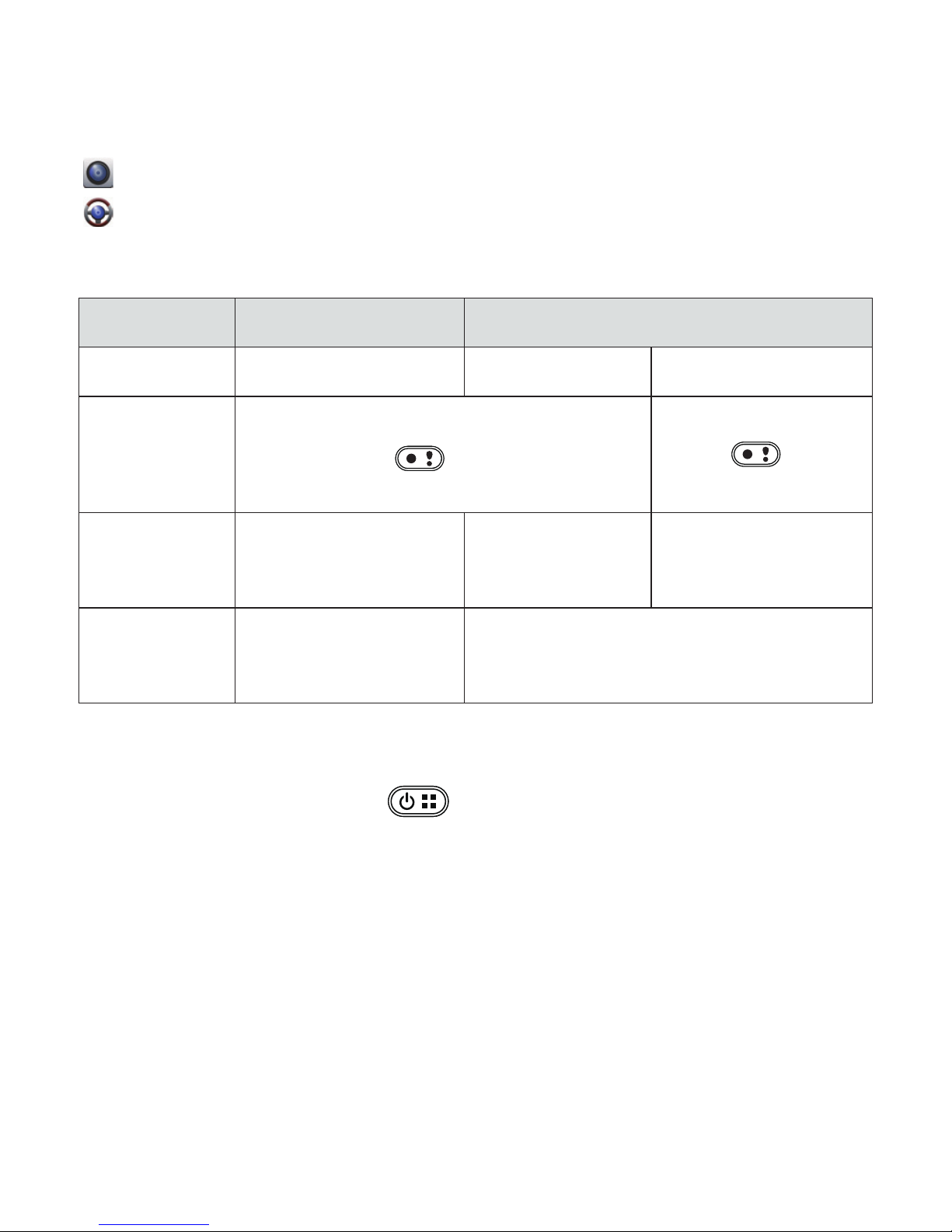
Time Laps Setup
Set [Action Cam] Set [ Time Laps]
(Defult setting of Time Laps is off)
[ Time Laps] has 7 settings: 1sec, 2sec,
5sec, 10sec, 30sec, 60sec and off.
When user set camcorder in Action Cam,
Time Laps setting will shown on next page.
| 5
English
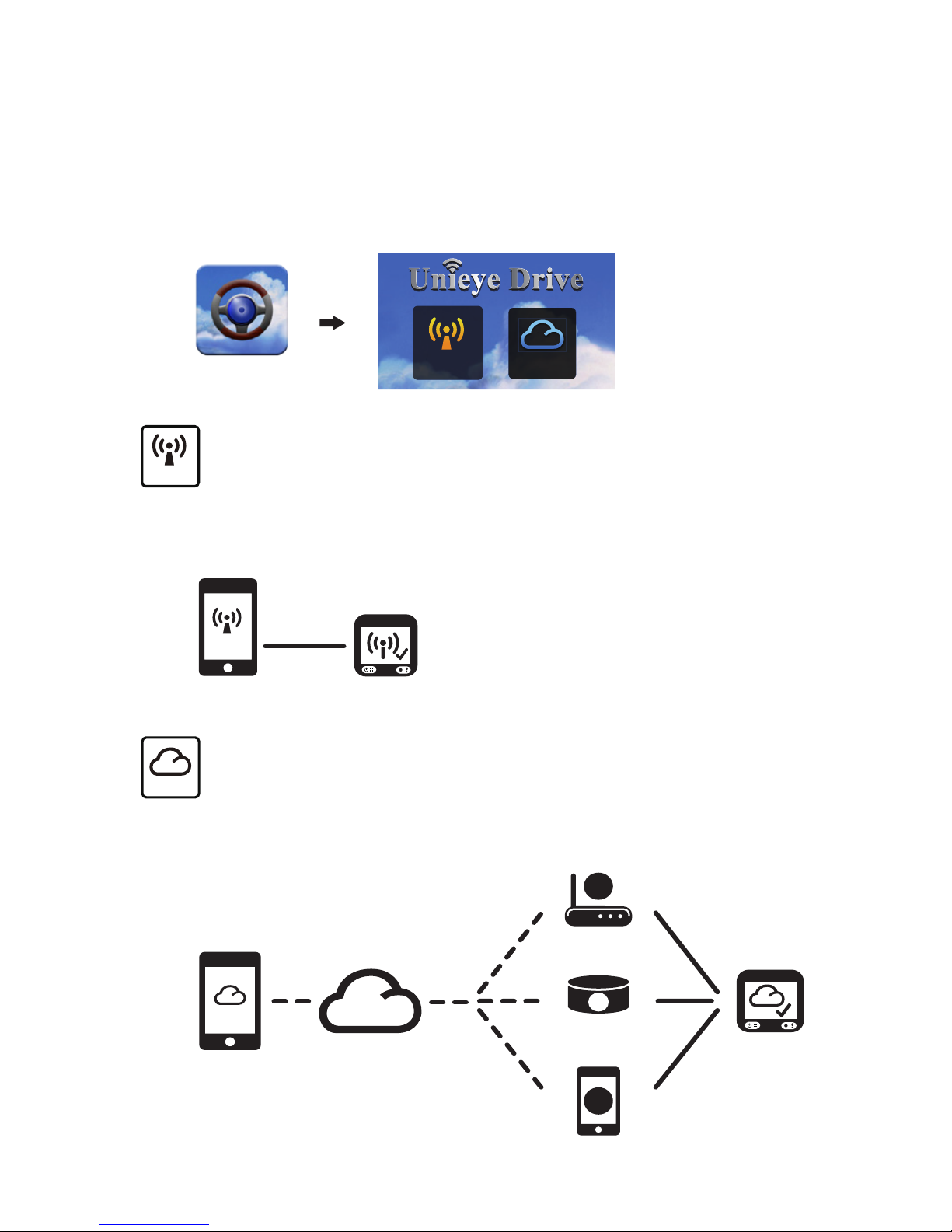
Camcorder has two recording modes for different applications:
Action Cam: Shoot normal videos.
Dash Cam: Shoot loop and emergency videos.
Record Modes
Mode Action Cam Dash Cam
Record type Normal Loop Emergency
Record trigger
Record duration
Display info.
• Car impact
• Press
during
loop recording
P
ress in preview
Three min. sections
Unlimited
One min. section
(30 seconds before
and after the event)
Note:
1. During loop recording, oldest les are overwritten if microSD card is full.
2. During loop recording, press to enable/disable mute fuction.
SD card remaining time Current date & time
2014/01/01 21:06:36
Comparison between modes:
00:06:36
6 | English
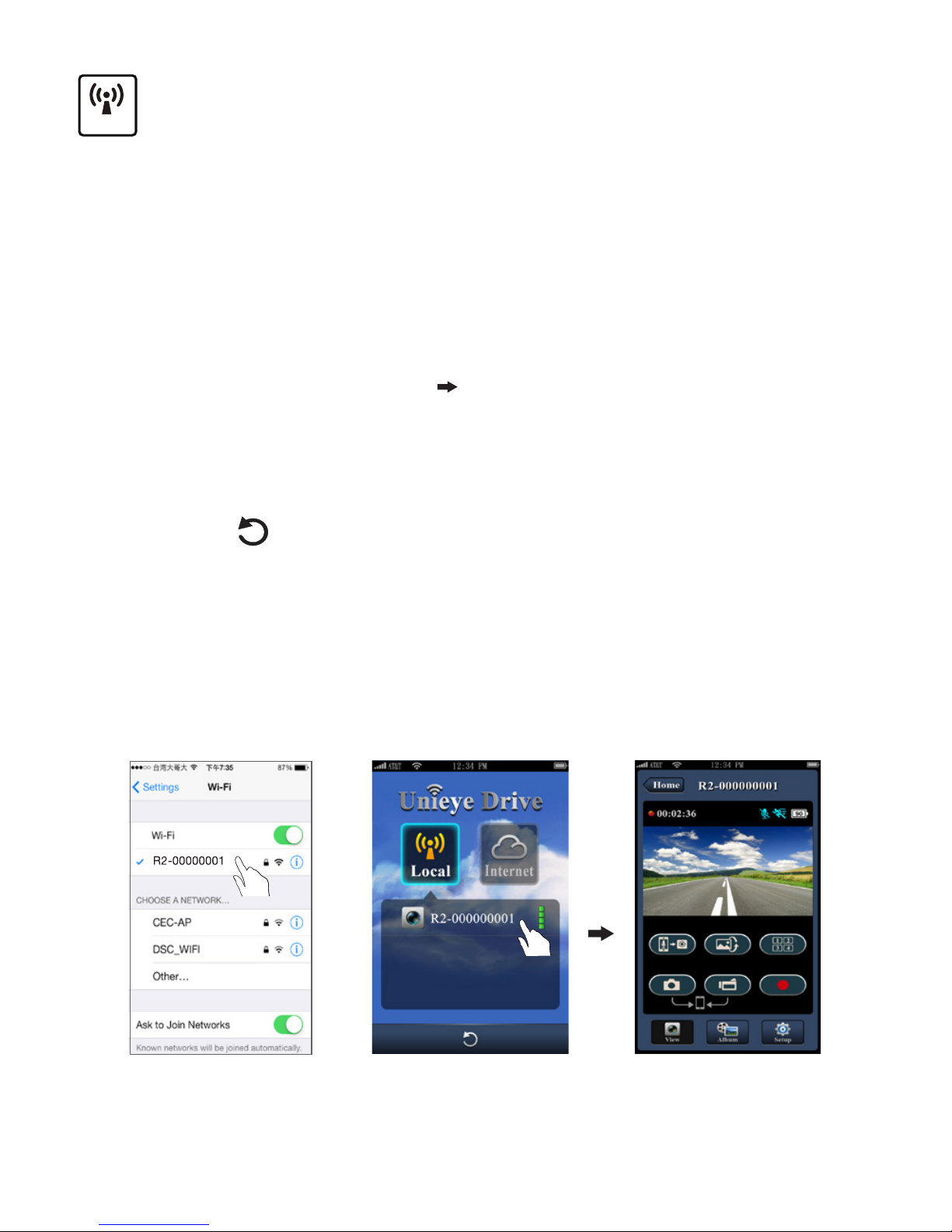
Mobile Camcorder
Local
Local Internet
Mobile connects to camcorder directly via WiFi for remote control,
live view, album management and camcorder setup.
Mobile connects to cloud server to view live videos uploaded
from internet remote camcorder.
Wireless & APP Operation
Before inital using wirless connections, download and install APP
[Unieye Drive] from Google Play Store and Apple Store.
[Unieye Drive] has two functions:
(1) Local - Direct control (2) Internet - Internet live view
Unieye Drive
【Local】
(1)
Local
Internet
【Internet】
(2)
Local
Internet
AP
Unieye
Server
AP
3G/4G Mobile Hotspot
3G/4G Mobile
Wireless Router
Wireless Router
Camcorder
AP
Mobile
Internet
| 7
English
Mobile Connects to Camcorder
1. F
or Android: Turn on [Wi-Fi].
For iOS: Go to [Settings] [Wi-Fi].
Turn on [Wi-Fi] and select the camcorder name.
2. Run [Unieye Drive].
3. Tap【Local】and select the camcorder to enter【Local】View
Page. Tap [ ] to scan again if camcorder is not found.
Note:
• Mobile cannot connect to camcorder while camcorder is recording.
• For rst use, password is not required. User can set camcorder
password in Setup Page.
【Local】Function
iOS Settings
Local
Internet
Before using mobile APP's【Local】function, ensure camcorder WiFi
is on and camcorder Cloud setting is off. Once WiFi is ready, preview
shows camcorder name (R2-xxxxxxxx) for few seconds.
Local View PageLocal Main Page
8 | English
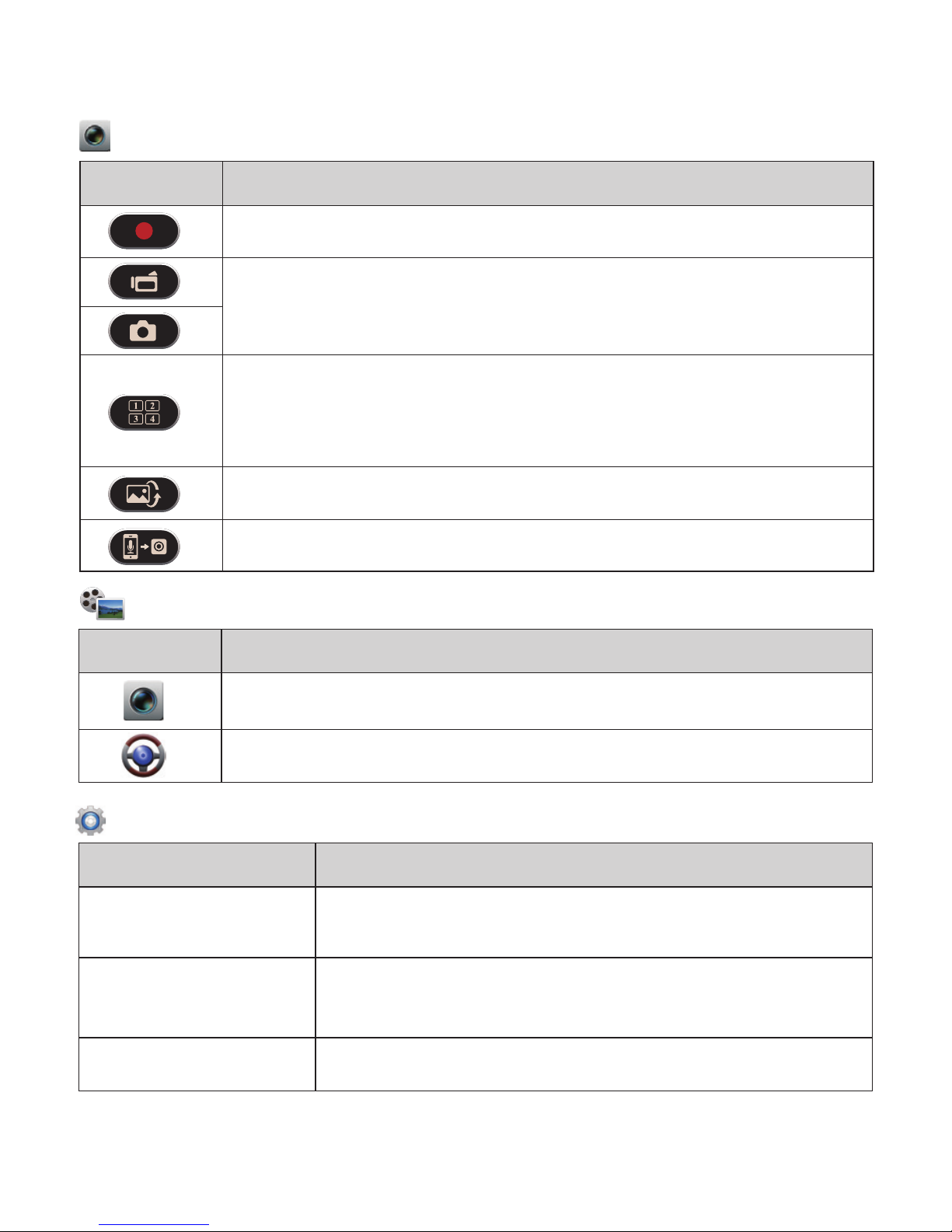
Items Descriptions
Shoot videos and les are saved into camcorder microSD card
Shoot videos or Take photos and les are saved into
mobile "Album\Unieye Drive
\"
For multiple camcorders user :
• Enable Quad-View for multiple live view on mobile
• In Quad-View, select
a window for single view.
Upside down image
Talk to camcorder from mobile
Groups Descriptions
Camcorder Settings Edit name, password. Format SD card. Adjust
recording resolution, etc.
Internet Settings Edit Email and AP and save in camcorder.
(For internet cloud server connection)
Car DVR Settings Set motion detector, impact sensor, etc.
View Page
Album Page
(for camcorder)
Setup Page (for camcorder)
4.【Local】function has three function pages: View, Album and Setup.
Folders Descriptions
View or delete video les recorded in action cam
View or delete video les recorded in dash cam
Note: 1. In Setup Page, tap [Save] to complete settings to camcorder.
2. Mobile media player may not support SuperHD video.
| 9
English
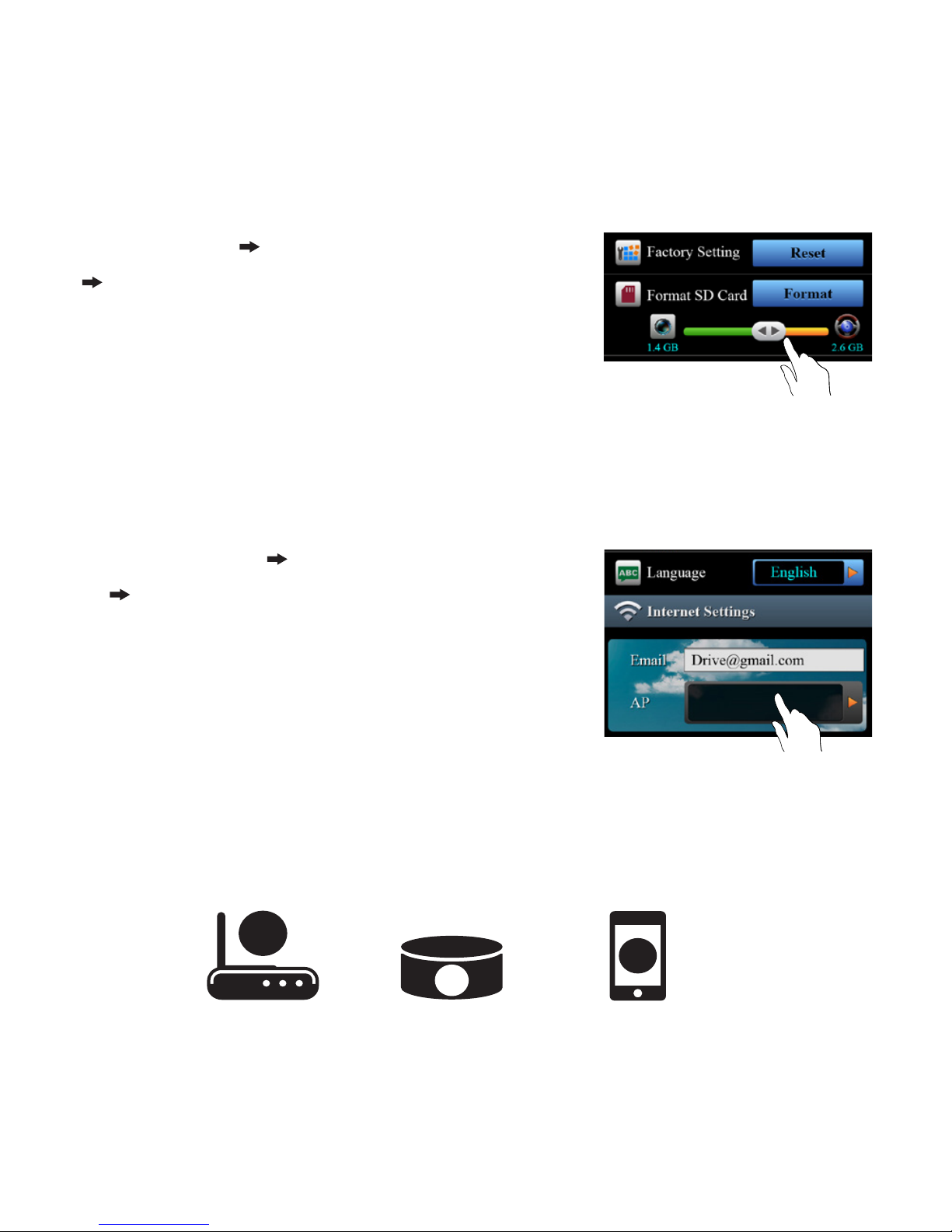
1. Go to [Setup] [ Internet Settings]
Edit Email and AP
2. Tap [Save] to complete Email & AP
settings.
Camcorder Internet Setup
Before using internet cloud service, Email and AP must be properly
set up.
Camcorder SD Card Setup
Go to [Setup] [ Camcorder Settings]
Adjust slide bar and press [Format]
button to complete SD card setup.
When SD card is rst-time use or reformatted in camcorder, user should
allocate memory for Action Cam and Dash Cam.
Note: AP(Access Point) can be
• Wireless Router or
• 3G/4G Mobile Wireless Router or
• 3G/4G Mobile Hotspot
AP
AP
AP
Wireless Router
AP
AP
AP
3G/4G Mobile
Wireless Router
AP
AP
AP
3G/4G
Mobile Hotspot
Ce manuel convient aux modèles suivants
1
Table des matières
Autres manuels OneTech caméscope

Manuels caméscope populaires d'autres marques


Panasonic
Panasonic AG-HMC152EN Manuel utilisateur

Insignia
Insignia NS-DCC5HB09 - Camcorder - 720p Manuel utilisateur

MYDLINK
MYDLINK DCS-6100LH Manuel utilisateur

Sony
Sony video Hi8 Handycam CCD-TR555 Manuel utilisateur

SECURECOM
SECURECOM V-5014B Manuel utilisateur

Panasonic
Panasonic HDC-SD100 Manuel utilisateur


