
Olidata Wireless USB Adapter Set Manuel utilisateur

Wireless USB Adapter Set
User guide v2
www.olidata.com/wusb

Wireless USB Adapter Kit - User Guide
1
Table of contents
1Introduction......................................................................................................2
1.1 Package contents.................................................................................................2
1.2 System requirements .............................................................................................3
1.3 Installation steps in short........................................................................................3
2Software installation ........................................................................................6
2.1 Installation on Windows XP ...................................................................................6
2.2 Installation on Windows Vista ...............................................................................9
3First use ...........................................................................................................13
3.1 Suggestions for a better use ...............................................................................13
3.2 How to connect the PC Adapter.......................................................................13
3.3 Device Adapter pairing......................................................................................13
3.4 Device Adapter installation................................................................................14
3.5 USB device connection..........................................................................................14
4Manager software .........................................................................................15
4.1 Icon meanings.....................................................................................................15
4.2 User interface.......................................................................................................15
4.3 Device Adapters management ........................................................................17
5Troubleshooting .............................................................................................19
5.1 Installation does not automatically start from CD ............................................19
5.2 PC Adapter not found or not ready ..................................................................19
5.3Troubles with pairing procedure ........................................................................19
5.3.1 No PC Adapter found ...................................................................................................20
5.4 My USB device is not found ................................................................................20
5.5 My USB device frequently disconnects .............................................................20
5.6 Other diagnosis tools...........................................................................................21
5.6.1 LED indications ...............................................................................................................21
5.6.2 Drivers installation check ..............................................................................................21
6Technical specifications ...............................................................................23
7Environment preservation.............................................................................24

Wireless USB Adapter Kit - User Guide
2
1Introduction
The Wireless USB Adapter Set solution offers instant Wireless USB connectivity
between a PC and a USB device using a simple kit consisting of a PC Adapter (Host
side dongle) and a Device Adapter (Device side dongle).
The Adapters kit implements Wireless USB specifications (http://www.usb.org) and it
can interoperate with any other Wireless USB certified solution.
1.1 Package contents
The package includes:
1 USB dongle, marked as PC Adapter;
1 USB dongle, marked as Device Adapter;
1 USB cradle;
1 power supply;
1 software and documentation CD;
1 printed Quick Start Guide.
Note:To correctly use this product, the user must be able to properly distinguish
between PC Adapter and Device Adapter, because they play different roles
within the set.
In order to correctly identify the two Adapters, please refer to labels on back sides,
as shown in the following figure:

Wireless USB Adapter Kit - User Guide
3
Figure 1: PC Adapter and Device Adapter
1.2 System requirements
Operating System: Microsoft Windows™ XP w/ Service Pack 2 o 3, Microsoft
Windows™ Vista w/ Service Pack 1.
Hardware: Personal Computer (notebook or desktop) equipped with at least two
USB ports (best performances with USB 2.0) or with one USB port connected to a USB
hub (an external device that multiplies the number of USB ports connected to a
computer).
1.3 Installation steps in short
Install software and drivers from CD.
Note:For an easier installation of this product, it is important to install software and
drivers before plugging any of the two Adapters to your PC.

Wireless USB Adapter Kit - User Guide
4
Plug the PC Adapter into a USB port of your PC(best performances with USB 2.0) and
wait for drivers’ activation.
Plug the Device Adapter into another USB port of your PC , keeping the PC Adapter
connected and wait for drivers’activation.
Wait for Adapters association procedure to complete, until “Device Adapter has
been paired” message is shown.
Unplug the Device Adapter from PC and plug it into USB cradle.

Wireless USB Adapter Kit - User Guide
5
Complete the installation procedure by plugging USB device and power supply into
the USB cradle.
Now you can work wirelessly with your USB device.
For more details see next chapters.
Wireless USB Adapter Kit - User Guide
6
2Software installation
This paragraph describes in details software and drivers installation procedure.
Note:If a previous version of Wireless USB Adapter Set software has been previously
installed on your system, please remove it before continuing with newer
version.
Make sure that none of the two Adapters is plugged into your PC, then insert the CD
and wait for installation to auto-start. If it does not occur in a few seconds, proceed
with manual start from Windows “Computer resources”.
2.1 Installation on Windows XP
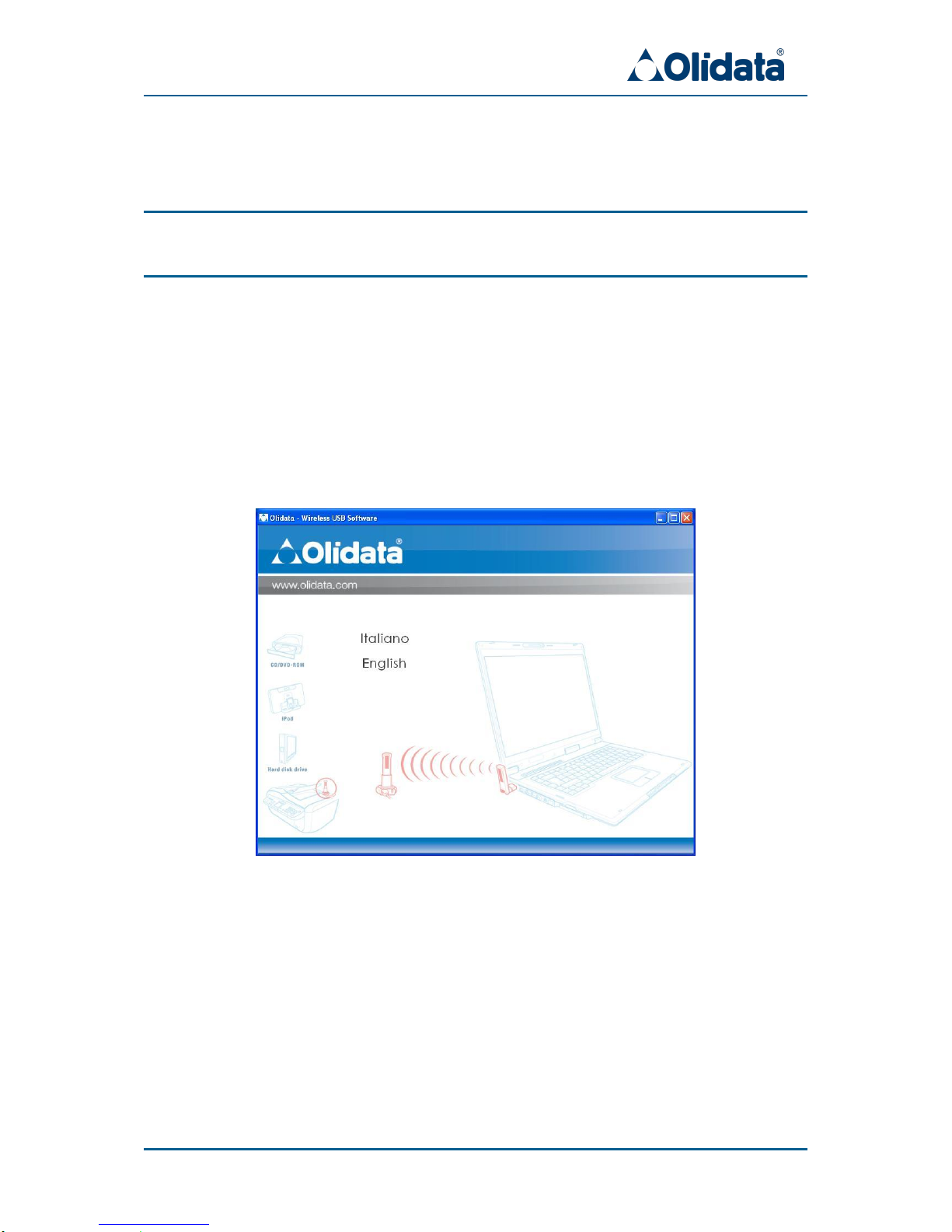
First, the installer asks to choose the language:
Figure 2: Language selection
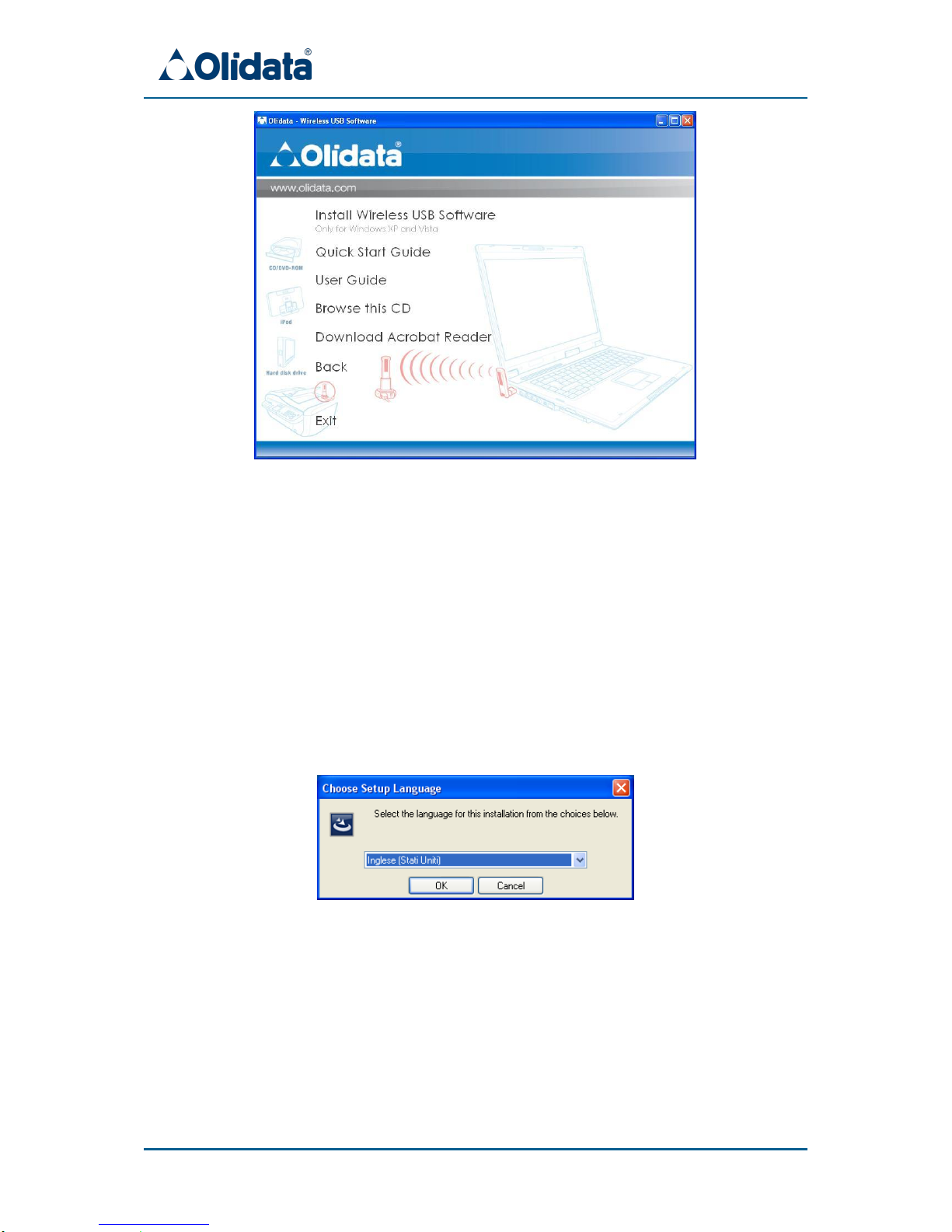
Then a welcome screen presents a menu with the following options:
Wireless USB Adapter Kit - User Guide
7
Figure 3: Main menu windows
Install Wireless USB Software: to start software and driver installation;
Quick Start Guide: to open the Quick Start Guide from CD;
User Guide: to open this User Guide from CD;
Browse this CD: to open explorer window to browse the CD content;
Download Acrobat Reader: to download Adobe Acrobat Reader ®,
needed to read documents from CD (internet connection needed);
Back: to go back to language selection window;
Exit: to exit application.
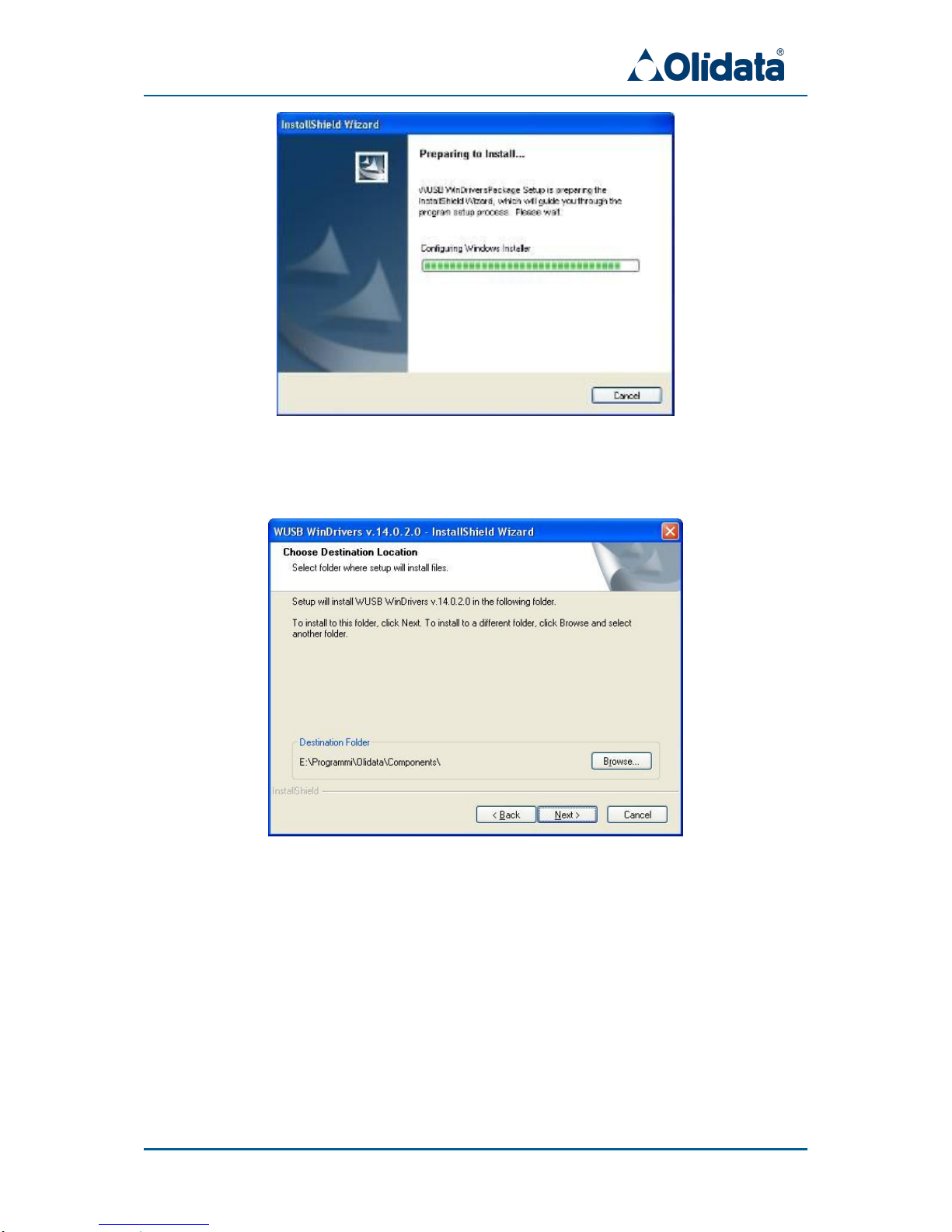
The first choice runs final software and drivers’ installation.
Figure 4: Again, language selection
Wireless USB Adapter Kit - User Guide
8
Figure 5: Installation wizard
A different destination folder can be chosen.
Figure 6: Destination folder selection
Then simply follow all steps suggested by wizard to complete installation.

Wireless USB Adapter Kit - User Guide
9
Figure 7: Installation completed
2.2 Installation on Windows Vista
First, the installer asks to choose the language:
Figure 8: Language selection
Then a welcome screen presents a menu with the following options:
Table des matières


