3
Table of Contents
Table of Contents...........................................................................................3
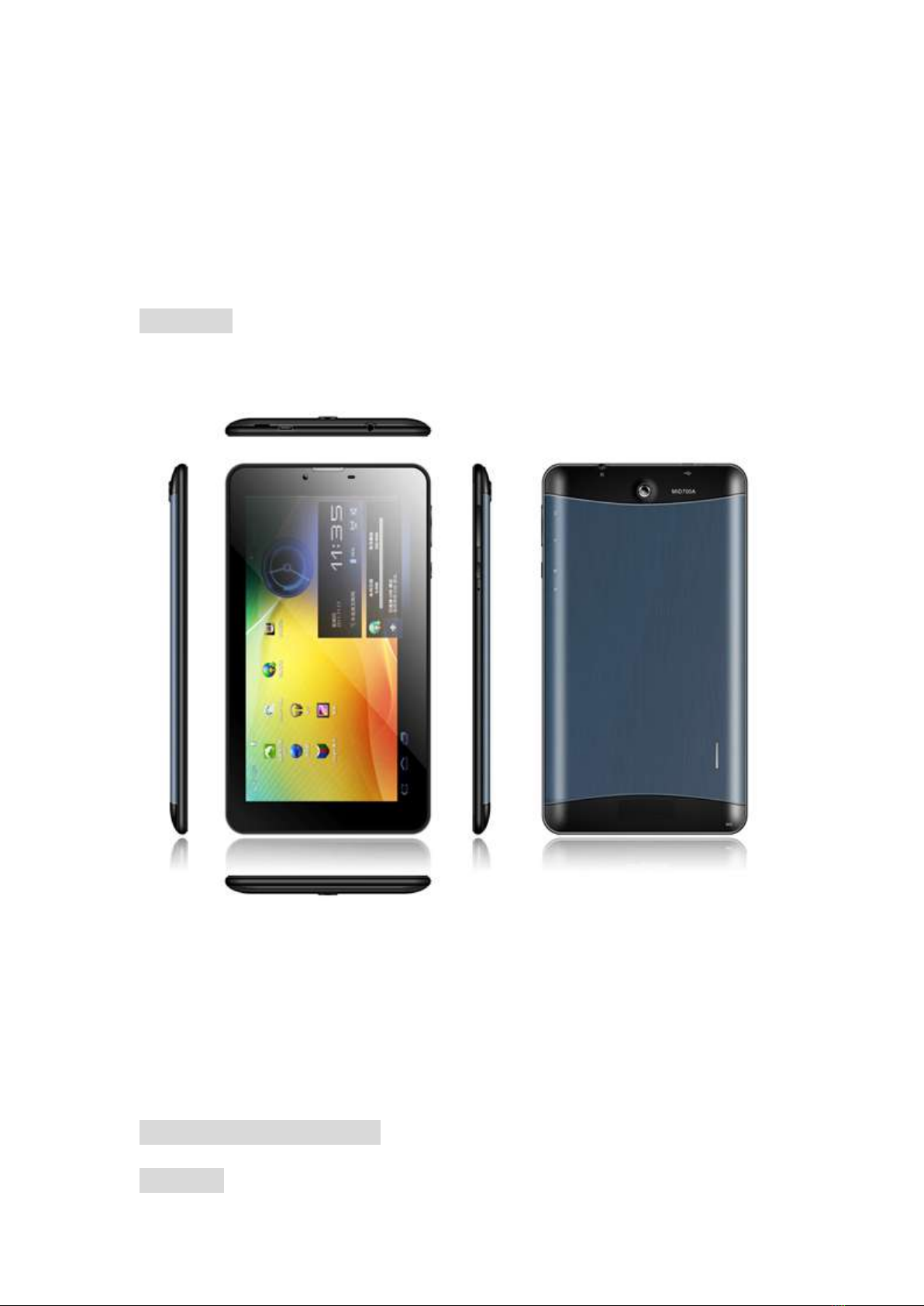
1 appearance and button: .............................................................................4
2 Basic Key Operation...................................................................................4
3 Port Definition:............................................................................................5
4 Operation Interface of The Device..................................................................6
4.1 Main Interface Description....................................................6
4.2 Application Program Interface...............................................8
4.3 Pre-loaded Applications........................................................9
4.4 State Bar Description..........................................................11
5 Touch Panel Usages .....................................................................................11
6 Basic Setting of the Device............................................................................12
6.1 WIRELESS&NETWORKS..................................................12
6.1.1 Wi-Fi setting...........................................................................................................14
6.1.2 BIuetooth setting..................................................................................................14
6.1.3 Data usage information..........................................................................................15
6.1.4 More options..........................................................................................................15
6.2 Device.................................................................................16
6.2.1 Audio profiles .........................................................................................................17
6.2.2 Display: Display Parameters Setting .......................................................................17
6.2.3 Storage: Storage Parameters Information..............................................................18
6.2.4 Battery: Battery Parameters Information...............................................................19
6.2.5 Apps: Applications..................................................................................................19
6.3 Personal..............................................................................20
6.3.1 Location services: ...................................................................................................20
6.3.2 Security: .................................................................................................................21
6.3.3 Language & input: ..................................................................................................21
6.3.4 Backup & reset: ......................................................................................................22
6.3.5 Add account ...........................................................................................................22
6.4 System................................................................................23
6.4.1 Date & time:...........................................................................................................23
6.4.2 Accessibility: Miscellaneous Function Setting........................................................24
6.4.3 Developer options:.................................................................................................25
6.4.4 About tablet ...........................................................................................................26
7 Application Management & usage...........................................................26
7.1 Application Management ....................................................26
7.1.1 Install Android Applications ...................................................................................26
7.1.2 Applications uninstall .............................................................................................26
7.1.3 Application management.......................................................................................27
7.2Applications usage...............................................................27
7.2.1Browser ...................................................................................................................27
7.2.2 Camera ...................................................................................................................28
7.2.3 Video Play& Photo browser ...................................................................................29
7.2.4 Music Play ..............................................................................................................30
7.2.5 FM..........................................................................................................................31