Novra S300N Manuel utilisateur

Version: 1.2
Confidential and Proprietary 1of 40
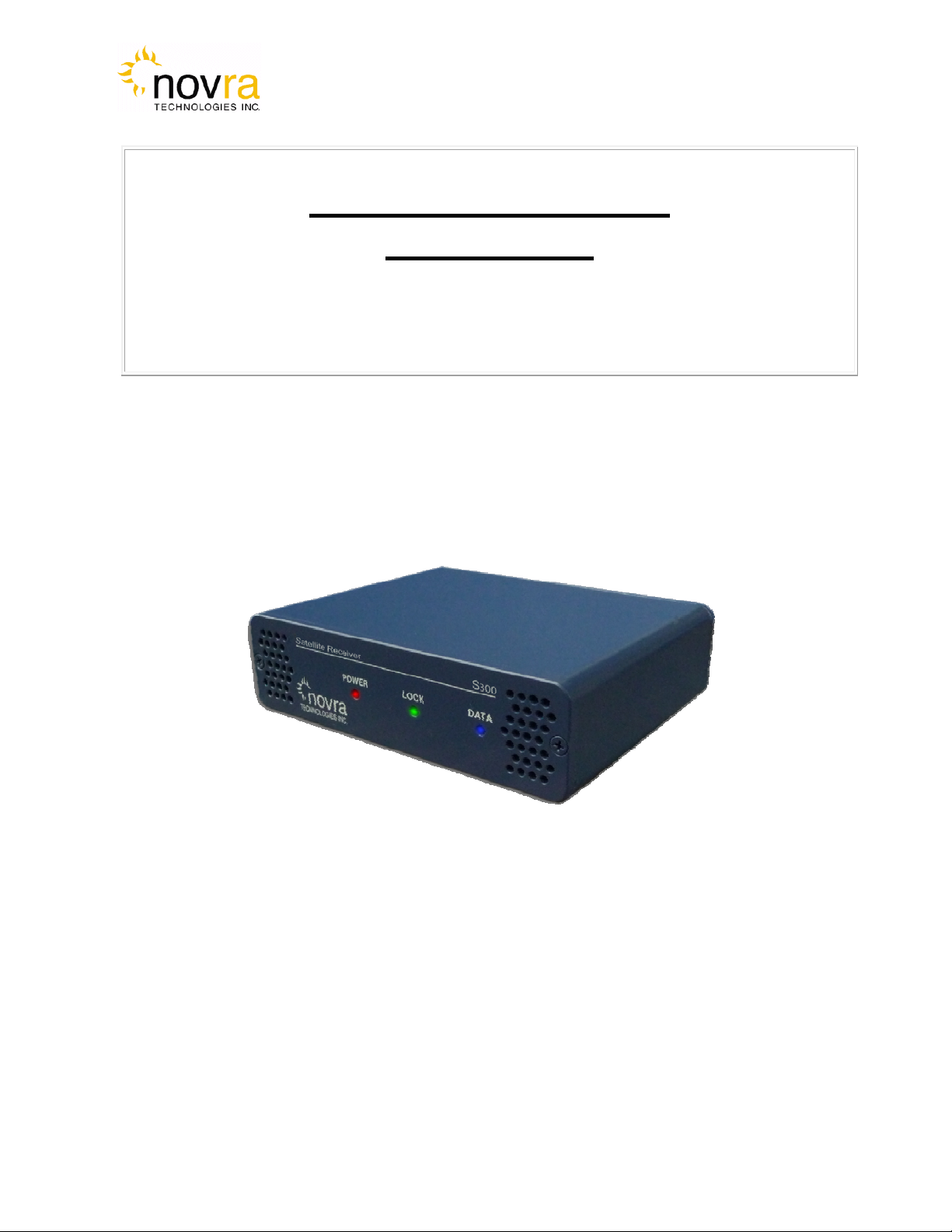
Novra S300N Receiver
User Manual
Subject to change without notification
CAUTION: Any changes or modifications not expressly approved by the manufacturer could
void the user's authority to operate this equipment.

Version: 1.2 Confidential and Proprietary 2of 40
Novra S300N
DVB-S2 Satellite Data Receiver
User Manual
Subject to change without notification
Document version: 1.2
________________________________
Important- Please read this entire manual before installing or operating this product.
________________________________
Disclaimer
While reasonable effort has been made in the preparation of this document to assure its accuracy, Novra
Technologies Inc. assumes no responsibility for errors or omissions that may appear in this manual. Novra
reserves the right to change the contents of this manual at any time without notice.
Copyright
© 2012 Novra Technologies Inc. All rights reserved.
Information in this manual is subject to change without notice. No part of this manual may be reproduced or
transmitted in any form without the express written permission of Novra Technologies Inc.

Version: 1.2 Confidential and Proprietary 3of 40
INDEX Page
1Conventions .................................................................................................................................. 4
1.1Text Conventions.................................................................................................................. 4
1.2Applicable Models................................................................................................................ 4
1.3Model Naming Convention................................................................................................... 5
2Introduction................................................................................................................................... 6
2.1Principles of Operation......................................................................................................... 6
3Getting Started.............................................................................................................................. 7
3.1Typical S300 Installation...................................................................................................... 7
3.2What Information do I Need – Basic Configuration?........................................................... 8
3.3SOFTWARE Installation on Windows 7.............................................................................. 9
3.4S300 Startup........................................................................................................................ 10
3.5Main Screen........................................................................................................................ 13
4Configuring the S300.................................................................................................................. 18
4.1Interfaces............................................................................................................................. 18
4.1.1Network Button............................................................................................................... 18
4.1.2Satellite Button................................................................................................................ 19
4.2IP Data ................................................................................................................................ 24
4.2.1Content Button................................................................................................................ 24
4.2.2IP Re-Mapping Button.................................................................................................... 25
4.3Control ................................................................................................................................ 28
4.3.1Reboot Button................................................................................................................. 28
4.4File Drop Down .................................................................................................................. 28
4.5Control Drop Down ............................................................................................................ 31
4.6Help Drop Down................................................................................................................. 32
4.6.1Help................................................................................................................................. 32
4.6.2About............................................................................................................................... 32
5Troubleshooting.......................................................................................................................... 33
6Specifications.............................................................................................................................. 35
6.1Receiver Characteristics...................................................................................................... 35
7Industry Canada Compliance Declaration.................................................................................. 37
8Minimum System Requirements................................................................................................. 37
9Supplied Equipment.................................................................................................................... 37
APPENDIX Terms, Definitions, and Tidbits of Information……………………………….....38

Version: 1.2 Confidential and Proprietary 4of 40
1 Conventions
1.1 Text Conventions
Text appearing in Courier font indicates characters to be typed in; e.g. type Shell indicates that
the word “Shell” must be entered exactly as it appears, with the first letter capitalized.
Text appearing in Bookman Old Style font indicates a directory path or filename; e.g. c:\Program
Files.
Text appearing in SMALL CAPS and CopperPlateGothic32bc font in an instruction indicates a button
that must be clicked, or a key that must be pressed, or a field that must be entered or a particular
screen; e.g. BUTTON indicates a button that must be clicked.
1.2 Applicable Models
This manual is applicable to the following Novra Receiver models:
Novra S300N – Enhanced DVB-S2/DVB-S satellite data receiver capable of receiving IP data,
NOTE: Information in this box
will be Informative.
CAUTION: This information
will be quite important and
should not be i
g
nored.
NOTE: - Your Novra S300 Configuration Application may also be used to configure other
Novra receiver families such as the S75 and the S200. This manual does not specifically
cover the configuration of these receivers, although the commands are very similar.

Version: 1.2 Confidential and Proprietary 5of 40
1.3 Model Naming Convention
This manual uses the S300 naming convention when referring to any one of the applicable S300 models (see
Section 1.2 above).
NOTE: - This manual covers all of the models listed in Section 1.2 above. The S300 Console
will automatically detect the receiver model and will gray out console tabs that are not
required to configure the receiver.
If the feature you are trying to configure is grayed out in the S300 Console, please contact
Novra Support (www.novra.com) to inquire about a firmware or hardware upgrade.

Version: 1.2 Confidential and Proprietary 6of 40
2 Introduction
2.1 Principles of Operation
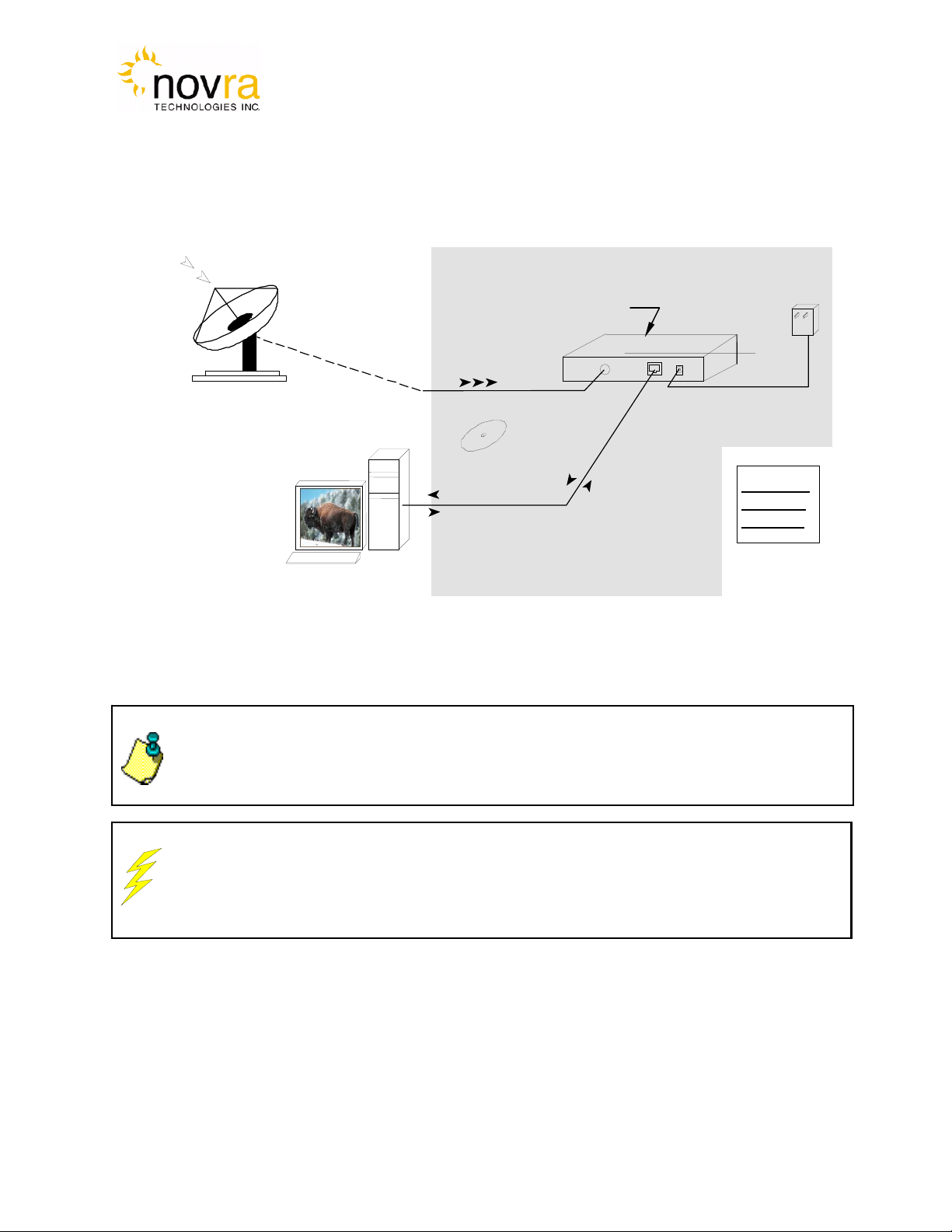
The S300 is a satellite receiver that enables the reception of IP and Video data carried on a DVB-S2 or DVB-
S compliant satellite signal.
Please refer to Figure 1 below for a better understanding of the S300 operation. The desired DVB-S2 satellite
signal is received using an appropriately sized satellite dish (not covered in this manual). A Low Noise Block
(LNB) downconverter (not covered in this manual) is used translate the incoming Radio Frequency (RF)
signal to an Intermediate Frequency (IF) signal. The S300 receives this I/F signal and extracts the IP content,
which is then passed onto the S300 LAN for distribution or viewing via computers connected to the LAN. The
received data type may be IP data or may be MPEG video data, depending on the S200 model being
employed.
The S300 Management Console resides on a PC connected to the S300 via an Ethernet crossover cable or
through an Ethernet hub. The Console is used to perform the following functions:
Configure IP address network parameters,
Specify satellite tuning parameters,
Specify decryption parameters,
Select DVB information streams by Program IDentification number (PID), and
Map audio/video PIDs to multicast address(es).
Once configured, the S300 will retain its settings and continue to forward data transmitted to you by your
service provider even after restarting the S300 or your PC.
The S300 Receiver does not require a computer to continue operation. Once the configuration has been set,
you should have no need to change them.

Version: 1.2 Confidential and Proprietary 7of 40
3 Getting Started
3.1 Typical S300 Installation
CAUTION: Nothing should be inserted between the S300 and the satellite dish except for a
surge suppressor. Cable TV Splitters, TVs, VCRs, and FM receivers are not designed for
connection to this portion of the network. It is very likely they will be damaged by the LNB DC
voltage generated by the S300
24 Vdc
(Center +ve)
Power
Supply
Received I/F
Signal
S300CA directly
controls/powers the
LNB
(Cat 5
Crossover
Cable)
Installation
Disk
Ethernet
Packets to/from
Mgmt Station
CAM Slot
(
Optional
)
The S300
Receiver
Package
NOTE: - This information is needed in order for the receiver to function. It is recommended
that all the information be collected before attempting to install the service. Novra
Technologies Inc. expects that end users, who wish to control the LNB with the receiver,
already have good understanding of satellite technology.
Figure 1: Typical Configuration
Satellite Dish
and LNB
Received R/F
Signal

Version: 1.2 Confidential and Proprietary 8of 40
NOTE: IGMP is an Internet standard that is used to control multicast traffic on the LAN
based on the client’s interest in the stream. For proper operation, all components of
your network should support IGMP
NOTE: The 22 KHz (or 44 KHz) tone is used to switch between the 2 bands of the
LNB. The receiver should be configured so that the proper tone is used and the proper
band is selected.
NOTE: If the LNB does not have the ability to switch polarizations, choose a value that
will provide the most suitable power supply voltage. In most cases this will be
Horizontal / Left (+18 Volts).
3.2 What Information do I Need – Basic Configuration?
Before using the S300 configuration software to configure your receiver, you need to gather the
following information:
1) The LO Frequency in MHz of the stream you wish to receive.
2) The RF Band Frequency in MHz of the stream you wish to receive. Your
satellite service provider should be able to provide this information for you.
3) Polarization: Horizontal / Left ____(+15, 18 or 20 Volts DC) OR Vertical / Right_____(+11, +13, or
20 Volts DC). Your satellite service provider should be able to provide this information for you.
4) Will the receiver be controlling a Single Band LNB (Most Common) or a Universal Band / Dual
LNB?
5) The Symbol Rate in Msps.
Examples: 21.096, 5.12600, 1.50, …etc.
6) The IP Address to be assigned to your Novra S300 Receiver
Example: 192.168.170.125
7) The IP address of the Default Gateway for the receiver.
8) Is the receiver supposed to filter multicast traffic using IGMP?
NOTE: Local Oscillator Frequency is specific to the LNB Model and is usually stamped
on the Unit or can be found in the LNB Manual. Typical Ku Band values include: 9.75,
10.60,10.75, 11.00, and 11.25 GHz. For the C Band satellite frequencies a typical
value is 5.15 GHz.

Version: 1.2 Confidential and Proprietary 9of 40
3.3 SOFTWARE Installation on Windows 7
The S300 Console software is supplied as a single executable. Therefore, it is easy to install on
different systems. All you need to do is copy the executable to your working directory.
Please refer to Section 8 for information on supported Windows Operating Systems.
NOTE: - You MUST be logged onto the system as Administrator.
NOTE: - Your screen resolution MUST be at least 800 x 600 and at least
"16 bit color" to function properly.

Version: 1.2 Confidential and Proprietary 10 of 40
NOTE: - You MUST be logged onto the system as Administrator, for the
network settings function to work properly.
3.4 S300 Startup
1- Start the S300 Console software.
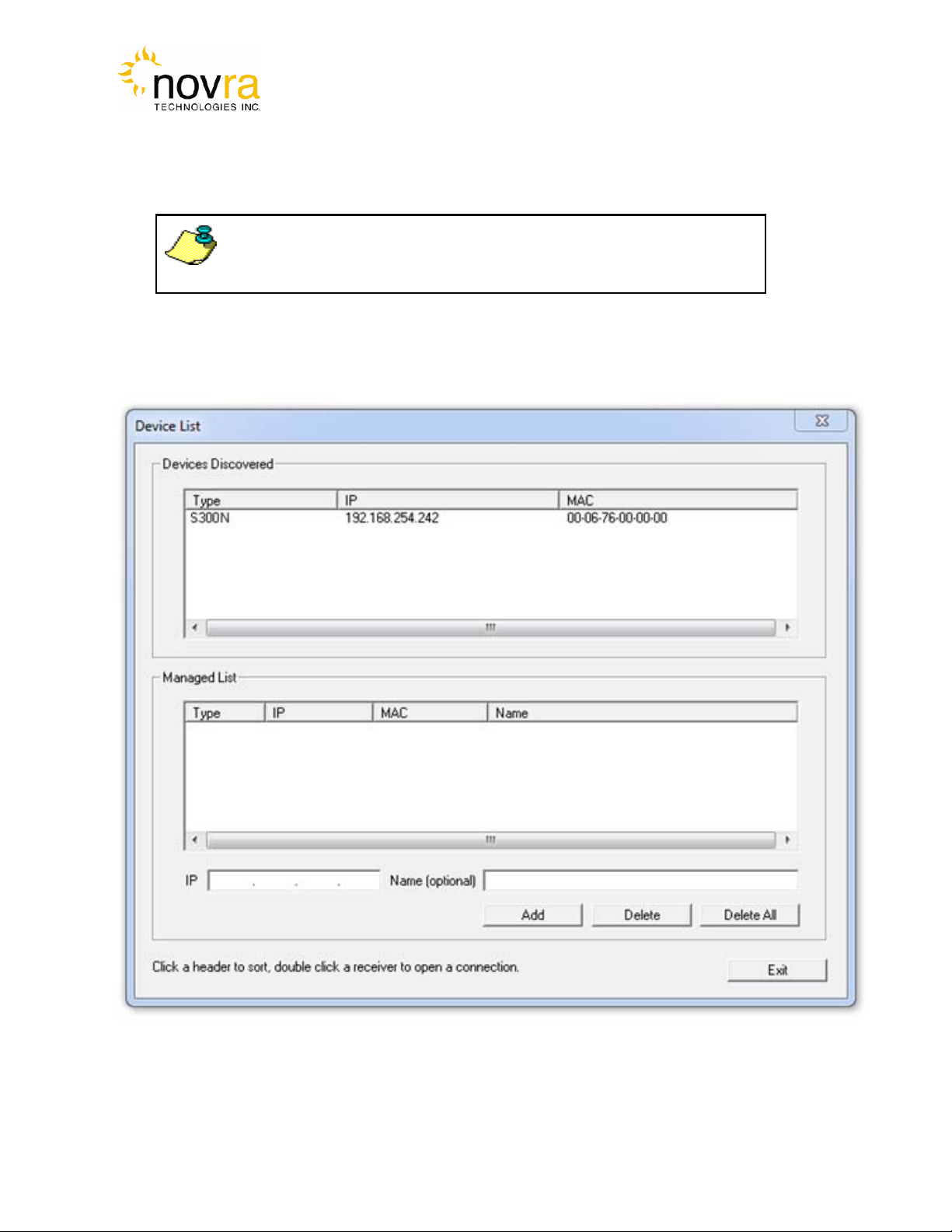
2- The software will attempt to auto-detect all the receivers currently connected to the LAN. After the
auto detection is complete, a screen showing all discovered devices will be displayed as shown
below:
Figure 2 - Discover Devices
Table des matières
Autres manuels Novra Récepteur

Novra
Novra S300 Manuel utilisateur

Novra
Novra A75 ATSC Manuel utilisateur

Novra
Novra S75 Manuel utilisateur

Novra
Novra S300V Manuel utilisateur

Novra
Novra S200 Manuel utilisateur

Novra
Novra S200 Manuel utilisateur

Novra
Novra A75 ATSC Manuel utilisateur

Novra
Novra S300 Manuel utilisateur

Novra
Novra S300 Manuel utilisateur

Novra
Novra S400 PRO Manuel utilisateur