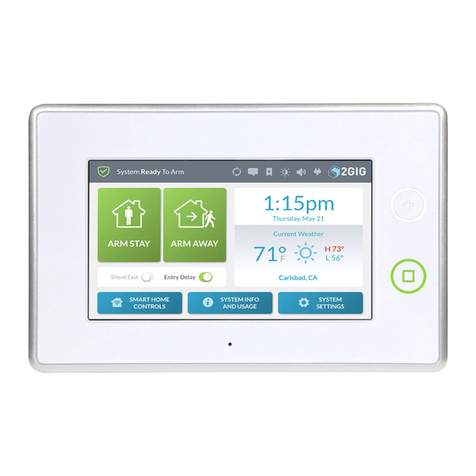
Nortek 2GIG GC2e Manuel utilisateur

2GIG®Security & Automation System
Fingertip Guide
PRINTER'S INSTRUCTIONS: FINGER TIP GUIDE,GC2e - 10022258 A, BLACK, 20LB MEAD BOND,
8.5' X 5.5', TOL. +/- 0.125", SCALE: 1:1, FRONT & BACK, FOLDING: ALBUM FOLD - BINDING: SADDLE-STICH

Copyright © 2019 Nortek Security & Control LLC. All Rights Reserved. U.S. Patent D727,857. Australian Patent No. 357098. Additional Patents Pending.
The 2GIG, GC2e, GoControl, and Linear logos are registered trademarks of Nortek Security & Control LLC in the United States and/or other countries. Other Nortek Security
& Control trademarks may also appear in these materials. Other names or brands may be claimed as the property of others. For more information, contact your 2GIG alarm
dealer for pricing or visit www.nortek.com, www.nortekcontrol.com, or www.2gig.com.
Information in this document is subject to change without notice. The availability of particular products, services, and features may vary by region. Please check with your local
dealer for further details and availability of language options.
No part of this publication may be reproduced, stored in a retrieval system, or transmitted in any form or any means electronic or mechanical, including photocopying and
recording for any purpose other than the purchaser's personal use without the written permission of Nortek Security & Control.
Nortek Security & Control
5919 Sea Otter Place, Suite 100.
Carlsbad, CA 92010
USA
800-421-1587

Copyright © 2019 Nortek Security & Control LLC. 3
Contents
Welcome to the GC2e System.............................................................................. 4
About this Guide..................................................................................................... 4
Support Services .................................................................................................... 4
Home Screen............................................................................................ 5
Emergency and Home Button .......................................................................................... 6
System Icons ....................................................................................................... 7
Burglary Protection ...................................................................................... 8
Arm the System (Stay Mode) ........................................................................................... 8
Silent Control ....................................................................................................... 9
Arm the System (Away Mode) .......................................................................................... 10
Bypass Sensors ..................................................................................................... 11
Disarm the System ................................................................................................... 12
In the Event of a Burglary Alarm......................................................................................... 14
If You Need to Use the Duress Code ..................................................................................... 15
Fire and Emergency Protection ............................................................................ 16
In the Event of a Fire Alarm ............................................................................................ 16
Manual Alarms ...................................................................................................... 17
Security Codes .......................................................................................... 18
Change the Master User or Duress Code ................................................................................. 19
Create a User Code .................................................................................................. 20
System Tests............................................................................................ 21
Limited Warranty ........................................................................................ 22
Warnings ............................................................................................... 23

Copyright © 2019 Nortek Security & Control LLC.
4
Welcome to the GC2e System
This Quick Reference guide shows system owners how to use the basic features of the 2GIG GC2e Security & Automation System. For more in-depth
information, download the GC2e User Guide from 2gig.com/dealers or visit http://www.2gig.com.
About this Guide
This guide is designed for use by home and business owners of the 2GIG GC2e Security & Automation System from Nortek Security & Control. It is
recommended that the GC2e Panel and all associated sensors and peripherals be professionally installed by an authorized 2GIG alarm dealer. For
regulatory compliance, professional installation is required. For a list of dealers in your area, visit http://www.nortekcontrol.com.
Support Services
If you require technical assistance with the system, contact your 2GIG alarm dealer or visit your alarm dealer's website.

Copyright © 2019 Nortek Security & Control LLC. 5
Home Screen
To wake the touchscreen, press the Home button on the panel. The touchscreen goes into sleep mode after ve (5) minutes of inactivity. To change
this setting to between 30 seconds and 10 minutes, tap Security > Menu > Toolbox, enter the Master User Code, tap →, and then change the
Backlight Timeout setting.
The Home screen includes these elements:
»Security: Tap Security to access the Arm, Menu, and
Status screens. See "Burglary Protection" on page 8.
»Services: Tap Services to access features for controlling
Z-Wave devices. If Z-Wave features are not programmed,
this button will not appear.
»System Icons: Indicate system information. See "System
Icons" on page 7.
»System Logo: Tap and enter the Duress Code to transmit
a user duress report to the Central Station. See "If You
Need to Use the Duress Code" on page 15.
»Date/Time: Shows the system date/time.
»Current Weather, Daily Forecast, and Hourly Forecast:
Requires an active account with a Remote Service
Provider that supports weather forecasts and weather
service alerts.

Copyright © 2019 Nortek Security & Control LLC.
6
Emergency and Home Button
Emergency Button/Indicator
Press this button as the rst step to manually trigger an alarm. See "Manual Alarms"
on page 17. During regular operations, the Alarm button changes states as follows:
»SOLID: Lights solid WHITE to indicate it is available for use.
»BLINKING: Blinks WHITE during an emergency alarm.
Home Button/Indicator
Press this button to wake the touchscreen or to return to the Home screen. During
system operations, the Home button changes states as follows:
»SENSOR STATUS: Lights solid GREEN when all sensors are closed
(System Ready to Arm). Turns OFF when any sensor is open (System Not
Ready to Arm).
»ARMING STATUS & ALARM MEMORY: Solid RED when armed. Blinks
RED during the Entry Delay countdown, during an alarm, and after an alarm
(System Armed) while the system is still armed.
»POWER OUTAGE: Flashes BLUE when all sensors are closed (System
Ready to Arm). Flashes RED while the system is armed.

Copyright © 2019 Nortek Security & Control LLC. 7
System Icons
The status bar that appears on the top of the Home screen and on most system menus reveals a variety of icons providing system information.
Figure 1 System Icons
Table 1-1 System Icons
AC Power On AC Power Off Sounder Disabled Low Backup Battery
Test Mode Touch Screen
Keypad Trafc
Over-the Air
Firmware Update
Interior Sensor
Open

Copyright © 2019 Nortek Security & Control LLC.
8
Burglary Protection
To detect an intrusion, ensure the GC2e Panel is in the System Ready to Arm state (see "Bypass Sensors" on page 11). Then arm the system.
Arm the System (Stay Mode)
Apply this mode when people and/or pets will be staying inside. Typically, this mode arms the premises' perimeter zones (for example, doors and
windows) and leaves the interior zones (for example, motion detectors) disarmed.
To arm the system:
At the Security or Menu screen, tap Arm. Tap Stay to arm the system. The system arms and shows the arming
counting down. When the countdown
expires, the system is fully armed in the
Stay mode.

Copyright © 2019 Nortek Security & Control LLC. 9
Silent Control
You can silence Control Panel beeps and announcements when arming or disarming in Stay Mode (for example, at night when you do not want to
disturb occupants who are sleeping) in one of the following ways:
»At the Home or Security screen, tap the Silent Control button.
»At the Ready to Arm screen, check the Silent Exit box.
»On the Exit Delay screen, tap silence.
IMPORTANT: Consult your installer to determine if the Quick Exit feature is enabled on your system. When Quick Exit is allowed and
the system is armed in Stay Mode, you have the option of tapping the Quick Exit button on the System Armed screen to start the
Exit Delay countdown. This gives you time to exit the premises without having to disarm the system. At the end of the countdown, the
system automatically re-arms itself in Stay Mode.

Copyright © 2019 Nortek Security & Control LLC.
10
Arm the System (Away Mode)
Apply this mode when people and pets will be leaving the premises. Typically, the installer congures the system so this mode arms both the perimeter
zones (for example, doors and windows) and the interior zones (for example, motion detectors).
To arm the system:
At the Security or Menu screen, tap Arm. Tap Away to arm the system. The system arms and shows the Exit
Delay counting down. When the Exit
Delay expires, the system is fully armed
in the Away mode.
NOTE: Consult your installer to determine if the Auto Stay feature is enabled. When Auto Stay is enabled and you arm the system
in Away Mode, you must exit the premises through an Exit/Entry door. If no one exits out through an Exit/Entry door at the end of the
Exit Delay countdown, the system automatically arms itself in Stay Mode. For more in-depth information, see the GC2e User Guide.
NOTE: Consult your installer to determine if the Exit Delay Restart feature is enabled. When this feature is enabled, if you exit and
then re-enter the premises before the Exit Delay countdown expires, the Exit Delay countdown restarts one time before the system
arms. For more in-depth information, see the GC2e User Guide.
Table des matières
Autres manuels Nortek Panneau de contrôle