Nokeval FTR970-PRO Manuel utilisateur

User manual
18.02.2008
V 1.06
FTR970-PRO
RADIO RECEIVER WITH LOGGER
Nokeval

RS-485 or RS-232
PromoLog
2
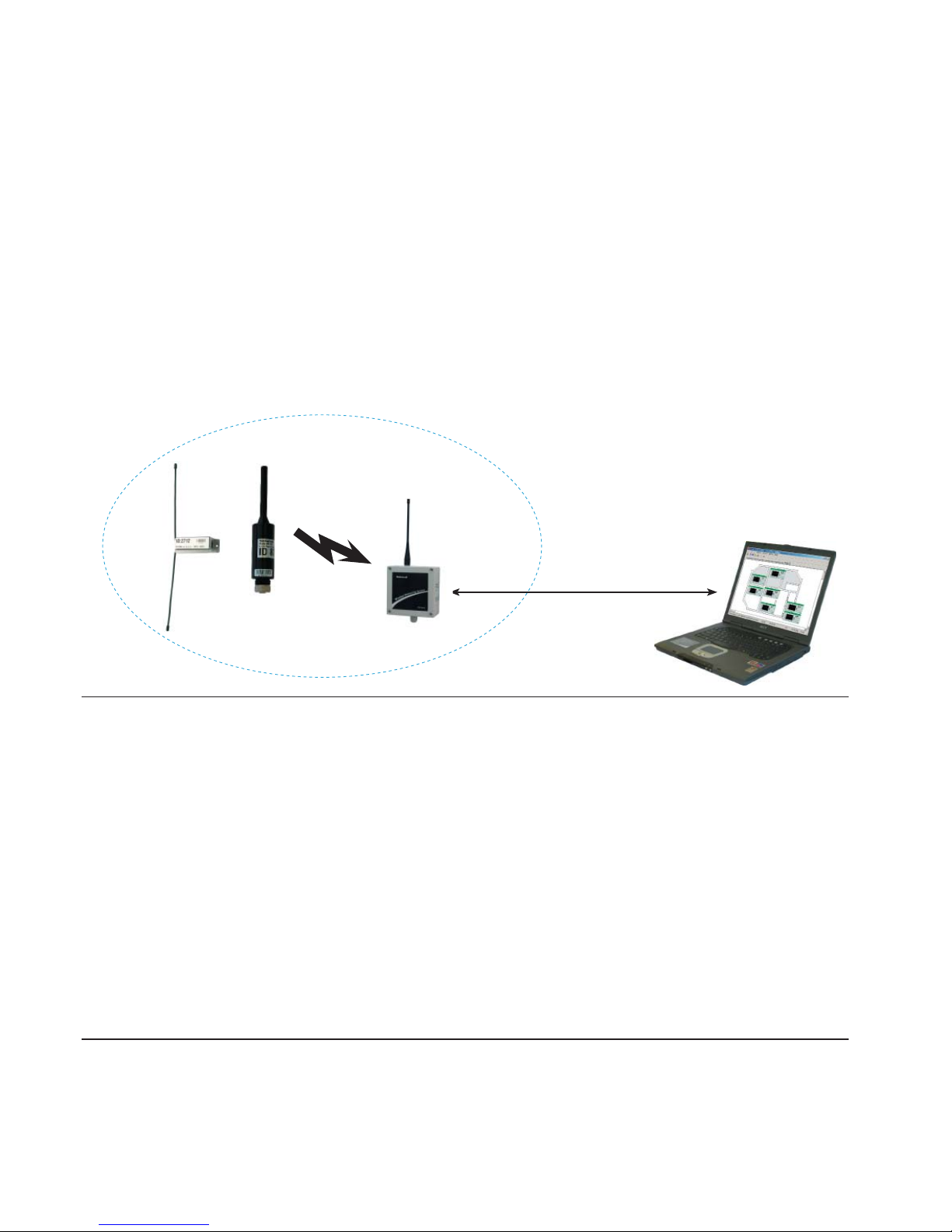
FTR970-PRO is radio data receiver with data logging used with Nokeval MTR and FTR series radio
transmitters. Device can receive, unpack and buffer data packets into its memory from transmit-
ters. It identifies automatically type of a transmitter, so it can be used simultaneously with different
transmitters and with different transmit periods. FTR970-PRO uses license free frequency range of
433.92 MHz, so it can be used freely in areas where this so called ISM-frequency range is allowed,
covering almost whole of Europe.
Receiver can be connected to computer using either RS-485 or RS-232 bus and it needs an appli-
cation program (PromoLog), which fetches processed data from the receiver’s memory.
Nokeval SCL or Modbus RTU protocols are used for data transfer. When RS-485 is used there can
be several FTR970-PRO devices on the bus and they can be positioned to cover larger receive area.
Receiver has four diagnostics leds and it needs operating voltage between 8..28 VDC.
Manufacturer
Nokeval Oy Tel +358 3 3424800
Yrittäjäkatu 12 Fax +358 3 3422066
FI-37100 www.nokeval.com
Contents
General....................................................................................................................................... 2
Installing ..................................................................................................................................... 3
Settings ...................................................................................................................................... 8
Use with PromoLog .................................................................................................................... 11
Channels .................................................................................................................................... 17
Realtime data buffer ................................................................................................................... 20
Flash........................................................................................................................................... 23
SCL protocol............................................................................................................................... 27
Modbus protocol......................................................................................................................... 28
Nopsa language ......................................................................................................................... 31
Applications ................................................................................................................................ 36
Technical data ............................................................................................................................ 37
GENERAL

1 2 3 4
+
-
+ - D1 D09V
RS RF
USB
5 6 7
- RxD TxD
Power LED
J11
J7
Installation method
Best coverage is achieved when receiver has line of sight to the transmitters. Every obstacle be-
tween the devices will attenuate the signal and thus decrease range. On the other hand metal planes
will cause reflections which can in some cases increase the range.
3
INSTALLING
Device can be connected using either RS-485 or RS-232 buses. Each
of these is described in its own subchapter. Power supply connections
are also described separately in each subchapter.
USB bus can be used in case that the standard cable gland is replaced
by large one (not delivered). If it’s desirable to use either RS-485 or
RS-232 buses the device must be jumpered accordingly.
Connections
Power
The supply voltage 8...28 VDC is connected using 1.3 mm DC jack (centre connector positive) or
by using detachable screw post connector terminals 1 (+) and 2 (-). Both supply voltage connec-
tors are internally connected. The receiver is protected against wrong polarity of the supply volta-
ge. The supply voltage’s negative terminal is also used as ground for RS-485 and RS-232.
RS-485
When used with RS-485 bus jumper J11 has to be set according to following picture.
Device needs 8...28 VDC power supply which is connected either with 1.3mm DC-jack, with
positive center pole, or with terminal connections 1 (+) and 2 (-). DC-jack and terminal con-
nector is connected in parallel. Device is protected against wrong polarity of power supply.
RS-485 can be easily added to computer using Nokeval DCS770 or DCS771 USB – RS-485 con-
verter or RCS770 USB/RS-232 – RS-485 converter. RS-485 is connected to terminal connections 3
(D1), 4 (D0) and 2 (Gnd). Wrong connection of polarity doesn’t harm the device.
Antenna connection
Antenna is connected to device’s BNC connector. Antenna is first pushed into the BNC connector
by aligning it with two guide posts after which it is turned 90 degrees clockwise.
RS485
RS232
Power supply
8...28 VDC

4
Termination
Off
On
2-wire-485
Yes
No
Settings for jumper J7
If RS-485 bus master has ground connection available, then jumper called ”2-wire-485” has to be in
position ”No”. If master lacks the connection, then potential equalization has to be done via D1- data
line by putting the jumper to position ”Yes”.
Last device on bus should have termination jumper on. It makes AC-termination for the line, which
means that there is 1nF capacitance and 110 ohm resistance in series between the lines.
Maximum length for the bus is 1km, and it allows 32 devices, more devices can be connected by
using repeaters.
RS-232
When used with RS-232 bus jumper J11 has to be set according to following picture. Jumper J7 has
no effect when RS-232 is used.
Device needs 8...28VDC power supply which is connected either with 1.3mm DC-jack, with
positive center pole, or with terminal connections 1 (+) and 2 (-). DC-jack and terminal con-
nector is connected in parallel. Device is protected against wrong polarity of power supply.
RS-232 bus is not recommended because it is easily disturbed by EMC and maximum cable length
is only 15m in good conditions. RS-485 is recommended for longer ranges.
USB
USB bus can be used if the standard cable gland in the enclosure is replaced by larger one (not
delivered) or circuit board is installed into a customer’s enclosure.
When used with USB-bus jumper J11 has to be set according to following picture. Jumper J7 has
no effect when USB is used.
Device is powered from USB, but if the device should function when computer is turned off then exter-
nal power supply is required. Device needs 8...28 VDC power supply which is connected either with
1.3mm DC-jack, with positive center pole, or with terminal connections 1 (+) and 2 (-). DC-jack and
terminal connector is connected in parallel. Device is protected against wrong polarity of power supply.

PRO
Radio
Memory
Error
J11
J7
1 2 3 4
+
-
+ - D1 D09V
RS RF
USB
5 6 7
- RxD TxD
Power LED
5
Indicator lights
Indicator lights
PRO: Means that device is operating.
RADIO: Means that device is processing serial communi-
cation command.
MEMORY: Means that device is writing data to flash mem-
ory.
ERROR: When power is applied to the device first time er-
ror is light almost certainly, since the real time clock is out
of time in device. This error disappears when new time is
set to clock either automatically with PromoLog or manu-
ally with MekuWin. Note! In case that flash logging is dis-
abled the time loss of real time clock does not lit error led.
Other than above this normally means that there is some
error. Meku monitor will give more descriptive error infor-
mation. Possible error causes are: flash memory broken,
radio coprocessor not responding, real time clock circuit
not responding or real time clock time has been lost, or
EEPROM memory has been cleared.
If the error is caused by EEPROM memory, then error goes
off when new settings are saved to EEPROM.
If reason is that real time clock has lost time, error is con-
tinuously on, until new time is set to device.
All other errors will be automatically cleared if the reason
for error disappears, but if error light is on continuously
and cause of error is not some of the above mentioned
then the device must be sent for service.
Side indicator lights
RS: Informs about internal communication of device. This
should blink constantly.
RF: Informs about received radio packets. This light should
blink randomly depending on the number of radio transmit-
ters within range.
Behind: Power led is positioned behind the two lights, and
it lights if the device is powered. This light is visible when
viewed directly from the front.

6
Installing drivers when using USB
USB interface circuit needs two drivers for PC. First of them opens communication for the USB and
the other generates virtual serial port.
When PromoLog is installed on the computer it also installs these drivers automatically, but if
PromoLog is not installed then you can follow instructions below to install the drivers.
Drivers can be installed either from Nokeval Software CD or latest drivers can be downloaded di-
rectly from the web site of interface circuit manufacturer www.ftdichip.com (Drivers, FT232BM). This
install guide describes the installation from the CD, but it mostly applies with downloaded drivers
too.
Insert Nokeval Software CD in the CD drive and plug the device to the PC. Windows should auto-
matically notice the device and start the installation.
Installation for windows 2000 Installation for windows XP
First you get prompt to search for the drivers
from windows updata, if you have internet
connection available selet “Yes this time only”
and drivers will be installed automatically. Do
this for both drivers.
If you dont have internet connection available
do the following.

7
After USB bus driver ftdibus.inf has been in-
stalled, Windows will begin installation of virtual
port driver, which enables FTR970-PRO to look
like regular serial port, for example COM3.
Finally one must figure out on which COM-port
the device was attached. Open Control Panel/
Hardware/Device Manager. Open ports from the
device tree, and there should be USB Serial Port
in some of the COM ports.
Repeat this procedure for other driver (usb
serial port). And finally check from device
manager in which com port device was
detached.

Realtime
Channels
Other periodic
Sporadic
Unknown
Logger
Channels
Other periodic
Sporadic
Unknown
Channel
interval [s]
Flash erase
Clock Clock
Run
Year
Month
Day
Hour
Min
Sec
Ch1
ID
Type
Linearization
Alarm Group
Reading
Battery
Signal
Age [min]
Serial
Mode
Baud
Bits
Address
Conf
Serial
Channels
Logger
Realtime
Channels
Timeout [min]
Count
Ch1
Ch2
Ch3
Ch4
Ch5
Ch6
Ch7
Ch8
Ch9
Ch10
...
Ch90
8
SETTINGS
Communication settings
Settings for the device are done with PC using Mekuwin configuration software. Mekuwin has its
own instruction manual.
Default settings for serial communication are:
• baud rate 115200
• protocol SCL
• bits 8N1
• address 0
Men

Serial
Mode
Baud
Bits
Address
Jumper for
clearing settings
9
Serial submenu
Mode
Setting for serial mode.
• SCL slave: Nokeval SCL protocol
• Modbus slave: Modbus RTU protocol
Baud
Setting for baud rate.
• 1200, 2400, 4800, 9600, 19200, 38400, 57600, 115200, 230400
Bits
Setting for bits.
• 7E1, 8N1, 8E1, 8O1, 8N2
Note! SCL protocol always uses 8N1 and Modbus RTU uses commonly 8E1.
Address
Setting for serial address.
Allowed SCL addresses are 0..123. Allowed Modbus RTU addresses are 1..247.
Resetting serial communication settings
In case serial settings are for some reason not known, they can be reset by setting jumper in the
position indicated by the following picture when the device is powered up.
Settings will be cleared as follows:
• baud rate 115200
• protocol SCL
• bits 8N1
• address 0

10
Meku monitor shows, how long the device has
been powered on, how many radio packets has
been received, and shows the mean latency for
serial communication.
Also 10 most recently received radio packets are
shown, which helps configuration and trouble-
shooting. Monitor shows device ID, type, signal
strength and also how long time since reception.
Asterisk before line indicates the most recent
packet.
Signal strength -100dBm is just above noise and
about -65dBm is the maximum signal strength.
At the bottom there are ”Error” lights, which indi-
cate where exactly there is error in device if any.
If any of these are lit, then also the front panel
error light is lit.
In all error conditions it is advisable to reboot the
device and check if the error condition persists.
Error lights
Meku Monitor
Error FLASH: Indicates that flash memory circuitry is malfunctioning. If the error won’t go off
then the device must be sent for service.
Error EEPROM: Indicates that device settings have been cleared, because of an error. Make
new settings and press ”Save to EEPROM”, which clears the error.
Error Radio: Indicates that radio coprocessor is malfunctioning. If the error won’t go off then
the device must be sent for service.
Error Clock: Indicates that real time clock circuitry is unreachable or time has been lost. If
error don’t go off by setting new time to the device then the device must be sent
for service.
Flash and clock errors dont harm other functions of the device, if flash and packetbuffers are not
needed.
Table des matières
Autres manuels Nokeval Récepteur