Niveo Professional NWAC7000 Manuel utilisateur

MANUAL NWAC7000
Wireless Management Platform

Contents
Chapter 1 Manual Introduction............................................................................................................... 4
Chapter 2:Product Introduction.............................................................................................................. 4
2.1 Products description...................................................................................................................... 4
2.2 Products Properties....................................................................................................................... 4
2.2.1Hardware Property.................................................................................................................. 4
2.2.2 Software Property .................................................................................................................. 5
2.3 Product Layout .............................................................................................................................. 6
2.3.2 Rear Panel................................................................................................................................... 7
Chapter 3 Configuration Guide ............................................................................................................... 8
3.1 Login Web Interface ...................................................................................................................... 8
Chapter 4 Function Setting..................................................................................................................... 9
4.1 Device List..................................................................................................................................... 9
4.2 Device Group .................................................................................................................................. 16
4.3 Device Log................................................................................................................................... 17
4.4 Address Server............................................................................................................................ 18
4.5 Gateway.......................................................................................................................................... 19
4.5.1 LAN Setting............................................................................................................................... 19
4.5.2 WAN Setting ............................................................................................................................. 20
4.5.3 Cloud Setting ............................................................................................................................ 21
4.5.4 Authentication.......................................................................................................................... 22
4.6 Firewall ....................................................................................................................................... 25
4.6.1 IP/Port Filtering ....................................................................................................................... 25
4.6.2 MAC Filtering....................................................................................................................... 26
4.6.3 URL Filtering ......................................................................................................................... 26
4.6.4 Port Forwarding................................................................................................................... 27
4.6.5 DMZ Settings ........................................................................................................................ 28
4.8 Management .............................................................................................................................. 29
4.8.1 System management............................................................................................................ 29
4.8.2 DNS ....................................................................................................................................... 30
4.8.3QoS ........................................................................................................................................ 31
4.8.4 User management................................................................................................................ 32
4.8.5 Device Log............................................................................................................................ 32
4.8.6 Upgrade Firmware............................................................................................................... 33
4.8.7 System Time ........................................................................................................................ 34
4.9 Device Status ............................................................................................................................... 35

4.9.1 Basic Status........................................................................................................................... 35
4.9.2 LAN Status ............................................................................................................................ 35
4.9.3 WAN Status........................................................................................................................... 36
4.10 Help ....................................................................................................................................... 36

............................................................................................................................................................... 36
Appendix A Product SPEC...................................................................................................................... 37
Chapter 1 Manual Introduction
This manual is subject to tell users how to use this WLAN management platform properly for those
familiar with basic networking knowledge and terminology.
This user manual including the connection of AC controller, description of this platform’s properties,
and how to configure this platform; Pre-reading this manual before operation is highly
recommended.
Chapter 2:Product Introduction
2.1 Products description
NWAC7000 is a high performance WLAN controller, especially for Indoor and Outdoor wireless
access points which set up in hotel or small-medium sized enterprise;
It’s capable for managing all Access point, support AP auto-detection, AP status preview, AP
configuration, MAC filtering, simultaneous AP software upgrade to provide high quality &
performance & reliability. Easy installation & maintenance WIFI service to different clients
2.2 Products Properties
2.2.1Hardware Property
Deploy dual core CPU, 880Mhz frequency

Deploy high capacity&speed memory, up to 516M DDR3 SDRAM;
5 * 10/100/1000Mbps Gigabit Ethernet ports
2.2.2 Software Property
The NWAC7000 detects and connects automatically to Wireless Access points. There is no
need to configure each AP individually: complete centralized AP management utility
Monitor remotely the real time , auto inspection of APs, automatic reboot functionality.
Simultaneous reconfiguration of SSID, Security type and connection type
Remote adjustment of AP RF power output for maximum Ap coverage
Remote control of LED lights
AP address server for automatic assighnment of IP address, in preferred address range.
Remote management of Channel selection and location remarks.
MAC filtering for segmentation and securing users.
Full management by easy WEB interface

2.3 Product Layout
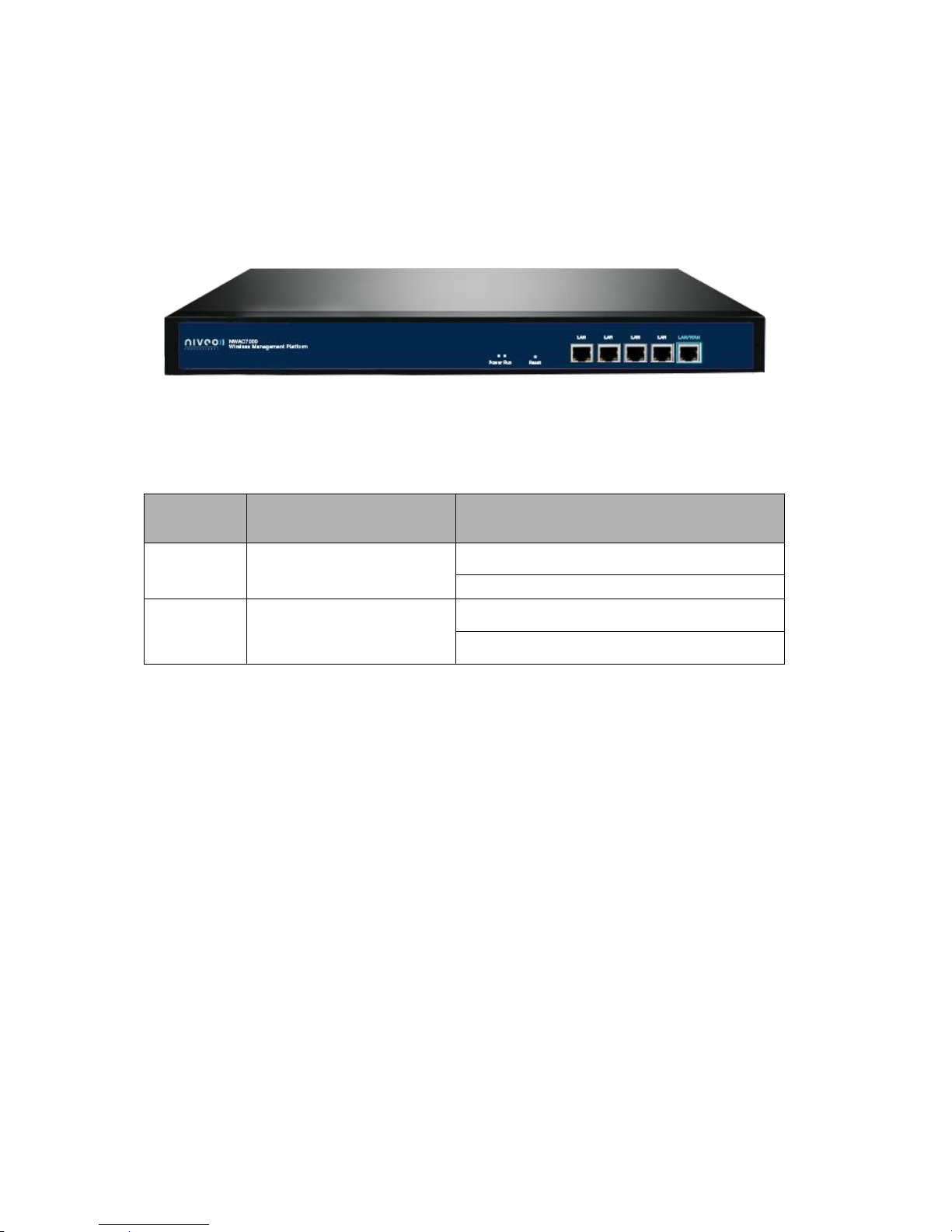
NWAC7000 front panel is like following:
LED indicator:
LED Light
Name
Indication
Power
Power Light
Power is on, means status is up;
Power is off, mean status is down;
Run
System Light
flashing,means system status is normal
off or stable steady, means status is
abnormal
Reset button:
If need to restore the NWAC7000 into factory default, pls do following procedure:
Power on NWAC7000, use a pin to press and hold the reset button until all LED start flashing quickly
from flashing slowly. Then release the button and wait for NWAC7000 to reboot to its factory default
settings. After that, the default IP address of NWAC7000 is still 192.168.10.1,default user name and
password are unchanged : admin/admin
Notice:
LAN/WAN port is LAN port only on the default mode, only when WAN setting is enabled then
LAN/WAN port will change to WAN port;

2.3.2 Rear Panel
Rear panel of NWAC7000
DC Jacket
DC Jacket located on the right side of NWAC7000’s rear panel, input power should be ac power 100-
240V~ 50/60Hz 0.3A
Anti-thunder ground connection:
Please deploy ground connection to avoid lightening stroke, by copper core cable in yellow and green
jacket;
For detailed installations please refer to related manuals, like <<Anti-thunder installation guide in
devices>>
Attention:
Please use original power cord for installation;
Set locate power outlet near the devices, to make safer and easier installation and operation.
The usage of an UPS system is advised.

Chapter 3 Configuration Guide
3.1 Login Web Interface
Pls confirm the following points before login NWAC7000:
1) Connect the management host(PC) to LAN port of AC controller or UP-link port of switch in the
network
2) The management host(PC) has been properly installed IE 7.0 or higher browser version
3) The management host’s IP address has been into set the same network segment with
NWAC7000, namely 192.168.10.X (X is between 2-254 arbitrary integer Number), a subnet
mask of 255.255.255.0.
4) In order to ensure a better effect of Web interface displays, it is recommended to adjust
the display resolution to 1024 × 768 or more pixels.
Operation Steps:
A. Open IE browser,Input http://192.168.10.1/ in the address bar to login NWAC7000 Web
management interface.
B. Now please enter username and password. Factory default is:
Username: admin
Password: admin
Click: “OK”
C. After a successful login, then see NWAC7000 Web interface page:

In the above Web Interface Page, there are three parts.
The main menu area on the left, to show this WLAN controller’s main function.
It is the AP List on the middle part, to show the Wireless AP info which can be accessed by
this WLAN controller.
Function list are on the right part. For example, click Device List, then all functions of Device
List are displayed.
Chapter 4 Function Setting
4.1 Device List
Device list show the current wireless AP accessed by the NWAC7000, display the total
quantity/Online/Offline Wireless AP connected to NWAC7000,
Then Wireless AP’s name, IP address, MAC address, QTY of end users, Firmware version,
Channel as showed in following picture:

Let’s introduce following button one by one:
Select: click the white box to make hook, to select this AP
Blue balloon: Click it to set the AP’s Location and Device name, fill in the right info if
needed, will be showed in Device list when Apply.
Picture showed as follow:
SN: Show how many AP access by this AC controller
Location: show where the AP physical location is.
Name: what’s the name of this AP.
Device IP: AP’s IP address, click this IP address, can access into AP’s GUI when you set an
static IP address for your PC in same IP segment.
When there are multiple APs in the device list and you want to find out one AP, you can input
this AP’s IP address for quick search.
Device MAC: AP’s MAC address, if you want to find out one AP quickly by MAC address,
just input the MAC address in top of this GUI, then search.
Users: How many end users access into this AP
Version: The firmware version of this AP
Channel: the channel of this wireless AP
Online Time: How long this wireless AP online and access into this AC controller.
Group: you can set some AP in one group, then this part will show group name mainly.
Table des matières