
NHR A11 Manuel utilisateur

A11 User’s Manual
1
A11 (ZigBee Wireless Smart Plug)
User’s Manual Ver. 1.06
Copyright 2016 Nietzsche Enterprise Co., Ltd. All rights reserved
Nietzsche Enterprise reserves the right to make changes and improvements to its products
without notice.
Contents
1. Package Contents and A11 View ..........................................................................................2
2. Installing A11 and Initial Power ON......................................................................................3
3. Joining A11 to the Network..................................................................................................3
4. Smart-Controlling A11’s AC Mains Socket ...........................................................................4
5. Removing A11 from the Parent’s Network ..........................................................................4
6. ZigBee Reset .........................................................................................................................5
7. A11 LED Status and Power Button / S1 Link Switch Actions................................................5
8. Product Specifications ..........................................................................................................6
9. Regulatory Information ........................................................................................................7
A11 User’s Manual
2
Congratulations for choosing the next generation ZigBee wireless smart plug, which brings
you into smart living generation. This manual is designed to help set up and get the most
from the sensor in a few short minutes.
Safety notice: Please read and follow the instructions before using this product
To prevent electrical shock or fire, do not disassemble or expose the unit to liquids of
any kind
Only use attachments and / or accessories specified by the manufacturer
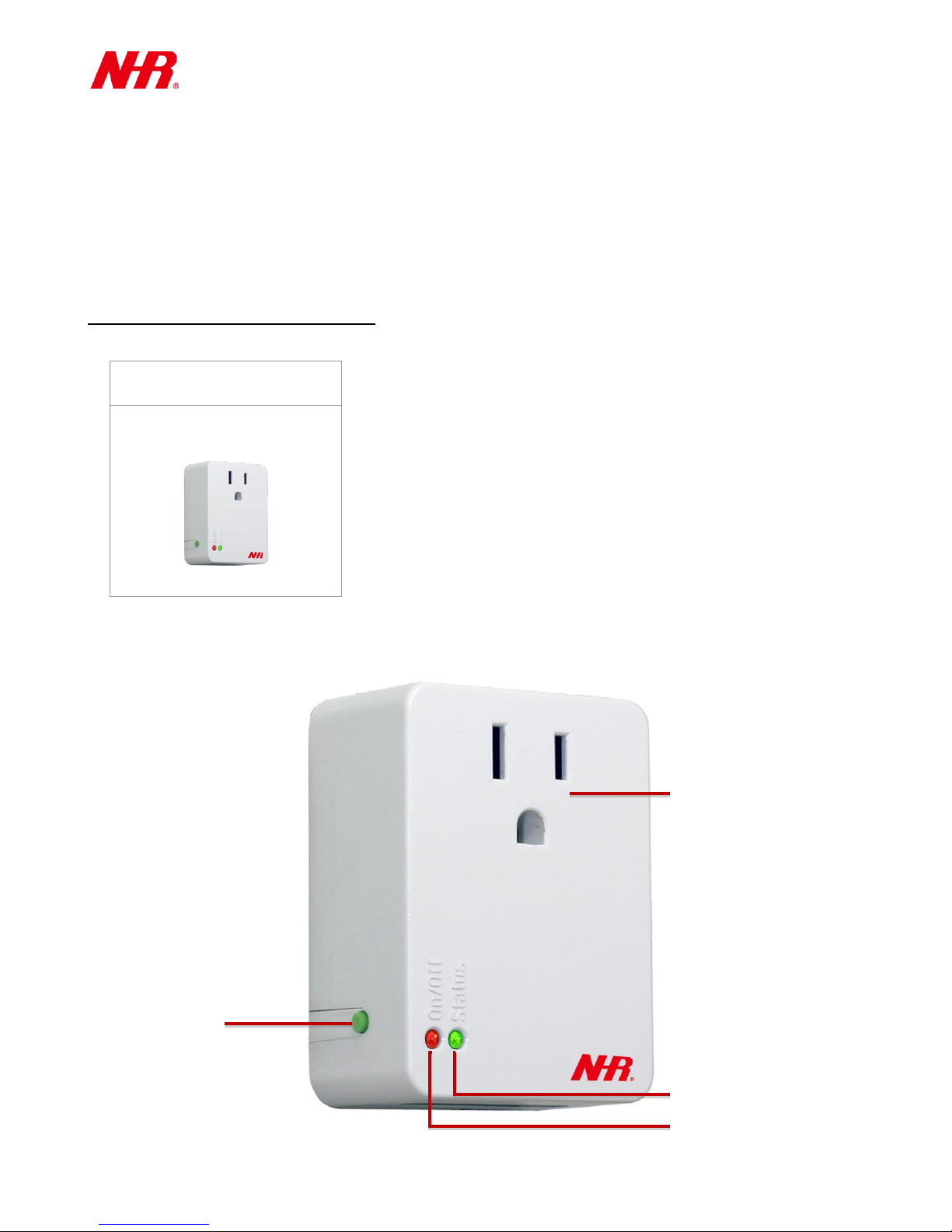
1. Package Contents and A11 View
NHR A11 Smart Plug
AC Mains Socket
Power Button /
S1 Link Switch
Green LED (Status)
Red LED (Power/Status)

A11 User’s Manual
3
2. Installing A11 and Initial Power ON
Requirements:
Live AC mains socket
a) Plug A11 into live AC mains socket. Plug your appliance into A11’s AC mains socket.
.
b) Apply one quick press to the power button / S1 link switch to manually turn your appliance
ON (red LED will be ON) or OFF (red LED will be OFF).
c) The green LED on A11 should start flashing to indicate its current state:
Green LED
Status
1 flash every 2 seconds
Ready to join a parent device
1 flash every 5 seconds
Already joined a parent device and functioning normally
3. Joining A11 to the Network
Requirements:
Parent device, such as coordinator (eg. WZB-01USBC, WZB-02485C), gateway (eg. G07-
W, WZB-05ET), or router (eg. WZB-01USBR, WZB-02485R)
a) Ensure parent device is powered on (see relevant device’s manual).
b) Power on A11 (see “Installing A11 and Initial Power ON” section) ensuring it is in Ready to
Join status (green LED flash once every 2 seconds).
c) Enable Permit Join status on parent device (see relevant device’s manual) and check A11
joined the parent device.
d) If A11 has successfully joined the parent device, A11 will show Successfully Joined status
(green LED flash 2 times) then Normal Operations status (green LED flash once every 5

A11 User’s Manual
4
seconds).
If A11 does not show Normal Operations status (green LED does not flash once every 5
seconds), then it has not successfully joined. Repeat above steps until A11 has joined
successfully. If A11 has still not joined after a few attempts, check it is within the operational
range of 100m (line of sight) from the parent device and away from other 2.4GHz devices that
might interfere with its operations.
If A11 has joined successfully, but shows Disconnected status (green LED flashes twice every 5
seconds), then check parent device is correctly powered on. If the parent device is
functioning correctly, A11 may be out of range or experiencing interference, additional
extender(s) may need to be added to ensure good connections.
4. Smart-Controlling A11’s AC Mains Socket
Requirements:
Parent device, such as coordinator (eg. WZB-01USBC, WZB-02485C), gateway (eg. G07,
WZB-05ET), or router (eg. WZB-01USBR, WZB-02485R)
a) Ensure that your A11 has joined to parent device’s network.
b) Install the relevant app or software on your smart device or computer.
c) Follow instructions of the relevant app or software.
Note: A11 will automatically turn off its AC mains socket upon power outage. When the
power is restored, please manually turn A11’s AC mains socket back on.
5. Removing A11 from the Parent’s Network
a) Ensure that the parent device is powered on (see relevant device’s manual).
b) Ensure A11 is powered on (see “Installing Mounting for A11 and Initial Power On” section)
and has already joined the parent device’s network (green LED flash once every 2 seconds).
c) Apply a 10-second long press to the S1 link switch (the green LED will flash for up to 20
seconds), then apply 3 quick presses to the S1 link switch, A11 will show Removing status
(red LED rapid flash for up to 30 seconds) or until successful removal (green LED flash
once).
d) If A11 has been successfully removed, A11 will show Ready to Join status (green LED flash

A11 User’s Manual
5
once every 2 seconds).
Note: Definition of Removing –A11 will no longer appear in the parent device’s wireless
group list after removing A11 from the parent device’s network.
6. ZigBee Reset
In the case where the parent device (coordinator, gateway, or router) for A11 is no longer
available or have been reset, A11 will need to be reset. Apply a 10-second long press to the
S1 link switch (the green LED will flash for up to 20 seconds), then apply a 5-second press to
the S1 link switch, the green & red LEDs will both come ON during the reset, then A11 should
show Ready to Join status (green LED flash once every 5 seconds).
Note: Definition of Reset –A11 will remain in the parent device network’s wireless group list
after resetting A11 (unless the parent device has been reset).
7. A11 LED Status and Power Button / S1 Link Switch Actions
The A11 LED status is summarized below:
A11 Status LED
Status
Red LED:
ON
A11’s AC mains socket is active.
Red LED:
OFF
A11’s AC mains socket is inactive.
Green LED:
1 flash every 2 seconds
Ready to Join –ready to join network of parent
device (coordinator, gateway, or router)
Green LED:
3 flashes (one time)
Successfully Joined –joined network of parent
device
Green LED:
1 flash every 5 seconds
Normal Operations –joined network of parent
device and functioning normally
Green LED:
2 flash every 5 seconds
Disconnected –joined network, but unable to find
any parent device of the network
Green LED:
Rapid flashing up to 20 seconds
Setup Mode –enter this mode to remove A11 from
a network or to reset A11.
Red LED:
Removing –(while in Setup Mode) being removed

A11 User’s Manual
6
Rapid flashing up to 30 seconds
from the network of the parent device
Green & Red LED:
ON
ZigBee Reset –(while in Setup Mode) reset to
factory default, remove all ZigBee network linkages
The A11 power button / S1 link switch actions are summarized below:
Operation
Power Button / S1 Link Switch Actions
Power ON/OFF
Press once to manually turn A11’s AC mains socket
ON/OFF
Setup Mode
Press and hold for 10 seconds
*Remove from Network
Press 3 times within 1.5 seconds
*ZigBee Reset
Press and hold for 5 seconds
*: Please enter Setup Mode first before performing this operation.
8. Product Specifications
Key Function
Power ON/OFF attached device from smart devices
remotely
Reports power consumption, on/off status of attached
devices
Bridges other wireless devices as router
Other normal plug can be plugged simultaneously because
of its small size
Electrical
Operating Voltage: 100 ~ 120 Vac
Power Frequency: 50 ~ 60 Hz
Max. Load Capacity: US: 12 A/120 Vac, 1440W
Power Sensor
Accuracy: +/- 5 %
Detects current draw from user AC socket
Range: 0 A to 12 A
RF Transmit Power
63 mW (18 dBm), 100 mW EIRP
RF Receiver Sensitivity
-100 dBm
RF Transmit Distance
Up to 100 meters / 328 feet
RF Communication
Wireless IEEE 802.15.4
Supports router/ range extender function
Frequency Band: 2.4000 ~ 2.4835 GHz
Protocol: ZigBee Standard Home Automation
Buttons
Power button / S1 link switch

A11 User’s Manual
7
9. Regulatory Information
Thank you for choosing the A11. We are looking forward to working with you!
LED Indication
ON/OFF (Red): Solid when user AC socket is powered
Status (Green): Flashes when the plug is connected to an RF
network with the plug powered on.
Red+Green at the same moment: Unit reset
Management
iPhone & iPad app; Android app
Remote access (Internet)
Email notifications
Sensor control; schedule control; manual
Environment
0°C ~ 40°C / 32 °F ~ 104 °F
0 ~ 80 %RH (non-condensing)
Indoor use only
Color
Pearl-white
Material
UL 94_V0 fire protection material
Dimensions
(L) 68 X (W) 29 X (H) 50 mm /
(L) 2.68 X (W) 1.14 X (H) 1.97 inches
Weight
81.5 g / 2.9 oz
Certification
FCC, NCC, UL (UL certification files for UL498A and
UL60950)
CAUTION
NEUTRAL FUSING
Table des matières


