
NG Systems X-Assist Manuel utilisateur
Tel: +44 (0)1704 500279 www.ngsystems.co.uk Fax: +44 (0)1704 535657
X-Assist USB Joystick Controller
General Instructions
X-Assist may be used with any software that supports a USB joystick utilising Windows™built-in
‘plug n play’ drivers. No additional software is required for use with such applications.
Simply connect X-Assist to a free USB socket on the client PC or DVR. In most cases it will be
necessary to manually assign each of X-Assist’s keys to specific functions on the host software.
Please refer to the software vendor’s instruction manual for details.
Milestone XProtect®Plug-in Enhancement
For Milestone XProtect users, NG Systems have developed a plug-in designed to enhance control of
this software, providing it with additional features including fast selection of Views, Cameras and
Presets by name or number plus On-Screen Menus, Audio ‘Talk’ control and a special ‘Mouse’ mode
that allows the joystick to function as a standard mouse pointing device. Additionally, when in
playback mode, the joystick operates as a jog and shuttle control.
Installing the XProtect plug-in
1. Download the ZIP folder containing the latest version of X-Assist’s XProtect plug-in from NG
Systems’ website (www.ngsystems.co.uk).
2. Find your Milestone Smart Client Plugin installation directory
e.g. C:\Program Files\Milestone\XProtect Smart Client\plugin
3. Create a new directory called "X3200" (Delete any previous X3100 plugin directories and
files if applicable)
4. Copy all files contained in the downloaded Zip file to the new directory
5. Connect X-Assist to a free USB port and wait for the drivers to install.
6. Start Smart Client.
N.B. If Smart Client has previously been configured to work with X-Assist without the plug-in, please disable all
Button Assignments in Smart Client Joystick Setup by changing to "No action" to avoid conflicts.

Tel: +44 (0)1704 500279 www.ngsystems.co.uk Fax: +44 (0)1704 535657
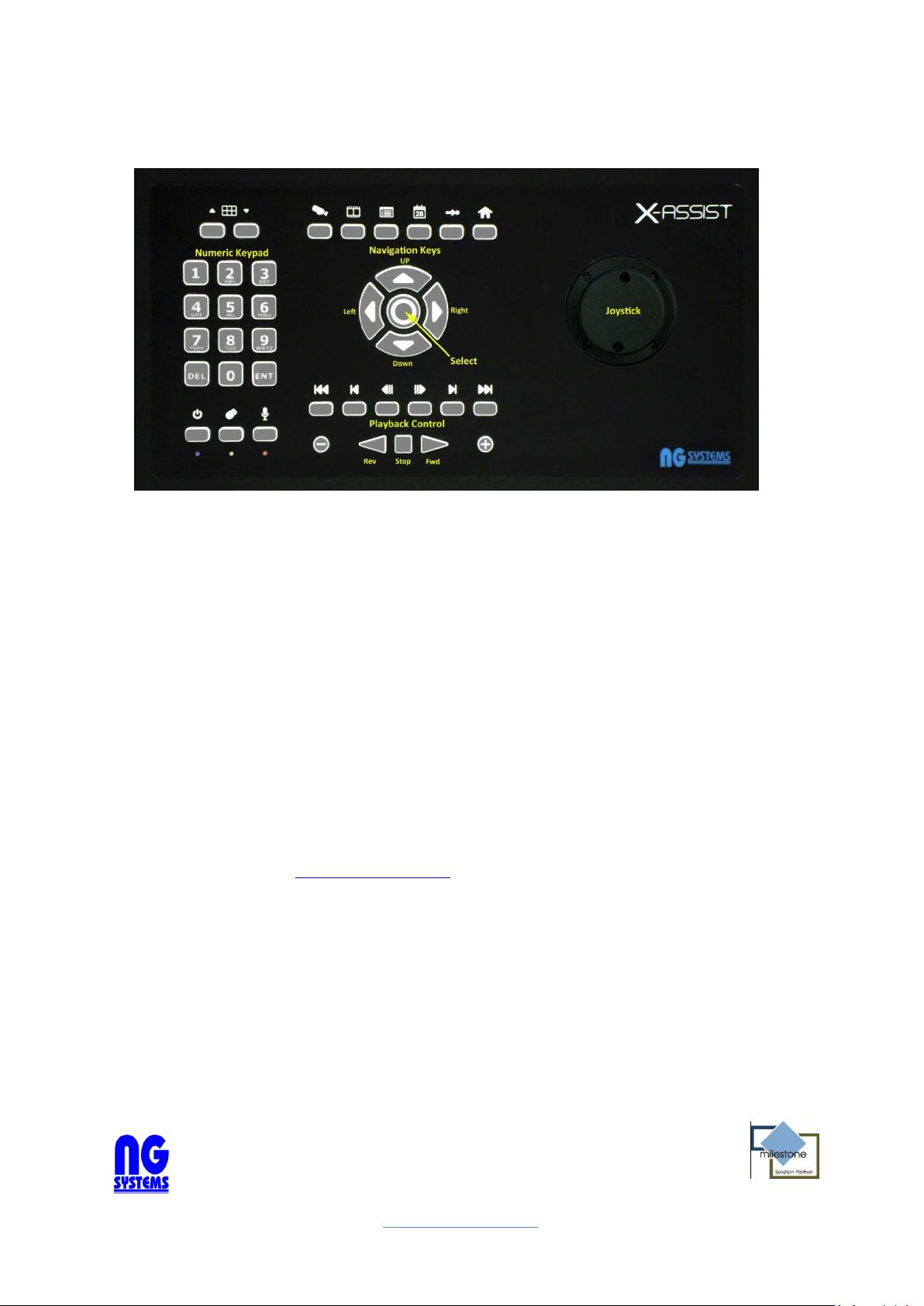
Special Function Keys
View Select Keys: Scroll sequentially between views. Press to scroll up the list and
to scroll down.
Keyboard on/off: Press and hold for 2 seconds to disable X-Assist (blue light flashes). To
re-enable, press and hold once again for 2 seconds (blue light glows steady). Used to
prevent inadvertent key presses or joystick operation.
Mouse Mode: Press and hold for 2 seconds to use the joystick as a mouse (yellow light
flashes). The joystick will move the mouse cursor and the left and right navigation keys
may be used as left and right mouse buttons. To return to normal, press and hold once
again for 2 seconds (yellow light glows steady).
Talk: Press to talk, release to mute. Red light illuminates whilst talk active.
Live Mode: Display live images
Browse Mode: Browse (playback) recorded footage
Menu: Invoke X-Assist’s On-Screen Menu
Time Navigation: In Browse Mode, play recorded footage from specific time and date.
Enter time and date using the navigation keys, up and down to change value, left and
right to move between fields. Once the required time and date is set, press ‘SELECT’.
(The joystick left, right, up, down and twist may also be used to quickly set time and
date values).
Preset: Move currently selected PTZ camera to a preset. Press once to select from an
on-screen list of named presets or enter a preset number on the numeric keypad and
press to move to a numbered preset.
PTZ Home: Move currently selected PTZ camera to ‘Home’ position.
Playback Control
X-Assist’s playback keys mimic the actions of XProtect’s playback controls. In addition two speed
buttons marked + and –may be used to change playback speed faster or slower respectively.
Joystick Playback Control In playback mode, the joystick may be used to quickly navigate
XProtect’s timeline. Move the joystick Up and Down for coarse movement and twist for fine
adjustment. Playback speed may also be adjusted by moving the joystick left (slower) and right
(faster).

Tel: +44 (0)1704 500279 www.ngsystems.co.uk Fax: +44 (0)1704 535657
Camera Selection
Cameras may be selected in one of three ways from X-Assist:
Select a camera by Name.
To select a camera by name:
1. Press the menu button - a menu will appear on the main monitor.
2. Use the up and down navigation keys to highlight ‘Cameras’ and press the ‘SELECT’ key. A list
of currently available cameras will appear:
3. Use the up and down navigation keys to highlight the required camera name and press the
‘SELECT’ key. The selected camera will appear full screen.
Select a camera by Number
To use this feature, camera number shortcuts must have been pre-assigned to each camera in the
Milestone Management Application on the server. For details, refer to the XProtect documentation.
To select a camera by number:
1. Enter the camera number on the numeric keypad –the typed number will appear on the top
right of the main monitor. An incorrect key-press may be corrected using the ‘DEL’ key.
2. Press ‘ENT’ on the keypad to select the camera and the selected camera will appear full
screen. If an invalid number is entered, the ‘Invalid’ icon will be displayed:

Tel: +44 (0)1704 500279 www.ngsystems.co.uk Fax: +44 (0)1704 535657
Select a camera from a Multi-Image View
Highlight the camera to be selected using the left, right, up and down navigation keys and press
‘SELECT’ to select the highlighted camera image for full-screen display. Press ‘SELECT’ a second time
to revert to Multi-Image.
View Selection
To select a specific view, press the ‘Menu’ key and use the navigation keys to select ‘View’.
Scroll through the available views and press ‘SELECT’ to switch to your chosen view. Alternatively,
scroll through each view sequentially using the View Scroll keys.
Preset Selection.
PTZ presets may be selected either by name or number:
Select a preset by name
Press the ‘Preset’ button and a list of available preset names will appear on the main monitor
screen. Use the navigation keys to scroll through and press ‘SELECT’ to select a preset name from the
list.
Select a preset by number
Enter the number on the numeric keypad and press
Table des matières


