Nexvoo N450-AI Manuel utilisateur

Nexvoo N450-AI
User Manual
(v1.0.0)
4K PTZ Camera

User Manual
i
Preface
This manual is to ensure that the user can use the product properly and avoid danger
while operating. Before using this product, please read the user manual carefully and
keep it properly for future reference.
Overview
This manual is about Nexvoo 4K PTZ camera N450-AI operation.
Graphic Symbols
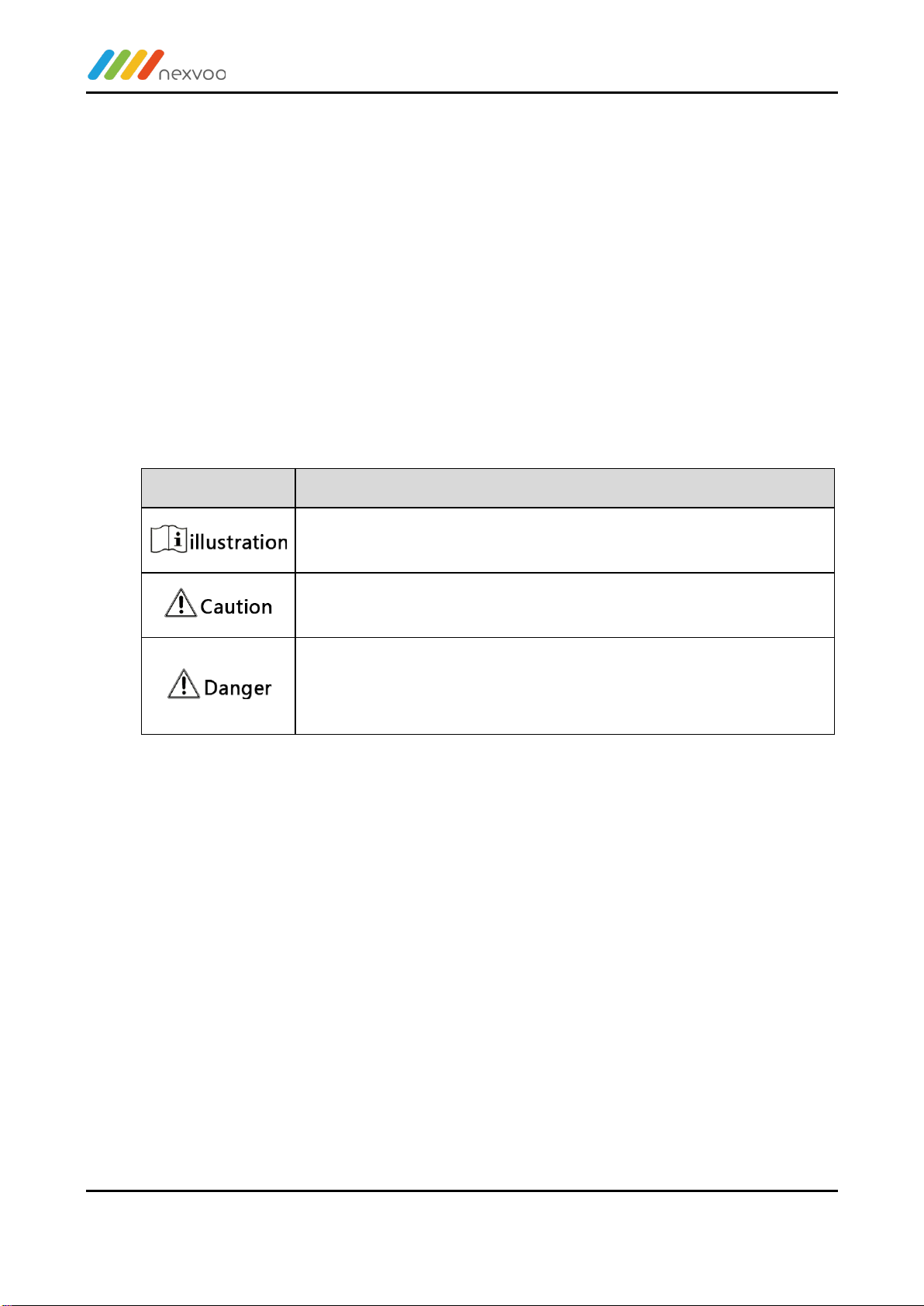
Description of graphic symbols used in this manual.
Symbols
Description
This symbol indicates that the words are clarification or
supplement to this article.
This symbol indicates that negligence of the instructions may
lead to mishandling that may cause injury or property damage.
This symbol indicates a risk that may result in damage to this
machine or documents.
Follow the instructions to avoid property damage.

User Manual
ii
Attention
This manual introduces functions, installations and operations for this product in
details. Please read this manual carefully before installation and use.
Precautions:
This product can only be used in the specified conditions in order to avoid any
damage to the camera:
1) Do not expose the product to rain or moisture.
2) To prevent the risk of electric shock, do not open the case. Installation and
maintenance should only be carried out by qualified technicians.
3) Do not use the product beyond the specified temperature, humidity or power
supply specifications.
4) Please use a soft dry cloth to clean the camera. If the camera is very dirty, clean
it with diluted neutral detergent; do not use any type of solvents, which may
damage the surface.
Electrical Safety:
Installation and use of this product must strictly comply with local electrical safety
standards.
Transportation:
Avoid any stress, vibration, or moisture during transportation, storage, installation and
operation
Installation:
1) Do not rotate the camera head violently, otherwise it may cause mechanical
failure;
2) This product should be placed on a stable desktop or other horizontal surface. Do
not install the product obliquely, otherwise it may display inclined image;
3) Ensure there are no obstacles within rotation range of the holder.
4) Do not power on before completely installation.
Do Not Dismantle Camera:
We are not responsible for any unauthorized modification or dismantling.

User Manual
iii
Magnetic Interference
Electromagnetic fields at specific frequencies may affect the video image. This
product is Class A. It may cause radio interference in household application.
Appropriate measure is required.

User Manual
iv
Content
Quick Start...........................................................................................................................1
1.1 Interface .................................................................................................................1
1.2 Power-on Self-Test.................................................................................................2
1.2.1 Power on........................................................................................................2
1.2.2 Self-Test.........................................................................................................2
1.3 Video Output ..........................................................................................................2
1.3.1 Network Output..............................................................................................2
1.3.2 HDMI Output..................................................................................................2
1.3.3 USB3.0 Output ..............................................................................................2
1.3.4 SDI Output.....................................................................................................3
1.4 Bracket ...................................................................................................................3
1.4.1 Steps of Wall Mount ......................................................................................3
1.4.2 Steps of Ceiling Mount ..................................................................................4
Product Overview................................................................................................................7
2.1 Product Overview...................................................................................................7
2.1.1 Product Dimension........................................................................................7
2.1.2 Accessory ......................................................................................................7
2.2 Product Feature .....................................................................................................8
2.3 Technical Specification...........................................................................................9
2.4 Interface Introduction ...........................................................................................13
2.4.1 Interface Diagram........................................................................................13
2.4.2 RS-232.........................................................................................................14
2.4.3 Rotary Dip Switch........................................................................................15
How to Use..........................................................................................................................1
3.1 Video Output ..........................................................................................................1
3.1.1 Power-on Self-test.........................................................................................1
3.1.2 Video Output..................................................................................................1
3.2 Remote Control......................................................................................................1
3.2.1 IR Remote Control.........................................................................................3
3.2.2 Remote Control Usage..................................................................................5

User Manual
v
3.3 Menu Setting ..........................................................................................................7
3.3.1 Main Menu.....................................................................................................7
3.3.2 Monocular Tracking ....................................................................................8
3.3.3 System Setting ..............................................................................................8
3.3.4 Camera Parameter Setting ...........................................................................9
3.3.5 P/T/Z ............................................................................................................12
3.3.6 Video Format ...............................................................................................13
3.3.7 Version.........................................................................................................14
3.3.8 Restore Default............................................................................................14
NETWORK CONNECTION ..............................................................................................16
4.1 Connection Method..............................................................................................16
4.2 Camera Web Interface.........................................................................................18
4.2.1 Web Login....................................................................................................18
4.2.2 Preview ........................................................................................................18
4.2.3 Monocular AI Tracking Function Web Page Configuration ........................19
4.2.4 Configuration ...............................................................................................20
4.2.5 Audio Configuration.....................................................................................21
4.2.6 Video Configuration.....................................................................................21
4.2.7 Network Configuration.................................................................................25
4.2.8 System Configuration..................................................................................27
4.2.9 Logout..........................................................................................................29
Serial Port Communication Control ..................................................................................30
5.1 VISCA Protocol List..............................................................................................30
5.1.1 VISCA Protocol List .....................................................................................30
5.1.2 Device Control Command...........................................................................31
5.1.3 Inquiry Command ........................................................................................39
5.2 Pelco-D Protocol Command List .........................................................................43
5.3 Pelco-P Protocol Command List..........................................................................44
Maintenance and Troubleshooting ...................................................................................46
6.1 Camera Maintenance...........................................................................................46
6.2 Unqualified Applications.......................................................................................46
6.3 Troubleshooting....................................................................................................46

User Manual
1
Quick Start
1.1 Interface
Figure1-1 Interface
Interface:
1. Lens
8. Safety Lock
15. RS232 Input
2. Power Indicator
9. SDI Output
16. RS232 Output
3. Statue Indicator
10. HDMI Output
17. Rotary Dip Switch
4. IR Receiver
11. USB3.0
18. RS485 Input
5. Reserved Hole for
Installation
12. LAN
19. RS422 Input
6. Fixation Hole for Tripod
13. Power Input
Socket(DC12V)
20. Audio Input ( Line-IN)
7. Screw Hole for Tripod
14. Power Switch
When using the camera, please put the plastic pad on the
center bottom of device

User Manual
2
1.2 Power-on Self-Test
1.2.1 Power on
Connect device to power socket with DC12V power adapter.
1.2.2 Self-Test
After power on, the receiver light will start flashing and camera will do a brief pan-tilt
tour and return to the home position. When light stop flashing, the self-test is finished.
⚫Default address of the remote control is 1#. When menu restore default setting, the
address of IP remote control will restore 1#.
⚫If preset 0 is set, the camera will return to the preset 0 position after self-test
1.3 Video Output
This series camera can output video through network, HDMI, and USB3.0.
1.3.1 Network Output
a, Network connection: Shown as diagram 1.1 #12
b, Log in: You can reach the Web Interface by typing in the camera’s IP address
(default 192.168.5.163) into a web browser. To log in, type in “admin” into the
username and password fields. From the Web Interface, you can adjust many of your
camera’s settings via this IP interface, like PTZ control, video recording, playback,
and configuration setting.
1.3.2 HDMI Output
a, HDMI connection: Shown as diagram 1.1 #10
b, Connect camera to the display device via HDMI cable.
1.3.3 USB3.0 Output
USB3.0 connection: Shown as diagram 1.1 #11. Open video software and select
image device to output video.

User Manual
3
1.3.4 SDI Output
SDI connection: Shown as diagram 1.1 #9. Connect camera to the display device via
SDI cable. Then the camera will output image after self-test.
1.4 Bracket
⚫Bracket can only be wall mounted or upside down mounted on template and
concrete wall, but can not be installed on plasterboard.
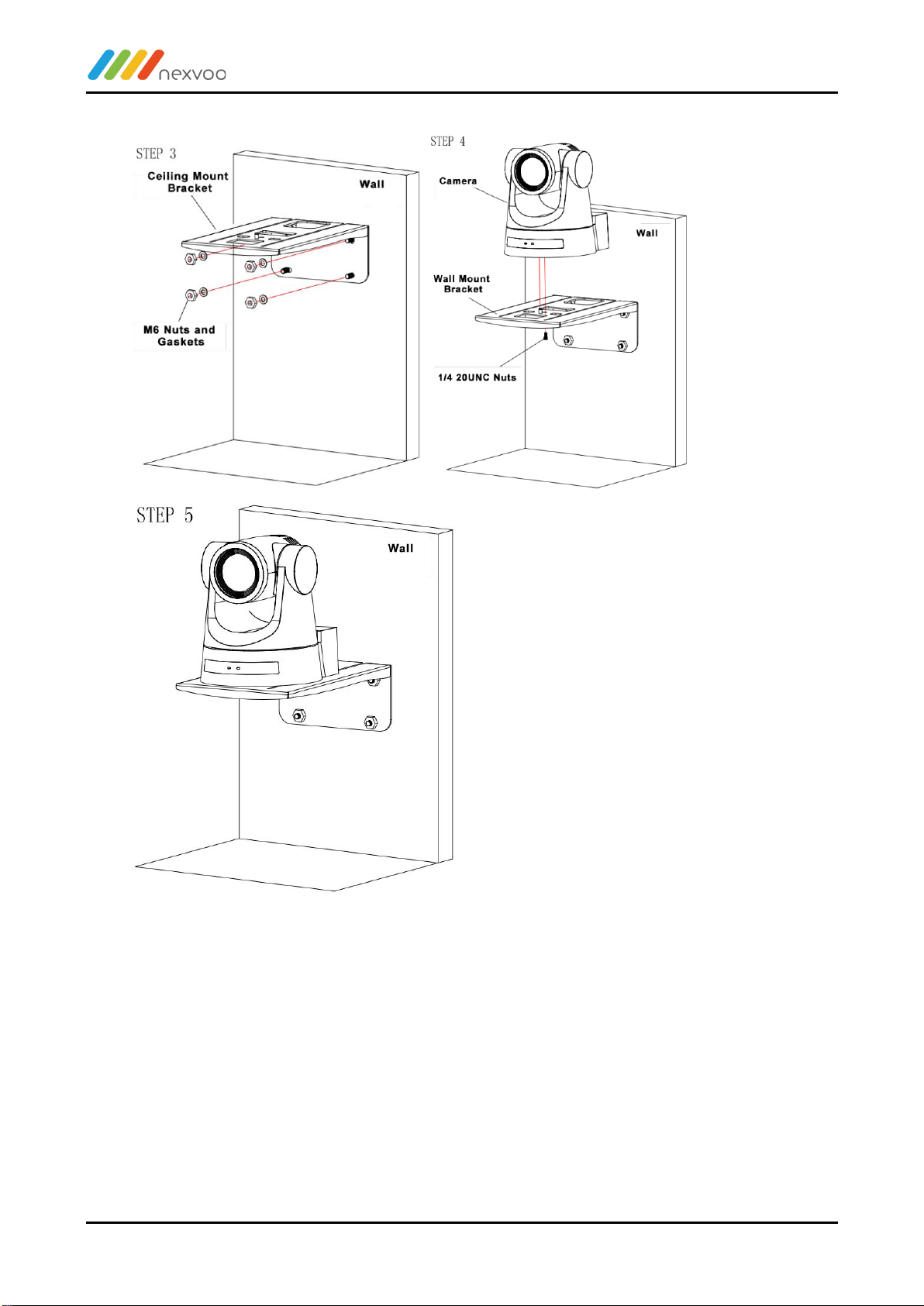
1.4.1 Steps of Wall Mount

User Manual
4
Figure1-2 Steps of Wall Mount
1.4.2 Steps of Ceiling Mount
Table des matières
Autres manuels Nexvoo Caméra de sécurité