
Netkrom W24-AP11H Manuel utilisateur

Date of Issue: April, 02, 2001

FCC Information
This equipment has been tested and found to comply with the limits for a Class A digital devices
pursuant to part 15 of the FCC Rules. These limits are designed to provide reasonable protection
against harmful interference when the equipment is operated in a commercial environment.
This equipment generates, uses, and can radiate radio frequency energy and, if not installed and
used in accordance with the instruction manual, may cause harmful interference to radio
communication.
Operation of this equipment in residential area is likely to cause harmful interference in which
case the user will be required to correct the interference at this own expense.
The user should not modify or change this equipment without written approval from company
name. Modification could void authority to use this equipment.
For the safety reason, people should not work in a situation which RF Exposure limits be
exceeded. To prevent the situation happening, people who work with the antenna should be
aware of the following rules:
1. Install the antenna in a location where a distance of 20 cm from the antenna may be
maintained.
2. While installing the antenna in the location, please do not turn on the power of wireless card.
3. While the device is working, please do not contact the antenna.

Copyright
Copyright © 2000 all rights reserved. No part of this publication may be reproduced,
adapted, stored in a retrieval system, translated into any language, or transmitted in any
form or by any means without the written permission of the supplier.
About This Manual
The purpose of this manual is for the setup of the 11Mbps Wireless LAN Inter-Building
Access Point. This manual, revised as version 2.5.0 in 2001, includes procedures assisting
you in avoiding unforeseen problems.

Table of Contents
Chapter 1 Introduction.......................................................................1
1-1 Features and Benefits ................................................................................ 1
1-2 Applications .............................................................................................. 2
1-2 Applications .............................................................................................. 2
1-3 System Configurations............................................................................... 3
Chapter 2 Hardware Installation.......................................................4
2-1 Product Kit................................................................................................ 4
2-2 System Requirements................................................................................. 4
2-3 Mechanical Description............................................................................. 5
2-4 Hardware Installation ............................................................................... 6
Chapter 3 Configuring the Inter-Building Access Point....................7
3-1 Using the Inter-Building Access Point Utility ............................................ 7
3-2 Using the Web Management .................................................................... 17
3-3 Using the Telnet ...................................................................................... 22
Chapter 4 Troubleshooting ............................................................... 29
Appendix A Network Configuration................................................. 31
A-1 Network Topology................................................................................... 31
Appendix B Specifications................................................................34
Appendix C Glossary.........................................................................35

-1-
Chapter 1 Introduction
The next-generation wireless LAN device – 11Mbps Wireless Inter-building Access Point, are
specially designed for Point-to-Point and Point-to-Multipoint applications, offering campus-
wide connections between buildings at a speed of up to 11Mbps. Fully compliant with
IEEE802.11b standard, the Wireless Inter-building Access Point provides powerful features
such as the Windows-based configuration utility, MAC address filtering, WEP security and
more.
1-1 Features and Benefits
nCreates a Point-to-Point connection linking two LANs, using 2 Inter-Building Access
Point.
nCreates a Point-to-Multipoints system using three or more Inter-Building Access Point.
nDetachable antenna allows you for the use of external high gain antenna.
nWith a data rate of 11Mbps and 5.5Mbps, the system is faster than an E1/T1 data link.
nFeatures 11Mbps data rate by incorporating Direct Sequence Spread Spectrum
technology.
nFully IEEE 802.11b compatible. Allow inter-operation among multiple vendors.
nTechnique operating in the unlicensed 2.4Ghz ISM band.
nSeamless roaming within the 802.11 & 802.11b wireless LAN infrastructure.
nProvides user authentication to enforce tight security.
nMAC address control.
nHighly efficient antenna provides a range of operation up to 800 feet in free space.
nEasy to install and friendly to user, just plug and play!
nProvides Window-based configuration utility.
nTight design with light weight, compact size, and low power consumption.

-2-
1-2 Applications
The 11Mbps Wireless LAN products offer a fast, reliable, cost-effective solution for wireless
client access to the network in applications like these:
1. Remote Access to Corporate Network Information
E-mail, file transfer and terminal emulation.
2. Difficult-to-Wire Environments
Historical or old buildings, asbestos installations, and open area where wiring is difficult
to deploy.
3. Frequently Changing Environments
Retailers, manufacturers and those who frequently rearrange the workplace and change
location.
4. Temporary LANs for Special Projects or Peak Time
C1- Trade shows, exhibitions and construction sites where a temporary network will be
practical. C2- Retailers, airline and shipping companies need additional workstations
during peak period. C3- Auditors requiring workgroups at customer sites.
5. Access to Database for Mobile Workers
Doctors, nurses, retailers, accessing their database while being mobile in the hospital,
retail store or office campus.
6. SOHO (Small Office and Home Office) Users
SOHO users need easy and quick installation of a small computer network.
7. High Security Connection
The secure wireless network can be installed quickly and provide flexibility. (Please
refer to page 14 for more information on encryption configuration.)

-3-
1-3 System Configurations
The 11Mbp Wireless Inter-Building Access Point can be configured in a variety of network
system configurations.
Wireless Infrastructure
In a wireless infrastructure, the Inter-Building Access Point acts as a bridge. The Inter-
Building Access Point connects the wireless clients together. The Inter-Building Access Point
acts as a center point for all wireless communications. This would increase efficiency of the
communications since the wireless adapters do not need to be within direct range of each
other.
Wireless Infrastructure with Stations Attaching to a Wired LAN
The 11Mbps Wireless LAN Inter-Building Access Point will provide an access to the local
LAN. An integration of wireless and wired LAN is called an Infrastructure configuration. A
group of wireless LAN PC users and an Inter-Building Access Point construct a Basic Service
Set (BSS). Each wireless PC in this BSS can talk to each other on your network via the Inter-
Building Access Point.

-4-
Chapter 2 Hardware Installation
This chapter describes initial setup of the Inter-Building Access Point.
2-1 Product Kit
Before installation, make sure that you the following items:
uThe 11Mbps Wireless LAN Inter-Building Access Point…………………..x 1
uQuick Start Guide ……………………………….…………………………...x 1
uPower Adapter……………………………………………..………………….x 1
uProduct CD …………………………………………………………………x 1
If any of the above items are not included or damaged, please contact your local dealer for
support.
2-2 System Requirements
Installation of the 11Mbps Wireless LAN Inter-Building Access Point requires:
1. An AC power outlet (100~240V, 50~60Hz) which supplies the power for the Inter-
Building Access Point.
2. A 10/100 Base-T (UTP) Ethernet cable drop.
-5-
2-3 Mechanical Description
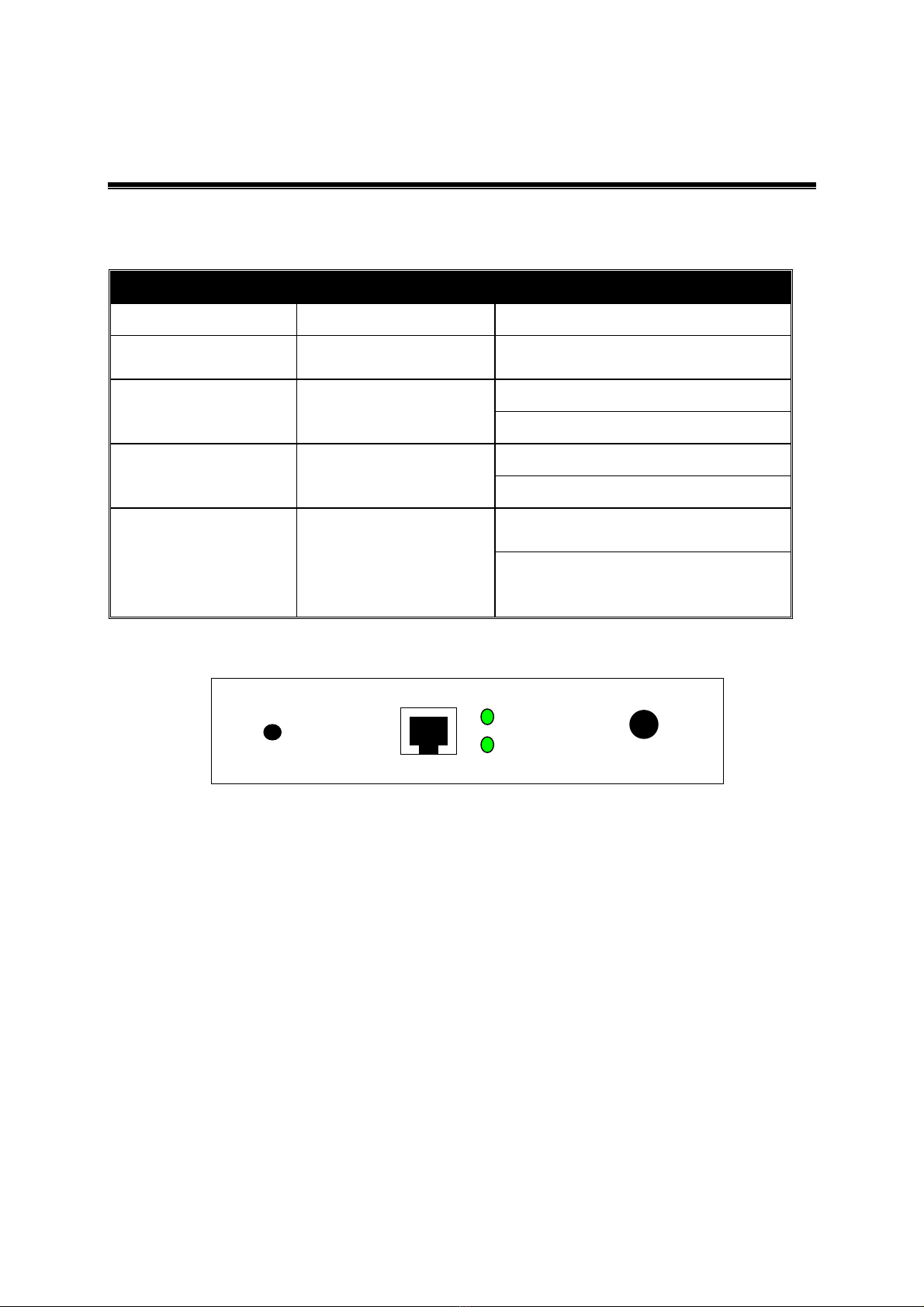
Top panel of the Inter-Building Access Point:
The following table provides an overview of each LED activity:
LED Definition
Activity
Description
PWR
Continuous Green
Power enabled
AP
Continuous Green
The Inter-Building Access Point is
ready in service.
Off: No wireless activity
WLAN
Flashing Green
Flashing: Wireless RX/TX activity
Off: No Ethernet traffic activity
LAN
Flashing Green
Flashing: Wired LAN traffic activity
Off: no station connected to the Inter-
Building Access Point
LINK
Continuous Green
On: with one or more stations
associated to the Inter-Building
Access Point
Back panel of the Inter-Building Access Point:
Power Socket
The power adapter plugs into the socket labeled “POWER”.
Ethernet Ports
The 11Mbps Wireless LAN Inter-Building Access Point supports an Ethernet ports: RJ-45
MDI daisy-chain port (labeled “MDI”). You may connect the Inter-Building Access Point
either to a hub or a PC. Please note that, use the cross-over cable when you desire to connect
the Access Point to a PC. The two LEDs (10/100/Link) next to the Ethernet ports indicate the
Ethernet physical link status. The ‘Link’ LED is a good indicator for to see if you have
proper Ethernet connection.
Default
NOTE: The button labeled “DEFAULT” enables you to restore the Access Point’s default
setting. This is used when you forget the password. Please detach the DC power plug and
press the “DEFAULT” button on the back panel of the Access Point. Reconnect the power
and keep holding the button in for a few seconds until the “AP” LED indicator blinks. This
will restore the Access Point’s default settings and enable you to configure the Access Point
via utility, telnet or Web again.
DC 12V
MDI
LINK
10/100
DEFAULT

-6-
2-4 Hardware Installation
Take the following steps to set up your Inter-Building Access Point.
nSite Selection
Before installation, determine the Inter-Building Access Point location. Proper placement
of the Inter-Building Access Point is critical to ensure optimum radio range and
performance. You may use the Site Survey and Access Points Browser utility (The
utilities came with the wireless PC Card) to choose a proper placement for your Inter-
Building Access Point. Typically, the best location to place your Inter-Building Access
Point at your site is the center of your wireless coverage area. Try to place your mobile
stations within the line of sight. Obstructions may impede performance of the Inter-
Building Access Point.
nConnect the Ethernet Cable
The 11Mbps Wireless LAN Inter-Building Access Point supports 10/100M Ethernet
connection. Attach your UTP Ethernet cable to the RJ-45 connector on the Inter-Building
Access Point. Then connect the other end of the RJ-45 cable to a hub or a station. Please
note that, use the cross-over cable when you desire to connect the Access Point to a PC.
nConnect the Power Cable
Connect the power adapter to the power socket on the Inter-Building Access Point, and
plug the other end of the power into an electrical outlet. The Inter-Building Access Point
will be powered on and all five indicators on the top panel will flash in sequence to test
the functionality of the indicators.
NOTE: ONL Y use the power adapter supplied with the Inter -Building Access Point .
Otherwise, the product may be damaged.
Table des matières
Autres manuels Netkrom Point d'accès sans fil


Manuels Point d'accès sans fil populaires d'autres marques

D-Link
D-Link DWL-2100AP - AirPlus Xtreme G Manuel utilisateur

Ubiquiti
Ubiquiti NanoStation NSM2 Manuel utilisateur

Cisco
Cisco Aironet 1550 Series Manuel utilisateur

Aruba
Aruba IAP-335 Manuel utilisateur

Advantek Networks
Advantek Networks AWN-AP-54MR Manuel utilisateur

IP-COM
IP-COM AP355 Manuel utilisateur


